

Add the search widget to a web page
This page describes how to add search functionality to a website using thesearch widget.
Before you begin
Before you add a search widget to your web page, be sure to configure yoursearch widget, starting withConfigure results for the searchwidget. Note that it's not possible to adjust thestyling of the search widget in your web page.
Procedures
The procedure for adding the search widget to your web page differs depending onthe authorization type you choose:
Authorization token: The widget uses a JWT or OAuth token provided byyour codebase. You must have your own server that you can use to generate atoken. The auth token is used to make an API call on behalf of the user orservice account. When generating the auth token, use the OAuth scope
https://www.googleapis.com/auth/cloud-platform.For server-to-server interactions with service accounts: SeeUsing OAuth2.0 for Server to ServerApplicationsin the authorization documentation.
For JavaScript web applications: SeeOAuth 2.0 for Client-side WebApplicationsin the authorization documentation.
Public access: The widget won't restrict who can get results from asearch query.
Add a widget that uses an authorization token
In the Google Cloud console, go to theAI Applications page.
Click the name of the app that you want to edit.
ClickIntegration.
Click theWidget tab.
SelectJWT or OAuth based as the widget authorization type.
Specify the domain name for the widget page:
Enter the domain name for the page where the widget will appear.
For example, if you are going to copy the widget to the pages
example.com/ai.htmlandcymbal.example.com/search.html, enterexample.comas the domain. If you only want the widget to work on a pagein the subdomain, entercymbal.example.com.If you want to test the widget on your localhost, enter
localhost.ClickAdd.
Repeat step 6 for each domain where the widget will appear.
ClickSave.
Copy the code snippet provided in theCopy the following code to yourweb application section.
Optional: Make the following changes to customize the search widgetbehavior:
To open the results from the web in new tabs instead, add the followingto the copied code snippet. By default, results from unstructureddocuments open in new tabs, while results from the web open in the samepage as the widget.
anchorsTarget="_blank"For example:
<gen-search-widget configId="..." anchorsTarget="_blank"></gen-search-widget>To customize the placeholder text inside the search bar, add the followingto the copied code snippet:
placeholder="CUSTOM_PLACEHOLDER"For example:
<gen-search-widget configId="..." placeholder="Start your search here"></gen-search-widget>To always show the widget without a trigger, add the followingto the copied code snippet:
alwaysOpenedFor example:
<gen-search-widget alwaysOpened></gen-search-widget>
In your codebase, generate an authorization token.
Note: If you selected a workforce pool to control access to your app's data,thenobtain short-lived tokens for workforce identity federation.To pass the authorization token to your widget, use the second code snippet,"
// Set authorization token", provided in theCopy the following codeto your web application section and replace the text<JWT or OAuth tokenprovided by you backend>with your authorization token.Periodically set a fresh token by repeating the previous step before thecurrent token expires.
Add a widget that has public access
Note: If your organization requires VPC Service Controls enforcement to protectdata, then don't use public access for widget authorization.In the Google Cloud console, go to theAI Applications page.
Click the name of the app that you want to edit.
For public access, make sure that the search app isn't associated with anydata store underaccess control.
ClickIntegration.
Click theWidget tab.
SelectPublic Access as the widget authorization type.
Specify the domain name for the widget page:
Enter the domain name for the page where the widget will appear.
For example, if you are going to copy the widget to the pages
example.com/ai.htmlandcymbal.example.com/search.html, enterexample.comas the domain. If you only want the widget to work on pagesin the subdomain, entercymbal.example.com.If you want to test the widget on your localhost, enter
localhost.ClickAdd.
Repeat step 6 for each domain where the widget will appear.
ClickSave.
Copy the code snippet provided in theCopy the following code to yourweb application section.
Optional: Make the following changes to customize the search widgetbehavior:
To open the results from the web in new tabs instead, add the followingto the copied code snippet. By default, results from unstructureddocuments open in new tabs, while results from the web open in the samepage as the widget.
anchorsTarget="_blank"For example:
<gen-search-widget configId="..." anchorsTarget="_blank"></gen-search-widget>To customize the placeholder text inside the search bar, add the followingto the copied code snippet:
placeholder="CUSTOM_PLACEHOLDER"For example:
<gen-search-widget configId="..." placeholder="Start your search here"></gen-search-widget>To always show the widget without a trigger, add the followingto the copied code snippet:
<gen-search-widget alwaysOpened></gen-search-widget>
Paste the code snippet into your web page.
Example of an embedded public-access widget
To see a search widget embedded in a public webpage, seeTry Vertex AI Search.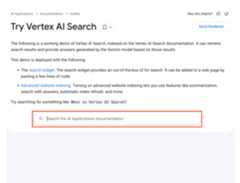
This search widget works with the following configuration:
<gen-search-widget configId="123456" anchorsTarget="_blank" placeholder="Search the Vertex AI Search documentation" alwaysOpened> </gen-search-widget>Except as otherwise noted, the content of this page is licensed under theCreative Commons Attribution 4.0 License, and code samples are licensed under theApache 2.0 License. For details, see theGoogle Developers Site Policies. Java is a registered trademark of Oracle and/or its affiliates.
Last updated 2025-12-15 UTC.