Use the JupyterLab extension to develop serverless Spark workloads Stay organized with collections Save and categorize content based on your preferences.
This document describes how to install and use the JupyterLabextension on a machine or self-managed VM that has access to Google services. Italso describes how to develop and deploy serverless Spark notebook code.
Install the extension within minutes to take advantage of the following features:
Launch serverless Spark & BigQuery notebooks to develop code quickly
Browse and preview BigQuery datasets in JupyterLab
Sign in to your Google Cloud account. If you're new to Google Cloud, create an account to evaluate how our products perform in real-world scenarios. New customers also get $300 in free credits to run, test, and deploy workloads.
In the Google Cloud console, on the project selector page, select or create a Google Cloud project.
Roles required to select or create a project
Select a project: Selecting a project doesn't require a specific IAM role—you can select any project that you've been granted a role on.
Create a project: To create a project, you need the Project Creator role (roles/resourcemanager.projectCreator), which contains theresourcemanager.projects.create permission.Learn how to grant roles.
To enable APIs, you need the Service Usage Admin IAM role (roles/serviceusage.serviceUsageAdmin), which contains theserviceusage.services.enable permission.Learn how to grant roles.
Toinitialize the gcloud CLI, run the following command:
gcloudinit
In the Google Cloud console, on the project selector page, select or create a Google Cloud project.
Roles required to select or create a project
Select a project: Selecting a project doesn't require a specific IAM role—you can select any project that you've been granted a role on.
Create a project: To create a project, you need the Project Creator role (roles/resourcemanager.projectCreator), which contains theresourcemanager.projects.create permission.Learn how to grant roles.
To enable APIs, you need the Service Usage Admin IAM role (roles/serviceusage.serviceUsageAdmin), which contains theserviceusage.services.enable permission.Learn how to grant roles.
You can install and use the JupyterLab extension on amachine or VM that has access to Google services, such as your local machine oraCompute Engine VM instance.
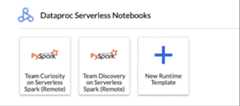
The JupyterLabLauncher page opens in your browser. It containsaDataproc Jobs and Sessions section. It can also containServerless for Apache Spark Notebooks andDataproc Cluster Notebooks sectionsif you have access to Dataproc serverless notebooks or Dataproc clusterswith theJupyter optional componentrunning in your project.
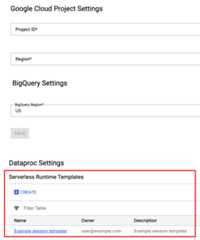
By default, your Serverless for Apache Spark Interactive session runsin the project and region you set when you rangcloud init inBefore you begin. You can change the project andregion settings for your sessions fromJupyterLabSettings > Google Cloud Settings > Google Cloud Project Settings.
You must restart the extension for the changes to take effect.
Create a Serverless for Apache Spark runtime template
Serverless for Apache Spark runtime templates (also called session templates)contain configuration settings for executing Spark code in a session. You cancreate and manage runtime templates using Jupyterlab or the gcloud CLI.
JupyterLab
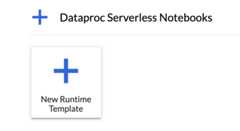
Click theNew runtime template card in theServerless for Apache Spark Notebookssection on the JupyterLabLauncher page.
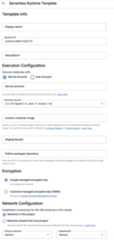
Fill in theRuntime template form.
Template Info:
Display name,Runtime ID, andDescription: Accept or filla template display name, template runtime ID, and template description.
Execution Configuration: SelectUser Account to execute notebookswith the user identity instead of the Dataproc service account identity.
Staging Bucket: You can optionally specify the name of a Cloud Storagestaging bucket for use byServerless for Apache Spark.
Python packages repository: By default, Python packages aredownloaded and installed from the PyPI pull-through cachewhen users executepip install commands intheir notebooks. You can specify your organization's private artifactsrepository for Python packages to use as the default Python packagesrepository.
Encryption: Accept the defaultGoogle-owned and Google-managed encryption key or selectCustomer-managed encryption key (CMEK).If CMEK, select of provide the key information.
Network Configuration: Select asubnetworkin the project or shared from a host project (you can change the projectfrom JupyterLabSettings > Google Cloud Settings > Google Cloud Project Settings.You can specifynetwork tagsto apply to the specified network. Note that Serverless for Apache SparkenablesPrivate Google Access (PGA) on thespecified subnet. For network connectivity requirements, seeGoogle Cloud Serverless for Apache Spark network configuration.
Session Configuration: You can optionally fill in these fields tolimit the duration of sessions created with the template.
Max idle time: The maximum idle time before the session isterminated. Allowable range: 10 minutes to 336 hours (14 days).
Max session time: The maximum lifetime of a session before thesession is terminated. Allowable range: 10 minutes to 336 hours (14 days).
Metastore: To use aDataproc Metastore servicewith your sessions, select the metastore project ID and service.
Spark properties: You can select then add SparkResource Allocation,Autoscaling, orGPU properties. ClickAdd Property to addother Spark properties. For more information, seeSpark properties.
Labels: ClickAdd Label for eachlabel to set on sessions created withthe template.
ClickSave to create the template.
To view or delete a runtime template.
ClickSettings > Google Cloud Settings.
TheDataproc Settings > Serverless Runtime Templatessection displays the list of runtime templates.
Click a template name to view template details.
You can delete a template from theAction menu for the template.
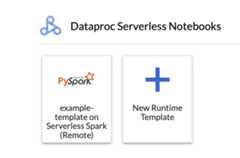
Open and reload the JupyterLabLauncher page to view the saved notebook templatecard on the JupyterLabLauncher page.
gcloud
Create a YAML file with your runtime template configuration.
Simple YAML
environmentConfig: executionConfig: networkUri: defaultjupyterSession: kernel: PYTHON displayName: Team Alabels: purpose: testingdescription: Team A Development Environment
Complex YAML
description: Example session templateenvironmentConfig: executionConfig: serviceAccount: sa1 # Choose either networkUri or subnetworkUri networkUri: subnetworkUri: default networkTags: - tag1 kmsKey: key1 idleTtl: 3600s ttl: 14400s stagingBucket: staging-bucket peripheralsConfig: metastoreService: projects/my-project-id/locations/us-central1/services/my-metastore-id sparkHistoryServerConfig: dataprocCluster: projects/my-project-id/regions/us-central1/clusters/my-cluster-idjupyterSession: kernel: PYTHON displayName: Team Alabels: purpose: testingruntimeConfig: version: "2.3" containerImage: gcr.io/my-project-id/my-image:1.0.1 properties: "p1": "v1"description: Team A Development Environment
Launch a Jupyter notebook on Serverless for Apache Spark
TheServerless for Apache Spark Notebooks sectionon the JupyterLab Launcher page displays notebook templatecards that map to Serverless for Apache Spark runtime templates (seeCreate a Serverless for Apache Spark runtime template).
Click a card to create a Serverless for Apache Spark session andlaunch a notebook. When session creation is complete and the notebookkernel is ready to use, the kernel status changesfromStarting toIdle (Ready).
Write and test notebook code.
Copy and paste the following PySparkPi estimation codein the PySpark notebook cell, then pressShift+Return torun the code.
importrandomdefinside(p):x,y=random.random(),random.random()returnx*x+y*y <1count=sc.parallelize(range(0,10000)).filter(inside).count()print("Pi is roughly%f"%(4.0*count/10000))
Notebook result:
After creating and using a notebook, you can terminate the notebook sessionby clickingShut Down Kernel from theKernel tab.
To reuse the session, create a new notebook by choosingNotebook from theFile>>New menu. After the new notebook is created, choose the existing session from the kernel selection dialog. The new notebook will reuse the session and retain the session context from the previous notebook.
If you don't terminate the session, Dataproc terminates the sessionwhen the session idle timer expires. You can configure the sessionidle time in theruntime template configuration.The default session idle time is one hour.
Launch a notebook on a Dataproc on Compute Engine cluster
To launch a Jupyter notebook on your Dataproc onCompute Engine cluster:
Click a card in theDataproc Cluster Notebook section.
When the kernel status changes fromStarting toIdle (Ready), you canstart writing and executing notebook code.
After creating and using a notebook, you can terminate the notebook sessionby clickingShut Down Kernel from theKernel tab.
Manage input and output files in Cloud Storage
Analyzing exploratory data and building ML models often involvesfile-based inputs and outputs. Serverless for Apache Spark accesses these fileson Cloud Storage.
To access the Cloud Storage browser, click the Cloud Storage browsericon in the JupyterLabLauncher page sidebar, then double-click afolder to view its contents.
You can click Jupyter-supported file types to open and edit them. When yousave changes to the files, they are written to Cloud Storage.
To create a new Cloud Storage folder, click the new folder icon,then enter the name of the folder.
To upload files into a Cloud Storage bucket or a folder, clickthe upload icon, then select the files to upload.
Spark SQL magic: Since the PySpark kernel that launchesServerless for Apache Spark Notebooksis preloaded with Spark SQL magic, instead of usingspark.sql('SQL STATEMENT').show()to wrap your SQL statement, you can type%%sparksql magic at the top of a cell, then type your SQL statement in the cell.
BigQuery SQL: The BigQuery Spark connector allows yournotebook code to load data from BigQuery tables, perform analysisin Spark, and then write the results to a BigQuery table.
Dataproc on Compute Engine clusters created with imageversions2.0 and later includeApache Toree,a Scala kernel for the Jupyter Notebook platform that provides interactive accessto Spark.
Click the Apache Toree card in theDataproc cluster Notebooksection on the JupyterLabLauncher page to open a notebook for Scalacode development.
Figure 1. Apache Toree kernel card in the JupyterLab Launcher page.
Develop code with the Visual Studio Code extension
Develop and run Spark code in Serverless for Apache Spark notebooks.
Create and manage Serverless for Apache Spark runtime (session) templates,interactive sessions, and batch workloads.
The Visual Studio Code extension is free, but you are charged for anyGoogle Cloud services, including Dataproc,Serverless for Apache Spark and Cloud Storage resources that you use.
Open VS Code, and then in the activity bar, clickExtensions.
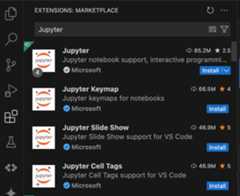
Using the search bar, find theJupyter extension, and then clickInstall. The Jupyter extension by Microsoft is a required dependency.
Install the Google Cloud extension
Open VS Code, and then in the activity bar, clickExtensions.
Using the search bar, find theGoogle Cloud Code extension, and thenclickInstall.
If prompted, restart VS Code.
TheGoogle Cloud Code icon is now visible in theVS Codeactivity bar.
Configure the extension
Open VS Code, and then in the activity bar, clickGoogle Cloud Code.
Open theDataproc section.
ClickLogin to Google Cloud. You are redirected to sign in with yourcredentials.
Use the top-level application taskbar to navigate toCode> Settings> Settings> Extensions.
FindGoogle Cloud Code, and click theManage icon to open the menu.
SelectSettings.
In theProject andDataproc Region fields,enter the name of the Google Cloud project and the regionto use to develop notebooks and manageServerless for Apache Spark resources.
Develop Serverless for Apache Spark notebooks
Open VS Code, and then in the activity bar, clickGoogle Cloud Code.
Open theNotebooks section, then clickNew Serverless Spark Notebook.
Select or create a new runtime (session) template to use for the notebook session.
A new.ipynb file containing sample code is created and opened in the editor.
You can now write and execute code in your Serverless for Apache Spark notebook.
Create and manage Serverless for Apache Spark resources
Open VS Code, and then in the activity bar, clickGoogle Cloud Code.
Open theDataproc section, then click the followingresource names:
Clusters: Create and manage clusters and jobs.
Serverless: Create and manage batch workloads and interactive sessions.
Spark Runtime Templates: Create and manage session templates.
Dataset explorer
Use the JupyterLab Dataset explorer to viewBigLake metastore datasets.
To open the JupyterLab Dataset Explorer, click its icon in the sidebar.
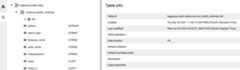
You can search for a database, table, or column in the Dataset explorer.Click a database, table, or column name to view the associated metadata.
Execute your notebook code on the Google Cloud Serverless for Apache Spark infrastructure
Schedule notebook execution on Cloud Composer
Submit batch jobs to the Google Cloud Serverless for Apache Spark infrastructure or to yourDataproc on Compute Engine cluster.
Schedule notebook execution on Cloud Composer
Complete the following steps to schedule your notebook code on Cloud Composerto run as a batch job on Serverless for Apache Spark or on aDataproc on Compute Engine cluster.
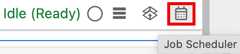
Click theJob Scheduler button on top right of the notebook.
Fill in theCreate A Scheduled Job form to provide the following information:
A unique name for the notebook execution job
The Cloud Composer environment to use to deploy the notebook
Input parameters if the notebook is parameterized
The Dataproc cluster or serverless runtime template to userun the notebook
If a cluster is selected, whether to stop the cluster after the notebookfinishes executing on the cluster
Retry count and retry delay in minutes if notebook execution fails onthe first try
Execution notifications to send and the recipient list.Notifications are sent using an Airflow SMTP configuration.
The notebook execution schedule
ClickCreate.
After the notebook is successfully scheduled, the job name appearsin the list of scheduled jobs in the Cloud Composerenvironment.
Submit a batch job to Google Cloud Serverless for Apache Spark
Click theServerless card in theDataproc Jobs and Sessions sectionon the JupyterLabLauncher page.
Click theBatch tab, then clickCreate Batch and fill in theBatch Info fields.
ClickSubmit to submit the job.
Submit a batch job to a Dataproc on Compute Engine cluster
Click theClusters card in theDataproc Jobs and Sessions sectionon the JupyterLabLauncher page.
Click theJobs tab, then clickSubmit Job.
Select aCluster, then fill in theJob fields.
ClickSubmit to submit the job.
View and manage resources
Afterinstalling the Dataproc JupyterLab extension,you can view and manage Google Cloud Serverless for Apache Spark and Dataproc on Compute Enginefrom theDataproc Jobs and Sessions section on the JupyterLabLauncher page.
Click theDataproc Jobs and Sessions section to show theClusters andServerless cards.
To view and manage Google Cloud Serverless for Apache Spark sessions:
Click theServerless card.
Click theSessions tab, then a session ID to open theSession details page to view session properties, view Google Cloud logs in Logs Explorer, and terminate a session. Note: A unique Google Cloud Serverless for Apache Spark session is created to launch each Google Cloud Serverless for Apache Spark notebook.
To view and manage Google Cloud Serverless for Apache Spark batches:
Click theBatches tab to view the list of Google Cloud Serverless for Apache Spark batches in the current project and region. Click a batch ID to view batch details.
To view and manage Dataproc on Compute Engine clusters:
Click theClusters card. TheClusters tab is selected to list active Dataproc on Compute Engine clusters in the current project and region. You can click the icons in theActions column to start, stop, or restart a cluster. Click a cluster name to view cluster details. You can click the icons in theActions column to clone, stop, or delete a job.
To view and manage Dataproc on Compute Engine jobs:
Click theJobs card to view the list of jobs in the current project. Click a job ID to view job details.
[[["Easy to understand","easyToUnderstand","thumb-up"],["Solved my problem","solvedMyProblem","thumb-up"],["Other","otherUp","thumb-up"]],[["Hard to understand","hardToUnderstand","thumb-down"],["Incorrect information or sample code","incorrectInformationOrSampleCode","thumb-down"],["Missing the information/samples I need","missingTheInformationSamplesINeed","thumb-down"],["Other","otherDown","thumb-down"]],["Last updated 2025-12-15 UTC."],[],[]]