

Write and run Spark Scala jobs on Dataproc
This tutorial illustrates different ways to create and submit a Spark Scala job to aDataproc cluster, including how to:
- write and compile a Spark Scala "Hello World" app on a local machine from the command line usingtheScala REPL (Read-Evaluate-Print-Loop or interactive interpreter) ortheSBT build tool
- package compiled Scala classes into a jar file with a manifest
- submit the Scala jar to a Spark job that runs on your Dataproc cluster
- examine Scala job output from the Google Cloud console
This tutorial also shows you how to:
write and run a Spark Scala "WordCount" mapreduce job directly on a Dataproccluster using the
spark-shellREPLrun pre-installed Apache Spark and Hadoop examples on a cluster
Set up a Google Cloud Platform project
If you haven't already done so:
Write and compile Scala code locally
As a simple exercise for this tutorial, write a "Hello World" Scala app using theScala REPL ortheSBT command line interfacelocally on your development machine.
Use Scala
- Download the Scala binaries from theScala Install page
Unpack the file, set the
SCALA_HOMEenvironment variable, and add it to your path, asshown in theScala Install instructions. For example:export SCALA_HOME=/usr/local/share/scalaexport PATH=$PATH:$SCALA_HOME/
Launch the Scala REPL
$ scalaWelcome to Scala version ...Type in expressions to have them evaluated.Type :help for more information.scala>
Copy and paste
HelloWorldcode into Scala REPLobjectHelloWorld{defmain(args:Array[String]):Unit={println("Hello, world!")}}
Save
HelloWorld.scalaand exit the REPLscala> :save HelloWorld.scalascala> :q
Compile with
scalac$ scalac HelloWorld.scala
List the compiled
.classfiles$ ls HelloWorld*.classHelloWorld$.class HelloWorld.class
Use SBT
Create a "HelloWorld" project, as shown below
$ mkdir hello$ cd hello$ echo \'object HelloWorld {def main(args: Array[String]) = println("Hello, world!")}' > \HelloWorld.scalaCreate an
sbt.buildconfig file to set theartifactName(the name of thejar file that you will generate, below) to "HelloWorld.jar" (seeModifying default artifacts)echo \'artifactName := { (sv: ScalaVersion, module: ModuleID, artifact: Artifact) =>"HelloWorld.jar" }' > \build.sbtLaunch SBT and run code
$ sbt[info] Set current project to hello ...> run... Compiling 1 Scala source to .../hello/target/scala-.../classes...... Running HelloWorldHello, world![success] Total time: 3 s ...
Package code into ajar file with amanifest that specifies the main class entry point (
HelloWorld), then exit> package... Packaging .../hello/target/scala-.../HelloWorld.jar ...... Done packaging.[success] Total time: ...> exit
Create a jar
Create ajar file withSBT or using thejar command.Download Java? To run thejarcommand, you must have Java SE (Standard Edition) JRE (Java Runtime Environment)installed on your machine—seeJava SE Downloads.
Create a jar with SBT
The SBTpackage command creates a jar file (seeUse SBT).
Create a jar manually
- Change directory (
cd) into the directory that contains your compiledHelloWorld*.classfiles, then run the following command to package the class files into a jar with amanifest that specifies the main class entry point (HelloWorld).$ jar cvfe HelloWorld.jar HelloWorld HelloWorld*.classadded manifestadding: HelloWorld$.class(in = 637) (out= 403)(deflated 36%)adding: HelloWorld.class(in = 586) (out= 482)(deflated 17%)
MANIFEST.MF) shows that itlists theHelloWorldMain-Class entry point:Manifest-Version: ...Created-By: ...Main-Class: HelloWorld
Copy jar to Cloud Storage
- Use the Google Cloud CLI to copy the jar to a Cloud Storagebucket in your project
gs:// prefix. For example,if a project contains a "my-most-unique-bucket-name" bucket, as shown in thefollowingGoogle Cloud console Storage Browserscreenshot,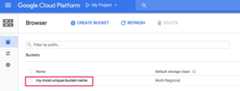
gcloud storage ls gs://my-most-unique-bucket-name
$ gcloud storage cp HelloWorld.jar gs://<bucket-name>/Copying file://HelloWorld.jar [Content-Type=application/java-archive]...Uploading gs://bucket-name/HelloWorld.jar: 1.46 KiB/1.46 KiB
Submit jar to a Dataproc Spark job
Use theGoogle Cloud console to submit the jar file to your Dataproc Spark job. Fill in the fields ontheSubmit a job page as follows:
- Cluster: Select your cluster's name from the cluster list
- Job type: Spark
Main class or jar: Specify the Cloud Storage URI path to your HelloWorld jar (
gs://your-bucket-name/HelloWorld.jar).If your jar does not include a manifest that specifies the entry point to your code ("Main-Class: HelloWorld"), the "Main class or jar" field should state the name of your Main class ("HelloWorld"), and you should fill in the "Jar files" field with the URI path to your jar file (
gs://your-bucket-name/HelloWorld.jar).
ClickSubmit to start the job. Once the job starts, it is added to the Jobslist.
Click the Job ID to open theJobs page, where you can view the job's driver output.
Write and run Spark Scala code using the cluster'sspark-shell REPL
You may want to develop Scala apps directly on your Dataproc cluster. Hadoop and Spark arepre-installed on Dataproc clusters, and they are configured with the Cloud Storageconnector, which allows your code to read and write data directly from and to Cloud Storage.
This example shows you how to SSH into your project's Dataproc cluster master node, then use thespark-shell REPL to create and run a Scala wordcount mapreduce application.
SSH into the Dataproc cluster's master node
Go to your project'sDataprocClusters page in the Google Cloud console, then click on the name of yourcluster.
On the cluster detail page, select theVM Instances tab, then click theSSH selection that appears at the right your cluster's name row.
A browser window opens at your home directory on the master node
Launch the
spark-shell$ spark-shell...Using Scala version ...Type in expressions to have them evaluated.Type :help for more information....Spark context available as sc....SQL context available as sqlContext.scala>
Create anRDD (Resilient Distributed Dataset) from a Shakespeare text snippet located in public Cloud StorageShakespeare text snippet:
What's in a name? That which we call a roseBy any other name would smell as sweet.
scala> val text_file = sc.textFile("gs://pub/shakespeare/rose.txt")Run a wordcount mapreduce on the text, then display the
wordcountsresultscala> val wordCounts = text_file.flatMap(line => line.split(" ")).map(word =>(word, 1)).reduceByKey((a, b) => a + b)scala> wordCounts.collect... Array((call,1), (What's,1), (sweet.,1), (we,1), (as,1), (name?,1), (any,1), (other,1),(rose,1), (smell,1), (name,1), (a,2), (would,1), (in,1), (which,1), (That,1), (By,1))Save the counts in
<bucket-name>/wordcounts-outin Cloud Storage, then exit thescala-shellscala> wordCounts.saveAsTextFile("gs://<bucket-name>/wordcounts-out/")scala> exitUse the gcloud CLI to list the output files and display the file contents
$ gcloud storage ls gs://bucket-name/wordcounts-out/gs://spark-scala-demo-bucket/wordcounts-out/gs://spark-scala-demo-bucket/wordcounts-out/_SUCCESSgs://spark-scala-demo-bucket/wordcounts-out/part-00000gs://spark-scala-demo-bucket/wordcounts-out/part-00001
Check
gs://<bucket-name>/wordcounts-out/part-00000contents$ gcloud storage cat gs://bucket-name/wordcounts-out/part-00000(call,1)(What's,1)(sweet.,1)(we,1)(as,1)(name?,1)(any,1)(other,1)
Running Pre-Installed Example code
The Dataproc master node contains runnable jar files with standard Apache Hadoop and Sparkexamples.
| Jar Type | Master node /usr/lib/ location | GitHub Source | Apache Docs |
|---|---|---|---|
| Hadoop | hadoop-mapreduce/hadoop-mapreduce-examples.jar | source link | MapReduce Tutorial |
| Spark | spark/lib/spark-examples.jar | source link | Spark Examples |
Submitting examples to your cluster from the command line
Examples can be submitted from your local development machine using the Google Cloud CLIgcloudcommand-line tool (seeUsing the Google Cloud console to submit jobs from the Google Cloud console).
Hadoop WordCount example
gcloud dataproc jobs submit hadoop --cluster=cluster-name \ --region=region \ --jars=file:///usr/lib/hadoop-mapreduce/hadoop-mapreduce-examples.jar \ --class=org.apache.hadoop.examples.WordCount \ --URI of input fileURI of output file
Spark WordCount example
gcloud dataproc jobs submit spark --cluster=cluster-name \ --region=region \ --jars=file:///usr/lib/spark/examples/jars/spark-examples.jar \ --class=org.apache.spark.examples.JavaWordCount \ --URI of input file
Shutdown your cluster
To avoid ongoing charges, shutdown your cluster and delete the Cloud Storage resources (CloudStorage bucket and files) used for this tutorial.
To shutdown a cluster:
gcloud dataproc clusters deletecluster-name \ --region=region
To delete the Cloud Storage jar file:
gcloud storage rm gs://bucket-name/HelloWorld.jar
You can delete a bucket and all of its folders and files with the following command:
gcloud storage rm gs://bucket-name/ --recursive
What's next
Except as otherwise noted, the content of this page is licensed under theCreative Commons Attribution 4.0 License, and code samples are licensed under theApache 2.0 License. For details, see theGoogle Developers Site Policies. Java is a registered trademark of Oracle and/or its affiliates.
Last updated 2025-12-15 UTC.