

Use Apache Spark with HBase on Dataproc
Objectives
This tutorial shows you how to:
- Create a Dataproc cluster, installing Apache HBase andApache ZooKeeper on the cluster
- Create an HBase table using the HBase shell running on the master node ofthe Dataproc cluster
- Use Cloud Shell to submit a Java or PySpark Spark job to theDataproc service that writes data to, then readsdata from, the HBase table
Costs
In this document, you use the following billable components of Google Cloud:
To generate a cost estimate based on your projected usage, use thepricing calculator.
Before you begin
If you haven't already done so, create a Google Cloud Platform project.
- Sign in to your Google Cloud account. If you're new to Google Cloud, create an account to evaluate how our products perform in real-world scenarios. New customers also get $300 in free credits to run, test, and deploy workloads.
In the Google Cloud console, on the project selector page, select or create a Google Cloud project.
Roles required to select or create a project
- Select a project: Selecting a project doesn't require a specific IAM role—you can select any project that you've been granted a role on.
- Create a project: To create a project, you need the Project Creator role (
roles/resourcemanager.projectCreator), which contains theresourcemanager.projects.createpermission.Learn how to grant roles.
Verify that billing is enabled for your Google Cloud project.
Enable the Dataproc and Compute Engine APIs.
Roles required to enable APIs
To enable APIs, you need the Service Usage Admin IAM role (
roles/serviceusage.serviceUsageAdmin), which contains theserviceusage.services.enablepermission.Learn how to grant roles.In the Google Cloud console, on the project selector page, select or create a Google Cloud project.
Roles required to select or create a project
- Select a project: Selecting a project doesn't require a specific IAM role—you can select any project that you've been granted a role on.
- Create a project: To create a project, you need the Project Creator role (
roles/resourcemanager.projectCreator), which contains theresourcemanager.projects.createpermission.Learn how to grant roles.
Verify that billing is enabled for your Google Cloud project.
Enable the Dataproc and Compute Engine APIs.
Roles required to enable APIs
To enable APIs, you need the Service Usage Admin IAM role (
roles/serviceusage.serviceUsageAdmin), which contains theserviceusage.services.enablepermission.Learn how to grant roles.
Create a Dataproc cluster
Run the following command in aCloud Shell session terminal to:
- Install theHBase andZooKeeper components
- Provision three worker nodes (three to five workers are recommended torun the code in this tutorial)
- Enable theComponent Gateway
- Use image version 2.0
- Use the
--propertiesflag to add the HBase config and HBase library tothe Spark driver and executor classpaths.
gcloud dataproc clusters createcluster-name \ --region=region \ --optional-components=HBASE,ZOOKEEPER \ --num-workers=3 \ --enable-component-gateway \ --image-version=2.0 \ --properties='spark:spark.driver.extraClassPath=/etc/hbase/conf:/usr/lib/hbase/*,spark:spark.executor.extraClassPath=/etc/hbase/conf:/usr/lib/hbase/*'
Verify connector installation
From the Google Cloud console or a Cloud Shell session terminal,SSH into the Dataproc cluster master node.
Verify the installation of theApache HBase Spark connector on the master node:
ls -l /usr/lib/spark/jars | grep hbase-spark
-rw-r--r-- 1 root rootsize date time hbase-spark-connector.version.jar
Keep the SSH session terminal open to:
- Create an HBase table
- (Java users):run commands on the masternode of the cluster to determine the versions of components installed onthe cluster
- Scan your Hbase table after yourun the code
Create an HBase table
Run the commands listed in this section in the master node SSH sessionterminal that you opened in the previous step.
Open the HBase shell:
hbase shell
Create an HBase 'my-table' with a 'cf' column family:
create 'my_table','cf'
- To confirm table creation, in the Google Cloud console, clickHBasein theGoogle Cloud console Component Gateway links to open the Apache HBase UI.
my-tableis listed in theTables section on theHome page.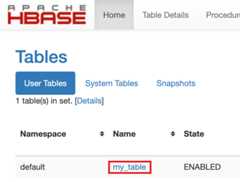
- To confirm table creation, in the Google Cloud console, clickHBasein theGoogle Cloud console Component Gateway links to open the Apache HBase UI.
View the Spark code
Java
packagehbase;importorg.apache.hadoop.hbase.spark.datasources.HBaseTableCatalog;importorg.apache.spark.sql.Dataset;importorg.apache.spark.sql.Row;importorg.apache.spark.sql.SparkSession;importjava.io.Serializable;importjava.util.Arrays;importjava.util.HashMap;importjava.util.Map;publicclassSparkHBaseMain{publicstaticclassSampleDataimplementsSerializable{privateStringkey;privateStringname;publicSampleData(Stringkey,Stringname){this.key=key;this.name=name;}publicSampleData(){}publicStringgetName(){returnname;}publicvoidsetName(Stringname){this.name=name;}publicStringgetKey(){returnkey;}publicvoidsetKey(Stringkey){this.key=key;}}publicstaticvoidmain(String[]args){// Init SparkSessionSparkSessionspark=SparkSession.builder().master("yarn").appName("spark-hbase-tutorial").getOrCreate();// Data SchemaStringcatalog="{"+"\"table\":{\"namespace\":\"default\", \"name\":\"my_table\"},"+"\"rowkey\":\"key\","+"\"columns\":{"+"\"key\":{\"cf\":\"rowkey\", \"col\":\"key\", \"type\":\"string\"},"+"\"name\":{\"cf\":\"cf\", \"col\":\"name\", \"type\":\"string\"}"+"}"+"}";Map<String,String>optionsMap=newHashMap<String,String>();optionsMap.put(HBaseTableCatalog.tableCatalog(),catalog);Dataset<Row>ds=spark.createDataFrame(Arrays.asList(newSampleData("key1","foo"),newSampleData("key2","bar")),SampleData.class);// Write to HBaseds.write().format("org.apache.hadoop.hbase.spark").options(optionsMap).option("hbase.spark.use.hbasecontext","false").mode("overwrite").save();// Read from HBaseDatasetdataset=spark.read().format("org.apache.hadoop.hbase.spark").options(optionsMap).option("hbase.spark.use.hbasecontext","false").load();dataset.show();}}Python
frompyspark.sqlimportSparkSession# Initialize Spark Sessionspark=SparkSession \.builder \.master('yarn') \.appName('spark-hbase-tutorial') \.getOrCreate()data_source_format=''# Create some test datadf=spark.createDataFrame([("key1","foo"),("key2","bar"),],["key","name"])# Define the schema for catalogcatalog=''.join("""{ "table":{"namespace":"default", "name":"my_table"}, "rowkey":"key", "columns":{ "key":{"cf":"rowkey", "col":"key", "type":"string"}, "name":{"cf":"cf", "col":"name", "type":"string"} }}""".split())# Write to HBasedf.write.format('org.apache.hadoop.hbase.spark').options(catalog=catalog).option("hbase.spark.use.hbasecontext","false").mode("overwrite").save()# Read from HBaseresult=spark.read.format('org.apache.hadoop.hbase.spark').options(catalog=catalog).option("hbase.spark.use.hbasecontext","false").load()result.show()Run the code
Open aCloud Shell session terminal.
Note: Run the commands listed in this section in aCloud Shell session terminal. Cloud Shell has the tools required bythis tutorial pre-installed, includinggcloud CLI,git,Apache Maven,Java, andPython,plusother tools.Clone the GitHubGoogleCloudDataproc/cloud-dataproc repository into your Cloud Shell session terminal:
git clone https://github.com/GoogleCloudDataproc/cloud-dataproc.git
Change to the
cloud-dataproc/spark-hbasedirectory:cd cloud-dataproc/spark-hbase
user-name@cloudshell:~/cloud-dataproc/spark-hbase (project-id)$
Submit the Dataproc job.
Java
- Set component versions in
pom.xmlfile.- The Dataproc2.0.x release versionspage lists the Scala, Spark, and HBase component versions installedwith the most recent and last four image 2.0 subminor versions.
- To find the subminor version of your 2.0 image version cluster,click the cluster name on theClusters page in theGoogle Cloud console to open theCluster details page, where theclusterImage version is listed.
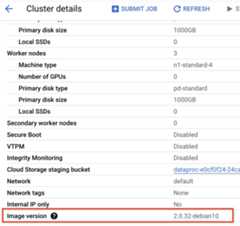
- To find the subminor version of your 2.0 image version cluster,click the cluster name on theClusters page in theGoogle Cloud console to open theCluster details page, where theclusterImage version is listed.
- Alternatively, you can run the following commands in anSSH session terminalfrom the master node of your cluster to determine component versions:
- Check scala version:
scala -version
- Check Spark version (control-D to exit):
spark-shell
- Check HBase version:
hbase version
- Identify the Spark, Scala, and HBase version dependenciesin the Maven
pom.xml:<properties> <scala.version>scala full version (for example, 2.12.14)</scala.version> <scala.main.version>scala main version (for example, 2.12)</scala.main.version> <spark.version>spark version (for example, 3.1.2)</spark.version> <hbase.client.version>hbase version (for example, 2.2.7)</hbase.client.version> <hbase-spark.version>1.0.0(the current Apache HBase Spark Connector version)></properties>
hbase-spark.versionis the current Spark HBase connector version;leave this version number unchanged.
- Check scala version:
- Edit the
pom.xmlfile in the Cloud Shell editor to insert thethe correct Scala, Spark, and HBase version numbers.ClickOpen Terminal when you finish editing to return tothe Cloud Shell terminal command line.cloudshell edit .
- Switch to Java 8 in Cloud Shell. This JDK version is needed tobuild the code (you can ignore any plugin warning messages):
sudo update-java-alternatives -s java-1.8.0-openjdk-amd64 && export JAVA_HOME=/usr/lib/jvm/java-8-openjdk-amd64
- Verify Java 8 installation:
java -version
openjdk version "1.8..."
- The Dataproc2.0.x release versionspage lists the Scala, Spark, and HBase component versions installedwith the most recent and last four image 2.0 subminor versions.
- Build the
jarfile:mvn clean package
.jarfile is placed in the/targetsubdirectory (for example,target/spark-hbase-1.0-SNAPSHOT.jar. Submit the job.
gcloud dataproc jobs submit spark \ --class=hbase.SparkHBaseMain \ --jars=target/filename.jar \ --region=cluster-region \ --cluster=cluster-name
--jars: Insert the name of your.jarfile after "target/" and before ".jar".- If you did not set the Spark driver and executor HBase classpaths when youcreated your cluster, you must set them with each job submission by including the following
‑‑propertiesflag in you job submit command:--properties='spark.driver.extraClassPath=/etc/hbase/conf:/usr/lib/hbase/*,spark.executor.extraClassPath=/etc/hbase/conf:/usr/lib/hbase/*'
View HBase table output in the Cloud Shell session terminal output:
Waiting for job output......+----+----+| key|name|+----+----+|key1| foo||key2| bar|+----+----+
Python
Submit the job.
gcloud dataproc jobs submit pyspark scripts/pyspark-hbase.py \ --region=cluster-region \ --cluster=cluster-name
- If you did not set the Spark driver and executor HBase classpaths when youcreated your cluster, you must set them with each job submission by including the following
‑‑propertiesflag in you job submit command:--properties='spark.driver.extraClassPath=/etc/hbase/conf:/usr/lib/hbase/*,spark.executor.extraClassPath=/etc/hbase/conf:/usr/lib/hbase/*'
- If you did not set the Spark driver and executor HBase classpaths when youcreated your cluster, you must set them with each job submission by including the following
View HBase table output in the Cloud Shell session terminal output:
Waiting for job output......+----+----+| key|name|+----+----+|key1| foo||key2| bar|+----+----+
Scan the HBase table
You can scan the content of your HBase table byrunning the following commands in the master node SSH sessionterminal that you opened inVerify connector installation:
- Open the HBase shell:
hbase shell
- Scan 'my-table':
scan 'my_table'
ROW COLUMN+CELL key1 column=cf:name, timestamp=1647364013561, value=foo key2 column=cf:name, timestamp=1647364012817, value=bar2 row(s)Took 0.5009 seconds
Clean up
After you finish the tutorial, you can clean up the resources that you created so that they stop using quota and incurring charges. The following sections describe how to delete or turn off these resources.
Delete the project
The easiest way to eliminate billing is to delete the project that you created for the tutorial.
To delete the project:
Delete the cluster
- To delete your cluster:
gcloud dataproc clusters deletecluster-name \ --region=${REGION}
Except as otherwise noted, the content of this page is licensed under theCreative Commons Attribution 4.0 License, and code samples are licensed under theApache 2.0 License. For details, see theGoogle Developers Site Policies. Java is a registered trademark of Oracle and/or its affiliates.
Last updated 2025-12-15 UTC.