

Scale Dataproc clusters
After creating a Dataproc cluster, you can adjust ("scale") the clusterby increasing or decreasing the number of primary or secondary worker nodes(horizontal scaling) in the cluster. You can scale aDataproc cluster at any time, even when jobs are running on thecluster. You cannot change the machine type of an existing cluster (verticalscaling). To vertically scale, create a cluster using asupported machine type,then migrate jobs to the new cluster.
Use Dataproc Autoscaling.Instead of manually scaling clusters, enableAutoscalingto have Dataproc set the "right" number ofworkers for your workloads.You can scale a Dataproc cluster for the following:
- to increase the number of workers to make a job run faster.
- to decrease the number of workers to save money (seeGraceful Decommissioningas an option to use when downsizing a cluster to avoid losingwork in progress).
- to increase the number of nodes to expand available Hadoop Distributed File System (HDFS) storage.
Because clusters can be scaled more than once, you might want toincrease or decrease the cluster size at one time, and then decrease or increasethe size later.
Removing workers: If you remove workersfrom your cluster, make sure that the new cluster size is sufficient to handleyour workload; if it isn't, your jobs may take a long time to complete or maystop responding.Use scaling
There are three ways you can scale your Dataproc cluster:
- Use the
gcloudcommand-line tool in the gcloud CLI. - Edit the cluster configuration in theGoogle Cloud console.
- Use theREST API.
New workers added to a cluster will use the samemachine typeas existing workers. For example, if a cluster is created withworkers that use then1-standard-8 machine type, new workerswill also use then1-standard-8 machine type.
You can scale the number of primary workers or the number of secondary(preemptible) workers, or both. For example, if you only scale the number ofpreemptible workers, the number of primary workers remains the same.
gcloud
gcloud CLI setup: You mustsetup and configurethe gcloud CLI to use the Google Cloud CLI.To scale a cluster withgcloud dataproc clusters update,run the following command:gcloud dataproc clusters updatecluster-name \ --region=region \ [--num-workers and/or --num-secondary-workers]=new-number-of-workers
gcloud dataproc clusters update dataproc-1 \ --region=region \ --num-workers=5...Waiting on operation [operations/projects/project-id/operations/...].Waiting for cluster update operation...done.Updated [https://dataproc.googleapis.com/...].clusterName: my-test-cluster... masterDiskConfiguration: bootDiskSizeGb: 500 masterName: dataproc-1-m numWorkers: 5 ... workers: - my-test-cluster-w-0 - my-test-cluster-w-1 - my-test-cluster-w-2 - my-test-cluster-w-3 - my-test-cluster-w-4...
REST API
Seeclusters.patch.
Example
PATCH /v1/projects/project-id/regions/us-central1/clusters/example-cluster?updateMask=config.worker_config.num_instances,config.secondary_worker_config.num_instances{ "config": { "workerConfig": { "numInstances": 4 }, "secondaryWorkerConfig": { "numInstances": 2 } }, "labels": null}Console
After a cluster is created, you can scale a clusterby opening theCluster details page for the cluster from theGoogle Cloud consoleClusters page,then clicking theEdit button on theConfigurationtab.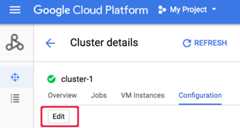 Enter a new value for the number ofWorker nodes and/orPreemptible worker nodes (updated to "5" and " 2", respectively,in the following screenshot).
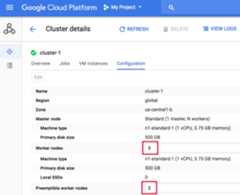 ClickSave to update the cluster.
How Dataproc selects cluster nodes for removal
On clusters created with image versions1.5.83+,2.0.57+,and2.1.5+,when scaling down a cluster, Dataproc attempts to minimizethe impact of node removal on running YARN applications by first removinginactive, unhealthy, and idle nodes, then removing nodes withthe fewest running YARN application masters and running containers.
Graceful decommissioning
When youdownscale a cluster, work in progress may stopbefore completion. If you are usingDataproc v 1.2 or later,you can use Graceful Decommissioning, which incorporatesGraceful Decommission of YARN Nodes to finish work in progress on a worker before it is removed from the CloudDataproc cluster.
Note: A worker is not removed from a cluster until running YARN applications arefinished.Graceful decommissioning and secondary workers
The preemptible (secondary) worker group continues to provision or deleteworkers to reach its expected size even after a cluster scaling operationis marked complete. If you attempt to gracefully decommission a secondary workerand receive an error message similar to the following:
"Secondaryworker group cannot be modified outside of Dataproc. If you recentlycreated or updated this cluster, wait a few minutes before gracefullydecommissioning to allow all secondary instances to join or leave the cluster.Expected secondary worker group size: x, actual size: y",
wait afew minutes then repeat the graceful decommissioning request.
- You canforcefully decommission preemptible workers at any time.
- You gracefully decommission primary workers at any time
Use graceful decommissioning
Dataproc Graceful Decommissioning incorporatesGraceful Decommission of YARN Nodesto finish work in progress on a worker before it is removed from the CloudDataproc cluster. As a default, graceful decommissioning is disabled. Youenable it by setting a timeout value when you updateyour cluster to remove one or more workers from the cluster.
gcloud
When you update a cluster to remove one or more workers, use thegcloud dataproc clusters updatecommand with the--graceful-decommission-timeout flag. The timeout(string) values can be a value of "0s" (the default; forceful not gracefuldecommissioning) or a positive duration relative to the current time (for example, "3s").The maximum duration is 1 day.Durations: Specify a gracefuldecommissioning duration as a non-negative integer with one of the followinglower-case suffixes: "s", "m", "h", or "d" for seconds, minutes,hours, or days, respectively. The maximum duration for graceful decommissioningis "1d" (one day). If the suffix is omitted, seconds is assumed.gcloud dataproc clusters updatecluster-name \ --region=region \ --graceful-decommission-timeout="timeout-value" \ [--num-workers and/or --num-secondary-workers]=decreased-number-of-workers \ ... other args ...
REST API
Seeclusters.patch.gracefulDecommissionTimeout. The timeout (string)values can be a value of "0" (the default; forceful not gracefuldecommissioning) or a duration in seconds (for example, "3s"). The maximumduration is 1 day.Console
After a cluster is created, you can select graceful decommissioning of acluster by opening theCluster details page for the cluster from theGoogle Cloud consoleClusters page,then clicking theEdit button on theConfigurationtab. In theGraceful Decommissioning section, selectUse graceful decommissioning, and then select a timeout value.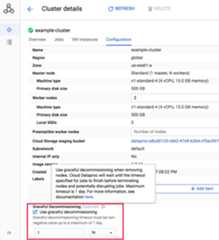 ClickSave to update the cluster.
Cancel a graceful decommissioning scaledown operation
On Dataproc clusters created with image versions2.0.57+or2.1.5+,you can run thegcloud dataproc operations cancelcommand or issue a Dataproc APIoperations.cancelrequest to cancel a graceful decommissioning scaledown operation.
When you cancel a graceful decommissioning scaledown operation:
workers in a
DECOMMISSIONINGstate are re-commissioned and becomeACTIVEat the completion of the operation's cancellation.if the scaledown operation includes label updates, the updatesmay not take effect.
To verify the status of the cancellation request, you canrun thegcloud dataproc operations describecommand or issue a Dataproc APIoperations.getrequest. If the cancel operation succeeds, the inner operation status is markedasCANCELLED.
Except as otherwise noted, the content of this page is licensed under theCreative Commons Attribution 4.0 License, and code samples are licensed under theApache 2.0 License. For details, see theGoogle Developers Site Policies. Java is a registered trademark of Oracle and/or its affiliates.
Last updated 2025-12-15 UTC.