

Create a target campaign pipeline
Learn how to use Cloud Data Fusion to clean, transform, and processcustomer data to select candidates for a target campaign.
To follow step-by-step guidance for this task directly in the Google Cloud console, clickGuide me:
Scenario
You want to create custom marketing materials for an ongoing campaign promotion,and you'd like to distribute the materials directly to the home mailboxes ofyour customers.
Your campaign has two constraints:
- Location: You only deliver to customers in California, Washington,and Oregon.
- Cost: To save on fuel, you deliver to quickly accessible customerhomes. You deliver only to customers who live on avenues.
This tutorial shows you how to generate the list of customer addresses for thecampaign. In this tutorial, you do the following:
- Clean the customer data: filter customers that live on an avenue inCalifornia, Washington, or Oregon.
Create a pipeline that does the following:
- Joins the filtered customer data with a public dataset that containsstate abbreviations.
- Stores the cleaned and joined data in a BigQuery tablethat you can query (by using the BigQuery web interface)or analyze (by using Looker Studio).
Objectives
- Connect Cloud Data Fusion to two data sources
- Apply basic transformations
- Join the two data sources
- Write the output data to a sink
Before you begin
- Sign in to your Google Cloud account. If you're new to Google Cloud, create an account to evaluate how our products perform in real-world scenarios. New customers also get $300 in free credits to run, test, and deploy workloads.
In the Google Cloud console, on the project selector page, select or create a Google Cloud project.
Roles required to select or create a project
- Select a project: Selecting a project doesn't require a specific IAM role—you can select any project that you've been granted a role on.
- Create a project: To create a project, you need the Project Creator role (
roles/resourcemanager.projectCreator), which contains theresourcemanager.projects.createpermission.Learn how to grant roles.
Verify that billing is enabled for your Google Cloud project.
In the Google Cloud console, on the project selector page, select or create a Google Cloud project.
Roles required to select or create a project
- Select a project: Selecting a project doesn't require a specific IAM role—you can select any project that you've been granted a role on.
- Create a project: To create a project, you need the Project Creator role (
roles/resourcemanager.projectCreator), which contains theresourcemanager.projects.createpermission.Learn how to grant roles.
Verify that billing is enabled for your Google Cloud project.
Enable the Cloud Data Fusion, BigQuery, Cloud Storage, and Dataproc APIs.
Roles required to enable APIs
To enable APIs, you need the Service Usage Admin IAM role (
roles/serviceusage.serviceUsageAdmin), which contains theserviceusage.services.enablepermission.Learn how to grant roles.- Create a Cloud Data Fusion instance.
This tutorial assumes that you use the default Compute Engine service account.
Manage permissions
Create and assign the required custom roles and permissions.
Create a custom role and add permissions
In the Google Cloud console, go to theRoles page:
Click Create role.
In theTitle field, enter
Custom Role-Tutorial.Click Add permissions.
In theAdd permissions window, select the following permissions and clickAdd:
bigquery.datasets.createbigquery.jobs.createstorage.buckets.create
ClickCreate.
Assign custom role to the default Compute Engine service account
Go to the Cloud Data FusionInstances page:
Click the name of your instance.
Make a note of the defaultDataproc Service Account. The instancedetails page contains this information.
The following is the format of the Dataproc service accountname:
CUSTOMER_PROJECT_NUMBER-compute@developer.gserviceaccount.com.Learn more aboutDataproc service accounts.
Go to theIAM page:
In theFilter bar, enter the name of your default Dataprocservice account.
For your default Compute Engine service account, click Edit.
Click Add another role.
In theSelect a role field, selectCustom Role-Tutorial.
ClickSave.
Ensure that the service account is already assigned the Cloud Data FusionRunner role.
Prepare the customer data
This tutorial requires the following two input datasets, both of which areprovided with your Cloud Data Fusion instance:
- Sample customer data: A CSV file named
customers.csv. - State abbreviations: A BigQuery table named
state_abbreviations.
Load the customer data
Note: The customer data is in a Cloud Storage bucket. TheCloud Storage bucket is publicly available through theSampleBuckets connection, provided by default with your Cloud Data Fusioninstance.Go to the Cloud Data FusionInstances page:
For the Cloud Data Fusion instance you are using, clickView instance. The Cloud Data Fusion web interface opens in a new tab.
ClickWrangler. TheWrangler page opens.
In theConnections pane,GCS> Sample Buckets.
Clickcampaign-tutorial.
Clickcustomers.csv.
In theParsing options window, specify the following:
- Format:
csv - Enable quoted value:
False - Use first row as header:
False - File-encoding:
UTF-8
- Format:
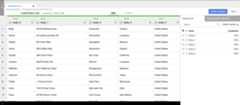
ClickConfirm. Customer data is loaded in a new tab in Wrangler.
Clean the customer data
This contains two sub-tasks:
- Setting the schema
- Filtering the customer data to present only the target audience you need
Set the schema
Set the schema of the data by assigning appropriate names to the tablecolumns. To give the columns, such asbody_1 andbody_2, more informativenames, follow these steps:.
- In the right pane, click theColumns tab.
- Click theColumn names drop-down and selectSet all.
In theBulk set column names dialog, enter thefollowing, comma-separated column names:
Name,StreetAddress,City,State,CountryClickApply.
Filter the data
Filter the data to display only customers that live in California, Oregon, orWashington.
Remove all rows that contain values other than those states:
- Click theState column drop-down and selectFilter.
In the filter window, do the following:
- ClickKeep rows.
- Click theIf drop-down, and selectvalue matches regex.
Enter the following regular expression:
^(California|Oregon|Washington)$ClickApply.
The values in theState column areCalifornia,Oregon, orWashington.
Filter the data to display only customers that live on avenues. Keeponly the addresses that contain the stringAvenue:
- Click theStreetAddress column drop-down, and selectFilter.
- In the filter window, do the following:
- ClickKeep rows.
- Click theIf drop-down, selectvalue contains, and enter
Avenue. - SelectIgnore case.
- ClickApply.
Before performing parallel-processing jobs on your entire dataset, Wranglerdisplays only the first 1000 values of your dataset. Because you filteredsome data, only a few customers remain in the Wrangler display.
Create a batch pipeline
You've cleaned your data and you've run transformations on a subset of yourdata. You can now create a batch pipeline to run transformations on your entiredataset.
Cloud Data Fusion translates the pipeline that you build in the Studiointo an Apache Spark program that executes transformations inparallel on an ephemeral Dataproc cluster. This process lets youexecute complex transformations over vast quantities of data in a scalable,reliable manner, without having to handle the infrastructure.
- On the Wrangler page, clickCreate a pipeline.
- SelectBatch pipeline. The Studio page opens.
On the Studio page, aGCSFile source node is connected to aWranglernode.

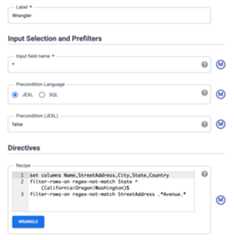
The transformations you applied on the Wrangler page appear in theWrangler node on the Studio page.
To view the transformations that you applied, hold the pointer over theWrangler node and clickProperties.
The transformations you applied appear in theDirectives.
ClickValidate.
Click Close.
For example, you realize theCountry column isn't needed because the valueis alwaysUSA. You delete the column by following these steps:
- ClickWrangle.
- Click the down arrow next toCountry and selectDelete Column.
- ClickApply. The Wrangler page closes and the Wrangler Properties windowopens on the Studio page. In theDirectives,
drop Countryappears. - ClickClose.
Abbreviate the state names
The navigation system in your delivery vehicle only recognizes addresses thatcontain abbreviated state names (CA, not California), and yourcustomer data contains full state names.
The public BigQuerystate_abbreviations table contains twocolumns: one with the full state names and one with the abbreviated state names.You can use this table to update the state names in your customer data.
View the state names data in BigQuery
In a separate tab, go to the BigQuery Studio page:
ClickCreate SQL query and enter the following query in the query editor:
SELECT * FROM `dis-user-guide.campaign_tutorial.state_abbreviations`ClickRun.
BigQuery displays a list of state names and theirabbreviations.
Access the BigQuery table
Add a source in your pipeline that will access the BigQuerystate_abbreviations table.
- Go to the Cloud Data Fusion Studio page and expand theSource menu.
ClickBigQuery.
A BigQuery source node appears on the canvas, along withthe other two nodes.
Hold the pointer over theBigQuery source node and clickProperties.
- In theDataset Project ID field, enter
dis-user-guide. - In theReference Name field, enter
state_abbreviations. - In theDataset field, enter
campaign_tutorial. - In theTable field, enter
state_abbreviations.
- In theDataset Project ID field, enter
Populate the schema of the table from BigQuery by clickingGet Schema.
ClickClose.
Join the two data sources
To generate output that contains customer data with abbreviated state names, join the two data sources, the customer data, and the state abbreviations.
- Go to the Cloud Data Fusion Studio page and expand theAnalyticsmenu.
ClickJoiner.
AJoiner node, representing an action similar to a SQL Join, appearson the canvas.
Connect theWrangler node and theBigQuery node to theJoiner node: Drag a connection arrow on the right edge of the sourcenode and drop onto the destination node.

Hold the pointer over theJoiner node and clickProperties.
In theFields section, expandWrangler andBigQuery.
- Clear the Wranglerstate checkbox.
- Clear the BigQueryname checkbox because you wantonly the abbreviated state name and not the full state name.
Keep the BigQueryabbreviation checkboxselected, and change the alias to
State.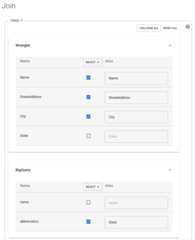
In theJoin Type field, leave the value asOuter. ForRequired inputs, select theWrangler checkbox.
In theJoin condition section, for Wrangler, selectState. For BigQuery, selectname.
Generate the schema of the resultant join. ClickGet Schema.
ClickValidate.
ClickClose.
Store the output to BigQuery
Store the result of your pipeline into a BigQuery table.Where you store your data is called a sink.
- Go to the Cloud Data Fusion Studio page and expandSink.
- ClickBigQuery.
Connect theJoiner node to theBigQuery node.

Hold the pointer over theBigQuery node and clickProperties.
- In theDataset field, enter
dis_user_guide. - In theTable field, select
customer_data_abbreviated_states. - ClickClose.
- In theDataset field, enter
Deploy and run the pipeline
- On the Studio page, clickName your pipeline and enter
CampaignPipeline. - ClickSave.
- In the upper-right corner, clickDeploy.
- After deployment completes, clickRun.
Running your pipeline can take a few minutes. While you wait, you can observetheStatus of the pipeline transition fromProvisioning>Starting>Running>Deprovisioning>Succeeded.
View the results
In the Google Cloud console, go to the BigQuery page:
ClickCreate SQL query.
Query the
customer_data_abbreviated_statestable:SELECT * FROM dis_user_guide.customer_data_abbreviated_states LIMIT 1000
Note: For further analysis, you canconnect this table to Looker Studio.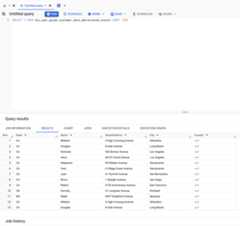
You have successfully created a data pipeline.
Clean up
To avoid incurring charges to your Google Cloud account for the resources used on this page, follow these steps.
Delete the BigQuery dataset
To delete the BigQuery dataset that you created in thistutorial, do the following:
- In the Google Cloud console, go to the BigQuery page.
- Select the
dis_user_guidedataset. - ClickdeleteDelete dataset.
Delete the Cloud Data Fusion instance
Follow these instructions to delete your Cloud Data Fusion instance.
Delete the project
The easiest way to eliminate billing is to delete the project that you created for the tutorial.
To delete the project:
What's next
- Learn more aboutCloud Data Fusion.
Except as otherwise noted, the content of this page is licensed under theCreative Commons Attribution 4.0 License, and code samples are licensed under theApache 2.0 License. For details, see theGoogle Developers Site Policies. Java is a registered trademark of Oracle and/or its affiliates.
Last updated 2025-12-15 UTC.