

Manage pipelines using Source Control Management
This page describes how to manage pipelines using source control inCloud Data Fusion through Git repositories.
About Source Control Management
Cloud Data Fusion provides the capability to visually design pipelinesfor ETL and ELT integrations. For better management of pipelines betweendevelopment and production, Cloud Data Fusion allows Source Control Management of the pipelinesusingGitHub and other version control systems.
The Source Control Management in Cloud Data Fusion lets you do the following:
- Integrate each Cloud Data Fusion namespace with a version control system.
- Manage your pipelines in a central Git repository.
- Review and audit pipeline changes.
- Revert pipeline changes.
- Effectively collaborate with the team while ensuring central control.
Before you begin
- Source Control Management supports integration with GitHub, Bitbucket Server, Bitbucket Cloud,and Gitlab repositories.
- GitHub OAuth isn't supported.
- Source Control Management only supports batch pipelines.
- Source Control Management only supports pipeline design JSONs for push and pull operations.Execution configurations are not supported.
- The size limit of the linked repository is 5 GB.
Required roles and permissions
Note: The predefined Cloud Data Fusion roles and current permissions don'tnecessarily cover theread,write, andupdate_repo_metadata permissionsin Source Control Management Git repositories.Source Control Management in Cloud Data Fusion consists of two key operations:
- Configuring source control repositories
- Syncing pipelines with Git repositories using push and pull operations
To get the permissions that you need to use the Source Control Management feature, ask youradministrator to grant you any of the following predefined roles on yourproject:
Configure source control repository:
- Cloud Data Fusion Operator (
roles/datafusion.operator) - Cloud Data Fusion Editor (
roles/datafusion.editor) - Cloud Data Fusion Admin (
roles/datafusion.admin)
- Cloud Data Fusion Operator (
Sync pipelines using push or pull operation from a namespace:
- Cloud Data Fusion Operator (
roles/datafusion.operator) - Cloud Data Fusion Developer (
roles/datafusion.developer) - Cloud Data Fusion Editor (
roles/datafusion.editor) - Cloud Data Fusion Admin (
roles/datafusion.admin)
- Cloud Data Fusion Operator (
For more information about granting roles, seeManage access.
You might also be able to get the required permissions through otherpredefined roles.
Set up a Git repository
To create a Git repository in GitHub, follow the instructions described inCreate a repository.
Note: If you're using a Private Service Connect enabled instance, makesure that the Git server is not hosted in the IP range240.0.0.0/16or240.1.0.0/16 to avoid connection issues between the Cloud Data Fusioninstance and the Git server.For more information about personal access tokens in GitHub and other versioncontrol systems, see the following pages:
Note: We recommend using theGitHub fine-grained personal access token,as roles likeCloud Data Fusion Operatorand Cloud Data Fusion Editor can access the saved tokens.Connect a Git repository with Cloud Data Fusion
Cloud Data Fusion lets you configure and connect your Git repositoryin the Source Control Management tab for each namespace. To link a namespace with yourGit repository, follow these steps:
Console
- In the Cloud Data Fusion Studio,clickMenu.
- ClickNamespace admin.
- On theNamespace admin page, click theSource Control Managementtab.
- ClickLink repository.
Enter the following details:
- Provider: Choose a Git service provider, such asGitHub orGitLab.
- Repository URL: Enter the URL where your repository can beaccessed. For GitHub, the repository URL is
https://github.com/HOST/REPO. - Default branch (optional): Enter the initial branch of the Git. Thisbranch can be different from the default branch configured on GitHub.This branch is used to sync pipelines, regardless of the default branchon GitHub.
- Path prefix (optional): Enter a prefix for your pipeline name that'ssaved in the Git repository. For example, if your pipeline nameis
DataFusionQuickStartand if you specify the prefix asnamespaceName, then the pipeline is saved asnamespaceName/DataFusionQuickStartin the Git repository. - Authentication type: Cloud Data Fusion lets you use thepersonalized access token as the authentication type. This isauto-selected.
- Token name: Enter a name that can be associated with the token.
- Token: Enter the token provided by the GitHub repository.
- Optional:User name: Enter a username or an owner for the token.
ClickValidate. Wait for the connection to be verified.
When the configuration is complete, clickSave and close to confirm theconfiguration.

REST API
Create a secret key inCloud Data Fusion containing the personal access token.
Run the following command:
curl -H "Authorization: Bearer $(gcloud auth print-access-token)" -H "Content-Type: application/json" ${CDAP_ENDPOINT}/v3/namespaces/NAMESPACE_ID/securekeys/PASSWORD_SECRET_KEY -X PUT -d '{ "description": "Example Secure Key","data": "PERSONAL_ACCESS_TOKEN"}'Replace the following:
NAMESPACE_ID: the ID of the namespace.PASSWORD_SECRET_KEY: the name of the secretkey containing personal access token.PERSONAL_ACCESS_TOKEN: personal accesstoken of GitHub.
Run the following command:
curl -H "Authorization: Bearer $(gcloud auth print-access-token)" -H "Content-Type: application/json" ${CDAP_ENDPOINT}/v3/namespaces/NAMESPACE_ID/repository -X PUT -d '{"test": "TEST_ONLY", "config": {"provider": "PROVIDER_TYPE", "link": "REPO_URL", "defaultBranch": "DEFAULT_BRANCH", "pathPrefix": "PATH_TO_DIRECTORY", "auth": {"type": "AUTH_TYPE", "patConfig": {"passwordName": "PASSWORD_SECRET_KEY", "username": "USER_NAME"}}}}'Replace the following:
NAMESPACE_ID: the ID of the namespace.TEST_ONLY: set totrueif you want toonly validate the configuration and not add to it.PROVIDER_TYPE: the Git provider name, thatis,GITHUB.REPO_URL: Repository URL to be linked. UseanhttpsURl—for example,https://github.com/user/repo.git.DEFAULT_BRANCH: Branch used for push andpull operations. If omitted, the default configured branch in the repository is used—for example, the main branch.PATH_TO_DIRECTORY: path to the directory inthe repository where configuration files are stored.AUTH_TYPE: the authentication type.OnlyPATis supported. SeeFine-grained personal access token in GitHub.PASSWORD_SECRET_KEY: the name of the secretkey containing the personal access token for authentication typePAT.USER_NAME: you can omit this value forauthentication typePAT.
Sync Cloud Data Fusion pipelines with a remote repository
After you configure a Git repository with a namespace, you can push and pullpipelines, and sync them, with the Git repository.
Push pipelines from Cloud Data Fusion to Git repository
To sync multiple deployed pipelines from a namespace to a Git repository,follow these steps:
Console
- In the Cloud Data Fusion Studio,clickMenu.
- ClickNamespace admin.
- On theNamespace admin page, click theSource Control Managementtab.
- Find the Git repository that you want to sync with, andclickSync pipelines.
- Click theNamespace pipelines tab.
Search for and select the pipelines that you want to push to the Gitrepository.
If the latest version of the pipeline is pushed to or pulled from the Gitrepository, theConnected to Git status shows
Connected. If thepipeline has never been pushed to GitHub, theConnected to Git statusshows blank (-).If you deploy a newer version of a pipeline that is already synced with theGit repository, theConnected to Git status changes from
Connectedtoblank (-).ClickPush to repository.
Enter aCommit message, and clickOK.
The push operation starts and a message is displayed indicating that theselected pipelines are being pushed to the remote repository.

When the push operation is completed successfully, a success message isdisplayed indicating the number of pipelines that were pushed to the remoterepository.
If the push operation fails, check the pipeline in GitHub to see if it's thelatest version. For every failed push operation, an error message isdisplayed. To view the details of the error, expand the error message.
Note: If a push operation for multiple pipelines is in running state, youcannot concurrently start another push or pull operation in the namespaceuntil the current operation completes. The list of pipelines in theNamespace pipelines andRepository pipelines tabs remaindisabled until the current push operation completes.You can also push individual pipelines to a Git repository from the pipelinedesign studio:
- In the Cloud Data Fusion Studio,clickMenu.
- ClickList.
- Click the pipeline you want to push to the Git repository.
- On the pipeline page, clickActions>Push to repository.
- Enter aCommit message and clickOK.

REST API
Push a set of pipelines from Cloud Data Fusion to the Git repository:
curl -H "Authorization: Bearer $(gcloud auth print-access-token)" -H "Content-Type: application/json"${CDAP_ENDPOINT}/v3/namespaces/NAMESPACE_ID/repository/apps/push -X POST-d '{"apps": ["PIPELINE_NAME_1", "PIPELINE_NAME_2"]}, "commitMessage": "COMMIT_MESSAGE"'Replace the following:
NAMESPACE_ID: the ID of the namespace.PIPELINE_NAME_1,PIPELINE_NAME_2:names of the pipelines to be pushed.COMMIT_MESSAGE: commit message for the Gitcommit.
The response contains the ID of the push operation. For example:
RESPONSE{"id":OPERATION_ID}To poll the status of the push operation, run the following command:
curl -H "Authorization: Bearer $(gcloud auth print-access-token)" -H "Content-Type: application/json" ${CDAP_ENDPOINT}/v3/namespaces/NAMESPACE_ID/operations/OPERATION_IDReplace the following:
NAMESPACE_ID: the ID of the namespace.OPERATION_ID: the operation ID received fromthe push operation.
The response contains the status of the push operation. For example:
RESPONSE{"id":OPERATION_ID"done": True/False"status": STARTING/RUNNING/SUCCEEDED/FAILED"error": {"message":ERROR_MESSAGE, "details":[{"resourceUri":RESOURCE, "message":ERROR_MESSAGE}]}}To verify if the push operation is completed, check the
doneproperty in the response. If the operation failed, check theerrorproperty for more details.
Pull pipelines from Git repository into Cloud Data Fusion
To sync multiple pipelines from a Git repository to your namespace, follow thesesteps:
Console
- In the Cloud Data Fusion Studio,clickMenu.
- ClickNamespace admin.
- On theNamespace admin page, click theSource Control Managementtab.
- Find the Git repository that you want to sync with, and clickSync pipelines.
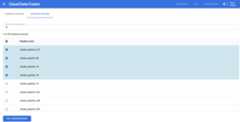
- Click theRepository pipelines tab.All of the pipelines stored in the Git repository are displayed.
- Search for and select the pipelines that you want to pull from the Gitrepository into your Cloud Data Fusion namespace.
ClickPull from repository.
The pull operation starts and a message is displayed indicating that theselected pipelines are being pulled from the remote repository.Cloud Data Fusion looks for JSON files under the configured path, andpulls and deploys them as pipelines to Cloud Data Fusion.
When the pull operation is completed successfully, a success message isdisplayed indicating the number of pipelines that were pulled from theremote repository.
If the pull operation fails, an error message is displayed. To view thedetails of the error, expand the error message.
Note: If a pull operation for multiple pipelines is in running state, youcannot concurrently start another push or pull operation in the namespaceuntil the current operation completes. The list of pipelines in theNamespace pipelines andRepository pipelines tabs remaindisabled until the current pull operation completes.You can also pull individual pipelines from a Git repository to a namespacefrom the pipeline design studio:
- In the Cloud Data Fusion Studio,clickMenu.
- ClickList.
- Click the pipeline that you want to pull from the Git repository.
- On the pipeline page, clickActions>Pull from repository.
REST API
Pull a set of pipelines from the Git repository into Cloud Data Fusion:
curl -H "Authorization: Bearer $(gcloud auth print-access-token)" -H "Content-Type: application/json" ${CDAP_ENDPOINT}/v3/namespaces/NAMESPACE_ID/repository/apps/pull -X POST -d '{"apps": ["PIPELINE_NAME_1", "PIPELINE_NAME_2"]}'Replace the following:
NAMESPACE_ID: the ID of the namespace.PIPELINE_NAME_1,PIPELINE_NAME_2:names of the pipelines to be pulled.
The response contains the ID of the pull operation. For example:
RESPONSE{"id":OPERATION_ID}To poll the status of the pull operation, run the following command:
curl -H "Authorization: Bearer $(gcloud auth print-access-token)" -H "Content-Type: application/json" ${CDAP_ENDPOINT}/v3/namespaces/NAMESPACE_ID/operations/OPERATION_IDReplace the following:
NAMESPACE_ID: the ID of the namespace.OPERATION_ID: the operation ID received fromthe pull operation.
The response contains the status of the pull operation. For example:
RESPONSE{"id":OPERATION_ID"done": True/False"status": STARTING/RUNNING/SUCCEEDED/FAILED"error": {"message": ERROR_MESSAGE, "details":[{"resourceUri": RESOURCE, "message": ERROR_MESSAGE}]}}To verify if the pull operation is completed, check the
doneproperty in the response. If the operation failed, check theerrorproperty for more details.
Delete the Git repository configuration
To delete the Git repository configuration from a namespace, follow these steps:
Console
- In the Cloud Data Fusion Studio,clickMenu.
- ClickNamespace admin.
- On theNamespace admin page, click theSource Control Managementtab.
- For the Git repository configuration you want to delete, click>Delete.
REST API
Delete the Git repository configuration:
curl -H "Authorization: Bearer $(gcloud auth print-access-token)"${CDAP_ENDPOINT}/v3/namespaces/NAMESPACE_ID/repository -X DELETEReplaceNAMESPACE_ID with the ID of thenamespace.
What's next
- Read more aboutUsing a GitHub repository to manage pipelines.
Except as otherwise noted, the content of this page is licensed under theCreative Commons Attribution 4.0 License, and code samples are licensed under theApache 2.0 License. For details, see theGoogle Developers Site Policies. Java is a registered trademark of Oracle and/or its affiliates.
Last updated 2025-12-15 UTC.