

Troubleshooting VM shutdowns and reboots
This document describes the common causes of unexpected shutdowns and rebootsof Compute Engine instances and how to prevent them.
Instance shutdowns and reboots can be caused by system events or administrativeactivities. System event shutdowns and reboots are generated by Google systemsor your instances's operating system. Admin activity shutdowns and reboots aregenerated by a user- or service account-generated API call. All shutdowns andreboots are logged, except for reboots which are initiated from within theinstance.
Before you begin
- If you haven't already, set upauthentication. Authentication verifies your identity for access to Google Cloud services and APIs. To run code or samples from a local development environment, you can authenticate to Compute Engine by selecting one of the following options:
Select the tab for how you plan to use the samples on this page:
Console
When you use the Google Cloud console to access Google Cloud services and APIs, you don't need to set up authentication.
gcloud
Install the Google Cloud CLI. After installation,initialize the Google Cloud CLI by running the following command:
gcloudinit
If you're using an external identity provider (IdP), you must first sign in to the gcloud CLI with your federated identity.
Note: If you installed the gcloud CLI previously, make sure you have the latest version by runninggcloud components update.- Set a default region and zone.
Diagnosing instance shutdowns and reboots
To diagnose the cause of an instance's spontaneous shutdown or reboot, you mustquery your instances's logs. To quickly identify thecause of future VM shutdowns or reboots,build a dashboardthat contains the logs. After you query the logs, review themethod andprincipalEmail fields to determine what event and which user or serviceinitiated the shutdown or reboot.
Querying Cloud Audit Logs
Query Cloud Audit Logs to display a list of system events and administrativeactivities that might have caused the shutdown or reboot.
Permissions required for this task
To perform this task, you must have the followingpermissions:
- TheLogging/Logs Viewer role or theProject/Viewer role.
Console
In the Google Cloud console, go to theLogs Explorer page.
Note: You might need to clickUpgrade to use Logs Explorer instead ofthe Legacy Logs Viewer.In theQuery field, enter the following query:
resource.type="gce_instance""VM_NAME"logName:("logs/cloudaudit.googleapis.com%2Fsystem_event" OR "logs/cloudaudit.googleapis.com%2Factivity")Replace
VM_NAMEwith the name of the VM that shut downor rebooted.If the event you're looking for happened more than an hour ago, set acustom time frame by clicking the clock symbol and entering a customrange.
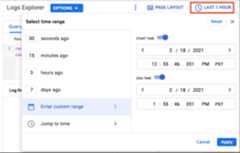
ClickRun query. The results are displayed in theQueryresults section.
Tip: To increase the size of theQuery results section, clickEnter fullscreen Query results.Click theexpander arrow next to each result to show detailed information.
SeeReviewing Cloud Audit Logs to learn more about the
methodandprincipalEmailfields that are associated with shutdowns andreboots, and what you can do to prevent them.
gcloud
View Cloud Audit Logs using the
gcloud logging readcommand:gcloud logging read --freshness=TIME 'resource.type="gce_instance" "VM_NAME" logName:("logs/cloudaudit.googleapis.com%2Fsystem_event" OR "logs/cloudaudit.googleapis.com%2Factivity")'Replace the following:
TIME: the amount of time you want toquery. For example,1hqueries log entries in the past hour. Forinformation about date and time formats, seegcloud topic datetimes.VM_NAME: the name of the VM that shutdown orrebooted.
The results display.
SeeReviewing Cloud Audit Logs to learn more about the
methodandprincipalEmailfields that are associated with shutdowns andreboots, and what you can do to prevent them.
Reviewing Cloud Audit Logs
Review themethod andprincipalEmail fields of the Cloud Audit Logs todetermine why your VM was shut down or rebooted.
Review the
Note: If your VM rebooted and you don't see a comparable method listed inthe following table in the Cloud Audit Logs, the reboot likely happenedbecause your VM's operating system initiated the reboot. Causes of rebootsare often difficult to identify. If your VMs experience frequent reboots,considerGetting support.methodfields of the Cloud Audit Logs and compare them withthe methods listed in the following table.Method Shutdown type Description compute.instances.repair.recreateInstanceSystem event If your VM belongs to a managed instance group (MIG), the MIGrecreates the VM if the VM's state changes from
RUNNINGand theMIG did not initiate the change in state.Changes of instance state that are not initiated by the MIG include:
- Hardware failures.
- Terminating a preemptible instance.
- Infrastructure maintenance events when the VM instance is not set tolive migrate.
- Deleting a MIG instance by using one of the following methods:
- The
instances.deleteAPI method - The
gcloud compute instances deletecommand
- For a zonal MIG:
instanceGroupManagers.deleteInstances - For a regional MIG:
regionInstanceGroupManagers.deleteInstances - In gcloud:
gcloud compute instance-groups managed delete-instances
- The
compute.instances.hostErrorSystem event A host error (
compute.instances.hostError) means that there was a hardware or software issue on the physical machine or the data center infrastructure hosting your compute instance that caused your instance to crash. A host error involving a total hardware failure or other hardware issues might prevent thelive migration of your instance. If your instance is set to automatically restart, which is the default setting, Compute Engine restarts your instance, typically within three minutes from the time the error was detected. Depending on the issue, the restart might take up to 5.5 minutes.Occasionally, a compute instance might become unresponsive before a host error is signaled. Youcan reduce the amount of time Compute Engine waits to restart or terminate the instance bysetting the host error recovery timeout. For more information, seeSet availability policies.
Physical hardware and software failures can happen occasionally but are rare occurrences. To protect your applications and services from these potentially disruptive system events, review the following resources:
Google also offers managed services such asApp Engine and theApp Engine flexible environment.
compute.instances.automaticRestartSystem event This event occurs after a
hostErrorevent or aterminateOnHostMaintenanceevent if your VM'sautomaticRestarthost maintenance policy is set totrue. In the logs, ahostErroror aterminateOnHostMaintenancelog entry precedes this log.If you want to change your VM's host maintenance policy, see Updating options for an instance.
compute.instances.guestTerminateSystem event Your VM's operating system initiated the shutdown. compute.instances.terminateOnHostMaintenanceSystem event If you set your VM's
onHostMaintenancehost maintenancepolicy toTERMINATE, Compute Engine stops your VM whenthere is a maintenance event where Google must move your VM toanother host.If you want to change your VM's
onHostMaintenancepolicy, seeUpdating options for an instance.compute.instances.preemptedSystem event Compute Engine preempted your Spot VM or legacypreemptible VM:
- When Compute Engine preempts a Spot VM,Compute Engine either stops or deletes theSpot VM based on itstermination action. Spot VMs don't have a maximum runtime.
- When Compute Engine preempts a preemptible VM, Compute Engine stopsthe VM after a maximum runtime of 24 hours. To avoid these limitations,use Spot VMs instead.
Spot VMs and preemptible VMs are excess Compute Enginecapacity, so Compute Engine might preempt them any time thatcapacity is needed elsewhere. You can help mitigate the effects ofpreemption by following thebest practices.Alternatively, if you require VMs with user-controlled runtimes,create standard VMsinstead.
compute.instances.stopAdmin activity A user or service account stopped your VM.
Continue to the next step to identify the user or service account that stopped your VM. For information about restarting your VM, see Restarting a stopped instance.
compute.instances.deleteAdmin activity or system event A user or service account deleted your VM, or the VM was configuredto be automatically deleted.
Important: Requests to delete your VM, which are indicated in Cloud Audit Logs by thecompute.instances.deletemethod, might inconsistently override other requests for your VM that were made at a similar time. Even when those other requests were successful, thecompute.instances.deletemethod might inconsistently prevent the methods from those other requests from appearing in the Cloud Audit Logs for your VM.Specifically, a log for the
compute.instances.deletemethod might indicate any of the following requests for your VM:- Requests from a user or service account to directly delete your VM are indicated only by a
compute.instances.deletemethod from the user or service account. Requests that automatically delete your VM are indicated by a
compute.instances.deletemethod fromsystem@google.com, but the method that explains the cause of automatic deletion might or might not appear in Cloud Audit Logs.For example, if a Spot VM is configured to be automatically deleted during preemption and is preempted, you see a
compute.instances.deletemethod fromsystem@google.com, but you might or might not also see acompute.instances.preemptedmethod.Requests to the VM that happened shortly before or after a
compute.instances.deletemethod might or might not appear in Cloud Audit Logs.For example, if a VM is stopped due to host maintenance shortly before the VM is deleted, you see a
compute.instances.deletemethod, but you might or might not also see acompute.instances.terminateOnHostMaintenancemethod.
Continue to the next step to identify the user or service account that deleted your VM. For information about creating a new VM, see Creating and starting a VM.
compute.instances.insertAdmin activity A user or service account created your VM.
Continue to the next step to identify the user or service account that created your VM. For information about creating a new VM, see Creating and starting a VM.
compute.instances.resetAdmin activity A user or service account reset your VM.
Continue to the next step to identify the user or service account that stopped your VM.
Review the
principalEmailfields of the Cloud Audit Logs to identifythe user or service that initiated the shutdown or reboot. The followingtable include common Google managed services that initiate shutdowns orreboots.Email Description system@google.comA system event caused the shutdown or reboot. project-number@cloudservices.gserviceaccount.comAservice agent initiated the shutdown.
To determine which project the service initiated the shutdown from, review the service agent's
project-number.To determine which Google service made the request, review the
protoPayload.requestMetadata.callerSuppliedUserAgentfield.If a user triggered the shutdown or reboot, their email address appears inthe
principalEmailfield. For example,cloudysanfrancisco@gmail.com.Administrators can prevent users from changing the state of project VMs bychanging Identity and Access Management permissions on user accounts. For more information,seeGranting, changing, and revoking access to resources.
Monitor VM lifecycle events
You can monitor VM lifecycle events (including shutdowns, reboots, and hosterrors) by building a Cloud Monitoring dashboard.
This dashboard lets you to visualizesystem events and administrator activities thatare described in further detail in theReviewing Audit Logs sectionof this document.
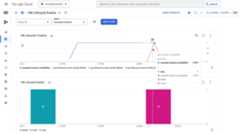 Figure 1. An example dashboard showing the availability of an instance and its lifecycle events such as a stopped instance.
Create log-based metric
To capture VM lifecycle events, create auser-defined log-based metric. This metric uses Audit Logs to keep count of the number of times a particular VM lifecycle event has occurred.
To get the permissions that you need to create the metric, ask your administrator to grant you theLogs Writer (roles/logging.logWriter) IAM role on the project. For more information about granting roles, seeManage access to projects, folders, and organizations.
You might also be able to get the required permissions throughcustom roles or otherpredefined roles.
Create a user-defined log-based metric by doing the following:
In the Google Cloud console, go to theLog-based Metrics page.
ClickCreate Metric.
In theMetric Type section, do the following:
- Select
Counter. - LeaveDistribution at the default setting of unselected.
In theDetails section, enter the following information:
- Log-based metric name:
vm-lifecycle-events. You must use this exact name for the dashboard to work correctly. - Description: Optional — Enter a description for this metric.
- Units:
1
In theFilter selection section, specify the following:
- From theSelect project or log bucket menu, select: Project logs
- In theBuild filter enter:
resource.type="gce_instance"ANDlog_id("cloudaudit.googleapis.com/activity")ORlog_id("cloudaudit.googleapis.com/system_event")operation.first="true"
In theLabels section, clickAdd label.
Specify the following:
- Label name:
method - Label type:
STRING - Field name:
protoPayload.methodName - Regular expression:
(recreateInstance|hostError|automaticRestart|guestTerminate|terminateOnHostMaintenance|preempted|insert|stop|delete|reset|start)
- Label name:
ClickDone
ClickCreate metric.
Use the dashboard
No data appears on the dashboard until an instance experiences a system event oran administrator activity. To test that the dashboard works, perform anadministrator activity, such as astop andstart operation:
- Perform a
stopandstartoperationon any existing instance, or create a new VM for testing purposes.
To get the permissions that you need to use the dashboard, ask your administrator to grant you theMonitoring Dashboard Viewer (roles/monitoring.dashboardViewer) IAM role on the project. For more information about granting roles, seeManage access to projects, folders, and organizations.
You might also be able to get the required permissions throughcustom roles or otherpredefined roles.
OpenDashboards in the Google Cloud console.
From theDashboard List tab open the
GCE VM Lifecycle Events Monitoringdashboard.Select the VM from theName drop-down menu.
Narrow the time series to a relevant timeframe.
For more ways to filter the dashboard seeAdd a temporary filter.
The dashboard contains two charts that display a timeline of system events andadministrator activities that occur on a instance:
TheVM Lifecycle Timeline chart displays the following:
- The
compute.googleapis.com/instance/uptimemetric that indicates whether the VM was running at a given point in time,where 1 is up and 0 is down. Note this metric reflects availability as aresult of user activity and system events, and is not an indication ofCompute Engine SLA. - The
vm-lifecycle-eventslog-based metric to count the number of lifecycleactions, such asstoporstartthat performed were performed against theinstance at a given point in time
- The
The Events chart shows the same
vm-lifecycle-eventslog-based metric butin a magnified view for easier readability. Note that although the X-axes arealigned, the colors are not synchronized between the two charts.
Investigating mass VM shutdown across projects
Compute Engine might shut down multiple VMs that are connected to aShared VPC host project, if the Shared VPC host project'sbilling is inactive or disabled.
To determine if your VMs have been shut down by a mass shutdown request, lookfor stop operations initiated bycloud-cluster-manager@prod.google.com.
Starting an affected instance returns an error similar to the following:
Starting instance(s) INSTANCE_NAME...failed.ERROR: (gcloud.compute.instances.start) The default network interface [nic0] is frozen.To resolve this issue, do the following:
Identify the Shared VPC used by the VMs, by using the
gcloud compute instances describecommand:gcloud compute instances describeVM_NAME \ --format="flattened(networkInterfaces[].network)"
The output is similar to the following:
networkInterfaces[0].network: https://www.googleapis.com/compute/v1/projects/SHARED_VPC_PROJECT/global/networks/FROZEN_NETWORK
Verify in the Shared VPC's host project if billing has been disabled.
resource.type="project"protoPayload.request.@type="type.googleapis.com/google.internal.cloudbilling.billingaccount.v1.DisableResourceBillingRequest"protoPayload.response.resourceBillingInfo.billingAccountAssignmentType="DISABLED"If applicable,Enable billing on the host project.
To help prevent this issue from recurring, readSecure the link between a project and its billing account.
Except as otherwise noted, the content of this page is licensed under theCreative Commons Attribution 4.0 License, and code samples are licensed under theApache 2.0 License. For details, see theGoogle Developers Site Policies. Java is a registered trademark of Oracle and/or its affiliates.
Last updated 2025-12-15 UTC.