

Capturing VM screenshots
This page describes how to capture a screenshot from a virtual machine (VM)instance by using the VM screenshot tool.
Capturing a screenshot from a VM can help you troubleshoot a VM that is nototherwise accessible. For example, a VM might not be accessible if it is bootingor has a disk image that is corrupted.
Windows-based operating systems
VM screenshots can help to troubleshoot failed RDP connections to Windows VMs,by identifying if the instance has started successfully. For information abouttroubleshooting RDP connections, seeTroubleshootingRDP.
Privacy considerations with remote desktop clients
The VM screenshot tool uses the display adapter of the VM to capture ascreenshot of the local console session through a remote desktop client.Capturing a screenshot through the local console session might capture sensitiveinformation from the user's desktop or browser.
If you are concerned about exposing sensitive information as part of ascreenshot, configure your respective remote desktop client in the following wayso that it does not use the local console session:
Chrome Remote Desktop: If you are usingChrome Remote Desktop, be sure to enableCurtainmode so that it doesnot connect to the local console session.
Microsoft RDP:RDP clients connect by usingWindows Remote Desktop Services(RDS). Windows RDS lets RDP clients choose whether to start a newconsole session or connect to the existing one, and because of this, there mightbe privacy implications. For information about customizing RDS so that it doesnot connect to the local console session, seeSupported Remote Desktop RDP filesettings.
Before sharing screenshots withGoogleSupport, make sure to review them forsensitive information.
Before you begin
- Enable virtual displays on your VM.
- If you haven't already, set upauthentication. Authentication verifies your identity for access to Google Cloud services and APIs. To run code or samples from a local development environment, you can authenticate to Compute Engine by selecting one of the following options:
Select the tab for how you plan to use the samples on this page:
Console
When you use the Google Cloud console to access Google Cloud services and APIs, you don't need to set up authentication.
gcloud
Install the Google Cloud CLI. After installation,initialize the Google Cloud CLI by running the following command:
gcloudinit
If you're using an external identity provider (IdP), you must first sign in to the gcloud CLI with your federated identity.
Note: If you installed the gcloud CLI previously, make sure you have the latest version by runninggcloud components update.- Set a default region and zone.
REST
To use the REST API samples on this page in a local development environment, you use the credentials you provide to the gcloud CLI.
Install the Google Cloud CLI. After installation,initialize the Google Cloud CLI by running the following command:
gcloudinit
If you're using an external identity provider (IdP), you must first sign in to the gcloud CLI with your federated identity.
Note: If you installed the gcloud CLI previously, make sure you have the latest version by runninggcloud components update.For more information, seeAuthenticate for using REST in the Google Cloud authentication documentation.
Limitations
The instance must be in the
RUNNINGlife cyclestate.The maximum rate for capturing screenshots is 20 per second, which is theAPIrate limit.
You can't initiate a screenshot while one is in progress.
You can capture one screenshot at a time.
Capturing a screenshot from a VM
Use the following procedures to capture a screenshot from a VM.
Permissions required for this task
To perform this task, you must have the followingpermissions:
compute.instances.getScreenshot
Console
In the Google Cloud console, go to theVM instances page.
From theVM instances page, click the name of the VM instance tocapture a screenshot from.
On theVM instance details page, click theScreenshot tab.
ClickRefresh to generate a screenshot from the VM. If you have notenabled a virtualdisplay, theGoogle Cloud console does not show a screenshot.
gcloud
Capture a screenshot from a VM by using thegcloud computeinstances get-screenshot command:
gcloud compute instances get-screenshotVM_NAME \ --destination=JPEG_FILENAME \ --zone=ZONE
Replace the following:
VM_NAME: name of the VM to capture a screenshotfrom.JPEG_FILENAME: optional filename of the jpeg forthe screenshot output. If you do not specify a filename, the raw jpeg datais sent to standard output (stdout).ZONE: zone of the VM to capture a screenshot from.
REST
With the Compute Engine API, capture a screenshot from a VM by using theinstances.getScreenshotrequest:
GET https://compute.googleapis.com/compute/v1/projects/PROJECT/zones/ZONE/instances/VM_NAME/screenshot
Replace the following:
PROJECT: ID of the project containing the VM tocapture a screenshot from.ZONE: zone containing the project.VM_NAME: name of the VM to capture a screenshotfrom.
Example VM screenshots
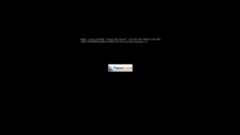
The Compute Engine UEFI loading the boot manager
The following screenshot shows aWindowsServer VM that is unavailablewhile the boot manager is loading:
Windows Server 2016 Datacenter performing updates
The following screenshot shows aWindows Server2016 VM that is unavailablewhile completing updates:

Windows Server 2016 loading system services
The following screenshot shows aWindows Server2016 VM that is unavailablewhile loading system services:

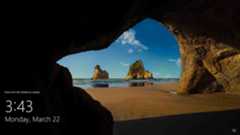
Login screen for Windows Server 2016 Datacenter
The following screenshot shows aWindows Server2016 VM that has completedstartup and is ready to login:
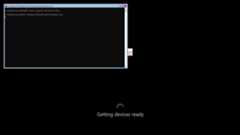
Sysprep process of Windows Server 2019 Core
The following screenshot shows thesysprepprocessof aWindows Server 2019Core VM instance:
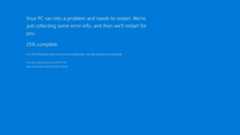
Blue screen error from Windows Server 2016 Datacenter
The following screenshot shows a blue screen error from aWindows Server2016 Datacenter VM instance:
What's next
Learn how tocollect diagnostic information from aVM.
Learn how totroubleshoot Windowsinstances.
Except as otherwise noted, the content of this page is licensed under theCreative Commons Attribution 4.0 License, and code samples are licensed under theApache 2.0 License. For details, see theGoogle Developers Site Policies. Java is a registered trademark of Oracle and/or its affiliates.
Last updated 2025-12-15 UTC.