

Monitoring GPU performance on Windows VMs
To help with better utilization of resources, you can track the GPU usagerates of your virtual machine (VM) instances.
When you know the GPU usage rates,you can perform tasks such assetting upmanaged instance groupsthat can be used to autoscale resources.
To review GPU metrics usingCloud Monitoring, completethe following steps:
- On each VM,set up the GPU metrics reporting script.This script installs the GPU metrics reporting agent. This agent runs at intervalson the VM to collect GPU data, and sends this data to Cloud Monitoring.
- On each VM,run the script.
- On each VM, set GPU metrics reporting agent toautomatically start on boot.
- View logs in Google Cloud Cloud Monitoring.
Required roles
To monitor GPU performance on Windows VMs, you need to grant the requiredIdentity and Access Management (IAM) roles to the following principles:
- Theservice accountthat is used by the VM instance
- Your user account
To ensure that you and the VM's service account has the necessary permissions to monitor GPU performance on Windows VMs, ask your administrator to grant you and the VM's service account the following IAM roles on the project:
- Compute Instance Admin (v1) (
roles/compute.instanceAdmin.v1) - Monitoring Metric Writer (
roles/monitoring.metricWriter)
For more information about granting roles, seeManage access to projects, folders, and organizations.
Your administrator might also be able to give you and the VM's service account the required permissions throughcustom roles or otherpredefined roles.
Set up the GPU metrics reporting script
Requirements
On each of your VMs, check that you meet the following requirements:
- Each VM must haveGPUs attached.
- Each VM must have aGPU driver installed.
Download the script
Open a PowerShell terminal as an administrator and use theInvoke-WebRequest command to download the script.
Invoke-WebRequest is available on PowerShell 3.0 or later.Google Cloud recommends that you usectrl+v to paste the copied code blocks.
mkdir c:\google-scriptscd c:\google-scriptsInvoke-Webrequest -uri https://raw.githubusercontent.com/GoogleCloudPlatform/compute-gpu-monitoring/main/windows/gce-gpu-monitoring-cuda.ps1 -outfile gce-gpu-monitoring-cuda.ps1
Run the script
cd c:\google-scripts.\gce-gpu-monitoring-cuda.ps1
Configure the agent to automatically start on boot
To ensure that the GPU metrics reporting agent agent is set up to run onsystem boot, use the following command to add the agent to the Windows TaskScheduler.
$Trigger= New-ScheduledTaskTrigger -AtStartup$Trigger.ExecutionTimeLimit = "PT0S"$User= "NT AUTHORITY\SYSTEM"$Action= New-ScheduledTaskAction -Execute "PowerShell.exe" -Argument "C:\google-scripts\gce-gpu-monitoring-cuda.ps1"$settingsSet = New-ScheduledTaskSettingsSet# Set the Execution Time Limit to unlimited on all versions of Windows Server$settingsSet.ExecutionTimeLimit = 'PT0S'Register-ScheduledTask -TaskName "MonitoringGPUs" -Trigger $Trigger -User $User -Action $Action -Force -Settings $settingsSet
Review metrics in Cloud Monitoring
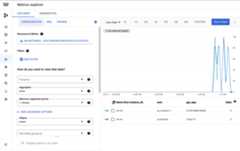
In the Google Cloud console, go to theMetrics Explorer page.
Expand theSelect a metric menu.
In theResource menu, selectVM Instance.
In theMetric category menu, selectCustom.
In theMetric menu, select the metric to chart. For example
Note: Custom metrics might take some time to display.custom/instance/gpu/utilization.ClickApply.
Your GPU utilization should resemble the following output:
Available metrics
| Metric name | Description |
|---|---|
instance/gpu/utilization | Percent of time over the past sample period during which one or more kernels was executing on the GPU. |
instance/gpu/memory_utilization | Percent of time over the past sample period during which global (device) memory was being read or written. |
instance/gpu/memory_total | Total installed GPU memory. |
instance/gpu/memory_used | Total memory allocated by active contexts. |
instance/gpu/memory_used_percent | Percentage of total memory allocated by active contexts. Ranges from 0 to 100. |
instance/gpu/memory_free | Total free memory. |
instance/gpu/temperature | Core GPU temperature in Celsius (°C). |
What's next?
- To handle GPU host maintenance, seeHandling GPU host maintenance events.
- To improve network performance, seeUse higher network bandwidth.
Except as otherwise noted, the content of this page is licensed under theCreative Commons Attribution 4.0 License, and code samples are licensed under theApache 2.0 License. For details, see theGoogle Developers Site Policies. Java is a registered trademark of Oracle and/or its affiliates.
Last updated 2025-12-15 UTC.