

Add a Local SSD to your VM
Local SSDs are designed for temporary storage use cases such as caches orscratch processing space. Because Local SSDs are located on the physicalmachine where your VM is running, they can be created only during the VMcreation process. Local SSDs cannot be used as boot devices.
Forthird generation machine seriesand later,a set amount of Local SSD disks are added to the VM when you create it. The onlyway to add Local SSD storage to these VMs is:
- For C4, C4D, C3, and C3D, Local SSD storage is available only withcertain machine types, such as
c3-standard-88-lssd. - For the Z3, A4, A4X, A3, and A2 Ultra machine series, every machine typecomes with Local SSD storage.
For M3 and first and second generation machine types, you must specifyLocal SSD disks when creating the VM.
After creating a Local SSD disk, you mustformat and mount the device before you can use it.
For information about the amount of Local SSD storage available with variousmachine types, and the number of Local SSD disks you canattach to a VM, seeChoosing a valid number of Local SSDs.
Before you begin
- Review theLocal SSD limitations before using Local SSDs.
- Review thedata persistence scenarios for Local SSD disks.
- If you are adding Local SSDs to virtual machines (VM) instances that have attached GPUs, see Local SSD availability.
- If you haven't already, set upauthentication. Authentication verifies your identity for access to Google Cloud services and APIs. To run code or samples from a local development environment, you can authenticate to Compute Engine by selecting one of the following options:
Select the tab for how you plan to use the samples on this page:
Console
When you use the Google Cloud console to access Google Cloud services and APIs, you don't need to set up authentication.
gcloud
Install the Google Cloud CLI. After installation,initialize the Google Cloud CLI by running the following command:
gcloudinit
If you're using an external identity provider (IdP), you must first sign in to the gcloud CLI with your federated identity.
Note: If you installed the gcloud CLI previously, make sure you have the latest version by runninggcloud components update.- Set a default region and zone.
Terraform
To use the Terraform samples on this page in a local development environment, install and initialize the gcloud CLI, and then set up Application Default Credentials with your user credentials.
Install the Google Cloud CLI.
If you're using an external identity provider (IdP), you must first sign in to the gcloud CLI with your federated identity.
Note: If you installed the gcloud CLI previously, make sure you have the latest version by runninggcloud components update.If you're using a local shell, then create local authentication credentials for your user account:
gcloudauthapplication-defaultlogin
You don't need to do this if you're using Cloud Shell.
If an authentication error is returned, and you are using an external identity provider (IdP), confirm that you have signed in to the gcloud CLI with your federated identity.
For more information, see Set up authentication for a local development environment.
Go
To use the Go samples on this page in a local development environment, install and initialize the gcloud CLI, and then set up Application Default Credentials with your user credentials.
Install the Google Cloud CLI.
If you're using an external identity provider (IdP), you must first sign in to the gcloud CLI with your federated identity.
Note: If you installed the gcloud CLI previously, make sure you have the latest version by runninggcloud components update.If you're using a local shell, then create local authentication credentials for your user account:
gcloudauthapplication-defaultlogin
You don't need to do this if you're using Cloud Shell.
If an authentication error is returned, and you are using an external identity provider (IdP), confirm that you have signed in to the gcloud CLI with your federated identity.
For more information, see Set up authentication for a local development environment.
Java
To use the Java samples on this page in a local development environment, install and initialize the gcloud CLI, and then set up Application Default Credentials with your user credentials.
Install the Google Cloud CLI.
If you're using an external identity provider (IdP), you must first sign in to the gcloud CLI with your federated identity.
Note: If you installed the gcloud CLI previously, make sure you have the latest version by runninggcloud components update.If you're using a local shell, then create local authentication credentials for your user account:
gcloudauthapplication-defaultlogin
You don't need to do this if you're using Cloud Shell.
If an authentication error is returned, and you are using an external identity provider (IdP), confirm that you have signed in to the gcloud CLI with your federated identity.
For more information, see Set up authentication for a local development environment.
Python
To use the Python samples on this page in a local development environment, install and initialize the gcloud CLI, and then set up Application Default Credentials with your user credentials.
Install the Google Cloud CLI.
If you're using an external identity provider (IdP), you must first sign in to the gcloud CLI with your federated identity.
Note: If you installed the gcloud CLI previously, make sure you have the latest version by runninggcloud components update.If you're using a local shell, then create local authentication credentials for your user account:
gcloudauthapplication-defaultlogin
You don't need to do this if you're using Cloud Shell.
If an authentication error is returned, and you are using an external identity provider (IdP), confirm that you have signed in to the gcloud CLI with your federated identity.
For more information, see Set up authentication for a local development environment.
REST
To use the REST API samples on this page in a local development environment, you use the credentials you provide to the gcloud CLI.
Install the Google Cloud CLI.
If you're using an external identity provider (IdP), you must first sign in to the gcloud CLI with your federated identity.
Note: If you installed the gcloud CLI previously, make sure you have the latest version by runninggcloud components update.For more information, seeAuthenticate for using REST in the Google Cloud authentication documentation.
Create a VM with a Local SSD
You can create a VM with Local SSD disk storage using theGoogle Cloud console,thegcloud CLI, or theCompute Engine API.
Console
Go to theCreate an instance page.
Specify the name, region, and zone for your VM. Optionally, add tags orlabels.
In theMachine configuration section, choose the machine family thatcontains your target machine type.
Select a series from theSeries list, then choose the machine type.
- For C4, C4D, C3, and C3D, choose a machine type that ends in
-lssd. - For Z3, A4, A4X, A3, and A2 Ultra, every machine type comes withLocal SSD storage.
- For M3, or first and second generation machine series, after selectingthe machine type, do the following:
- Expand theAdvanced options section.
- ExpandDisks, clickAdd Local SSD, and do the following:
- On theConfigure Local SSD page, choose the disk interface type.
- Select the number of disks you want from theDisk capacitylist.
- ClickSave.
- For C4, C4D, C3, and C3D, choose a machine type that ends in
Continue with the VM creation process.
After creating the VM with Local SSD disks, you mustformat and mount each device before you can use thedisks.
gcloud
For the Z3, A4, A4X, A3, and A2 Ultra machine series, to createa VM with attached Local SSD disks, create a VM that uses any of theavailable machine types for that series by following the instructions tocreate an instance.
For the C4, C4D, C3, and C3D machine series, to create a VM with attachedLocal SSD disks, follow the instructions tocreate an instance,but specify an instance type that includes Local SSD disks (
-lssd).For example, you can create a C3 VM with two Local SSD partitions thatuse the NVMe disk interface as follows:
gcloud compute instances create example-c3-instance \ --zoneZONE \ --machine-type c3-standard-8-lssd \ --image-projectIMAGE_PROJECT \ --image-familyIMAGE_FAMILY
For M3 and first and second generation machine series, to create a VMwith attached Local SSD disks, follow the instructions tocreate an instance, butuse the
--local-ssdflag to create and attach a Local SSD disk. Tocreate multiple Local SSD disks, add more--local-ssdflags.Optionally, you can also set values for the interface and the device namefor each--local-ssdflag.For example, you can create a M3 VM with four Local SSD disks andspecify the disk interface type as follows:
gcloud compute instances createVM_NAME \ --machine-type m3-ultramem-64 \ --zoneZONE \ --local-ssd interface=INTERFACE_TYPE,device-name=DEVICE-NAME \ --local-ssd interface=INTERFACE_TYPE,device-name=DEVICE-NAME \ --local-ssd interface=INTERFACE_TYPE,device-name=DEVICE-NAME \ --local-ssd interface=INTERFACE_TYPE \ --image-projectIMAGE_PROJECT \ --image-familyIMAGE_FAMILY
Replace the following:
- VM_NAME: the name for the new VM
- ZONE: the zone to create the VM in. This flag isoptional if you have configured the gcloud CLI
compute/zoneproperty or the environment variableCLOUDSDK_COMPUTE_ZONE. - INTERFACE_TYPE: the disk interface type that youwant to use for the Local SSD device. Specify
nvmeif creating a M3 VMor if your boot disk imagehas optimized NVMe drivers.Specifyscsifor other images. - DEVICE-NAME: Optional: A name that indicates thedisk name to use in the guest operating systemsymbolic link (symlink).
- IMAGE_FAMILY: one of theavailable image familiesthat you want installed on the boot disk
- IMAGE_PROJECT: theimage project that theimage family belongs to
If necessary, you can attach Local SSDs to a first or secondgeneration VM using a combination ofnvme andscsi for differentpartitions. Performance for thenvme device depends on the boot diskimage for your instance. Third generation VMs only support the NVMe diskinterface.
After creating a VM with Local SSD, you mustformat and mount each device before youcan use it.
Terraform
To create a VM with attached Local SSD disks, you can use thegoogle_compute_instance resource.
# Create a VM with a local SSD for temporary storage use casesresource "google_compute_instance" "default" { name = "my-vm-instance-with-scratch" machine_type = "n2-standard-8" zone = "us-central1-a" boot_disk { initialize_params { image = "debian-cloud/debian-11" } } # Local SSD interface type; NVME for image with optimized NVMe drivers or SCSI # Local SSD are 375 GiB in size scratch_disk { interface = "SCSI" } network_interface { network = "default" access_config {} }}To learn how to apply or remove a Terraform configuration, seeBasic Terraform commands.
To generate the Terraform code, you can use theEquivalent code component in the Google Cloud console.- In the Google Cloud console, go to theVM instances page.
- ClickCreate instance.
- Specify the parameters you want.
- At the top or bottom of the page, clickEquivalent code, and then click theTerraform tab to view the Terraform code.
Go
Go
Before trying this sample, follow theGo setup instructions in theCompute Engine quickstart using client libraries. For more information, see theCompute EngineGo API reference documentation.
To authenticate to Compute Engine, set up Application Default Credentials. For more information, seeSet up authentication for a local development environment.
import("context""fmt""io"compute"cloud.google.com/go/compute/apiv1"computepb"cloud.google.com/go/compute/apiv1/computepb""google.golang.org/protobuf/proto")// createWithLocalSSD creates a new VM instance with Debian 10 operating system and a local SSD attached.funccreateWithLocalSSD(wio.Writer,projectID,zone,instanceNamestring)error{// projectID := "your_project_id"// zone := "europe-central2-b"// instanceName := "your_instance_name"ctx:=context.Background()instancesClient,err:=compute.NewInstancesRESTClient(ctx)iferr!=nil{returnfmt.Errorf("NewInstancesRESTClient: %w",err)}deferinstancesClient.Close()imagesClient,err:=compute.NewImagesRESTClient(ctx)iferr!=nil{returnfmt.Errorf("NewImagesRESTClient: %w",err)}deferimagesClient.Close()// List of public operating system (OS) images: https://cloud.google.com/compute/docs/images/os-details.newestDebianReq:=&computepb.GetFromFamilyImageRequest{Project:"debian-cloud",Family:"debian-12",}newestDebian,err:=imagesClient.GetFromFamily(ctx,newestDebianReq)iferr!=nil{returnfmt.Errorf("unable to get image from family: %w",err)}req:=&computepb.InsertInstanceRequest{Project:projectID,Zone:zone,InstanceResource:&computepb.Instance{Name:proto.String(instanceName),Disks:[]*computepb.AttachedDisk{{InitializeParams:&computepb.AttachedDiskInitializeParams{DiskSizeGb:proto.Int64(10),SourceImage:newestDebian.SelfLink,DiskType:proto.String(fmt.Sprintf("zones/%s/diskTypes/pd-standard",zone)),},AutoDelete:proto.Bool(true),Boot:proto.Bool(true),Type:proto.String(computepb.AttachedDisk_PERSISTENT.String()),},{InitializeParams:&computepb.AttachedDiskInitializeParams{DiskType:proto.String(fmt.Sprintf("zones/%s/diskTypes/local-ssd",zone)),},AutoDelete:proto.Bool(true),Type:proto.String(computepb.AttachedDisk_SCRATCH.String()),},},MachineType:proto.String(fmt.Sprintf("zones/%s/machineTypes/n1-standard-1",zone)),NetworkInterfaces:[]*computepb.NetworkInterface{{Name:proto.String("global/networks/default"),},},},}op,err:=instancesClient.Insert(ctx,req)iferr!=nil{returnfmt.Errorf("unable to create instance: %w",err)}iferr=op.Wait(ctx);err!=nil{returnfmt.Errorf("unable to wait for the operation: %w",err)}fmt.Fprintf(w,"Instance created\n")returnnil}Java
Java
Before trying this sample, follow theJava setup instructions in theCompute Engine quickstart using client libraries. For more information, see theCompute EngineJava API reference documentation.
To authenticate to Compute Engine, set up Application Default Credentials. For more information, seeSet up authentication for a local development environment.
importcom.google.cloud.compute.v1.AttachedDisk;importcom.google.cloud.compute.v1.AttachedDiskInitializeParams;importcom.google.cloud.compute.v1.Image;importcom.google.cloud.compute.v1.ImagesClient;importcom.google.cloud.compute.v1.Instance;importcom.google.cloud.compute.v1.InstancesClient;importcom.google.cloud.compute.v1.NetworkInterface;importcom.google.cloud.compute.v1.Operation;importjava.io.IOException;importjava.util.ArrayList;importjava.util.List;importjava.util.concurrent.ExecutionException;importjava.util.concurrent.TimeUnit;importjava.util.concurrent.TimeoutException;publicclassCreateWithLocalSsd{publicstaticvoidmain(String[]args)throwsIOException,ExecutionException,InterruptedException,TimeoutException{// TODO(developer): Replace these variables before running the sample.// projectId: project ID or project number of the Cloud project you want to use.StringprojectId="your-project-id";// zone: name of the zone to create the instance in. For example: "us-west3-b"Stringzone="zone-name";// instanceName: name of the new virtual machine (VM) instance.StringinstanceName="instance-name";createWithLocalSsd(projectId,zone,instanceName);}// Create a new VM instance with Debian 11 operating system and SSD local disk.publicstaticvoidcreateWithLocalSsd(StringprojectId,Stringzone,StringinstanceName)throwsIOException,ExecutionException,InterruptedException,TimeoutException{intdiskSizeGb=10;booleanboot=true;booleanautoDelete=true;StringdiskType=String.format("zones/%s/diskTypes/pd-standard",zone);// Get the latest debian image.ImagenewestDebian=getImageFromFamily("debian-cloud","debian-11");List<AttachedDisk>disks=newArrayList<>();// Create the disks to be included in the instance.disks.add(createDiskFromImage(diskType,diskSizeGb,boot,newestDebian.getSelfLink(),autoDelete));disks.add(createLocalSsdDisk(zone));// Create the instance.Instanceinstance=createInstance(projectId,zone,instanceName,disks);if(instance!=null){System.out.printf("Instance created with local SSD: %s",instance.getName());}}// Retrieve the newest image that is part of a given family in a project.// Args:// projectId: project ID or project number of the Cloud project you want to get image from.// family: name of the image family you want to get image from.privatestaticImagegetImageFromFamily(StringprojectId,Stringfamily)throwsIOException{// Initialize client that will be used to send requests. This client only needs to be created// once, and can be reused for multiple requests. After completing all of your requests, call// the `imagesClient.close()` method on the client to safely// clean up any remaining background resources.try(ImagesClientimagesClient=ImagesClient.create()){// List of public operating system (OS) images: https://cloud.google.com/compute/docs/images/os-detailsreturnimagesClient.getFromFamily(projectId,family);}}// Create an AttachedDisk object to be used in VM instance creation. Uses an image as the// source for the new disk.//// Args:// diskType: the type of disk you want to create. This value uses the following format:// "zones/{zone}/diskTypes/(pd-standard|pd-ssd|pd-balanced|pd-extreme)".// For example: "zones/us-west3-b/diskTypes/pd-ssd"//// diskSizeGb: size of the new disk in gigabytes.//// boot: boolean flag indicating whether this disk should be used as a// boot disk of an instance.//// sourceImage: source image to use when creating this disk.// You must have read access to this disk. This can be one of the publicly available images// or an image from one of your projects.// This value uses the following format: "projects/{project_name}/global/images/{image_name}"//// autoDelete: boolean flag indicating whether this disk should be deleted// with the VM that uses it.privatestaticAttachedDiskcreateDiskFromImage(StringdiskType,intdiskSizeGb,booleanboot,StringsourceImage,booleanautoDelete){AttachedDiskInitializeParamsattachedDiskInitializeParams=AttachedDiskInitializeParams.newBuilder().setSourceImage(sourceImage).setDiskSizeGb(diskSizeGb).setDiskType(diskType).build();AttachedDiskbootDisk=AttachedDisk.newBuilder().setInitializeParams(attachedDiskInitializeParams)// Remember to set auto_delete to True if you want the disk to be deleted when you delete// your VM instance..setAutoDelete(autoDelete).setBoot(boot).build();returnbootDisk;}// Create an AttachedDisk object to be used in VM instance creation. The created disk contains// no data and requires formatting before it can be used.// Args:// zone: The zone in which the local SSD drive will be attached.privatestaticAttachedDiskcreateLocalSsdDisk(Stringzone){AttachedDiskInitializeParamsattachedDiskInitializeParams=AttachedDiskInitializeParams.newBuilder().setDiskType(String.format("zones/%s/diskTypes/local-ssd",zone)).build();AttachedDiskdisk=AttachedDisk.newBuilder().setType(AttachedDisk.Type.SCRATCH.name()).setInitializeParams(attachedDiskInitializeParams).setAutoDelete(true).build();returndisk;}// Send an instance creation request to the Compute Engine API and wait for it to complete.// Args:// projectId: project ID or project number of the Cloud project you want to use.// zone: name of the zone to create the instance in. For example: "us-west3-b"// instanceName: name of the new virtual machine (VM) instance.// disks: a list of compute.v1.AttachedDisk objects describing the disks// you want to attach to your new instance.privatestaticInstancecreateInstance(StringprojectId,Stringzone,StringinstanceName,List<AttachedDisk>disks)throwsIOException,ExecutionException,InterruptedException,TimeoutException{// Initialize client that will be used to send requests. This client only needs to be created// once, and can be reused for multiple requests. After completing all of your requests, call// the `instancesClient.close()` method on the client to safely// clean up any remaining background resources.try(InstancesClientinstancesClient=InstancesClient.create()){// machineType: machine type of the VM being created. This value uses the// following format: "zones/{zone}/machineTypes/{type_name}".// For example: "zones/europe-west3-c/machineTypes/f1-micro"StringtypeName="n1-standard-1";StringmachineType=String.format("zones/%s/machineTypes/%s",zone,typeName);// networkLink: name of the network you want the new instance to use.// For example: "global/networks/default" represents the network// named "default", which is created automatically for each project.StringnetworkLink="global/networks/default";// Collect information into the Instance object.Instanceinstance=Instance.newBuilder().setName(instanceName).setMachineType(machineType).addNetworkInterfaces(NetworkInterface.newBuilder().setName(networkLink).build()).addAllDisks(disks).build();Operationresponse=instancesClient.insertAsync(projectId,zone,instance).get(3,TimeUnit.MINUTES);if(response.hasError()){thrownewError("Instance creation failed ! ! "+response);}System.out.println("Operation Status: "+response.getStatus());returninstancesClient.get(projectId,zone,instanceName);}}}Python
Python
Before trying this sample, follow thePython setup instructions in theCompute Engine quickstart using client libraries. For more information, see theCompute EnginePython API reference documentation.
To authenticate to Compute Engine, set up Application Default Credentials. For more information, seeSet up authentication for a local development environment.
from__future__importannotationsimportreimportsysfromtypingimportAnyimportwarningsfromgoogle.api_core.extended_operationimportExtendedOperationfromgoogle.cloudimportcompute_v1defget_image_from_family(project:str,family:str)->compute_v1.Image:""" Retrieve the newest image that is part of a given family in a project. Args: project: project ID or project number of the Cloud project you want to get image from. family: name of the image family you want to get image from. Returns: An Image object. """image_client=compute_v1.ImagesClient()# List of public operating system (OS) images: https://cloud.google.com/compute/docs/images/os-detailsnewest_image=image_client.get_from_family(project=project,family=family)returnnewest_imagedefdisk_from_image(disk_type:str,disk_size_gb:int,boot:bool,source_image:str,auto_delete:bool=True,)->compute_v1.AttachedDisk:""" Create an AttachedDisk object to be used in VM instance creation. Uses an image as the source for the new disk. Args: disk_type: the type of disk you want to create. This value uses the following format: "zones/{zone}/diskTypes/(pd-standard|pd-ssd|pd-balanced|pd-extreme)". For example: "zones/us-west3-b/diskTypes/pd-ssd" disk_size_gb: size of the new disk in gigabytes boot: boolean flag indicating whether this disk should be used as a boot disk of an instance source_image: source image to use when creating this disk. You must have read access to this disk. This can be one of the publicly available images or an image from one of your projects. This value uses the following format: "projects/{project_name}/global/images/{image_name}" auto_delete: boolean flag indicating whether this disk should be deleted with the VM that uses it Returns: AttachedDisk object configured to be created using the specified image. """boot_disk=compute_v1.AttachedDisk()initialize_params=compute_v1.AttachedDiskInitializeParams()initialize_params.source_image=source_imageinitialize_params.disk_size_gb=disk_size_gbinitialize_params.disk_type=disk_typeboot_disk.initialize_params=initialize_params# Remember to set auto_delete to True if you want the disk to be deleted when you delete# your VM instance.boot_disk.auto_delete=auto_deleteboot_disk.boot=bootreturnboot_diskdeflocal_ssd_disk(zone:str)->compute_v1.AttachedDisk():""" Create an AttachedDisk object to be used in VM instance creation. The created disk contains no data and requires formatting before it can be used. Args: zone: The zone in which the local SSD drive will be attached. Returns: AttachedDisk object configured as a local SSD disk. """disk=compute_v1.AttachedDisk()disk.type_=compute_v1.AttachedDisk.Type.SCRATCH.nameinitialize_params=compute_v1.AttachedDiskInitializeParams()initialize_params.disk_type=f"zones/{zone}/diskTypes/local-ssd"disk.initialize_params=initialize_paramsdisk.auto_delete=Truereturndiskdefwait_for_extended_operation(operation:ExtendedOperation,verbose_name:str="operation",timeout:int=300)->Any:""" Waits for the extended (long-running) operation to complete. If the operation is successful, it will return its result. If the operation ends with an error, an exception will be raised. If there were any warnings during the execution of the operation they will be printed to sys.stderr. Args: operation: a long-running operation you want to wait on. verbose_name: (optional) a more verbose name of the operation, used only during error and warning reporting. timeout: how long (in seconds) to wait for operation to finish. If None, wait indefinitely. Returns: Whatever the operation.result() returns. Raises: This method will raise the exception received from `operation.exception()` or RuntimeError if there is no exception set, but there is an `error_code` set for the `operation`. In case of an operation taking longer than `timeout` seconds to complete, a `concurrent.futures.TimeoutError` will be raised. """result=operation.result(timeout=timeout)ifoperation.error_code:print(f"Error during{verbose_name}: [Code:{operation.error_code}]:{operation.error_message}",file=sys.stderr,flush=True,)print(f"Operation ID:{operation.name}",file=sys.stderr,flush=True)raiseoperation.exception()orRuntimeError(operation.error_message)ifoperation.warnings:print(f"Warnings during{verbose_name}:\n",file=sys.stderr,flush=True)forwarninginoperation.warnings:print(f" -{warning.code}:{warning.message}",file=sys.stderr,flush=True)returnresultdefcreate_instance(project_id:str,zone:str,instance_name:str,disks:list[compute_v1.AttachedDisk],machine_type:str="n1-standard-1",network_link:str="global/networks/default",subnetwork_link:str=None,internal_ip:str=None,external_access:bool=False,external_ipv4:str=None,accelerators:list[compute_v1.AcceleratorConfig]=None,preemptible:bool=False,spot:bool=False,instance_termination_action:str="STOP",custom_hostname:str=None,delete_protection:bool=False,)->compute_v1.Instance:""" Send an instance creation request to the Compute Engine API and wait for it to complete. Args: project_id: project ID or project number of the Cloud project you want to use. zone: name of the zone to create the instance in. For example: "us-west3-b" instance_name: name of the new virtual machine (VM) instance. disks: a list of compute_v1.AttachedDisk objects describing the disks you want to attach to your new instance. machine_type: machine type of the VM being created. This value uses the following format: "zones/{zone}/machineTypes/{type_name}". For example: "zones/europe-west3-c/machineTypes/f1-micro" network_link: name of the network you want the new instance to use. For example: "global/networks/default" represents the network named "default", which is created automatically for each project. subnetwork_link: name of the subnetwork you want the new instance to use. This value uses the following format: "regions/{region}/subnetworks/{subnetwork_name}" internal_ip: internal IP address you want to assign to the new instance. By default, a free address from the pool of available internal IP addresses of used subnet will be used. external_access: boolean flag indicating if the instance should have an external IPv4 address assigned. external_ipv4: external IPv4 address to be assigned to this instance. If you specify an external IP address, it must live in the same region as the zone of the instance. This setting requires `external_access` to be set to True to work. accelerators: a list of AcceleratorConfig objects describing the accelerators that will be attached to the new instance. preemptible: boolean value indicating if the new instance should be preemptible or not. Preemptible VMs have been deprecated and you should now use Spot VMs. spot: boolean value indicating if the new instance should be a Spot VM or not. instance_termination_action: What action should be taken once a Spot VM is terminated. Possible values: "STOP", "DELETE" custom_hostname: Custom hostname of the new VM instance. Custom hostnames must conform to RFC 1035 requirements for valid hostnames. delete_protection: boolean value indicating if the new virtual machine should be protected against deletion or not. Returns: Instance object. """instance_client=compute_v1.InstancesClient()# Use the network interface provided in the network_link argument.network_interface=compute_v1.NetworkInterface()network_interface.network=network_linkifsubnetwork_link:network_interface.subnetwork=subnetwork_linkifinternal_ip:network_interface.network_i_p=internal_ipifexternal_access:access=compute_v1.AccessConfig()access.type_=compute_v1.AccessConfig.Type.ONE_TO_ONE_NAT.nameaccess.name="External NAT"access.network_tier=access.NetworkTier.PREMIUM.nameifexternal_ipv4:access.nat_i_p=external_ipv4network_interface.access_configs=[access]# Collect information into the Instance object.instance=compute_v1.Instance()instance.network_interfaces=[network_interface]instance.name=instance_nameinstance.disks=disksifre.match(r"^zones/[a-z\d\-]+/machineTypes/[a-z\d\-]+$",machine_type):instance.machine_type=machine_typeelse:instance.machine_type=f"zones/{zone}/machineTypes/{machine_type}"instance.scheduling=compute_v1.Scheduling()ifaccelerators:instance.guest_accelerators=acceleratorsinstance.scheduling.on_host_maintenance=(compute_v1.Scheduling.OnHostMaintenance.TERMINATE.name)ifpreemptible:# Set the preemptible settingwarnings.warn("Preemptible VMs are being replaced by Spot VMs.",DeprecationWarning)instance.scheduling=compute_v1.Scheduling()instance.scheduling.preemptible=Trueifspot:# Set the Spot VM settinginstance.scheduling.provisioning_model=(compute_v1.Scheduling.ProvisioningModel.SPOT.name)instance.scheduling.instance_termination_action=instance_termination_actionifcustom_hostnameisnotNone:# Set the custom hostname for the instanceinstance.hostname=custom_hostnameifdelete_protection:# Set the delete protection bitinstance.deletion_protection=True# Prepare the request to insert an instance.request=compute_v1.InsertInstanceRequest()request.zone=zonerequest.project=project_idrequest.instance_resource=instance# Wait for the create operation to complete.print(f"Creating the{instance_name} instance in{zone}...")operation=instance_client.insert(request=request)wait_for_extended_operation(operation,"instance creation")print(f"Instance{instance_name} created.")returninstance_client.get(project=project_id,zone=zone,instance=instance_name)defcreate_with_ssd(project_id:str,zone:str,instance_name:str)->compute_v1.Instance:""" Create a new VM instance with Debian 10 operating system and SSD local disk. Args: project_id: project ID or project number of the Cloud project you want to use. zone: name of the zone to create the instance in. For example: "us-west3-b" instance_name: name of the new virtual machine (VM) instance. Returns: Instance object. """newest_debian=get_image_from_family(project="debian-cloud",family="debian-12")disk_type=f"zones/{zone}/diskTypes/pd-standard"disks=[disk_from_image(disk_type,10,True,newest_debian.self_link,True),local_ssd_disk(zone),]instance=create_instance(project_id,zone,instance_name,disks)returninstanceREST
Use theinstances.insert methodto create a VM from an image family or from a specific version of anoperating system image.
- For the Z3, A4, A4X, A3, and A2 Ultra machine series, to create a VM withattached Local SSD disks, create a VM that uses any of the availablemachine types for that series.
For the C4, C4D, C3, and C3D machine series, to create a VM with attached Local SSDdisks, specify an instance type that includes Local SSD disks (
-lssd).Here is a sample request payload that creates a C3 VM with an Ubuntuboot disk and two Local SSD disks:
{ "machineType":"zones/us-central1-c/machineTypes/c3-standard-8-lssd", "name":"c3-with-local-ssd", "disks":[ { "type":"PERSISTENT", "initializeParams":{ "sourceImage":"projects/ubuntu-os-cloud/global/images/family/ubuntu-2204-lts" }, "boot":true } ], "networkInterfaces":[ { "network":"global/networks/default"} ]}For M3 and first and second generation machine series, to create a VMwith attached Local SSD disks, you can add Local SSD devices duringVM creation by using the
initializeParamsproperty. You must alsoprovide the following properties:diskType: Set to Local SSDautoDelete: Set to truetype: Set toSCRATCH
The following properties can't be used with Local SSD devices:
diskNamesourceImagepropertydiskSizeGb
Here is a sample request payload that creates a M3 VM with a boot diskand four Local SSD disks:
{ "machineType":"zones/us-central1-f/machineTypes/m3-ultramem-64", "name":"local-ssd-instance", "disks":[ { "type":"PERSISTENT", "initializeParams":{ "sourceImage":"projects/ubuntu-os-cloud/global/images/family/ubuntu-2204-lts" }, "boot":true }, { "type":"SCRATCH", "initializeParams":{ "diskType":"zones/us-central1-f/diskTypes/local-ssd" }, "autoDelete":true, "interface": "NVME" }, { "type":"SCRATCH", "initializeParams":{ "diskType":"zones/us-central1-f/diskTypes/local-ssd" }, "autoDelete":true, "interface": "NVME" }, { "type":"SCRATCH", "initializeParams":{ "diskType":"zones/us-central1-f/diskTypes/local-ssd" }, "autoDelete":true, "interface": "NVME" }, { "type":"SCRATCH", "initializeParams":{ "diskType":"zones/us-central1-f/diskTypes/local-ssd" }, "autoDelete":true, "interface": "NVME" }, ], "networkInterfaces":[ { "network":"global/networks/default" } ]}
After creating a Local SSD disk, you mustformat and mount each device before youcan use it.
For more information on creating an instance using REST, see theCompute Engine API.
Format and mounting a Local SSD device
You can format and mount each Local SSD disk individually, or you can combinemultiple Local SSD disks into a single logical volume.
Format and mount individual Local SSD partitions
The easiest way to connect Local SSDs to your instance is to format andmount each device with a single partition. Alternatively, you cancombine multiple partitions into a single logical volume.
Linux instances
Format and mount the new Local SSD on your Linux instance. You can use anypartition format and configuration that you need. For this example, createa singleext4 partition.
Go to the VM instances page.
Click theSSH button next to the instance that has the new attachedLocal SSD. The browser opens a terminal connection to the instance.
In the terminal, use the
findcommand to identify the Local SSD thatyou want to mount.$find /dev/ | grep google-local-nvme-ssdLocal SSDs in SCSI mode have standard names like
google-local-ssd-0. Local SSDs in NVMe mode have names likegoogle-local-nvme-ssd-0, as shown in the following output:$ find /dev/ | grep google-local-nvme-ssd /dev/disk/by-id/google-local-nvme-ssd-0
Format the Local SSD with an ext4 file system. This commanddeletesall existing data from the Local SSD.
$sudo mkfs.ext4 -F /dev/disk/by-id/[SSD_NAME]Replace
[SSD_NAME]with the ID of the Local SSD that you want toformat. For example, specifygoogle-local-nvme-ssd-0to format thefirst NVMe Local SSD on the instance.Use the
mkdircommand to create a directory where you can mount thedevice.$sudo mkdir -p /mnt/disks/[MNT_DIR]Replace
[MNT_DIR]with the directory path where you want to mountyour Local SSD disk.Mount the Local SSD to the VM.
$sudo mount /dev/disk/by-id/[SSD_NAME] /mnt/disks/[MNT_DIR]Replace the following:
[SSD_NAME]: the ID of the Local SSD that you want to mount.[MNT_DIR]: the directory where you want to mount your Local SSD.
Configure read and write access to the device. For this example, grantwrite access to the device for all users.
$sudo chmod a+w /mnt/disks/[MNT_DIR]Replace
[MNT_DIR]with the directory where you mounted yourLocal SSD.
Optionally, you can add the Local SSD to the/etc/fstab file so thatthe device automatically mounts again when the instance restarts. Thisentry does not preserve data on your Local SSD if the instance stops. SeeLocal SSD data persistencefor complete details.
When you specify the entry/etc/fstab file, be sure to include thenofail option so that the instance can continue to boot even if theLocal SSD is not present. For example, if you take a snapshot of the bootdisk and create a new instance without any Local SSD disks attached, theinstance can continue through the startup process and not pauseindefinitely.
Create the
/etc/fstabentry. Use theblkidcommand to find theUUID for the file system on the device and edit the/etc/fstabfileto include that UUID with the mount options. You can complete this stepwith a single command.For example, for a Local SSD in NVMe mode, use the following command:
$echo UUID=`sudo blkid -s UUID -o value /dev/disk/by-id/google-local-nvme-ssd-0` /mnt/disks/[MNT_DIR] ext4 discard,defaults,nofail 0 2 | sudo tee -a /etc/fstabFor a Local SSD in a non-NVMe mode such as SCSI, use the following command:
$echo UUID=`sudo blkid -s UUID -o value /dev/disk/by-id/google-local-ssd-0` /mnt/disks/[MNT_DIR] ext4 discard,defaults,nofail 0 2 | sudo tee -a /etc/fstabReplace
[MNT_DIR]with the directory where you mounted your Local SSD.Use the
catcommand to verify that your/etc/fstabentries arecorrect:$cat /etc/fstab
If you create a snapshot from the boot disk of this instance and use itto create a separate instance that does not have Local SSDs, edit the/etc/fstab file and remove the entry for this Local SSD. Evenwith thenofail option in place, keep the/etc/fstab file in syncwith the partitions that are attached to your instance and remove theseentries before you create your boot disk snapshot.
Windows instances
Use the WindowsDisk Management tool to format and mount a Local SSD on a Windows instance.
Connect to the instancethrough RDP. For this example, go to theVM instances page and click theRDP button next the instance that has the Local SSDsattached. After you enter your username and password, a windowopens with the desktop interface for your server.
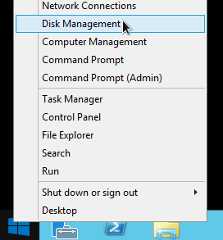
Right-click the Windows Start button and selectDisk Management.
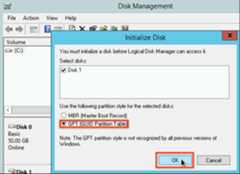
If you have not initialized the Local SSD before, the tool promptsyou to select a partitioning scheme for the new partitions. SelectGPTand clickOK.
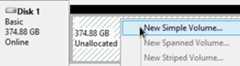
After the Local SSD initializes, right-click the unallocated diskspace and selectNew Simple Volume.
Follow the instructions in theNew Simple Volume Wizard to configurethe new volume. You can use any partition format that you like, but forthis example select
NTFS. Also, checkPerform a quick formatto speed up the formatting process.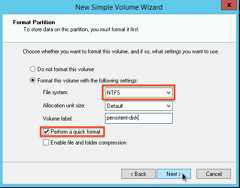
After you complete the wizard and the volume finishes formatting, checkthe new Local SSD to ensure it has a
Healthystatus.
That's it! You can now write files to the Local SSD.
Format and mount multiple Local SSD partitions into a single logical volume
Unlikepersistent SSDs, Local SSDshave a fixed 375 GB capacity for each device that you attach to the instance. Ifyou want to combine multiple Local SSD partitions into a single logical volume,you must define volume management across these partitions yourself.
Note: Due to the underlying hardware configuration, using parity or mirroring RAID levels across Local SSD partitions does not provide any actual reliability or redundancy benefit. Use RAID 0 to get the best performance and the greatest capacity from your Local SSD arrays.Linux instances
Usemdadm to create a RAID 0 array. This example formats the array witha singleext4 file system, but you can apply any file system that youprefer.
/etc/fstab entry to automatically mountthe Local SSD during an instance reboot, it does not allow data on theLocal SSD to persist through stopping or preemption.Go to the VM instances page.
Click theSSH button next to the instance that has the new attachedLocal SSD. The browser opens a terminal connection to the instance.
In the terminal, install the
mdadmtool. The install process formdadmincludes a user prompt that halts scripts, so run thisprocess manually.Debian and Ubuntu:
$sudo apt update && sudo apt install mdadm --no-install-recommendsCentOS and RHEL:
$sudo yum install mdadm -ySLES and openSUSE:
$sudo zypper install -y mdadmUse the
findcommand to identify all of the Local SSDs that you wantto mount together.For this example, the instance has eight Local SSDpartitions in NVMe mode:
$ find /dev/ | grep google-local-nvme-ssd /dev/disk/by-id/google-local-nvme-ssd-7 /dev/disk/by-id/google-local-nvme-ssd-6 /dev/disk/by-id/google-local-nvme-ssd-5 /dev/disk/by-id/google-local-nvme-ssd-4 /dev/disk/by-id/google-local-nvme-ssd-3 /dev/disk/by-id/google-local-nvme-ssd-2 /dev/disk/by-id/google-local-nvme-ssd-1 /dev/disk/by-id/google-local-nvme-ssd-0
finddoes not guarantee an ordering. It's alright if the devices are listed in a different order as long as number of output lines match the expected number of SSD partitions.Local SSDs in SCSI mode have standard names likegoogle-local-ssd. Local SSDs in NVMe mode have names likegoogle-local-nvme-ssd.Use
mdadmto combine multiple Local SSD devices into a single arraynamed/dev/md0. This example merges eight Local SSD devices in NVMemode. For Local SSD devices in SCSI mode, specify the names that youobtained from thefindcommand:$sudo mdadm --create /dev/md0 --level=0 --raid-devices=8 \ /dev/disk/by-id/google-local-nvme-ssd-0 \ /dev/disk/by-id/google-local-nvme-ssd-1 \ /dev/disk/by-id/google-local-nvme-ssd-2 \ /dev/disk/by-id/google-local-nvme-ssd-3 \ /dev/disk/by-id/google-local-nvme-ssd-4 \ /dev/disk/by-id/google-local-nvme-ssd-5 \ /dev/disk/by-id/google-local-nvme-ssd-6 \ /dev/disk/by-id/google-local-nvme-ssd-7mdadm: Defaulting to version 1.2 metadatamdadm: array /dev/md0 started.
You can confirm the details of the array with
mdadm --detail. Adding the--prefer=by-idflag will list the devices using the/dev/disk/by-idpaths.sudo mdadm --detail --prefer=by-id /dev/md0
The output should look similar to the following for each device in the array.
... Number Major Minor RaidDevice State 0 259 0 0 active sync /dev/disk/by-id/google-local-nvme-ssd-0 ...
Format the full
Caution: This commanddeletes all existing data from the Local SSDs./dev/md0array with an ext4 file system.$sudo mkfs.ext4 -F /dev/md0Create a directory to where you can mount
/dev/md0. For this example,create the/mnt/disks/ssd-arraydirectory:$sudo mkdir -p /mnt/disks/[MNT_DIR]Replace
[MNT_DIR]with the directory where you want to mount yourLocal SSD array.Mount the
/dev/md0array to the/mnt/disks/ssd-arraydirectory:$sudo mount /dev/md0 /mnt/disks/[MNT_DIR]Replace
[MNT_DIR]with the directory where you want to mount yourLocal SSD array.Configure read and write access to the device. For this example, grantwrite access to the device for all users.
$sudo chmod a+w /mnt/disks/[MNT_DIR]Replace
[MNT_DIR]with the directory where you mounted your LocalSSD array.
Optionally, you can add the Local SSD to the/etc/fstab file so thatthe device automatically mounts again when the instance restarts. Thisentry does not preserve data on your Local SSD if the instance stops.SeeLocal SSD data persistencefor details.
When you specify the entry/etc/fstab file, be sure to include thenofail option so that the instance can continue to boot even if theLocal SSD is not present. For example, if you take a snapshot of the bootdisk and create a new instance without any Local SSDs attached, the instancecan continue through the startup process and not pause indefinitely.
Create the
/etc/fstabentry. Use theblkidcommand to find theUUID for the file system on the device and edit the/etc/fstabfileto include that UUID with the mount options. Specify thenofailoption to allow the system to boot even if the Local SSD isunavailable.You can complete this step with a single command. Forexample:$echo UUID=`sudo blkid -s UUID -o value /dev/md0` /mnt/disks/[MNT_DIR] ext4 discard,defaults,nofail 0 2 | sudo tee -a /etc/fstabReplace
[MNT_DIR]with the directory where you mounted your LocalSSD array.If you use a device name like
/dev/md0in the/etc/fstabfileinstead of the UUID, you need to edit the file/etc/mdadm/mdadm.confto make sure the array is reassembled automatically at boot. To do this,complete the following two steps:- Make sure the disk array is scanned and reassembled automatically at boot.
$sudo mdadm --detail --scan | sudo tee -a /etc/mdadm/mdadm.conf - Update
initramfsso that the array will be available during the early boot process.$sudo update-initramfs -u
- Make sure the disk array is scanned and reassembled automatically at boot.
Use the
catcommand to verify that your/etc/fstabentries arecorrect:$cat /etc/fstab
If you create a snapshot from the boot disk of this instance and use itto create a separate instance that does not have Local SSDs, edit the/etc/fstab file and remove the entry for this Local SSD array. Evenwith thenofail option in place, keep the/etc/fstab file in syncwith the partitions that are attached to your instance and remove theseentries before you create your boot disk snapshot.
Windows instances
Use the WindowsDisk Management tool to format and mount an array of Local SSDs on a Windows instance.
Connect to the instancethrough RDP. For this example, go to theVM instances page and click theRDP button next the instance that has the Local SSDsattached. After you enter your username and password, a windowopens with the desktop interface for your server.
Right-click the Windows Start button and selectDisk Management.
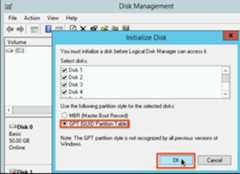
If you have not initialized the Local SSDs before, the tool promptsyou to select a partitioning scheme for the new partitions. SelectGPTand clickOK.
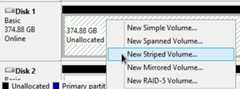
After the Local SSD initializes, right-click the unallocated diskspace and selectNew Striped Volume.
Select the Local SSD partitions that you want to include in the stripedarray. For this example, select all of the partitions to combine theminto a single Local SSD device.
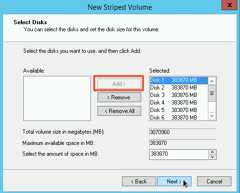
Follow the instructions in theNew Striped Volume Wizard to configurethe new volume. You can use any partition format that you like, but forthis example select
NTFS. Also, checkPerform a quick formatto speed up the formatting process.After you complete the wizard and the volume finishes formatting, checkthe new Local SSD to ensure it has a
Healthystatus.
You can now write files to the Local SSD.
What's next
- Learn more aboutdevice names foryour VM.
- Learn how tobenchmark performance for Local SSD disks
Except as otherwise noted, the content of this page is licensed under theCreative Commons Attribution 4.0 License, and code samples are licensed under theApache 2.0 License. For details, see theGoogle Developers Site Policies. Java is a registered trademark of Oracle and/or its affiliates.
Last updated 2025-12-15 UTC.