
Manage functions in VS Code workspace
This page shows you how to manage multipleCloud Functions configurations in asingle workspace and a multi-folder workspace, and how to rearrange your Cloud Run functions Explorer withCloud Code.
Before you begin
This guide requires a workspace already setup (alaunch.json file with atleast one configuration listed). To get started with a sample, see theCreate and deploy a function quickstart.
Manage multiple configurations in a single workspace
To add a new Cloud Function configuration to yourlaunch.json file, followthese steps:
ClickCloud Code and then expand theCloud Functions Explorer.
In the Cloud Run functions Explorer,hold your pointer overWORKSPACE and clickAdd new cloud function configuration.
Follow the prompts and perform the following actions:
- Enter a function name
- Select a Cloud Run functions environment
- Enter an entry point (the name of the method to call for this function)
- Enter the test input
Alternatively, you can manually enter these values into your
launch.jsonfile:{"configurations":[{"name":"Deploy Cloud Function","type":"cloudcode.cloudfunctions","request":"launch","functionName":"hello-world-get","gen":"GEN_2","entryPoint":"helloGet"}]}Your Cloud Run functions workspace corresponds to the firstconfiguration listed in your
launch.jsonfile. The workspace name reflectsthefunctionNameof the first configuration listed in yourlaunch.jsonfile:{"configurations":[{"name":"Deploy Cloud Function","type":"cloudcode.cloudfunctions","request":"launch","functionName":"hello-world-pub-sub","gen":"GEN_2","entryPoint":"helloPubSub"},{"name":"Deploy Cloud Function","type":"cloudcode.cloudfunctions","request":"launch","functionName":"hello-world-get","gen":"GEN_2","entryPoint":"helloGet"}]}(Optional) To deploy another configuration from your
launch.jsonfile, movethe configuration you want to deploy to the top of thelaunch.jsonfile andclickrefreshRefresh Cloud Functions Explorer.
Manage a multi-folder workspace
Cloud Code supports having multiple folders in aCloud Run functions workspace if each function contains its ownlaunch.json file.
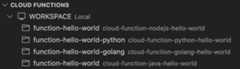
Each Cloud Run functions workspace folder that appears is named after thefirst configuration'sfunctionName in its correspondinglaunch.json file.
To arrange a multi-folder workspace for your project, see VS Code'sMulti-root Workspaces.
Rearrange Cloud Run functions Explorer into your IDE's file Explorer
You can rearrange your Cloud Run functions Explorer intoVS Code's file Explorer by performing the following:
Drag your Cloud Run functions Explorer intoVS Code's file Explorer:

This arrangement displays your Cloud Run functions Explorer under thefile Explorer so that you can view your deployed functions andCloud Run functions workspace(s) in the same pane as your project files.
(Optional) To undo this arrangement, right-click theCloud Code: Cloud Functions Explorer's heading and selectReset location. This moves the Cloud Run functions Explorer back to theCloud Code tab.
Get Support
To send feedback, report issues onGitHub,or ask a question onStack Overflow.Except as otherwise noted, the content of this page is licensed under theCreative Commons Attribution 4.0 License, and code samples are licensed under theApache 2.0 License. For details, see theGoogle Developers Site Policies. Java is a registered trademark of Oracle and/or its affiliates.
Last updated 2025-12-15 UTC.