
Install the Cloud Code for VS Code extension
The Cloud Code for VS Code extension adds support for Google Cloud development toVS Code.
Before you begin
Before you install Cloud Code, confirm that the following toolsare installed and set up on your system:
- Install and set upVisual Studio Codeon your machine.
Install and configure language support.
The Cloud Code extension works best with the followinglanguages:
InstallGit.Git is required for copying samples to your machine.
Install theDocker clientand add it to the
PATHenvironment variable:- If you're building exclusively using Cloud Build or Jib, you canskip installing Docker.
- If you're using WSL but can't install Docker for Desktop, useminikube instead for local development with Cloud Code.
If you're using Google Cloud,create a Google Cloud projectand thenenable billing.
Projects allow you to collect the related resources for a single applicationin one place, manage APIs, enable Google Cloud services, add and removecollaborators, and manage permissions for Google Cloud resources.
Install Cloud Code
Note: When installing Cloud Code, theGemini Code Assist extensionis also installed by default.Install the Google Cloud Code extension from the Visual Studio Code Marketplace.
Alternatively, open theExtensions view in VS Code:
Click
 Extensions or press
Ctrl/Cmd+Shift+X.Search for
Google Cloud Code.
ClickInstall.
If prompted, restart VS Code.
After the extension has successfully installed, the Cloud Codeicon is added to the activity bar and ready for use. You can furtherconfigure your Cloud Code installation by specifying yourpreferences using the top-level application taskbar:navigate toCode >Settings >Settings >Extensions andsearch for
Gemini Code Assist + Google Cloud Code.
Custom versions of dependencies
By default, Cloud Code hasAuto dependencies turned on andinstalls some command-line dependencies for you automatically. If you turn offauto dependencies, you can use custom versions of the dependencies but youmust install the dependencies yourself for Cloud Code to work.
To use custom versions of Cloud Code dependencies:
ClicksettingsManage >Settings and then setAuto Dependencies(
cloudcode.autoDependencies) tooff.Install the following dependencies on your
PATH:
Install the Google Cloud CLI
The first time you use a feature that requires the gcloud CLI, you'regiven the option to learn how to install the CLI from your IDE, use an existinginstallation, or continue with managed dependencies. If you prefer to installthe gcloud CLI manually, seeInstall the gcloud CLI.
Optional: Verify Cloud Code vsix using VsixSignTool
To verify the Cloud Code vsix with the VsixSignTool, perform thefollowing steps:
Ensure you're using the following:
- Nuget package manager
- Windows OS
- A production release of Cloud Code
Install theMicrosoft VsixSignTooland take note of the installation path.
Open VS Code and navigate to
Extensions >Cloud Code.In theDetails tab, underExtension Resources, clickMarketplace.
On the Marketplace page in your browser, underResources, clickDownload Extension to download the packaged version ofCloud Code. This downloads the packaged version ofCloud Code, which has a
.vsixfile extension, to your defaultdownload directory.If you'd prefer to verify a different version than the latest, click theVersion History tab and select a different version to download.
Note: The earliest Cloud Code version you're able to verify with VsixSignTool is1.20.2.When the download is complete, open a terminal window and run the following:
PATH_TO_VSIXSIGNTOOL verifyPATH_TO_DOWNLOADED_VSIXConfirm that the output matches the following:
VsixSignTool Success: PackagePATH_TO_DOWNLOADED_VSIX is valid.
Authenticate credentials for Google Cloud
To help with application development with Google Cloud APIs, when yousign in to the gcloud CLI, yourApplication Default Credentialsare updated.
Sign in to Google Cloud
If you aren't signed in to Google Cloud, follow these steps to sign in:
- In the Cloud Code status bar, clickCloud Code - Sign in.
If this is your first time connecting to Google Cloud in your IDE,you're prompted to add
https://accounts.google.comto Trusted Domain. ClickConfigure Trusted Domains in the dialog that appears: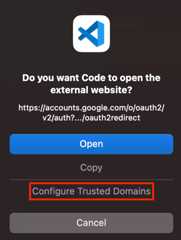
Follow the prompts to sign in using your web browser.
When prompted to allow Cloud Code to access your GoogleAccount, clickAllow.
Known issue: Edge browser redirects to HTTPS on authentication callback
When using the Microsoft Edge browser to authenticate your credentials, you maynotice that the Edge browser redirects the URLhttp://localhost:3000 tohttps://localhost:3000. This leads to the following failure message:
The connection for this site is not secure. localhost sent an invalid response.Try running Windows Network Diagnostics. ERR_SSL_PROTOCOL_ERROR.
To solve this problem, you can excludelocalhost from the redirection:
In the address bar of your Edge browser, enter
edge://net-internals/#hsts.Go to theDelete domain security policies section.
Enter
localhost, then clickDelete.
Log out of Google Cloud
- Click
 Cloud Code and then expandHelp and Feedback.
 - ClickSign Out of Google Cloud and when prompted, selectSign-out.
- Alternatively, you can log out using the Command Palette. Press
Ctrl/Cmd+Shift+Por clickView >Command Palette,and then clickSign out of all accounts in Google Cloud SDK.
Change the active Google Cloud project
In the Cloud Code status bar, click the active project name.

In the Quick Pick menu that appears, selectsync_altSwitch Project.
Select a project or enter keywords in the search bar to filter projects.
Authenticate credentials for debugging applications locally
In addition to the authentication steps in theSign in to Google Cloud section, you'll need toauthenticate your credentials to debug an application locally in your IDE thatmakes Google API calls.
If you don't authenticate your credentials for debugging applications, an errormessage appears in your IDE when you attempt to run/debug a local applicationthat tries to make a call to a Google API.
To authenticate your credentials for debugging applications locally, perform thefollowing steps:
Installgcloud to your machine if you haven't alreadydone so.
Run the following command:
gcloud auth application-default loginWhen you've finished debugging locally, you can sign out by running thefollowing command:
gcloud auth application-default revoke
To learn more about Application Default Credentials and Google APIs, seeAuthenticate to Cloud services using client libraries.
What's next
Get Support
To send feedback, report issues onGitHub,or ask a question onStack Overflow.Except as otherwise noted, the content of this page is licensed under theCreative Commons Attribution 4.0 License, and code samples are licensed under theApache 2.0 License. For details, see theGoogle Developers Site Policies. Java is a registered trademark of Oracle and/or its affiliates.
Last updated 2025-12-15 UTC.