
Deploy a service in Cloud Code for VS Code
This page shows you how to deploy a service to Cloud Run usingCloud Code for VS Code.
Deploying a service to Cloud Run
To deploy your service to Cloud Run:
Open the command palette (press
Ctrl/Cmd+Shift+Por clickView >Command Palette) and then run theDeploy to Cloud Run command.In theDeploy to Cloud Run pane, set your Google Cloud project.
Select a preexisting service or create a new one.
If you're creating a new service, choose your platform preferencesunderDeployment Platform, eitherCloud Run (fully managed) orKnative serving. For help choosing the best option foryour development needs, see theChoosing your platform guide.
If you selectedCloud Run (fully managed), choosea region to deploy to. If you selectedKnative serving,configure the Kubernetes cluster information.
Note: Cloud Code can only deploy to Knative serving ifKnative serving is enabled as a feature on theGKE cluster. It is notcompatible with the newer version of Knative serving which isinstalled as an Anthos fleet component with Cloud Service Mesh. The free trialperiod for Knative serving ended onSeptember 30, 2021. See theGA version documentation for details aboutinstalling Cloud Run for Anthos as an Anthos fleet component with AnthosService Mesh. Thepast version has been archivedbut the documentation remains available for existing users.(Optional) To specify additional settings like service account, environmentvariables, and SQL connections, expand theAdvanced revision settingssection.
The following environment variables are automatically added to the runningcontainers:
Name Description Example PORT The port your HTTP server should listen on. 8080 K_SERVICE The name of the Cloud Run service being run. hello-world K_REVISION The name of the Cloud Run revision being run. hello-world.1 K_CONFIGURATION The name of the Cloud Run configuration that created the revision. hello-world Under Build environment, specify whether to build locally or usingCloud Build.
Specify your builder (Docker or Buildpack) and its settings.
After you define your preferred settings, clickDeploy.
Cloud Code for VS Code builds your image, pushes it to the registry, anddeploys your service to Cloud Run. Your service is now live!
View your running service by following the URL displayed in thewebview.
You can also view details of your running service by clicking theShow Detailed Logs button and looking through your verbose logs in theoutput window.
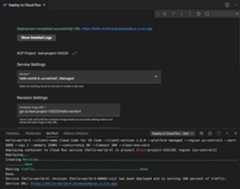
After your session completes, right-click to use the following commands:
- View Logs: Open the application logs of a specificdeployment with the Cloud Code Logs Explorer
- Open URL: Open the application service URL of a specificservice in a web browser
If you've turned off watch mode in your launch configuration and you want tomake changes to your application and rebuild and redeploy the application,click the Cloud Code status bar and then clickTurn on watch mode.
Get Support
To send feedback, report issues onGitHub,or ask a question onStack Overflow.Except as otherwise noted, the content of this page is licensed under theCreative Commons Attribution 4.0 License, and code samples are licensed under theApache 2.0 License. For details, see theGoogle Developers Site Policies. Java is a registered trademark of Oracle and/or its affiliates.
Last updated 2025-12-15 UTC.