
Debug a Cloud Run service in Cloud Code for VS Code
Cloud Code for VS Code lets you easily debug an application deployed toCloud Run by leveragingskaffold debug. For detailedinformation about Skaffold debugging, seeDebugging with Skaffold.
You don't need to complete manual setup like setting up port forwarding orinjecting language-specific debug arguments. Debugging requires aCloud Code-ready Cloud Run applicationthat includes askaffold.yaml configuration file and alaunch.json file oftypecloudcode.cloudrun.
Debug your Cloud Run service
To debug your service, follow these steps:
To run your service and attach a debugger session to it, open thecommand palette (press
Ctrl/Cmd+Shift+Por clickView >Command Palette)and then run theDebug on Cloud Run Emulator command.In the Run/Debug on Cloud Run Emulator dialog, set thespecifications for your configuration:
- Choose Docker or Buildpacks as your builder and then specify yourDockerfile or Buildpack.
- (Optional) To specify a Dockerfile target or build arguments,clickShow Advanced Build Settings and then specify the target orarguments.
- (Optional) To specify a custom service name, container image URL,container port, identity for the service to use, number of dedicated CPUs,or amount of memory to allocate to each container instance, clickShow Advanced Service Settings and then specify the values.
- (Optional) To specify anyenvironment variables,clickShow Advanced Service Settings, clickEnvironment Variables,and then specify the values.
- (Optional) To specify Cloud SQL connections, clickConnectionsand then specify one connection per line.
- (Optional) To have VS Code reestablish a debugging session after you save achange to your code, check theAutomatically re-build and re-run on changes checkbox.
If you want to further customize how your service is run, you can edityour
launch.jsonfiledirectly.To begin debugging your service, clickDebug.
If prompted,authenticate your credentials to run and debug anapplication locally.
For each debuggable container in your service, confirm or enter the directoryin the remote container where the program you'd like to debug is found.
Alternatively, you can press
ESCto skip debugging a container.
Cloud Code attaches a debug session for each debuggablecontainer in the service.
By default, when you save a change to your application,Cloud Code redeploys your application and sets up a new debugsession. You can toggle this feature with the
watchflag in your project'slaunch configuration.To add a breakpoint, click in the editor margin of the file you're debugging.
Red filled circles signify active breakpoints and gray hollow circlessignify disabled breakpoints.
For finer breakpoint control, you can use the Breakpoints section in VSCode's Debug view.
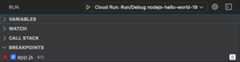
When you send a new request to your service, it pauses at the line youspecified.
After your session completes, right-click to use the following commands:
- View Logs: Open the application logs of a specificdeployment with the Cloud Code Logs Explorer
- Open URL: Open the application service URL of a specificservice in a web browser
If you've turned off watch mode in your launch configuration and you want tomake changes to your application and rebuild and redeploy the application,click the Cloud Code status bar and then clickTurn on watch mode.
If you want to inspect variables and stack info, use theDebug Sidebar.To interact with the debugging session, use theDebug Consolein the bottom pane debugger.
To stop your deployment, click theStop button in the action bar for yourcurrent deployment.

Troubleshoot container-building issues
If you're getting theBUILD_DOCKER_UNKNOWN error code, this indicates aproblem with Docker. To resolve this issue, perform one or more of the followingtasks:
Restart Docker and try building the container again.
If you're still getting the same error after restarting, Docker could berunning out of disk space. To learn more about cleaning up unused objects inDocker, seePrune unused Docker objects.
Try Docker'sDisk Usageextension to help reclaim space.
Configuration details
Cloud Code handles the following language-specific configurationdetails:
Node.js
Rewriting the entrypoint to invoke:
node --inspect=localhost:9229
Python
Installing theptvsd module using an Init Container and rewriting theentrypoint to invoke:
python -m ptvsd --host localhost --port 5678
Go
Installing thedlv debuggerusing an Init Container and rewriting the entrypoint such that the launcheddebug session runs with a debug server only (in headless mode), continues thedebugged process on start, accepts multiple client connections, and listens atlocalhost:56268:
dlv exec --headless --continue --accept-multiclient --listen=localhost:56268 --api-version=2, <app> --
Java
Adding an environmentJAVA_TOOLS_OPTIONS with the appropriate Java DebugWire Protocol (JDWP) configuration such that the JDWP debugging agent listensfor a socket connection on port 5005 and allows the VM to begin executingbefore the debugger is attached:
jdwp=transport=dt_socket,server=y,suspend=n,address=5005,quiet=y
.NET
.NET Core applications are configured to be deployed along withvsdbg for VSCode.
If you encounter problems with the automatic configuration, seeDetailed debugger configuration and setupfor help troubleshooting.
Get Support
To send feedback, report issues onGitHub,or ask a question onStack Overflow.Except as otherwise noted, the content of this page is licensed under theCreative Commons Attribution 4.0 License, and code samples are licensed under theApache 2.0 License. For details, see theGoogle Developers Site Policies. Java is a registered trademark of Oracle and/or its affiliates.
Last updated 2025-12-15 UTC.