

Get started with Cloud Code for Cloud Shell
Cloud Code for Cloud Shell provides tools for developing cloud-based applications inyour browser. Cloud Code is built in to theCloud Shell Editor and doesn't require any setup.The Cloud Shell Editor is a code editor based onTheia that's available with every Cloud Shellinstance.
Launching the Cloud Shell Editor
To start a Cloud Shell Editor session, openide.cloud.google.com.
Moving between Cloud Shell and Cloud Shell Editor
To move between Cloud Shell and the Cloud Shell Editor,click Open Editor orClose Editor on the toolbar of the Cloud Shellwindow.
Cloud Code views
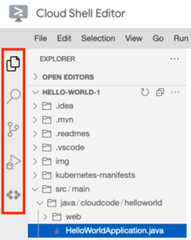
In the Activity bar on the left, you can find the Source Control and Debuggingviews, and Cloud Code, which leads you to specific views like theCloud APIs Manager, Cloud Run Explorer, and Kubernetes Explorer.
In the status bar at the bottom, you can find the Cloud Codestatus bar. When you click the Cloud Code status bar, the QuickPick menu appears with available Cloud Code actions to choosefrom. You can also selectControl minikube for minikube actions.
To run Cloud Code commands using the command palette, pressCtrl/Cmd+Shift+P or clickView >Command Palette.
Change the active Google Cloud project
In the Cloud Code status bar, click the active project name.

In the Quick Pick menu that appears, select
 SwitchProject.
Select a project or enter keywords in the search bar to filter projects.
Except as otherwise noted, the content of this page is licensed under theCreative Commons Attribution 4.0 License, and code samples are licensed under theApache 2.0 License. For details, see theGoogle Developers Site Policies. Java is a registered trademark of Oracle and/or its affiliates.
Last updated 2025-12-15 UTC.