

Write queries with Gemini assistance
This document describes how to use AI-powered assistance inGemini in BigQueryto help you query your data with SQL queries and Python code.Gemini in BigQuery can generate and explainqueries and code, complete queries and code while you type, and fix code errors.
To follow step-by-step guidance for this task directly in the Google Cloud console, clickGuide me:
Gemini for Google Cloud doesn't use your prompts or itsresponses as data to train its models without your express permission. For moreinformation about how Google uses your data, seeHow Gemini for Google Cloud uses your data.
Note: To opt in to data sharing for Gemini inBigQuery features inPreview,seeHelp improve suggestions.Only English language prompts are supported for Gemini inBigQuery.
This document is intended for data analysts, data scientists, and datadevelopers who work with SQL queries andColab Enterprise notebooks in BigQuery.It assumes that you know how to query data in the BigQuery Studioenvironment or how to work with Python notebooks to analyzeBigQuery data.
Before you begin
- Ensure thatGemini in BigQuery is set up for your Google Cloud project.This step is normally done by an administrator.Gemini in BigQuery features might beturned off or unavailable until you complete the remaining steps in thissection.
- To useGemini Cloud Assist,to write code in the Gemini Cloud Assist pane, you must alsofollow the steps inSet up Gemini Cloud Assist.
To use Gemini to explain and fix Python code in yourColab Enterprise notebooks inBigQuery, you must also follow the steps inSet up Gemini in Colab Enterprise for a project.
In the Google Cloud console, on the project selector page, select or create a Google Cloud project.
Roles required to select or create a project
- Select a project: Selecting a project doesn't require a specific IAM role—you can select any project that you've been granted a role on.
- Create a project: To create a project, you need the Project Creator role (
roles/resourcemanager.projectCreator), which contains theresourcemanager.projects.createpermission.Learn how to grant roles.
In the Google Cloud console, go to theBigQuery Studio page.
In the BigQuery toolbar, clickpen_sparkGemini.

In the list of features, ensure the following features are selected:
Gemini in SQL query list:
- Auto-completion (Preview). As you type in the query editor,Gemini can suggest logical next steps that arerelevant to your current query's context, or it can help you iterateon a query.
- Auto-generation. You can prompt Gemini inBigQuery using a natural language comment in theBigQuery query editor to generate a SQL query.
- SQL generation tool. You can enter natural language text in atool to generate a SQL query, with options to refine query results,choose table sources, and compare results.
- Explanation. You can prompt Gemini inBigQuery to explain a SQL query usingnatural language.
Gemini in Python notebook list:
- Code completion (Preview). Gemini providescontextually appropriate recommendations that are based on contentin the notebook.
- Code generation. You can prompt Gemini using anatural language statement or question to generate Python code.
To complete the tasks in this document, ensure that you have therequired Identity and Access Management (IAM) permissions.
Required roles
To get the permissions that you need to write queries with Gemini assistance, ask your administrator to grant you theGemini for Google Cloud User (roles/cloudaicompanion.user) IAM role on the project. For more information about granting roles, seeManage access to projects, folders, and organizations.
This predefined role contains the permissions required to write queries with Gemini assistance. To see the exact permissions that are required, expand theRequired permissions section:
Required permissions
The following permissions are required to write queries with Gemini assistance:
cloudaicompanion.entitlements.getcloudaicompanion.instances.completeTask- Explain SQL queries:
cloudaicompanion.companions.generateChat - Complete SQL or Python code:
cloudaicompanion.instances.completeCode - Generate SQL or Python code:
cloudaicompanion.instances.generateCode
You might also be able to get these permissions withcustom roles or otherpredefined roles.
For more information about IAM roles and permissions inBigQuery, seeIntroduction to IAM.
Generate a SQL query
As an early-stage technology, Gemini for Google Cloud products can generate output that seems plausible but is factually incorrect. We recommend that you validate all output from Gemini for Google Cloud products before you use it. For more information, seeGemini for Google Cloud and responsible AI.
To generate a SQL query based on your data's schema, you can provideGemini in BigQuery with a natural languagestatement or question, also known as aprompt. You can alsobrowse prompt recommendations from Gemini.Even if you're starting with nocode, a limited knowledge of the data schema, or only a basic knowledge ofGoogleSQL syntax, Gemini in BigQuery cangenerate SQL that can help you explore your data.
Use the SQL generation tool
The SQL generation tool lets you use natural language to generate a SQL queryabout your recently viewed or queried tables. You can also use the tool tomodify an existing query, and to manually specify the tables for which you wantto generate SQL.
To use the SQL generation tool, follow these steps:
In the Google Cloud console, go to theBigQuery Studio page.
Next to the query editor, clickpen_sparkSQL generation tool.

In theGenerate SQL with Gemini dialog, you have the following options:
Enter a natural languageprompt about a table that you recently viewed or queried. For example,if you recently viewed
bigquery-public-data.austin_bikeshare.bikeshare_tripstable, you might enter the following:Show me the duration and subscriber type for the ten longest trips.Click one of the Gemini recommended prompts(Preview).The promptis copied to theGenerate SQL with Gemini dialog.
ClickGenerate.
The generated SQL query is similar to the following:
SELECTsubscriber_type,duration_secFROM`bigquery-public-data.san_francisco_bikeshare.bikeshare_trips`ORDERBYduration_secDESCLIMIT10;Review the generated SQL query and take any of the following actions:
- To accept the generated SQL query, clickInsert to insert thestatement into the query editor. You can then clickRun to executethe suggested SQL query.
- To edit your prompt, clickEdit and then modify or replace yourinitial prompt. After you've edited your prompt, clickUpdate togenerate a new query.
- To update the table sources that were used as context to generate thesuggested SQL query, clickEdit Table Sources, select theappropriate checkboxes, and then clickApply.
- To view a natural language summary of the generated query, clickQuerySummary.
- To refine the suggested SQL query, enter any refinements in theRefine field, and then clickRefine. For example, enter
limit to 1000to limit the number of query results. To compare thechanges to your query, select theShow diff checkbox. - To dismiss a suggested query, close the SQL generation tool.
Turn off the SQL generation tool
To learn how to turn off the SQL generation tool, seeTurn off Gemini query assistant features.
Generate SQL from a comment
You can generate SQL in the query editor by describing the query that you wantin a comment.
In the Google Cloud console, go to theBigQuery Studio page.
In the query editor, click
SQL query .In the query editor, write a SQL comment about a table you have recentlyviewed or queried. For example, if you recently viewed the
bigquery-public-data.austin_bikeshare.bikeshare_tripstable, then you might write the followingcomment:# Show me the duration and subscriber type for the ten longest trips.PressEnter (Return on macOS).
The suggested SQL query is similar to the following:
# Show me the duration and subscriber type for the ten longest tripsSELECTduration_sec,subscriber_typeAVG(duration_minutes)ASaverage_trip_lengthFROM`bigquery-public-data.austin_bikeshare.bikeshare_trips`ORDERBYduration_secLIMIT10;To accept the suggestion, pressTab.
Generate SQL with Gemini Cloud Assist
Preview
This feature is subject to the "Pre-GA Offerings Terms" in the General Service Terms section of theService Specific Terms. Pre-GA features are available "as is" and might have limited support. For more information, see thelaunch stage descriptions.
Note: To request support or provide feedback for this feature, send email togemini-in-bigquery-feedback@google.com.You can generate a SQL query in BigQuery by using theCloud Assist panelin the Google Cloud console.
Before you can use Gemini Cloud Assist chat to generate SQL,you must enable Gemini Cloud Assist. For more information, seeSet up Gemini Cloud Assist.
In the Google Cloud console, go to theBigQuery Studio page.
In the query editor, click
SQL query to open a new SQL query.In the Google Cloud toolbar, clicksparkOpen orclose Gemini AI chat to open Gemini Cloud Assist chat.

In theEnter a prompt field, enter a prompt to generate a SQL query.For example:
Generate a SQL query to show me the duration and subscriber type for the ten longest trips.ClickSend prompt. The response includes a SQL query similar tothe following:
SELECTsubscriber_type,duration_secFROM`bigquery-public-data.san_francisco_bikeshare.bikeshare_trips`ORDERBYduration_secDESCLIMIT10;```Review the generated SQL query.
To run the generated SQL query, clickCopy to clipboard,paste the generated code in the query editor,and then clickRun.
If the query editor is already open, you can select one of the followingoptions:
To see the difference between your existing query and the generatedquery, clickPreview.
A comparison pane opens. After you review the changes, select one ofthe following:
- Accept and run: accept the changes and run the query.
- Accept: accept the changes.
- Decline: close the comparison pane without making changes toyour existing query.
To replace the contents of the query editor with the generated queryand run it, clickApply and run.
Tips for SQL generation
The following tips can improve suggestions that Gemini inBigQuery provides:
- To manually specify which tables to use, you can include the fullyqualified table name in backticks (
`), such as`PROJECT.DATASET.TABLE`. - If the column names or their semantic relationships are unclear or complex,then you can provide context in the prompt to guide Geminitowards the answer that you want. For example, to encourage a generatedquery to reference a column name, describe the column name and its relevanceto the answer that you want. To encourage an answer that references complexterms likelifetime value orgross margin, describe the concept and itsrelevance to your data to improve SQL generation results.
- When you generate SQL from a comment, you can format your prompt overmultiple lines by prefixing each line with the
#character. - Column descriptions are considered when you generate SQL queries. Toimprove accuracy, add column descriptions to your schema. For moreinformation about column descriptions, seeColumn descriptions in"Specify a schema."
Convert comments to SQL
Preview
This feature is subject to the "Pre-GA Offerings Terms" in the General Service Terms section of theService Specific Terms. Pre-GA features are available "as is" and might have limited support. For more information, see thelaunch stage descriptions.
Note: To request support or provide feedback for this feature, send email togemini-in-bigquery-feedback@google.com.You can use comments as prompts to create SQL queries that help you explore yourdata in BigQuery. You can embed comments containing naturallanguage prompts that describe the information that you want from your data.Gemini responds with SQL that you can then compare or insert intoyour query. Natural language expressions can help you iterate on and transformyour SQL code. Natural language expressions can also help with SQL syntax suchas timestamps and window functions.
To use natural language SQL generation, follow these steps:
In the Google Cloud console, go to theBigQuery page.
In theBigQuery Studio query editor, clickpen_spark and ensure GeminiSQLAuto-generation is enabled.

In the BigQuery query editor, enter a SQL query containing anatural language prompt enclosed in a comment in the format of
/* naturallanguage text */about a table that you recently viewed or queried.Gemini in BigQuery uses the metadata ofrecently queried tables in an effort to find appropriate data, so you canhelp guide responses by querying a table. For best results, your naturallanguage prompt should be specific to SQL syntax and your data,and not a general expressions such as "optimize my query."sFor example, if you recently queried
bigquery-public-data.austin_bikeshare.bikeshare_tripstable, you might enter the following:SELECTsubscriber_type,/* the name of the day of week of the trip start ordered longest to shortest trip with the trip's duration */FROM`bigquery-public-data`.`austin_bikeshare`.`bikeshare_trips`LIMIT10;Highlight the SQL query, including the natural language expression, that youwant Gemini to convert. In the previous example, you wouldhighlight the entire SQL sample.
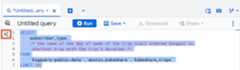
To generate SQL code, in the margin or the query editor you can clickGemini, and then clickpen_sparkConvert comments to SQL.
Review the generated SQL. TheTransform SQL with Gemini output showsthe difference between the original text and the generated text. Thegenerated SQL query should be similar to the following:
SELECTsubscriber_type,FORMAT_TIMESTAMP('%A',start_time)ASday_of_week,duration_minutesFROM`bigquery-public-data`.`austin_bikeshare`.`bikeshare_trips`ORDERBYduration_minutesDESCLIMIT10;To copy the query to the query editor, clickInsert. Your previousstatement, including your natural language prompt, appears in comments andthe generated SQL code is copied to the edit pane where you can run or editit. You can also select one of the following:
- Refine: to prompt Gemini to modify the generated SQL
- Edit Table Sources: to select a different table
- Query Summary: to have Gemini provide a summary of theSQL query.
Complete a SQL query
Preview
This feature is subject to the "Pre-GA Offerings Terms" in the General Service Terms section of theService Specific Terms. Pre-GA features are available "as is" and might have limited support. For more information, see thelaunch stage descriptions.
SQL completion attempts to provide contextually appropriate recommendations thatare based on content in the query editor. As you type, Geminican suggest logical next steps that are relevant to your current query'scontext, or it can help you iterate on a query.
To try SQL completion with Gemini in BigQuery,follow these steps:
In the Google Cloud console, go to theBigQuery Studio page.
In the query editor, copy the following:
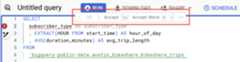
SELECTsubscriber_type,EXTRACT(HOURFROMstart_time)AShour_of_day,AVG(duration_minutes)ASavg_trip_lengthFROM`bigquery-public-data.austin_bikeshare.bikeshare_trips`An error message states that
subscriber_typeisn't grouped oraggregated. It's not uncommon to need some help getting a query just right.At the end of the line for
subscriber_type, pressSpace.The suggested refinements to the query might end in text that's similar tothe following:
GROUPBYsubscriber_type,hour_of_day;You can also pressEnter (Return on macOS) to generatesuggestions.
To accept the suggestion, pressTab, or hold thepointer over the suggested text and click through alternate suggestions. Todismiss a suggestion, pressESC or continue typing.
Explain a SQL query
You can prompt Gemini in BigQuery to explain aSQL query in natural language. This explanation can help you understand aquery whose syntax, underlying schema, and business context might be difficultto assess due to the length or complexity of the query.
To get an explanation for a SQL query, follow these steps:
In the Google Cloud console, go to theBigQuery Studio page.
In the query editor, open or paste a query that you want explained.
Highlight the query that you want Gemini inBigQuery to explain.
Clickastrophotography_modeGemini,and then clickExplain this query.
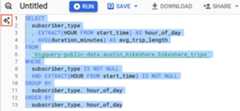
The SQL explanation appears in theCloud panel.
Fix and explain SQL errors
Preview
This feature is subject to the "Pre-GA Offerings Terms" in the General Service Terms section of theService Specific Terms. Pre-GA features are available "as is" and might have limited support. For more information, see thelaunch stage descriptions.
Note: To request support or provide feedback for this feature, send email togemini-in-bigquery-feedback@google.com.You can use Gemini in BigQueryto fix and explain errors in your SQL queries. To fix an error in the text ofyour query before you run it, follow these steps:
Highlight the text that contains the error.
ClickRefineand thenFix it.
The Gemini Cloud Assist pane opens and shows a suggestedchange to your query to fix the error.
ClickApply & run to make the change, orPreview to open a comparisonpane that shows the difference between your query and the suggested one.
To fix an error that appears after you run a query, follow these steps:
Next to the error in theResults pane, clickGemini suggested fixes.
The Gemini Cloud Assist pane opens and shows a suggestedchange to your query to fix the error.
ClickApply & run to make the change, orPreview to open a comparisonpane that shows the difference between your query and the suggested one.
Generate Python code
You can ask Gemini in BigQuery to generatePython code with a natural language statement or question.Gemini in BigQuery responds with one or morePython code suggestions, pulling in relevant table names directly from yourBigQuery project, resulting in personalized, executable Pythoncode.
Use the Python code generation tool
In the following example, you generate code for a BigQuerypublic dataset,bigquery-public-data.ml_datasets.penguins.
In the Google Cloud console, go to theBigQuery Studio page.
In the tab bar of the query editor, click thedrop-down arrow next toSQL query, and then clickNotebook.
The new notebook opens, containing cells that show example queries againstthe
bigquery-public-data.ml_datasets.penguinspublic dataset.To insert a new code cell, in the toolbar, clickCode. The new code cell containsthe messageStart coding or generate with AI.
In the new code cell, clickgenerate.
In theGenerate editor, enter the following natural language prompt:
Using bigquery magics, query the `bigquery-public-data.ml_datasets.penguins` tablePressEnter (Return on macOS).
The suggested Python code is similar to the following:
%%bigquerySELECT *FROM `bigquery-public-data.ml_datasets.penguins`LIMIT 10To run the code, pressRun cell.
Generate Python code with Gemini Cloud Assist
Preview
This feature is subject to the "Pre-GA Offerings Terms" in the General Service Terms section of theService Specific Terms. Pre-GA features are available "as is" and might have limited support. For more information, see thelaunch stage descriptions.
Note: To request support or provide feedback for this feature, send email togemini-in-bigquery-feedback@google.com.You can useGemini Cloud Assistin the Google Cloud console to generate Python code in BigQuery.Before you can use Gemini Cloud Assist to generate code,you must enable Gemini Cloud Assist. For more information, seeSet upGemini Cloud Assist.
In the Google Cloud console, go to theBigQuery Studio page.
In the tab bar of the query editor, click thedrop-down arrow next toSQL query, and then clickNotebook.
In the Google Cloud toolbar, clicksparkOpen orclose Gemini AI chat to open Gemini Cloud Assist chat.
In theEnter a prompt field, enter a prompt to generate Python code.For example:
Generate python code to query the `bigquery-public-data.ml_datasets.penguins`table using bigquery magicsClickSend prompt.Gemini returns Python code similar to the following:
%%bigquerySELECT*FROM`bigquery-public-data.ml_datasets.penguins`LIMIT10Review the generated Python code.
To run the Python code, clickCopy to clipboard and then paste the generated code in the query editor,and then clickRun.
Generate BigQuery DataFrames code
Preview
This feature is subject to the "Pre-GA Offerings Terms" in the General Service Terms section of theService Specific Terms. Pre-GA features are available "as is" and might have limited support. For more information, see thelaunch stage descriptions.
Note: To request support or provide feedback for this feature, send email tobq-notebook-python-gen-feedback@google.com.You can generateBigQuery DataFramescode with Gemini in BigQuery. To askGemini to use BigQuery DataFrames in the generated code,express your intent in your prompt. For example, you can start your prompt with"using bigframes" or "utilizing BigQuery DataFrames".
BigQuery DataFrames provides two libraries:
- bigframes.pandas, which provides a pandas-compatible API for analytics.
- bigframes.ml, which provides a scikit-learn-like API for machine learning (ML).
Gemini code generation is optimized for the bigframes.pandaslibrary.
To learn more about BigQuery DataFrames and thepermissions that are required to use BigQuery DataFrames, seeBigQuery DataFrames permissions.BigQuery DataFrames is an open-source package.You can runpip install --upgrade bigframes to install the latestversion.
In the following example, you generate code for a BigQuerypublic dataset,bigquery-public-data.ml_datasets.penguins.
In the Google Cloud console, go to the BigQuery Studio page.
In the tab bar of the query editor, click thedrop-down arrow next toSQL query, and then clickNotebook.
A new notebook opens.
To insert a new code cell, in the toolbar, clickCode.
The new code cell contains the messageStart coding or generate with AI.In the new code cell, clickgenerate.
In theGenerate editor, enter the following natural language prompt:
Read the penguins table from the BigQuery public data using bigframesPressEnter (Return on macOS).
The suggested Python code is similar to the following:
importbigframes.pandasasbpd# Read the penguins table from the BigQuery public data using bigframesresult=bpd.read_gbd("bigquery-public-data.ml_datasets.penguins")To run the code, pressRun cell.
To preview the results, in the toolbar, click
In the new cell, call the
peek()method—for example,result.peek()—and pressRun cell. A number ofrows of data are displayed.
Complete Python code
Python code completion attempts to provide contextually appropriaterecommendations that are based on content in the query editor. As you type,Gemini in BigQuery can suggest logical next stepsthat are relevant to your current code's context, or it can help you iterate onyour code.
To try Python code completion with Gemini inBigQuery, follow these steps:
In the Google Cloud console, go to theBigQuery Studio page.
In the tab bar of the query editor, click thedrop-down arrow next toSQL query, and then clickNotebook.
A new notebook opens, containing cells that show example queries againstthe
bigquery-public-data.ml_datasets.penguinspublic dataset.In the editor, begin typing Python code. For example
%%bigquery. Gemini in BigQuerysuggests code inline while you type.To accept the suggestion, pressTab.
Explain Python code
Preview
This product or feature is subject to the "Pre-GA Offerings Terms" in the General Service Terms section of theService Specific Terms. Pre-GA products and features are available "as is" and might have limited support. For more information, see thelaunch stage descriptions.
You can use Gemini in BigQuery to explain Pythoncode in your Colab Enterprise notebooks.
After getting an explanation, you can ask more questions in the prompt dialogto understand the code better.
To get an explanation for Python code in your notebook, follow these steps:
In the Google Cloud console, go to theBigQuery Studio page.
In the left pane, clickExplorer:

If you don't see the left pane, clickExpand left pane to open the pane.
In theExplorer pane, expand your project and clickNotebooks.
Click the notebook that you want to open.
Highlight the Python cell that you want to understand.
ClicksparkGemini,and then clickExplain code.
The code explanation appears in a panel next to the cell.
Optional: To understand your code better, ask questions in theEnterprompt here field.
Fix and explain Python errors
Preview
This product or feature is subject to the "Pre-GA Offerings Terms" in the General Service Terms section of theService Specific Terms. Pre-GA products and features are available "as is" and might have limited support. For more information, see thelaunch stage descriptions.
You can use Gemini in BigQuery to fix and explainPython code errors in your Colab Enterprise notebooks.
To fix or understand the code errors with Gemini assistance,follow these steps:
In the Google Cloud console, go to theBigQuery Studio page.
In the left pane, clickExplorer:
In theExplorer pane, expand your project and clickNotebooks.
Click the notebook that you want to open.
In a code cell of your notebook, enter code that contains an error, and thenrun the cell. For example, you might enter
print(1, which is missing aclosing parenthesis.After your code cell runs, the notebook prints an error message below yourcode cell. If you have Gemini inPython notebooks turned on and Gemini has asuggestion to fix or explain the error, one of the following optionsappears:
- For Python syntax errors, aFix error option appears.
- For all other types of errors, anExplain error option appears.
To fix a syntax error, do the following:
ClickFix error.
Gemini suggests how to fix the error.
Evaluate the suggestion, and then do one of the following:
- To accept the suggestion, clickcheckAccept suggestion.
- To reject the suggestion, clickcloseReject suggestion.
To fix all other types of errors, do the following:
ClickExplain error.
A panel opens, explaining the error and suggesting changes.
Optional: To understand the error better, ask questions in theEnterprompt here field.
To accept a suggested change, clicklibrary_addAdd code cell.
Generate PySpark code
Preview
This product or feature is subject to the "Pre-GA Offerings Terms" in the General Service Terms section of theService Specific Terms. Pre-GA products and features are available "as is" and might have limited support. For more information, see thelaunch stage descriptions.
You can ask Gemini Code Assist to generate PySpark code in yournotebook. Gemini Code Assist fetches and uses relevant BigQueryand Dataproc Metastore tables and their schemas to generate a coderesponse. With its schema knowledge, Gemini Code Assist avoids hallucinations, andsuggests join keys and column types.
To generate Gemini Code Assist code in your notebook, do the following:
Insert a new code cell by clicking+ Code in the toolbar.The new code cell displays
Start coding or generate with AI.Clickgenerate.In the Generate editor, enter a natural language prompt, and then click
enter.Make sure to include the keywordsparkorpysparkin your prompt..Sample prompt:
create a spark dataframe from order_items and filter to orders created in 2024
Sample output:
spark.read.format("bigquery").option("table", "sqlgen-testing.pysparkeval_ecommerce.order_items").load().filter("year(created_at) = 2024").createOrReplaceTempView("order_items")df = spark.sql("SELECT * FROM order_items")
Tips for Gemini Code Assist code generation
To let Gemini Code Assist fetch relevant tables and schemas,turn onData Catalog syncfor Dataproc Metastore instances.
Make sure your user account has access to Data Catalogthe query tables. To do this, assign the
DataCatalog.Viewerrole.
Turn off Gemini query assistant features
To turn off specific features in Gemini inBigQuery, do the following:
In the Google Cloud console, go to theBigQuery Studio page.
In the BigQuery toolbar, click
pen_sparkGemini .In the list, clear the query assistant features that you want to turn off.
To learn how to turn off Gemini in BigQuery,seeTurn off Gemini in BigQuery.
Turn off Gemini in Colab Enterprise
To turn off Gemini in Colab Enterprise for a Google Cloud project, anadministrator must turn off the Gemini for Google Cloud API. SeeDisabling services.
To turn off Gemini in Colab Enterprise for a specific user, an administratorneeds to revoke theGemini for Google Cloud User (roles/cloudaicompanion.user) role for that user. SeeRevoke a single IAM role.
Provide feedback
In the Google Cloud console, go to theBigQuery Studio page.
In the BigQuery toolbar, click
pen_sparkGemini .ClickSend feedback.
Help improve suggestions
You can help improve Gemini suggestions by sharing with Googlethe prompt data that you submit to features inPreview.
To share your prompt data, follow these steps:
In the Google Cloud console, go to theBigQuery Studio page.
In the BigQuery toolbar, click
pen_sparkGemini .SelectShare data to improve Gemini in BigQuery.
In theData Use Settings dialog, update your data use settings.
Data sharing settings apply to the entire project and can only be set by aproject administrator with theserviceusage.services.enable andserviceusage.services.list IAM permissions. For moreinformation about data use in the Trusted Tester Program, seeGeminifor Google Cloud Trusted Tester Program.
Gemini and BigQuery data
In order to provide accurate results, Gemini inBigQuery requires access to both yourCustomer Data and metadatain BigQuery for enhanced features. For more information, seeHow Gemini in BigQuery uses your data.
Pricing
For details about pricing for this feature, seeGemini in BigQuery pricing overview.
Quotas and limits
For information about quotas and limits for this feature, seeQuotas for Gemini in BigQuery.
What's next
- ReadGemini for Google Cloud overview.
- Learnhow Gemini for Google Cloud uses your data.
- Learn how toexplore your data by generating data insights.
Except as otherwise noted, the content of this page is licensed under theCreative Commons Attribution 4.0 License, and code samples are licensed under theApache 2.0 License. For details, see theGoogle Developers Site Policies. Java is a registered trademark of Oracle and/or its affiliates.
Last updated 2025-12-15 UTC.