

Create saved queries
When you write SQL in the query editor, you can save your query andshare your query with others. Saved queriesareBigQuery Studio codeassets powered byDataform.
For more information on deleting saved queries and managing saved query history,seeManage saved queries.
Required permissions
Set the appropriate permissions to create, edit, or view saved queries.
All users with theDataform Admin (roles/dataform.admin) rolehave owner access to all saved queries created in the project.
For more information about BigQuery Identity and Access Management (IAM),seeAccess control with IAM.
Permissions to create saved queries
To create and run saved queries, you need the following IAMpermissions:
dataform.locations.getdataform.locations.listdataform.repositories.list
Note: Users who have thedataform.repositories.createdataform.repositories.createpermission can execute code using the default Dataform serviceaccount and all permissions granted to that service account. For more information,seeSecurity considerations for Dataform permissions.
You can get these permissions from the following IAM roles:
- BigQuery Job User (
roles/bigquery.jobUser) - BigQuery Read Session User (
roles/bigquery.readSessionUser) Code Creator (
Note: Users assigned the Code Creator role in a project can list thenames of code assets in that project by using the Dataform API or theDataform command-line interface (CLI). Non-administratorsusing BigQuery Studio can only see code assetsthat they created or that were shared with them.roles/dataform.codeCreator)
roles/dataform.admin) on that saved query. All users with theDataform Admin role granted on the Google Cloud project have owner access to allthe saved queries created in the project. To override this behavior, seeGrant a specific role upon resource creation.Permissions to edit saved queries
To edit and run saved queries, you need the following IAMroles:
- BigQuery Job User (
roles/bigquery.jobUser) - BigQuery Read Session User (
roles/bigquery.readSessionUser) - Code Editor (
roles/dataform.codeEditor)
Permissions to view saved queries
To view and run saved queries, you need the following IAMroles:
- BigQuery Job User (
roles/bigquery.jobUser) - BigQuery Read Session User (
roles/bigquery.readSessionUser) - Code Viewer (
roles/dataform.codeViewer)
Set the default region for code assets
If this is the first time you are creating a code asset, you should set thedefault region for code assets. You can't change the region for a code assetafter it is created.
Note: If you create a saved query and choose a different default region than theone you have been using for code assets, for example choosingus-west1 whenyou have been usingus-central1, then that query and all code assets youcreate afterwards use that new region by default. Existing code assets continueto use the region they were assigned when they were created.All code assets in BigQuery Studio use the same default region.To set the default region for code assets, follow these steps:
Go to theBigQuery page.
In theExplorer pane, find the project in which you have enabled codeassets.
ClickView actions next to the project, and then clickChange my default code region.
ForRegion, select the region that you want to use for code assets.
ClickSelect.
For a list of supported regions, seeBigQuery Studio locations.
Create saved queries
To create a saved query, follow these steps:
In the Google Cloud console, go to theBigQuery page.
ClickSQL query.
In the query editor, enter a valid SQL query. For example, you can query apublic dataset:
SELECTname,SUM(number)AStotalFROM`bigquery-public-data.usa_names.usa_1910_2013`GROUPBYnameORDERBYtotalDESCLIMIT10;
Alternatively, you can use theReference panel toconstruct new queries.
Click
 Save> Save query or pressControl+S (orCommand+S on macOS).
In theSave query dialog, type a name for the saved query.
Optional: To change the region used by this saved query and allother code assets in the future, select a new region in theRegion field.
ClickSave.
The first version of the saved query is created.
Optional: After you save the query, use the following toolbar to view thequery details or theversion history,add new comments, or reply to or get a link to an existing comment:
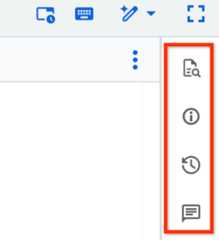
TheComments toolbar feature is inPreview. Toprovide feedback or request support for this feature, send an email tobqui-workspace-pod@google.com.
Share saved queries
To share a saved query with a user, you first grant that user access to thesaved query and add them to an appropriate IAM role. Then yougenerate a link to the saved query and share that link with the user.
Users that you share a query with only see the most recent version of a query.Autosaved changes that you haven't explicitly saved don't appear in the sharedquery.
In the Google Cloud console, go to theBigQuery page.
In the left pane, clickExplorer:

If you don't see the left pane, clickExpand left pane to open the pane.
In theExplorer pane, expand your project and clickQueries.
Find and click the saved query that you want to grant access to. You can usethe search feature or filters to find your query.
ClickShare,and then clickManage permissions.
In theManage permissions pane, clickAdd user/group.
In theNew principals field, enter a principal.
In theRole list, select one ofthe following roles:
- Code Owner: canperform any action on the saved query, including deleting or sharing it.
- Code Editor: canedit the query.
- Code Viewer: canview the query.
roles/bigquery.user)role to run the saved query.Optional: To view a complete list of roles and advanced sharing settings,clickAdvanced sharing.
ClickSave.
To return to the saved query info, clickClose.
To generate a link to the saved query, clickShare,and then clickGet link.
The link is copied to your clipboard.
Open a saved query version as a new query
To open any version of an existing saved query as a new query, follow thesesteps:
In the Google Cloud console, go to theBigQuery page.
In the left pane, clickExplorer:
If you don't see the left pane, clickExpand left pane to open the pane.
In theExplorer pane, expand your project and clickQueries.
Select a saved query. You can use the search feature or filters to find yourquery.
ClickVersion history.
ClickView actions next to a saved query version and then clickOpen as new query.
Update saved queries
Changes that you make to the text of a saved query are automatically saved twoseconds after you stop typing and appear in yourVersion history asYour changes. Autosaved changes aren't a new version of the query.Your autosaved changes reappear any time you open the query but aren't visibleto anyone else unless you explicitly save them as a newversion ofthe query. Autosaved queries are inPreview.
In the Google Cloud console, go to theBigQuery page.
In the left pane, clickExplorer:
In theExplorer pane, expand your project and clickQueries.
Select a saved query. You can use the search feature or filters to find yourquery.
Modify the query.
To save the modified query, click
Save query> Save queryor pressControl+S (orCommand+S on macOS).A new version of the query is created.
Upload saved queries
You can upload a local SQL query to use it as a saved query inBigQuery Studio. The uploaded saved query is then also visible in theBigQuery page of the Google Cloud console.
To upload a saved query, follow these steps:
In the Google Cloud console, go to theBigQuery page.
In the left pane, clickExplorer:
In theExplorer pane, expand your project, and then do one of the following:
- Next toQueries, clickView actions>Upload SQL query.
- Next to the Google Cloud project name,clickView actions>Upload to project>SQL query.
In theUpload SQL dialog, in theSQL field,clickBrowse, and then select the query that you want toupload.
Optional: In theSQL name field, edit the name of the query.
In theRegion field, select the region where you want to upload your saved query.
ClickUpload.
Your saved query can be accessed through theExplorer pane.
Classic saved queries
Deprecated: Saved queries, available inBigQuery Studio,will fully replace classic saved queries in the future. The deprecation timeline is being reviewed.For more information, seeDeprecation of classic saved queries.To learn how to migrate to saved queries, seeMigrate classic saved queries.Use the following sections to learn how to create and updateclassic saved queries.For more information on sharing, migrating, and deleting classic saved queries,seeClassic saved queries.
Note: If you have not enabled BigQuery Studio, classicsaved queries appear in theSaved queries (NUMBER) folderin theClassic explorer pane instead of the(Classic) Queries folder.Required permissions for classic saved queries
The following IAM permissions are required to create, view,update, and delete classic saved queries:
- Private classic saved queries:
- Creating private classic saved queries requires no special permissions.You can save a private query in any project, but only you can view,update, or delete the query.
- Project-level classic saved queries:
- Creating a project-level classic saved query requires
bigquery.savedqueries.createpermissions. Thebigquery.adminpredefinedrole includesbigquery.savedqueries.createpermissions. - Viewing a project-level classic saved query requires
bigquery.savedqueries.getandbigquery.savedqueries.listpermissions.Thebigquery.adminandbigquery.userpredefined roles includebigquery.savedqueries.getandbigquery.savedqueries.listpermissions. - Updating a project-level classic saved query requires
bigquery.savedqueries.updatepermissions. Thebigquery.adminpredefinedrole includesbigquery.savedqueries.updatepermissions. - Deleting a project-level classic saved query requires
bigquery.savedqueries.deletepermissions. Thebigquery.adminpredefinedrole includesbigquery.savedqueries.deletepermissions.
- Creating a project-level classic saved query requires
- Public classic saved queries:
- Creating public classic saved queries requires no special permissions.You can save a public classic saved query in any project, but only you canupdate or delete the query. Anyone with the link can view a public classicsaved query.
dataform.repository.list permission at the project levelcan see all saved queries created in the project.For more information on IAM roles in BigQuery, seePredefined roles and permissions.
Create classic saved queries
In the Google Cloud console, go to theBigQuery page.
ClickSQL query.
In the query editor, enter a valid SQL query. For example, you can query apublic dataset:
SELECTname,SUM(number)AStotalFROM`bigquery-public-data.usa_names.usa_1910_2013`GROUPBYnameORDERBYtotalDESCLIMIT10;
Click
Save Query (Classic)> Save query (Classic).In theSave query dialog, enter a name for your query,and then setVisibility to one of the following options:
- Personal (editable only by you) for a private clasic shared query.
- Project (editable by principals with appropriate permissions) fora project-level classic saved query.
- Public for a public classic saved query.
ClickSave.
Share classic saved queries
You can share classic saved queries that you have given project or publicvisibility. Project visibility allows principals with therequired permissionsto view, update, or delete the query. Public visibility allows anyone withthe query link to view but not update or delete the query.
You share a classic saved query with other users by generating and sharing a link to the classic saved query.
To run a classic shared query, users must have access to the data that the queryaccesses. For more information, seeGrant access to a dataset.
If you are plan to share a classic saved query, consider including acomment in the query that describes its purpose.
In the left pane, clickcategoryClassic Explorer:
If you don't see the left pane, clickExpand left pane to open the pane.
In theClassic Explorer pane, expand your project, click(Classic) Queries, and then findthe classic saved query you want to share.
ClickView actions next to the query and then clickGet link.
Share the link with the users you want to grant access to the query.
Update classic saved queries
In the Google Cloud console, go to theBigQuery page.
In the left pane, clickcategoryClassic Explorer:
In theClassic Explorer pane, expand your project and the(Classic) Queries folder, andif necessary, theProject queries folder.
Click the name of a classic saved query to open it.
Modify the query.
To save the modified query, click
Save Query (Classic)> Save query (Classic).
What's next
- Learn how tomanage saved queries.
Except as otherwise noted, the content of this page is licensed under theCreative Commons Attribution 4.0 License, and code samples are licensed under theApache 2.0 License. For details, see theGoogle Developers Site Policies. Java is a registered trademark of Oracle and/or its affiliates.
Last updated 2025-12-15 UTC.