

Create logical views
This document describes how to create logical views in BigQuery.
You can create a logical view in the following ways:
- Using the Google Cloud console.
- Using the bq command-line tool's
bq mkcommand. - Calling the
tables.insertAPI method. - Using the client libraries.
- Submitting a
CREATE VIEWdata definition language (DDL) statement.
View limitations
BigQuery views are subject to the following limitations:
- Views are read-only. For example, you can't run queries that insert, update,or delete data.
- The dataset that contains your view and the dataset that contains the tablesreferenced by the view must be in the samelocation.
- A reference inside of a view must be qualified with a dataset. The defaultdataset doesn't affect a view body.
- You cannot use the
TableDataListJSON API method to retrieve data from aview. For more information, seeTabledata: list. - You cannot mix GoogleSQL and legacy SQL queries when using views.A GoogleSQL query cannot reference a view defined usinglegacy SQL syntax.
- You cannot referencequery parameters in views.
- The schemas of the underlying tables are stored with the view when the viewis created. If columns are added, deleted, or modified after the view iscreated, the view isn't automatically updated and the reported schemawill remain inaccurate until the view SQL definition is changed or the viewis recreated. Even though the reported schema may be inaccurate, allsubmitted queries produce accurate results.
- You cannot automatically update a legacy SQL view to GoogleSQLsyntax. To modify the query used to define a view, you can use thefollowing:
- TheEdit query option in the Google Cloud console
- The
bq update --viewcommand in the bq command-line tool - TheBigQuery Client libraries
- Theupdate orpatch API methods.
- You cannot include a temporary user-defined function or a temporary tablein the SQL query that defines a view.
- You cannot reference a view in awildcard tablequery.
For information about quotas and limits that apply to views, seeView limits.
Before you begin
Grant Identity and Access Management (IAM) roles that give users the necessary permissions to perform each task in this document.
Required permissions
Views are treated as table resources in BigQuery, so creating aview requires the same permissions as creating a table. You must also havepermissions to query any tables that are referenced by the view's SQL query.
To create a view, you need thebigquery.tables.create IAMpermission. Theroles/bigquery.dataEditor predefined IAM roleincludes the permissions that you need to create a view.
Additionally, if you have thebigquery.datasets.create permission, you cancreate views in the datasets that you create. To create a view for data that youdon't own, you must havebigquery.tables.getData permission for that table.
For more information on IAM roles and permissions inBigQuery, seePredefined roles andpermissions.
Note: To create or update anauthorized viewor a view in anauthorized dataset,you need additional permissions. For more information, seerequired permissions for authorized viewsandrequired permissions for views in authorized datasets.View naming
When you create a view in BigQuery, the view name mustbe unique per dataset. The view name can:
- Contain characters with a total of up to 1,024 UTF-8 bytes.
- Contain Unicode characters in category L (letter), M (mark), N (number),Pc (connector, including underscore), Pd (dash), Zs (space). For moreinformation, seeGeneral Category.
The following are all examples of valid view names:view 01,ग्राहक,00_お客様,étudiant-01.
Caveats:
- Table names are case-sensitive by default.
mytableandMyTablecancoexist in the same dataset, unless they are part of adataset withcase-sensitivity turned off. - Some view names and view name prefixes are reserved. Ifyou receive an error saying that your view name or prefix isreserved, then select a different name and try again.
If you include multiple dot operators (
.) in a sequence, the duplicateoperators are implicitly stripped.For example, this:
project_name....dataset_name..table_nameBecomes this:
project_name.dataset_name.table_name
Create a view
You can create a view by composing a SQL query that is used to define the dataaccessible to the view. The SQL query must consist of aSELECT statement.Other statement types (such as DML statements) andmulti-statement queries aren't allowedin view queries.
To create a view:
Console
In the Google Cloud console, go to theBigQuery page.
ClickSQL query.
In the query editor, enter a valid SQL query.
Alternatively, you canopen a saved query.
Click
 Save> Save view.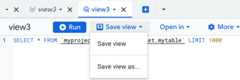
In theSave view dialog:
- In theProject menu, select a project to store the view.
- In theDataset menu, select a dataset or create a new dataset tostore the view. The destination dataset for a saved view must be inthe sameregion as the source.
- In theTable field, enter the name of the view.
- ClickSave.
SQL
Use theCREATE VIEW statement.The followingexample creates a view namedusa_male_names from the USA namespublic dataset:
In the Google Cloud console, go to theBigQuery page.
In the query editor, enter the following statement:
CREATEVIEWmydataset.usa_male_names(name,number)AS(SELECTname,numberFROM`bigquery-public-data.usa_names.usa_1910_current`WHEREgender='M'ORDERBYnumberDESC);
ClickRun.
For more information about how to run queries, seeRun an interactive query.
bq
Use thebq mk commandwith the--view flag. For GoogleSQL queries,add the--use_legacy_sql flag and set it tofalse. Some optionalparameters include--add_tags,--expiration,--description, and--label. For a full list of parameters, see thebq mk commandreference.
If your query references external user-defined function (UDF) resourcesstored in Cloud Storage or in local files, use the--view_udf_resource flag to specify those resources. The--view_udf_resource flag is not demonstrated here. For more information aboutusing UDFs, seeUDFs.
If you are creating a view in a project other than your default project,specify the project ID using the--project_id flag.
bqmk\--use_legacy_sql=false\--view_udf_resource=PATH_TO_FILE\--expiration=INTEGER\--description="DESCRIPTION"\--label=KEY_1:VALUE_1\--add_tags=KEY_2:VALUE_2[,...]\--view='QUERY'\--project_id=PROJECT_ID\DATASET.VIEW
Replace the following:
PATH_TO_FILEis the URI or local file system pathto a code file to be loaded and evaluated immediately as a UDF resourceused by the view. Repeat the flag to specify multiple files.INTEGERsets the lifetime (in seconds) forthe view. IfINTEGERis0, the view doesn'texpire. If you don't include the--expirationflag, BigQuerycreates the view with the dataset's default table lifetime.DESCRIPTIONis a description of the view in quotes.KEY_1:VALUE_1is the key-value pair thatrepresents alabel.Repeat the--labelflag to specify multiple labels.KEY_2:VALUE_2is the key-value pair thatrepresents atag.Add multiple tags under the same flag with commas between key:value pairs.QUERYis a valid query.PROJECT_IDis your project ID (if you don't havea default project configured).DATASETis a dataset in your project.VIEWis the name of the view that you want tocreate.
Examples:
Enter the following command to create a view namedmyview inmydataset in your default project. The expiration time is set to3600 seconds (1 hour), the description is set toThis is my view, and thelabel is set toorganization:development. The query used to create the viewqueries data from theUSA Name Data public dataset.
bq mk \--use_legacy_sql=false \--expiration 3600 \--description "This is my view" \--label organization:development \--view \'SELECT name, numberFROM`bigquery-public-data.usa_names.usa_1910_current`WHERE gender = "M"ORDER BY number DESC' \mydataset.myviewEnter the following command to create a view namedmyview inmydataset inmyotherproject. The description is set toThis is my view, the label is set toorganization:development,and the view's expiration is set to the dataset's default tableexpiration.The query used to create the viewqueries data from theUSA Name Data public dataset.
bq mk \--use_legacy_sql=false \--description "This is my view" \--label organization:development \--project_id myotherproject \--view \'SELECT name, numberFROM`bigquery-public-data.usa_names.usa_1910_current`WHERE gender = "M"ORDER BY number DESC' \mydataset.myviewAfter the view is created, you can update the view'sexpiration, description, and labels. For more information, seeUpdating views.
Terraform
Use thegoogle_bigquery_tableresource.
To authenticate to BigQuery, set up Application DefaultCredentials. For more information, seeSet up authentication for client libraries.
The following example creates a view namedmyview:
resource "google_bigquery_dataset" "default" { dataset_id = "mydataset" default_partition_expiration_ms = 2592000000 # 30 days default_table_expiration_ms = 31536000000 # 365 days description = "dataset description" location = "US" max_time_travel_hours = 96 # 4 days labels = { billing_group = "accounting", pii = "sensitive" }}resource "google_bigquery_table" "default" { dataset_id = google_bigquery_dataset.default.dataset_id table_id = "myview" view { query = "SELECT global_id, faa_identifier, name, latitude, longitude FROM `bigquery-public-data.faa.us_airports`" use_legacy_sql = false }}To apply your Terraform configuration in a Google Cloud project, complete the steps in the following sections.
Prepare Cloud Shell
- LaunchCloud Shell.
Set the default Google Cloud project where you want to apply your Terraform configurations.
You only need to run this command once per project, and you can run it in any directory.
export GOOGLE_CLOUD_PROJECT=PROJECT_ID
Environment variables are overridden if you set explicit values in the Terraform configuration file.
Prepare the directory
Each Terraform configuration file must have its own directory (alsocalled aroot module).
- InCloud Shell, create a directory and a new file within that directory. The filename must have the
.tfextension—for examplemain.tf. In this tutorial, the file is referred to asmain.tf.mkdirDIRECTORY && cdDIRECTORY && touch main.tf
If you are following a tutorial, you can copy the sample code in each section or step.
Copy the sample code into the newly created
main.tf.Optionally, copy the code from GitHub. This is recommended when the Terraform snippet is part of an end-to-end solution.
- Review and modify the sample parameters to apply to your environment.
- Save your changes.
- Initialize Terraform. You only need to do this once per directory.
terraform init
Optionally, to use the latest Google provider version, include the
-upgradeoption:terraform init -upgrade
Apply the changes
- Review the configuration and verify that the resources that Terraform is going to create or update match your expectations:
terraform plan
Make corrections to the configuration as necessary.
- Apply the Terraform configuration by running the following command and entering
yesat the prompt:terraform apply
Wait until Terraform displays the "Apply complete!" message.
- Open your Google Cloud project to view the results. In the Google Cloud console, navigate to your resources in the UI to make sure that Terraform has created or updated them.
API
Call thetables.insert methodwith atable resource thatcontains aview property.
Go
Before trying this sample, follow theGo setup instructions in theBigQuery quickstart using client libraries. For more information, see theBigQueryGo API reference documentation.
To authenticate to BigQuery, set up Application Default Credentials. For more information, seeSet up authentication for client libraries.
import("context""fmt""cloud.google.com/go/bigquery")// createView demonstrates creation of a BigQuery logical view.funccreateView(projectID,datasetID,tableIDstring)error{// projectID := "my-project-id"// datasetID := "mydatasetid"// tableID := "mytableid"ctx:=context.Background()client,err:=bigquery.NewClient(ctx,projectID)iferr!=nil{returnfmt.Errorf("bigquery.NewClient: %v",err)}deferclient.Close()meta:=&bigquery.TableMetadata{// This example shows how to create a view of the shakespeare sample dataset, which// provides word frequency information. This view restricts the results to only contain// results for works that contain the "king" in the title, e.g. King Lear, King Henry V, etc.ViewQuery:"SELECT word, word_count, corpus, corpus_date FROM `bigquery-public-data.samples.shakespeare` WHERE corpus LIKE '%king%'",}iferr:=client.Dataset(datasetID).Table(tableID).Create(ctx,meta);err!=nil{returnerr}returnnil}Java
Before trying this sample, follow theJava setup instructions in theBigQuery quickstart using client libraries. For more information, see theBigQueryJava API reference documentation.
To authenticate to BigQuery, set up Application Default Credentials. For more information, seeSet up authentication for client libraries.
importcom.google.cloud.bigquery.BigQuery;importcom.google.cloud.bigquery.BigQueryException;importcom.google.cloud.bigquery.BigQueryOptions;importcom.google.cloud.bigquery.TableId;importcom.google.cloud.bigquery.TableInfo;importcom.google.cloud.bigquery.ViewDefinition;// Sample to create a viewpublicclassCreateView{publicstaticvoidmain(String[]args){// TODO(developer): Replace these variables before running the sample.StringdatasetName="MY_DATASET_NAME";StringtableName="MY_TABLE_NAME";StringviewName="MY_VIEW_NAME";Stringquery=String.format("SELECT TimestampField, StringField, BooleanField FROM %s.%s",datasetName,tableName);createView(datasetName,viewName,query);}publicstaticvoidcreateView(StringdatasetName,StringviewName,Stringquery){try{// Initialize client that will be used to send requests. This client only needs to be created// once, and can be reused for multiple requests.BigQuerybigquery=BigQueryOptions.getDefaultInstance().getService();TableIdtableId=TableId.of(datasetName,viewName);ViewDefinitionviewDefinition=ViewDefinition.newBuilder(query).setUseLegacySql(false).build();bigquery.create(TableInfo.of(tableId,viewDefinition));System.out.println("View created successfully");}catch(BigQueryExceptione){System.out.println("View was not created. \n"+e.toString());}}}Node.js
Before trying this sample, follow theNode.js setup instructions in theBigQuery quickstart using client libraries. For more information, see theBigQueryNode.js API reference documentation.
To authenticate to BigQuery, set up Application Default Credentials. For more information, seeSet up authentication for client libraries.
// Import the Google Cloud client library and create a clientconst{BigQuery}=require('@google-cloud/bigquery');constbigquery=newBigQuery();asyncfunctioncreateView(){// Creates a new view named "my_shared_view" in "my_dataset"./** * TODO(developer): Uncomment the following lines before running the sample. */// const myDatasetId = "my_table"// const myTableId = "my_table"// const projectId = "bigquery-public-data";// const sourceDatasetId = "usa_names"// const sourceTableId = "usa_1910_current";constmyDataset=awaitbigquery.dataset(myDatasetId);// For all options, see https://cloud.google.com/bigquery/docs/reference/v2/tables#resourceconstoptions={view:`SELECT name FROM \`${projectId}.${sourceDatasetId}.${sourceTableId}\` LIMIT 10`,};// Create a new view in the datasetconst[view]=awaitmyDataset.createTable(myTableId,options);console.log(`View${view.id} created.`);}Python
Before trying this sample, follow thePython setup instructions in theBigQuery quickstart using client libraries. For more information, see theBigQueryPython API reference documentation.
To authenticate to BigQuery, set up Application Default Credentials. For more information, seeSet up authentication for client libraries.
fromgoogle.cloudimportbigqueryclient=bigquery.Client()view_id="my-project.my_dataset.my_view"source_id="my-project.my_dataset.my_table"view=bigquery.Table(view_id)# The source table in this example is created from a CSV file in Google# Cloud Storage located at# `gs://cloud-samples-data/bigquery/us-states/us-states.csv`. It contains# 50 US states, while the view returns only those states with names# starting with the letter 'W'.view.view_query=f"SELECT name, post_abbr FROM `{source_id}` WHERE name LIKE 'W%'"# Make an API request to create the view.view=client.create_table(view)print(f"Created{view.table_type}:{str(view.reference)}")After you create the view, youquery it likeyou query a table.
View security
To control access to views in BigQuery, seeAuthorized views.
What's next
- For information about creating an authorized view, seeCreating authorized views.
- For information about getting view metadata, seeGetting information about views.
- For more information about managing views, seeManaging views.
Except as otherwise noted, the content of this page is licensed under theCreative Commons Attribution 4.0 License, and code samples are licensed under theApache 2.0 License. For details, see theGoogle Developers Site Policies. Java is a registered trademark of Oracle and/or its affiliates.
Last updated 2026-02-19 UTC.