

Run PySpark code in BigQuery Studio notebooks
This document shows you how to run PySpark code in a BigQuery Python notebook.
Before you begin
If you haven't already done so, create a Google Cloud project and aCloud Storagebucket.
Set up your project
- Sign in to your Google Cloud account. If you're new to Google Cloud, create an account to evaluate how our products perform in real-world scenarios. New customers also get $300 in free credits to run, test, and deploy workloads.
In the Google Cloud console, on the project selector page, select or create a Google Cloud project.
Roles required to select or create a project
- Select a project: Selecting a project doesn't require a specific IAM role—you can select any project that you've been granted a role on.
- Create a project: To create a project, you need the Project Creator role (
roles/resourcemanager.projectCreator), which contains theresourcemanager.projects.createpermission.Learn how to grant roles.
Enable the Dataproc, BigQuery, and Cloud Storage APIs.
Roles required to enable APIs
To enable APIs, you need the Service Usage Admin IAM role (
roles/serviceusage.serviceUsageAdmin), which contains theserviceusage.services.enablepermission.Learn how to grant roles.In the Google Cloud console, on the project selector page, select or create a Google Cloud project.
Roles required to select or create a project
- Select a project: Selecting a project doesn't require a specific IAM role—you can select any project that you've been granted a role on.
- Create a project: To create a project, you need the Project Creator role (
roles/resourcemanager.projectCreator), which contains theresourcemanager.projects.createpermission.Learn how to grant roles.
Enable the Dataproc, BigQuery, and Cloud Storage APIs.
Roles required to enable APIs
To enable APIs, you need the Service Usage Admin IAM role (
roles/serviceusage.serviceUsageAdmin), which contains theserviceusage.services.enablepermission.Learn how to grant roles.
Create a Cloud Storage bucket in your project if you don't have one you can use.
Set up your notebook
- Notebook credentials: By default, your notebook session uses youruser credentials. Alternatively, it can usesession service account credentials.
- User credentials: Your user account must have the following Identity and Access Management roles:
- Dataproc Editor (
roles/dataproc.editorrole) - BigQuery Studio User (
roles/bigquery.studioUserrole) - Service Account User (roles/iam.serviceAccountUser) role on thesession service account. This role contains the required
iam.serviceAccounts.actAspermission to impersonate the service account.
- Dataproc Editor (
- Service account credentials: If you want to specify service account credentials instead of user credentials for your notebook session, thesession service account must have the following role:
- User credentials: Your user account must have the following Identity and Access Management roles:
- Notebook runtime: Your notebook uses a default Vertex AI runtime unless you select a different runtime. If you want to define your own runtime, create the runtime from theRuntimes page in the Google Cloud console.Note that when using theNumPy library, use NumPy version 1.26, which is supported by Spark 3.5, in the notebook runtime.
- Notebook credentials: By default, your notebook session uses youruser credentials. Alternatively, it can usesession service account credentials.
Pricing
For pricing information, see BigQueryNotebook runtime pricing.
Open a BigQuery Studio Python notebook
In the Google Cloud console, go to theBigQuery page.
In the tab bar of the details pane, click thearrow next to the+ sign, and then clickNotebook.
Create a Spark session in a BigQuery Studio notebook
You can use a BigQuery Studio Python notebook to create aSpark Connectinteractive session. Each BigQuery Studio notebook can have onlyone active Spark session associated with it.
You can create a Spark session in a BigQuery Studio Python notebook inthe following ways:
- Configure and create a single session in the notebook.
- Configure a Spark session in aninteractive session template,then use the template to configure and create a session in the notebook.BigQuery provides a
Query using Sparkfeature that helpsyou start coding the templated session as explained under theTemplated Spark session tab.
Single session
To create a Spark session in a new notebook, do the following:
In the tab bar of the editor pane, click thearrow drop down next to the+ sign, and then clickNotebook.
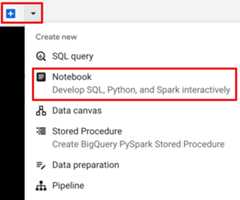
Copy and run the following code in a notebook cell toconfigure and create a basic Spark session.
fromgoogle.cloud.dataproc_spark_connectimportDataprocSparkSessionfromgoogle.cloud.dataproc_v1importSessionimportpyspark.sql.functionsasfsession=Session()# Create the Spark session.spark=(DataprocSparkSession.builder.appName("APP_NAME").dataprocSessionConfig(session).getOrCreate())Replace the following:
- APP_NAME: An optional name for your session.
- Optional Session settings: You can add Dataproc API
Sessionsettings to customize your session. Here are some examples:RuntimeConfig: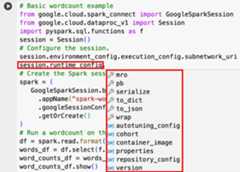
session.runtime_config.properties={spark.property.key1:VALUE_1,...,spark.property.keyN:VALUE_N}session.runtime_config.container_image =path/to/container/image
EnvironmentConfig: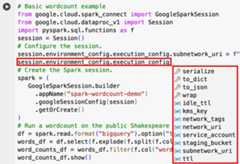
- session.environment_config.execution_config.subnetwork_uri = "SUBNET_NAME"
session.environment_config.execution_config.ttl = {"seconds":VALUE}session.environment_config.execution_config.service_account =SERVICE_ACCOUNT
Templated Spark session
You can enter and run the code in a notebook cell tocreate a Spark session based on an existingsession template.Anysession configuration settings you provide in your notebook code willoverride any of the same settings that are set in the session template.
To get started quickly, use theQuery using Sparktemplate to pre-populate your notebook with Spark session template code:
- In the tab bar of the editor pane, click thearrow drop down next to the+ sign, and then clickNotebook.
- UnderStart with a template, clickQuery using Spark, then clickUse template to insert the code in your notebook.
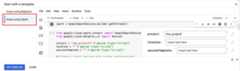
- Specify the variables as explained in theNotes.
- You can delete any additional sample code cells inserted in the notebook.
fromgoogle.cloud.dataproc_spark_connectimportDataprocSparkSessionfromgoogle.cloud.dataproc_v1importSessionsession=Session()project_id="PROJECT_ID"location="LOCATION"# Configure the session with an existing session template.session_template="SESSION_TEMPLATE"session.session_template=f"projects/{project_id}/locations/{location}/sessionTemplates/{session_template}"# Create the Spark session.spark=(DataprocSparkSession.builder.appName("APP_NAME").dataprocSessionConfig(session).getOrCreate())- PROJECT_ID: Your project ID, which is listed in theProject info sectionof theGoogle Cloud console dashboard.
- LOCATION: TheCompute Engine regionwhere your notebook session will run. If not supplied, thethe region of the VM that creates the notebook will be used.
SESSION_TEMPLATE: The name of an existinginteractive session template.Session configuration settings are obtained from the template.The template must also specify the following settings:
- Runtime version
2.3+ Notebook type:
Spark ConnectExample:

- Runtime version
APP_NAME: An optional name for your session.
Write and run PySpark code in your BigQuery Studio notebook
After you create a Spark session in your notebook, use the session to runSpark notebook code in the notebook.
Spark Connect PySpark API support: Your Spark Connect notebook sessionsupports mostPySpark APIs,includingDataFrame,Functions,andColumn,but does not supportSparkContextandRDD andother PySpark APIs. For more information, seeWhat is supported in Spark 3.5.
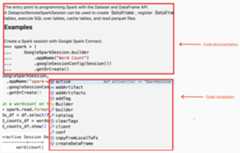
Tip: You can check theSpark SQL API referenceto find out if Spark Connect supports an API. The documentation for a supported APIcontains a "Supports Spark Connect." message:
Spark Connect notebook direct writes: Spark sessions in a BigQueryStudio notebook pre-configure theSpark BigQuery connectorto make DIRECT data writes. The DIRECT write method uses theBigQuery Storage Write API, which writes data directly intoBigQuery; the INDIRECT write method, which is the default forServerless for Apache Spark batches, writes data to an intermediateCloud Storage bucket, then writes the data to BigQuery(for more information on INDIRECT writes, seeRead and write data from and to BigQuery).
Dataproc specific APIs: Dataproc simplifiesaddingPyPI packages dynamically to yourSpark session by extending theaddArtifacts method. You can specify the list inversion-scheme format,(similar topip install). This instructs the Spark Connect serverto install packages and their dependencies on all cluster nodes, making themavailable to workers for your UDFs.
Example that installs specifiedtextdistance version and latest compatiblerandom2 libraries on the cluster to allow UDFs usingtextdistance andrandom2to run on worker nodes.
spark.addArtifacts("textdistance==4.6.1", "random2", pypi=True)Notebook code help: The BigQuery Studionotebook provides code help when you hold the pointer over a class or methodname, and provides code completion help as you input code.
In the following example, enteringDataprocSparkSession. and holding thepointer over this class name displays code completionand documentation help.
BigQuery Studio notebook PySpark examples
This section provides BigQuery Studio Python notebook examples withPySpark code to perform the following tasks:
- Run a wordcount against a public Shakespeare dataset.
- Create an Iceberg table with metadata saved inBigLake metastore.
Wordcount
The following Pyspark example creates a Spark session, then counts wordoccurrences in a publicbigquery-public-data.samples.shakespeare dataset.
# Basic wordcount examplefromgoogle.cloud.dataproc_spark_connectimportDataprocSparkSessionfromgoogle.cloud.dataproc_v1importSessionimportpyspark.sql.functionsasfsession=Session()# Create the Spark session.spark=(DataprocSparkSession.builder.appName("APP_NAME").dataprocSessionConfig(session).getOrCreate())# Run a wordcount on the public Shakespeare dataset.df=spark.read.format("bigquery").option("table","bigquery-public-data.samples.shakespeare").load()words_df=df.select(f.explode(f.split(f.col("word")," ")).alias("word"))word_counts_df=words_df.filter(f.col("word")!="").groupBy("word").agg(f.count("*").alias("count")).orderBy("word")word_counts_df.show()Replace the following:
- APP_NAME: An optional name for your session.
Output:
The cell output lists a sample of the wordcount output. To see session detailsin the Google Cloud console, click theInteractive Session Detail View link.To monitor your Spark session, clickView Spark UI on the session details page.

Interactive Session Detail View:LINK+------------+-----+| word|count|+------------+-----+| '| 42|| ''All| 1|| ''Among| 1|| ''And| 1|| ''But| 1|| ''Gamut'| 1|| ''How| 1|| ''Lo| 1|| ''Look| 1|| ''My| 1|| ''Now| 1|| ''O| 1|| ''Od's| 1|| ''The| 1|| ''Tis| 4|| ''When| 1|| ''tis| 1|| ''twas| 1|| 'A| 10||'ARTEMIDORUS| 1|+------------+-----+only showing top 20 rows
Iceberg table
Run PySpark code to create an Iceberg table with BigLake metastore metadata
The following example code creates asample_iceberg_table withtable metadata stored in BigLake metastore, and then queries thetable.
fromgoogle.cloud.dataproc_spark_connectimportDataprocSparkSessionfromgoogle.cloud.dataproc_v1importSession# Create the Dataproc Serverless session.session=Session()# Set the session configuration for BigLake Metastore with the Iceberg environment.project_id="PROJECT_ID"region="REGION"subnet_name="SUBNET_NAME"location="LOCATION"session.environment_config.execution_config.subnetwork_uri=f"{subnet_name}"warehouse_dir="gs://BUCKET/WAREHOUSE_DIRECTORY"catalog="CATALOG"namespace="NAMESPACE"session.runtime_config.properties[f"spark.sql.catalog.{catalog}"]="org.apache.iceberg.spark.SparkCatalog"session.runtime_config.properties[f"spark.sql.catalog.{catalog}.catalog-impl"]="org.apache.iceberg.gcp.bigquery.BigQueryMetastoreCatalog"session.runtime_config.properties[f"spark.sql.catalog.{catalog}.gcp_project"]=f"{project_id}"session.runtime_config.properties[f"spark.sql.catalog.{catalog}.gcp_location"]=f"{location}"session.runtime_config.properties[f"spark.sql.catalog.{catalog}.warehouse"]=f"{warehouse_dir}"# Create the Spark Connect session.spark=(DataprocSparkSession.builder.appName("APP_NAME").dataprocSessionConfig(session).getOrCreate())# Create the namespace in BigQuery.spark.sql(f"USE `{catalog}`;")spark.sql(f"CREATE NAMESPACE IF NOT EXISTS `{namespace}`;")spark.sql(f"USE `{namespace}`;")# Create the Iceberg table.spark.sql("DROP TABLE IF EXISTS `sample_iceberg_table`");spark.sql("CREATE TABLE sample_iceberg_table (id int, data string) USING ICEBERG;")spark.sql("DESCRIBE sample_iceberg_table;")# Insert table data and query the table.spark.sql("INSERT INTO sample_iceberg_table VALUES (1,\"first row\");")# Alter table, then query and display table data and schema.spark.sql("ALTER TABLE sample_iceberg_table ADD COLUMNS (newDoubleCol double);")spark.sql("DESCRIBE sample_iceberg_table;")df=spark.sql("SELECT * FROM sample_iceberg_table")df.show()df.printSchema()Notes:
- PROJECT_ID: Your project ID, which is listed in theProject info sectionof theGoogle Cloud console dashboard.
- REGION andSUBNET_NAME: Specify theCompute Engine regionand the name of a subnet in the session region.Serverless for Apache Spark enablesPrivate Google Access (PGA) on thespecified subnet.
- LOCATION: The default
BigQuery_metastore_config.locationandspark.sql.catalog.{catalog}.gcp_locationisUS, but you can choose anysupported BigQuery location. - BUCKET andWAREHOUSE_DIRECTORY: The Cloud Storage bucketand folder used for Iceberg warehouse directory.
- CATALOG andNAMESPACE: The Iceberg catalog nameand namespace combine to identify the Iceberg table (
catalog.namespace.table_name). - APP_NAME: An optional name for your session.
The cell output lists thesample_iceberg_table with the added column, and displaysa link to theInteractive Session Details page in the Google Cloud console.You can clickView Spark UI on the session details page to monitor yourSpark session.
Interactive Session Detail View:LINK+---+---------+------------+| id| data|newDoubleCol|+---+---------+------------+| 1|first row| NULL|+---+---------+------------+root |-- id: integer (nullable = true) |-- data: string (nullable = true) |-- newDoubleCol: double (nullable = true)
View table details in BigQuery
Perform the following steps to check Iceberg table details in BigQuery:
In the Google Cloud console, go to theBigQuery page.
In the project resources pane, click your project, then click theyour namespace to list the
sample_iceberg_tabletable. Click theDetails table to viewtheOpen Catalog Table Configuration information.The input and output formats are the standard Hadoop
InputFormatandOutputFormatclass formats that Iceberg uses.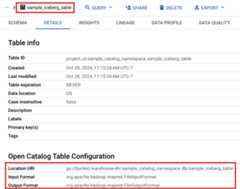
Other examples
Create a SparkDataFrame (sdf) from a Pandas DataFrame (df).
sdf=spark.createDataFrame(df)sdf.show()Run aggregations on SparkDataFrames.
frompyspark.sqlimportfunctionsasfsdf.groupby("segment").agg(f.mean("total_spend_per_user").alias("avg_order_value"),f.approx_count_distinct("user_id").alias("unique_customers")).show()Read from BigQuery using theSpark-BigQueryconnector.
spark.conf.set("viewsEnabled","true")spark.conf.set("materializationDataset","my-bigquery-dataset")sdf=spark.read.format('bigquery') \.load(query)Write Spark code with Gemini Code Assist
Preview
This product or feature is subject to the "Pre-GA Offerings Terms" in the General Service Terms section of theService Specific Terms. Pre-GA products and features are available "as is" and might have limited support. For more information, see thelaunch stage descriptions.
You can ask Gemini Code Assist to generate PySpark code in yournotebook. Gemini Code Assist fetches and uses relevant BigQueryand Dataproc Metastore tables and their schemas to generate a coderesponse.
To generate Gemini Code Assist code in your notebook, do the following:
Insert a new code cell by clicking+ Code in the toolbar.The new code cell displays
Start coding or generate with AI.Clickgenerate.In the Generate editor, enter a natural language prompt, and then click
enter.Make sure to include the keywordsparkorpysparkin your prompt.Sample prompt:
create a spark dataframe from order_items and filter to orders created in 2024
Sample output:
spark.read.format("bigquery").option("table", "sqlgen-testing.pysparkeval_ecommerce.order_items").load().filter("year(created_at) = 2024").createOrReplaceTempView("order_items")df = spark.sql("SELECT * FROM order_items")
Tips for Gemini Code Assist code generation
To let Gemini Code Assist fetch relevant tables and schemas,turn onData Catalog syncfor Dataproc Metastore instances.
Make sure your user account has access to Data Catalogthe query tables. To do this, assign the
DataCatalog.Viewerrole.
End the Spark session
You can take any of the following actions to stop your Spark Connectsession in your BigQuery Studio notebook:
- Run
spark.stop()in a notebook cell. - Terminate the runtime in the notebook:
- Click the runtime selector, then clickManage sessions.
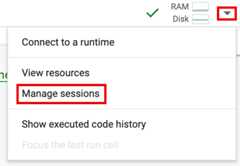
- In theActive sessions dialog, click the terminate icon, thenclickTerminate.

- Click the runtime selector, then clickManage sessions.
Orchestrate BigQuery Studio notebook code
You can orchestrate BigQuery Studio notebook code in the followingways:
Schedule notebook code from the Google Cloud console(notebook pricing applies).
Run notebook code as a batch workload(Serverless for Apache Spark pricing applies).
Schedule notebook code from the Google Cloud console
You can schedule notebook code in the following ways:
- Schedule the notebook.
- If notebook code execution is part of a workflow,schedule the notebook as part of apipeline.
Run notebook code as a batch workload
Complete the following steps to run BigQuery Studio notebook code as abatch workload.
Download notebook code into a file in a local terminal or inCloud Shell.Downloading toand working in Cloud Shell is recommended since it pre-installstext editors and other toolsand provides built-inPython support.
In the Google Cloud console, on theBigQuery Studio page, open the notebookin theExplorer pane.
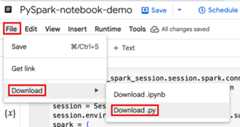
To expand the menu bar, clickkeyboard_arrow_downToggle header visibility.
ClickFile> Download, and then clickDownload.py.
Generate
requirements.txt.- Install
pipreqsin the directory where you saved your.pyfile.pip install pipreqs
Run
pipreqsto generaterequirements.txt.pipreqsfilename.py
Use theGoogle Cloud CLI to copy the local
requirements.txtfile to a bucket in Cloud Storage.gcloud storage cp requirements.txt gs://BUCKET/
- Install
Update Spark session code by editing the downloaded
.pyfile.Remove or comment out any shell script commands.
Remove code that configures the Spark session, thenthen specify config parameters as batch workload submit parameters.(seeSubmit a Spark batch workload).
Example:
Remove the following session subnet config line from the code:
session.environment_config.execution_config.subnetwork_uri = "{subnet_name}"When yourun your batch workload, use the
--subnetflag to specify the subnet.gcloud dataproc batches submit pyspark \--subnet=SUBNET_NAME
Use a simple session creation code snippet.
Sample downloaded notebook code before simplification.
from google.cloud.dataproc_spark_connect import DataprocSparkSessionfrom google.cloud.dataproc_v1 import Session
session = Session()spark = DataprocSparkSession \ .builder \ .appName("CustomSparkSession") .dataprocSessionConfig(session) \ .getOrCreate()
Batch workload code after simplification.
from pyspark.sql import SparkSession
spark = SparkSession \.builder \.getOrCreate()
SeeSubmit the Spark batch workloadfor instructions.
Make sure to include the --deps-bucket flag to point to theCloud Storage bucket that contains Your
requirements.txtfile.Example:
gcloud dataproc batches submit pysparkFILENAME.py \ --region=REGION \ --deps-bucket=BUCKET \ --version=2.3
Notes:
- FILENAME: The name of your downloaded and editednotebook code file.
- REGION: The Compute Engineregion where your cluster is located.
- BUCKET The name of the Cloud Storage bucketthat contains your
requirements.txtfile. --version:spark runtime version 2.3is selected to run the batch workload.
Commit your code.
- After testing your batch workload code, you can commit the
.ipynbor.pyfile to your repository using yourgitclient, such as GitHub, GitLab,or Bitbucket, as part of your CI/CD pipeline.
- After testing your batch workload code, you can commit the
Schedule your batch workload with Cloud Composer.
- SeeRun Serverless for Apache Spark workloads with Cloud Composerfor instructions.
Troubleshoot notebook errors
If a failure occurs in a cell containing Spark code, you can troubleshootthe error by clicking theInteractive Session Detail View link in the celloutput (see theWordcount and Iceberg table examples).
When you encounter an notebook code error, navigatingto the last Spark job in theSpark UI often provides additionalinformation to help you debug the failed job.Known issues and solutions
Error: ANotebook runtimecreated with Python version3.10 can cause aPYTHON_VERSION_MISMATCH errorwhen it attempts to connect to the Spark session.
Solution: Recreate the runtime with Python version3.11.
What's next
- YouTube video demo:Unleashing the power of Apache Spark integrated with BigQuery.
- Use BigLake metastore with Dataproc
- Use BigLake metastore with Serverless for Apache Spark
Except as otherwise noted, the content of this page is licensed under theCreative Commons Attribution 4.0 License, and code samples are licensed under theApache 2.0 License. For details, see theGoogle Developers Site Policies. Java is a registered trademark of Oracle and/or its affiliates.
Last updated 2025-12-15 UTC.