

Updating labels
This page explains how to update labels on BigQuery resources.
Before you begin
Grant Identity and Access Management (IAM) roles that give users the necessary permissions to perform each task in this document. The permissions required to perform a task (if any) are listed in the "Required permissions" section of the task.
Update dataset labels
A dataset label can be updated by:
- Using the Google Cloud console
- Using SQLDDL statements
- Using the bq command-line tool's
bq updatecommand - Calling the
datasets.patchAPI method - Using the client libraries
Required permissions
To update a dataset label, you need thebigquery.datasets.update IAM permission.
Each of the following predefined IAM roles includes the permissions that you need in order to update a dataset label:
roles/bigquery.dataOwnerroles/bigquery.admin
Additionally, if you have thebigquery.datasets.create permission, you can update labels of the datasets that you create.
For more information on IAM roles and permissions in BigQuery,seePredefined roles and permissions.
Update a dataset label
To update labels on a dataset, select one of the following options:
Console
In the Google Cloud console, select the dataset.
On the dataset details page, click the pencil icon to the right ofLabels.
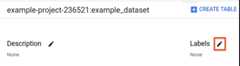
In theEdit labels dialog:
- To apply additional labels, clickAdd label. Each key can be usedonly once per dataset, but you can use the same key in differentdatasets in the same project.
- Modify the existing keys or values to update a label.
- ClickUpdate to save your changes.
SQL
Use theALTER SCHEMA SET OPTIONS DDL statementto set the labels on an existing dataset. Setting labels overwrites anyexisting labels on the dataset. The following example sets a single label onthe datasetmydataset:
In the Google Cloud console, go to theBigQuery page.
In the query editor, enter the following statement:
ALTERSCHEMAmydatasetSETOPTIONS(labels=[('sensitivity','high')]);
ClickRun.
For more information about how to run queries, seeRun an interactive query.
bq
To add additional labels or to update a dataset label, issue thebq updatecommand with theset_label flag. Repeat the flag to add or update multiplelabels.
If the dataset is in a project other than your default project, add theproject ID to the dataset in the following format:[PROJECT_ID]:[DATASET].
bqupdate\--set_labelkey:value\project_id:dataset
Where:
- key:value corresponds to a key:value pair for a label thatyou want to add or update. If you specify the same key as an existinglabel, the value for the existing label is updated. The key must be unique.
- project_id is your project ID.
- dataset is the dataset you're updating.
Example:
To update thedepartment label onmydataset, enter thebq updatecommand and specifydepartment as the label key. For example, to updatethedepartment:shipping label todepartment:logistics, enter thefollowing command.mydataset is inmyotherproject, not your defaultproject.
bq update \ --set_label department:logistics \ myotherproject:mydatasetThe output looks like the following.
Dataset 'myotherproject:mydataset' successfully updated.
API
To add additional labels or to update a label for an existing dataset, callthedatasets.patchmethod and add to or update thelabels property for thedataset resource.
Because thedatasets.update method replaces the entire dataset resource,thedatasets.patch method is preferred.
Go
Before trying this sample, follow theGo setup instructions in theBigQuery quickstart using client libraries. For more information, see theBigQueryGo API reference documentation.
To authenticate to BigQuery, set up Application Default Credentials. For more information, seeSet up authentication for client libraries.
import("context""fmt""cloud.google.com/go/bigquery")// addDatasetLabel demonstrates adding label metadata to an existing dataset.funcaddDatasetLabel(projectID,datasetIDstring)error{// projectID := "my-project-id"// datasetID := "mydataset"ctx:=context.Background()client,err:=bigquery.NewClient(ctx,projectID)iferr!=nil{returnfmt.Errorf("bigquery.NewClient: %v",err)}deferclient.Close()ds:=client.Dataset(datasetID)meta,err:=ds.Metadata(ctx)iferr!=nil{returnerr}update:=bigquery.DatasetMetadataToUpdate{}update.SetLabel("color","green")if_,err:=ds.Update(ctx,update,meta.ETag);err!=nil{returnerr}returnnil}Java
This sample uses theGoogle HTTP Client Library forJavato send a request to the BigQuery API.
Before trying this sample, follow theJava setup instructions in theBigQuery quickstart using client libraries. For more information, see theBigQueryJava API reference documentation.
To authenticate to BigQuery, set up Application Default Credentials. For more information, seeSet up authentication for client libraries.
importcom.google.cloud.bigquery.BigQuery;importcom.google.cloud.bigquery.BigQueryException;importcom.google.cloud.bigquery.BigQueryOptions;importcom.google.cloud.bigquery.Dataset;importjava.util.HashMap;importjava.util.Map;// Sample to updates a label on datasetpublicclassLabelDataset{publicstaticvoidrunLabelDataset(){// TODO(developer): Replace these variables before running the sample.StringdatasetName="MY_DATASET_NAME";labelDataset(datasetName);}publicstaticvoidlabelDataset(StringdatasetName){try{// Initialize client that will be used to send requests. This client only needs to be created// once, and can be reused for multiple requests.BigQuerybigquery=BigQueryOptions.getDefaultInstance().getService();// This example dataset starts with existing label { color: 'green' }Datasetdataset=bigquery.getDataset(datasetName);// Add label to datasetMap<String,String>labels=newHashMap<>();labels.put("color","green");dataset.toBuilder().setLabels(labels).build().update();System.out.println("Label added successfully");}catch(BigQueryExceptione){System.out.println("Label was not added. \n"+e.toString());}}}Node.js
Before trying this sample, follow theNode.js setup instructions in theBigQuery quickstart using client libraries. For more information, see theBigQueryNode.js API reference documentation.
To authenticate to BigQuery, set up Application Default Credentials. For more information, seeSet up authentication for client libraries.
// Import the Google Cloud client libraryconst{BigQuery}=require('@google-cloud/bigquery');constbigquery=newBigQuery();asyncfunctionlabelDataset(){// Updates a label on a dataset./** * TODO(developer): Uncomment the following lines before running the sample */// const datasetId = "my_dataset";// Retrieve current dataset metadata.constdataset=bigquery.dataset(datasetId);const[metadata]=awaitdataset.getMetadata();// Add label to dataset metadatametadata.labels={color:'green'};const[apiResponse]=awaitdataset.setMetadata(metadata);console.log(`${datasetId} labels:`);console.log(apiResponse.labels);}Python
Before trying this sample, follow thePython setup instructions in theBigQuery quickstart using client libraries. For more information, see theBigQueryPython API reference documentation.
To authenticate to BigQuery, set up Application Default Credentials. For more information, seeSet up authentication for client libraries.
fromgoogle.cloudimportbigquery# Construct a BigQuery client object.client=bigquery.Client()# TODO(developer): Set dataset_id to the ID of the dataset to fetch.# dataset_id = "your-project.your_dataset"dataset=client.get_dataset(dataset_id)# Make an API request.dataset.labels={"color":"green"}dataset=client.update_dataset(dataset,["labels"])# Make an API request.print("Labels added to{}".format(dataset_id))Update table and view labels
A label can be updated after a table or view is created by:
- Using the Google Cloud console
- Using the bq command-line tool's
bq updatecommand - Calling the
tables.patchAPI method- Because views are treated like table resources, you use the
tables.patchmethod to modify both views and tables.
- Because views are treated like table resources, you use the
- Using the client libraries
Required permissions
To update a table or view label, you need thebigquery.tables.update IAM permission.
Each of the following predefined IAM roles includes the permissions that you need in order to update a table or view label:
roles/bigquery.dataEditorroles/bigquery.dataOwnerroles/bigquery.admin
Additionally, if you have thebigquery.datasets.create permission, you can update labels of the tables and views in the datasets that you create.
For more information on IAM roles and permissions inBigQuery, seePredefined roles and permissions.
Update a table or view label
To update a table or view label:
Console
In the Google Cloud console, select the table or view.
Click theDetails tab, and then click the pencil icon to the right ofLabels.
In theEdit labels dialog:
- To apply additional labels, clickAdd label. Each key can be usedonly once per table or view, but you can use the same key in tables orviews in different datasets.
- Modify the existing keys or values to update a label.
- ClickUpdate to save your changes.
SQL
Use theALTER TABLE SET OPTIONS DDL statementto set the labels on an existing table, or theALTER VIEW SET OPTIONS DDL statementto set the labels on an existing view. Setting labels overwrites anyexisting labels on the table or view. The following example sets two labelson the tablemytable:
In the Google Cloud console, go to theBigQuery page.
In the query editor, enter the following statement:
ALTERTABLEmydataset.mytableSETOPTIONS(labels=[('department','shipping'),('cost_center','logistics')]);
ClickRun.
For more information about how to run queries, seeRun an interactive query.
bq
To add additional labels or to update a table or view label, issue thebqupdate command with theset_label flag. Repeat the flag to add or updatemultiple labels.
If the table or view is in a project other than your default project, addthe project ID to the dataset in the following format:project_id:dataset.
bqupdate\--set_labelkey:value\project_id:dataset.table_or_view
Where:
- key:value corresponds to a key:value pair for a label that youwant to add or update. If you specify the same key as an existing label, thevalue for the existing label is updated. The key must be unique.
- project_id is your project ID.
- dataset is the dataset that contains the table or view you'reupdating.
- table_or_view is the name of the table or view you're updating.
Example:
To update thedepartment label formytable, enter thebq updatecommand and specifydepartment as the label key. For example, to updatethedepartment:shipping label todepartment:logistics formytable,enter the following command.mytable is inmyotherproject, not yourdefault project.
bq update \ --set_label department:logistics \ myotherproject:mydataset.mytableThe output looks like the following:
Table 'myotherproject:mydataset.mytable' successfully updated.
API
To add labels or to update a label for an existing table or view,call thetables.patchmethod and add to or update thelabelsproperty for thetable resource.
Because views are treated like table resources, you use thetables.patchmethod to modify both views and tables.
Because thetables.update method replaces the entire dataset resource, thetables.patch method is preferred.
Go
Before trying this sample, follow theGo setup instructions in theBigQuery quickstart using client libraries. For more information, see theBigQueryGo API reference documentation.
To authenticate to BigQuery, set up Application Default Credentials. For more information, seeSet up authentication for client libraries.
import("context""fmt""cloud.google.com/go/bigquery")// addTableLabel demonstrates adding Label metadata to a BigQuery table.funcaddTableLabel(projectID,datasetID,tableIDstring)error{// projectID := "my-project-id"// datasetID := "mydataset"// tableID := "mytable"ctx:=context.Background()client,err:=bigquery.NewClient(ctx,projectID)iferr!=nil{returnfmt.Errorf("bigquery.NewClient: %v",err)}deferclient.Close()tbl:=client.Dataset(datasetID).Table(tableID)meta,err:=tbl.Metadata(ctx)iferr!=nil{returnerr}update:=bigquery.TableMetadataToUpdate{}update.SetLabel("color","green")if_,err:=tbl.Update(ctx,update,meta.ETag);err!=nil{returnerr}returnnil}Java
This sample uses theGoogle HTTP Client Library for Javato send a request to the BigQuery API.
Before trying this sample, follow theJava setup instructions in theBigQuery quickstart using client libraries. For more information, see theBigQueryJava API reference documentation.
To authenticate to BigQuery, set up Application Default Credentials. For more information, seeSet up authentication for client libraries.
importcom.google.cloud.bigquery.BigQuery;importcom.google.cloud.bigquery.BigQueryException;importcom.google.cloud.bigquery.BigQueryOptions;importcom.google.cloud.bigquery.Table;importcom.google.cloud.bigquery.TableId;importjava.util.HashMap;importjava.util.Map;// Sample to adds a label to an existing tablepublicclassLabelTable{publicstaticvoidrunLabelTable(){// TODO(developer): Replace these variables before running the sample.StringdatasetName="MY_DATASET_NAME";StringtableName="MY_TABLE_NAME";labelTable(datasetName,tableName);}publicstaticvoidlabelTable(StringdatasetName,StringtableName){try{// Initialize client that will be used to send requests. This client only needs to be created// once, and can be reused for multiple requests.BigQuerybigquery=BigQueryOptions.getDefaultInstance().getService();// This example table starts with existing label { color: 'green' }Tabletable=bigquery.getTable(TableId.of(datasetName,tableName));// Add label to tableMap<String,String>labels=newHashMap<>();labels.put("color","green");table.toBuilder().setLabels(labels).build().update();System.out.println("Label added successfully");}catch(BigQueryExceptione){System.out.println("Label was not added. \n"+e.toString());}}}Node.js
Before trying this sample, follow theNode.js setup instructions in theBigQuery quickstart using client libraries. For more information, see theBigQueryNode.js API reference documentation.
To authenticate to BigQuery, set up Application Default Credentials. For more information, seeSet up authentication for client libraries.
// Import the Google Cloud client libraryconst{BigQuery}=require('@google-cloud/bigquery');constbigquery=newBigQuery();asyncfunctionlabelTable(){// Adds a label to an existing table./** * TODO(developer): Uncomment the following lines before running the sample. */// const datasetId = 'my_dataset';// const tableId = 'my_table';constdataset=bigquery.dataset(datasetId);const[table]=awaitdataset.table(tableId).get();// Retrieve current table metadataconst[metadata]=awaittable.getMetadata();// Add label to table metadatametadata.labels={color:'green'};const[apiResponse]=awaittable.setMetadata(metadata);console.log(`${tableId} labels:`);console.log(apiResponse.labels);}Python
Before trying this sample, follow thePython setup instructions in theBigQuery quickstart using client libraries. For more information, see theBigQueryPython API reference documentation.
To authenticate to BigQuery, set up Application Default Credentials. For more information, seeSet up authentication for client libraries.
# from google.cloud import bigquery# client = bigquery.Client()# project = client.project# dataset_ref = bigquery.DatasetReference(project, dataset_id)# table_ref = dataset_ref.table('my_table')# table = client.get_table(table_ref) # API requestasserttable.labels=={}labels={"color":"green"}table.labels=labelstable=client.update_table(table,["labels"])# API requestasserttable.labels==labelsUpdate job labels
Updating a job label is not supported. To update the label on a job,resubmit the job with a new label specified.
Update reservation labels
You can update a label on a reservation. Updating a label using SQL overwritesany existing labels on the reservation.
Required IAM roles
To get the permission that you need to update a label to a reservation, ask your administrator to grant you theBigQuery Resource Editor (roles/bigquery.resourceEditor) IAM role on the administration project. For more information about granting roles, seeManage access to projects, folders, and organizations.
This predefined role contains the bigquery.reservations.update permission, which is required to update a label to a reservation.
You might also be able to get this permission withcustom roles or otherpredefined roles.
Update a label on a reservation
To update a label to a reservation:
Console
In the Google Cloud console, go to the BigQuery page.
In the navigation menu, clickCapacity management.
Click theSlot reservations tab.
Find the reservation you want to update.
Expand theActions option.
ClickEdit.
To expand theAdvanced settings section, click theexpander arrow.
Update the names of the key-value pair.
ClickSave.
bq
To update a label to a reservation, issue thebq update command with theset_label flag and--reservation flag. To update multiple labels, repeat the flag.
bqupdate--set_labelKEY:VALUE--reservationRESERVATION_NAME
Replace the following:
KEY:VALUE: a key-value pair for a label that youwant to update on the reservation. The key must be unique. Keys and values cancontain only lowercase letters, numeric characters, underscores, anddashes. All characters must use UTF-8 encoding, and internationalcharacters are allowed. To update multiple labels on a reservation, repeat the--labelflag and specify a unique keyfor each label.RESERVATION_NAME: the name of the reservation.
SQL
To update a label to a reservation, use theALTER RESERVATION SET OPTIONS DDLstatementto set the labels on an existing reservation. Setting labels overwrites anyexisting labels on the reservation. The following example sets a label on thereservationmyreservation:
In the Google Cloud console, go to theBigQuery page.
In the query editor, enter the following statement:
ALTERRESERVATIONmyreservationSETOPTIONS(labels=[('sensitivity','high')]);
ClickRun.
For more information about how to run queries, seeRun an interactive query.
Convert labels to tags
A label that has a key with an empty value is used as a tag. You can create anew label with no value, or you can turn an existing label into a tag on adataset, table, or view. You cannot convert a job label to a tag.
Tags can be useful in situations where you are labeling a resource, but youdon't need thekey:value format. For example, if you have a table thatcontains test data that is used by multiple groups (support, development, and soon), you can add atest_data tag to the table to identify it.
Required permissions
To convert a label to a tag, you need the following IAM permissions:
bigquery.datasets.update(lets you convert a dataset label)bigquery.tables.update(lets you convert a table or view label)
Each of the following predefined IAM roles includes the permissions that you need in order to convert a dataset label:
roles/bigquery.dataOwnerroles/bigquery.admin
Each of the following predefined IAM roles includes the permissions that you need in order to convert a table or view label:
roles/bigquery.dataEditorroles/bigquery.dataOwnerroles/bigquery.admin
Additionally, if you have thebigquery.datasets.create permission, you can update labels of the datasets that you create and the tables and views in those datasets.
For more information on IAM roles and permissions inBigQuery, seePredefined roles and permissions.
Convert a label to a tag
To convert a label to a tag:
Console
In the Google Cloud console, select the dataset, table, or view.
For datasets, the dataset details page is automatically opened. Fortables and views, clickDetails to open the details page.
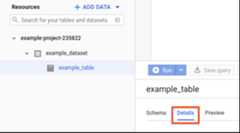
On the details page, click the pencil icon to the right ofLabels.
In theEdit labels dialog:
- Delete the value for an existing label.
- ClickUpdate.
bq
To convert a label to a tag, use thebq update command with theset_label flag. Specify the key, followed by a colon, but leave the valueunspecified. This updates an existing label to a tag.
bqupdate\--set_labelkey:\resource_id
Where:
- key: is the label key that you want update to a tag.
- resource_id is a valid dataset, table, or view name. If theresource is in a project other than your default project, add the project IDin the following format:
project_id:dataset.
Examples:
Enter the following command to change the existingtest_data:developmentlabel onmydataset to a tag.mydataset is inmyotherproject, not yourdefault project.
bq update --set_label test_data: myotherproject:mydatasetThe output looks like the following:
Dataset 'myotherproject:mydataset' successfully updated.
API
To turn an existing label into a tag, call thedatasets.patchmethod or thetables.patchmethod and replace the label values with the empty string ("") in thedataset resourceor thetable resource.
Because views are treated like table resources, you use thetables.patchmethod to modify both views and tables. Also, because thetables.updatemethod replaces the entire dataset resource, thetables.patch method ispreferred.
What's next
- Learn how toadd labels to BigQueryresources.
- Learn how toview labels on BigQueryresources.
- Learn how tofilter resources using labels.
- Learn how todelete labels onBigQuery resources.
- Read aboutusing labels in theResource Manager documentation.
Except as otherwise noted, the content of this page is licensed under theCreative Commons Attribution 4.0 License, and code samples are licensed under theApache 2.0 License. For details, see theGoogle Developers Site Policies. Java is a registered trademark of Oracle and/or its affiliates.
Last updated 2025-12-15 UTC.