

Scheduling queries
This page describes how to schedule recurring queries in BigQuery.
You can schedule queries to run on a recurring basis. Scheduled queries must bewritten inGoogleSQL,which can includedata definition language (DDL)anddata manipulation language (DML)statements. You can organize query results by date and time by parameterizingthe query string and destination table.
When you create or update the schedule for a query, the scheduled time for thequery is converted from your local time to UTC. UTC is not affected by daylightsaving time.
Before you begin
- Scheduled queries use features ofBigQuery Data Transfer Service. Verify thatyou have completed all actions required inEnabling BigQuery Data Transfer Service.
- Grant Identity and Access Management (IAM) roles that give users the necessarypermissions to perform each task in this document.
- If you plan on specifying a customer-managed encryption key (CMEK), ensurethat yourservice account has permissions to encrypt and decrypt,and that you have theCloud KMS key resource IDrequired to use CMEK. For information about how CMEKs works withthe BigQuery Data Transfer Service, seeSpecify encryption key with scheduled queries.
Limitations
- Scheduled queries running exactly on the hour (for example, 09:00) might trigger multiple times,which can cause unintended results like data duplication from
INSERToperations.To prevent such unintended results, use an off-the-hour schedule (for example, 08:58 or 09:03).
Required permissions
To schedule a query, you need the following IAMpermissions:
To create the transfer, you must either have the
Note: If you are using the Google Cloud console or the bq command-line tool to schedule a query, you must have thebigquery.transfers.updateandbigquery.datasets.getpermissions, or thebigquery.jobs.create,bigquery.transfers.get, andbigquery.datasets.getpermissions.bigquery.transfers.getpermission.To run a scheduled query, you must have:
bigquery.datasets.getpermissions on the target datasetbigquery.jobs.create
To modify or delete a scheduled query, you must either have thebigquery.transfers.update andbigquery.transfers.get permissions, or thebigquery.jobs.create permission and ownership over the scheduled query.
The predefinedBigQuery Admin (roles/bigquery.admin)IAM role includes the permissions that you need in order toschedule or modify a query.
For more information about IAM roles in BigQuery,seePredefined roles and permissions.
To create or update scheduled queries run by a service account, you must haveaccess to that service account. For more information on granting users theservice account role, seeService Account user role.To select a service account in the scheduled query UI of theGoogle Cloud console, you need the following IAM permissions:
iam.serviceAccounts.listto list your service accounts.iam.serviceAccountUserto assign a service account to a scheduled query.
--service_account_name flag instead of authenticating as a service account.Configuration options
The following sections describe the configuration options.
Query string
The query string must be valid and written inGoogleSQL.Each run of a scheduled query can receive the followingquery parameters.
To manually test a query string with@run_time and@run_date parametersbefore scheduling a query, use thebq command-line tool.
Available parameters
| Parameter | GoogleSQL Type | Value |
|---|---|---|
@run_time | TIMESTAMP | Represented in UTC time. For regularly scheduled queries,run_time represents the intended time of execution. For example, if the scheduled query is set to "every 24 hours", therun_time difference between two consecutive queries is exactly 24 hours, even though the actual execution time might slightly vary. |
@run_date | DATE | Represents a logical calendar date. |
Example
The@run_time parameter is part of the query string in this example, whichqueries a public dataset namedhacker_news.stories.
SELECT@run_timeAStime,title,author,textFROM`bigquery-public-data.hacker_news.stories`LIMIT1000
Destination table
If the destination table for your results doesn't exist when you set up thescheduled query, BigQuery attempts to create the table for you.
If you are using a DDL or DML query, then in the Google Cloud console, choosetheProcessing location or region. Processing location is required for DDLor DML queries that create the destination table.
If the destination table does exist and you are using theWRITE_APPENDwrite preference, BigQuery appends data tothe destination table and tries to map the schema.BigQuery automatically allows field additions and reordering, andaccommodates missing optional fields. If the table schema changes so muchbetween runs that BigQuery can't process the changesautomatically, the scheduled query fails.
Queries can reference tables from different projects and different datasets.When configuring your scheduled query, you don't need to include the destinationdataset in the table name. You specify the destination dataset separately.
The destination dataset and table for a scheduled query must be in the sameproject as the scheduled query.
Write preference
The write preference you select determines how your query results are writtento an existing destination table.
WRITE_TRUNCATE: If the table exists, BigQuery overwrites thetable data.WRITE_APPEND: If the table exists, BigQuery appends the datato the table.
If you're using a DDL or DML query, you can't use the write preference option.
Creating, truncating, or appending a destination table only happens ifBigQuery is able to successfully complete the query. Creation,truncation, or append actions occur as one atomic update upon job completion.
Clustering
Scheduled queries can create clustering on new tables only, when the table ismade with a DDLCREATE TABLE AS SELECT statement. SeeCreating a clustered table from a query resulton theUsing data definition language statementspage.
Partitioning options
Scheduled queries can create partitioned or non-partitioned destination tables.Partitioning is available in the Google Cloud console, bq command-line tool, and APIsetup methods. If you're using a DDL or DML query with partitioning, leave theDestination table partitioning field blank.
You can use the following types of table partitioning inBigQuery:
- Integer range partitioning:Tables partitioned based on ranges of values in a specific
INTEGERcolumn. - Time-unit column partitioning:Tables partitioned based on a
TIMESTAMP,DATE,orDATETIMEcolumn. - Ingestion time partitioning:Tables partitioned by ingestion time. BigQuery automaticallyassigns rows to partitions based on the time when BigQueryingests the data.
To create a partitioned table by using a scheduled query in theGoogle Cloud console, use the following options:
To use integer range partitioning, leave theDestination tablepartitioning field blank.
To use time-unit column partitioning, specify thecolumn name in theDestination table partitioning field when youset up a scheduled query.
To use ingestion time partitioning, leave theDestination table partitioning field blank and indicate the datepartitioning in the destination table's name. For example,
mytable${run_date}. For more information, seeParameter templating syntax.
Available parameters
When setting up the scheduled query, you can specify how you want to partitionthe destination table with runtime parameters.
| Parameter | Template Type | Value |
|---|---|---|
run_time | Formatted timestamp | In UTC time, per the schedule. For regularly scheduled queries,run_time represents the intended time of execution. For example, if the scheduled query is set to "every 24 hours", therun_time difference between two consecutive queries is exactly 24 hours, even though the actual execution time may vary slightly.See TransferRun.runTime. |
run_date | Date string | The date of therun_time parameter in the following format:%Y-%m-%d; for example,2018-01-01. This format is compatible with ingestion-time partitioned tables. |
Templating system
Scheduled queries support runtime parameters in the destination table name witha templating syntax.
Parameter templating syntax
The templating syntax supports basic string templating and time offsetting. Parameters are referenced in the following formats:
{run_date}{run_time[+\-offset]|"time_format"}
| Parameter | Purpose |
|---|---|
run_date | This parameter is replaced by the date in formatYYYYMMDD. |
run_time | This parameter supports the following properties:
|
- No whitespace is allowed between run_time, offset, and time format.
- To include literal curly braces in the string, you can escape them as
'\{' and '\}'. - To include literal quotes or a vertical bar in the time_format, such as
"YYYY|MM|DD", you can escape them in the format string as:'\"'or'\|'.
Parameter templating examples
These examples demonstrate specifying destination table names with different time formats, andoffsetting the run time.| run_time (UTC) | Templated parameter | Output destination table name |
|---|---|---|
| 2018-02-15 00:00:00 | mytable | mytable |
| 2018-02-15 00:00:00 | mytable_{run_time|"%Y%m%d"} | mytable_20180215 |
| 2018-02-15 00:00:00 | mytable_{run_time+25h|"%Y%m%d"} | mytable_20180216 |
| 2018-02-15 00:00:00 | mytable_{run_time-1h|"%Y%m%d"} | mytable_20180214 |
| 2018-02-15 00:00:00 | mytable_{run_time+1.5h|"%Y%m%d%H"}or mytable_{run_time+90m|"%Y%m%d%H"} | mytable_2018021501 |
| 2018-02-15 00:00:00 | {run_time+97s|"%Y%m%d"}_mytable_{run_time+97s|"%H%M%S"} | 20180215_mytable_000137 |
YYYYMMDD, BigQuerygroups these tables together. Inthe Google Cloud console, these grouped tables might be displayed with a name likemytable_(1), which represents the collection of sharded tables.Using a service account
You can set up a scheduled query to authenticate as a service account. Aservice account is a special account associated with your Google Cloud project. Theservice account can run jobs, such as scheduled queries or batch processingpipelines, with its own service credentials rather than an end user'scredentials.
Read more about authenticating with service accounts inIntroduction to authentication.
You canset up the scheduled query with a serviceaccount. If you signed in with afederated identity,then a service account is required to create a transfer. If you signedin with aGoogle Account, then aservice account for the transfer is optional.
You can update an existing scheduled query with the credentials of a serviceaccount with the bq command-line tool or Google Cloud console. For more information, seeUpdate scheduled query credentials.
Specify encryption key with scheduled queries
You can specifycustomer-managed encryption keys (CMEKs)to encrypt data for a transfer run. You can use a CMEK to support transfers fromscheduled queries.When you specify a CMEK with a transfer, the BigQuery Data Transfer Service applies theCMEK to any intermediate on-disk cache of ingested data so that the entiredata transfer workflow is CMEK compliant.
You cannot update an existing transfer to add a CMEK if the transfer was notoriginally created with a CMEK. For example, you cannot change a destinationtable that was originally default encrypted to now be encrypted with CMEK.Conversely, you also cannot change a CMEK-encrypted destination tableto have a different type of encryption.
You can update a CMEK for a transfer if the transfer configuration wasoriginally created with a CMEK encryption. When you update a CMEK for a transferconfiguration, the BigQuery Data Transfer Service propagates the CMEK to the destinationtables at the next run of the transfer, where the BigQuery Data Transfer Servicereplaces any outdated CMEKs with the new CMEK during the transfer run.For more information, seeUpdate a transfer.
You can also useproject default keys.When you specify a project default key with a transfer, the BigQuery Data Transfer Serviceuses the project default key as the default key for any new transferconfigurations.
Set up scheduled queries
For a description of the schedule syntax, seeFormatting the schedule.For details about schedule syntax, seeResource:TransferConfig.
Console
Open the BigQuery page in the Google Cloud console.
Run the query that you're interested in. When you are satisfied with yourresults, clickSchedule.
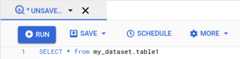
The scheduled query options open in theNew scheduled query pane.
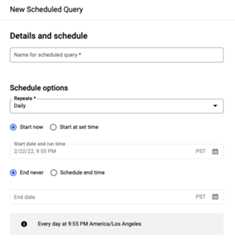
On theNew scheduled query pane:
- ForName for the scheduled query, enter a name such as
My scheduled query. The scheduled query name can be any value thatyou can identify later if you need to modify the query. Optional: By default, the query is scheduled to runDaily. You can change thedefault schedule by selecting an option from theRepeats drop-down menu:
To specify a custom frequency, selectCustom, then enter aCron-like time specification in theCustom schedule field—for example,
every mon 23:30,every 6 hours, orevery hour on mon,tue,wed,thu,fri.For details about valid schedules including custom intervals, seetheschedulefield underResource:TransferConfig.
Note: The minimum duration between scheduled queries is 5 minutes.
To change the start time, select theStart at set time option,enter the selected start date and time.
Note: If the specified start time is later than the time in theschedule, then the first run of the query will be in the nextiteration of the cycle. For example, a query created at2022-06-05 23:50with scheduledaily 00:00and start time2022-06-06 10:00won't run until2022-06-07 00:00.To specify an end time,select theSchedule end time option, enter the selected end dateand time.
To save the query without a schedule, so you can run it on demandlater, selectOn-demand in theRepeats menu.
- ForName for the scheduled query, enter a name such as
For a GoogleSQL
SELECTquery, select theSet a destination tablefor query results option and provide the following information about thedestination dataset.- ForDataset name, choose the appropriate destination dataset.
- ForTable name, enter the name of your destination table.
ForDestination table write preference, choose eitherAppend to table to append data to the table orOverwrite table to overwrite the destination table.
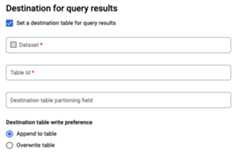
Choose theLocation Type.
If you have enabled the destination table for query results, you canselectAutomatic location selection to automatically select thelocation where the destination table resides.
Otherwise, choose the location where the data being queried is located.
Advanced options:
Optional: CMEKIf you usecustomer-managed encryption keys,you can selectCustomer-managed key underAdvanced options.A list of your available CMEKs appears for you to choose from. Forinformation about how customer-managed encryption keys (CMEKs)work with the BigQuery Data Transfer Service, seeSpecify encryption key with scheduled queries.
Authenticate as a service accountIf you have one or more service accounts associated with your Google Cloud project,you can associate a service account with your scheduled queryinstead of using your user credentials. UnderScheduled querycredential, click the menu to see a list of your available serviceaccounts. A service account is required if you are signed in as afederated identity.
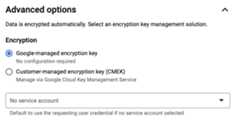
Additional configurations:
Optional: CheckSend email notificationsto allow email notifications of transfer run failures.
Optional: ForPub/Sub topic, enter your Pub/Subtopic name, for example:
projects/myproject/topics/mytopic.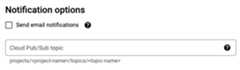
ClickSave.
bq
There are two ways to schedule a query by using thebq command-line tool.Option 2 lets you schedule thequery with more options.Option 1: Use thebq query command.
To create a scheduled query, add the optionsdestination_table (ortarget_dataset),--schedule, and--display_name to yourbq query command.
bqquery\--display_name=name\--destination_table=table\--schedule=interval
Replace the following:
name. The display name for the scheduled query.The display name can be any value that you can identify later if you needto modify the query.table. The destination table for the queryresults.--target_datasetis an alternative way to name the target dataset forthe query results, when used with DDL and DML queries.- Use either
--destination_tableor--target_dataset, but not both.
interval. When used withbq query, makes aquery a recurring scheduled query. A schedule for how often the queryshould run is required. For details about valid schedules including customintervals, see theschedulefield underResource:TransferConfig.Examples:--schedule='every 24 hours'--schedule='every 3 hours'--schedule='every monday 09:00'--schedule='1st sunday of sep,oct,nov 00:00'
Optional flags:
--project_idis your project ID. If--project_idisn't specified,the default project is used.--replaceoverwrites the destination table with the query results afterevery run of the scheduled query. Any existing data is erased. Fornon-partitioned tables, the schema is also erased.--append_tableappends results to the destination table.For DDL and DML queries, you can also supply the
--locationflag tospecify a particular region for processing. If--locationisn'tspecified, the nearest Google Cloud location is used.
For example, the following command creates a scheduled query namedMy Scheduled Query using the querySELECT 1 from mydataset.test.The destination table ismytable in the datasetmydataset. The scheduledquery is created in the default project:
bq query \ --use_legacy_sql=false \ --destination_table=mydataset.mytable \ --display_name='My Scheduled Query' \ --schedule='every 24 hours' \ --replace=true \ 'SELECT 1 FROM mydataset.test'
Option 2: Use thebq mk command.
Scheduled queries are a kind of transfer. To schedule a query, you can usethe bq command-line tool to make a transfer configuration.
Queries must be in StandardSQL dialect to be scheduled.
Enter thebq mk command and supply the following required flags:
--transfer_config--data_source--target_dataset(optional for DDL and DML queries)--display_name--params
Optional flags:
--project_idis your project ID. If--project_idisn't specified,the default project is used.--scheduleis how often you want the query to run. If--scheduleisn'tspecified, the default is 'every 24 hours' based on creation time.For DDL and DML queries, you can also supply the
--locationflag tospecify a particular region for processing. If--locationisn'tspecified, the nearest Google Cloud location is used.--service_account_nameis for authenticating your scheduled query witha service account instead of your individual user account.--destination_kms_keyspecifies thekey resource IDfor the key if you use a customer-managed encryption key (CMEK)for this transfer. For information about how CMEKs work withthe BigQuery Data Transfer Service, seeSpecify encryption key with scheduled queries.
bqmk\--transfer_config\--target_dataset=dataset\--display_name=name\--params='parameters'\--data_source=data_source
Replace the following:
dataset. The target dataset for the transferconfiguration.- This parameter is optional for DDL and DML queries. It is required forall other queries.
name. The display name for the transferconfiguration. The display name can be any value that you can identifylater if you need to modify the query.parameters. Contains the parameters for thecreated transfer configuration in JSON format. For example:--params='{"param":"param_value"}'.- For a scheduled query, you must supply the
queryparameter. - The
destination_table_name_templateparameter is the name of yourdestination table.- This parameter is optional for DDL and DML queries. It is required forall other queries.
- For the
write_dispositionparameter, you can chooseWRITE_TRUNCATEto truncate (overwrite) the destination table orWRITE_APPENDtoappend the query results to the destination table.- This parameter is optional for DDL and DML queries. It is required forall other queries.
- For a scheduled query, you must supply the
data_source. The data source:scheduled_query.- Optional: The
--service_account_nameflag is for authenticatingwith a service account instead of an individual user account. - Optional: The
--destination_kms_keyspecifies thekey resource IDfor the Cloud KMS key—for example,projects/project_name/locations/us/keyRings/key_ring_name/cryptoKeys/key_name.
destination_table_name_template parameter set to an ingestion-timepartitioned table while also supplying an error if settingto an ingestion-time partitioned thepartitioning_field parameter.Note: You cannot configure notifications using the command-linetool.For example, the following command creates a scheduled query transferconfiguration namedMy Scheduled Query using the querySELECT 1from mydataset.test. The destination tablemytable is truncated for everywrite, and the target dataset ismydataset. The scheduled query is createdin the default project, and authenticates as a service account:
bqmk\--transfer_config \--target_dataset=mydataset \--display_name='My Scheduled Query' \--params='{"query":"SELECT 1 from mydataset.test","destination_table_name_template":"mytable","write_disposition":"WRITE_TRUNCATE"}' \--data_source=scheduled_query \--service_account_name=abcdef-test-sa@abcdef-test.iam.gserviceaccount.comThe first time you run the command, you receive a message like thefollowing:
[URL omitted] Please copy and paste the above URL into your web browser andfollow the instructions to retrieve an authentication code.
Follow the instructions in the message and paste the authentication code onthe command line.
API
Use theprojects.locations.transferConfigs.createmethod and supply an instance of theTransferConfigresource.
Java
Before trying this sample, follow theJava setup instructions in theBigQuery quickstart using client libraries. For more information, see theBigQueryJava API reference documentation.
To authenticate to BigQuery, set up Application Default Credentials. For more information, seeSet up authentication for client libraries.
importcom.google.api.gax.rpc.ApiException;importcom.google.cloud.bigquery.datatransfer.v1.CreateTransferConfigRequest;importcom.google.cloud.bigquery.datatransfer.v1.DataTransferServiceClient;importcom.google.cloud.bigquery.datatransfer.v1.ProjectName;importcom.google.cloud.bigquery.datatransfer.v1.TransferConfig;importcom.google.protobuf.Struct;importcom.google.protobuf.Value;importjava.io.IOException;importjava.util.HashMap;importjava.util.Map;// Sample to create a scheduled querypublicclassCreateScheduledQuery{publicstaticvoidmain(String[]args)throwsIOException{// TODO(developer): Replace these variables before running the sample.finalStringprojectId="MY_PROJECT_ID";finalStringdatasetId="MY_DATASET_ID";finalStringquery="SELECT CURRENT_TIMESTAMP() as current_time, @run_time as intended_run_time, "+"@run_date as intended_run_date, 17 as some_integer";Map<String,Value>params=newHashMap<>();params.put("query",Value.newBuilder().setStringValue(query).build());params.put("destination_table_name_template",Value.newBuilder().setStringValue("my_destination_table_{run_date}").build());params.put("write_disposition",Value.newBuilder().setStringValue("WRITE_TRUNCATE").build());params.put("partitioning_field",Value.newBuilder().build());TransferConfigtransferConfig=TransferConfig.newBuilder().setDestinationDatasetId(datasetId).setDisplayName("Your Scheduled Query Name").setDataSourceId("scheduled_query").setParams(Struct.newBuilder().putAllFields(params).build()).setSchedule("every 24 hours").build();createScheduledQuery(projectId,transferConfig);}publicstaticvoidcreateScheduledQuery(StringprojectId,TransferConfigtransferConfig)throwsIOException{try(DataTransferServiceClientdataTransferServiceClient=DataTransferServiceClient.create()){ProjectNameparent=ProjectName.of(projectId);CreateTransferConfigRequestrequest=CreateTransferConfigRequest.newBuilder().setParent(parent.toString()).setTransferConfig(transferConfig).build();TransferConfigconfig=dataTransferServiceClient.createTransferConfig(request);System.out.println("\nScheduled query created successfully :"+config.getName());}catch(ApiExceptionex){System.out.print("\nScheduled query was not created."+ex.toString());}}}Python
Before trying this sample, follow thePython setup instructions in theBigQuery quickstart using client libraries. For more information, see theBigQueryPython API reference documentation.
To authenticate to BigQuery, set up Application Default Credentials. For more information, seeSet up authentication for client libraries.
fromgoogle.cloudimportbigquery_datatransfertransfer_client=bigquery_datatransfer.DataTransferServiceClient()# The project where the query job runs is the same as the project# containing the destination dataset.project_id="your-project-id"dataset_id="your_dataset_id"# This service account will be used to execute the scheduled queries. Omit# this request parameter to run the query as the user with the credentials# associated with this client.service_account_name="abcdef-test-sa@abcdef-test.iam.gserviceaccount.com"# Use standard SQL syntax for the query.query_string="""SELECT CURRENT_TIMESTAMP() as current_time, @run_time as intended_run_time, @run_date as intended_run_date, 17 as some_integer"""parent=transfer_client.common_project_path(project_id)transfer_config=bigquery_datatransfer.TransferConfig(destination_dataset_id=dataset_id,display_name="Your Scheduled Query Name",data_source_id="scheduled_query",params={"query":query_string,"destination_table_name_template":"your_table_{run_date}","write_disposition":"WRITE_TRUNCATE","partitioning_field":"",},schedule="every 24 hours",)transfer_config=transfer_client.create_transfer_config(bigquery_datatransfer.CreateTransferConfigRequest(parent=parent,transfer_config=transfer_config,service_account_name=service_account_name,))print("Created scheduled query '{}'".format(transfer_config.name))Set up scheduled queries with a service account
Java
Before trying this sample, follow theJava setup instructions in theBigQuery quickstart using client libraries. For more information, see theBigQueryJava API reference documentation.
To authenticate to BigQuery, set up Application Default Credentials. For more information, seeSet up authentication for client libraries.
importcom.google.api.gax.rpc.ApiException;importcom.google.cloud.bigquery.datatransfer.v1.CreateTransferConfigRequest;importcom.google.cloud.bigquery.datatransfer.v1.DataTransferServiceClient;importcom.google.cloud.bigquery.datatransfer.v1.ProjectName;importcom.google.cloud.bigquery.datatransfer.v1.TransferConfig;importcom.google.protobuf.Struct;importcom.google.protobuf.Value;importjava.io.IOException;importjava.util.HashMap;importjava.util.Map;// Sample to create a scheduled query with service accountpublicclassCreateScheduledQueryWithServiceAccount{publicstaticvoidmain(String[]args)throwsIOException{// TODO(developer): Replace these variables before running the sample.finalStringprojectId="MY_PROJECT_ID";finalStringdatasetId="MY_DATASET_ID";finalStringserviceAccount="MY_SERVICE_ACCOUNT";finalStringquery="SELECT CURRENT_TIMESTAMP() as current_time, @run_time as intended_run_time, "+"@run_date as intended_run_date, 17 as some_integer";Map<String,Value>params=newHashMap<>();params.put("query",Value.newBuilder().setStringValue(query).build());params.put("destination_table_name_template",Value.newBuilder().setStringValue("my_destination_table_{run_date}").build());params.put("write_disposition",Value.newBuilder().setStringValue("WRITE_TRUNCATE").build());params.put("partitioning_field",Value.newBuilder().build());TransferConfigtransferConfig=TransferConfig.newBuilder().setDestinationDatasetId(datasetId).setDisplayName("Your Scheduled Query Name").setDataSourceId("scheduled_query").setParams(Struct.newBuilder().putAllFields(params).build()).setSchedule("every 24 hours").build();createScheduledQueryWithServiceAccount(projectId,transferConfig,serviceAccount);}publicstaticvoidcreateScheduledQueryWithServiceAccount(StringprojectId,TransferConfigtransferConfig,StringserviceAccount)throwsIOException{try(DataTransferServiceClientdataTransferServiceClient=DataTransferServiceClient.create()){ProjectNameparent=ProjectName.of(projectId);CreateTransferConfigRequestrequest=CreateTransferConfigRequest.newBuilder().setParent(parent.toString()).setTransferConfig(transferConfig).setServiceAccountName(serviceAccount).build();TransferConfigconfig=dataTransferServiceClient.createTransferConfig(request);System.out.println("\nScheduled query with service account created successfully :"+config.getName());}catch(ApiExceptionex){System.out.print("\nScheduled query with service account was not created."+ex.toString());}}}Python
Before trying this sample, follow thePython setup instructions in theBigQuery quickstart using client libraries. For more information, see theBigQueryPython API reference documentation.
To authenticate to BigQuery, set up Application Default Credentials. For more information, seeSet up authentication for client libraries.
fromgoogle.cloudimportbigquery_datatransfertransfer_client=bigquery_datatransfer.DataTransferServiceClient()# The project where the query job runs is the same as the project# containing the destination dataset.project_id="your-project-id"dataset_id="your_dataset_id"# This service account will be used to execute the scheduled queries. Omit# this request parameter to run the query as the user with the credentials# associated with this client.service_account_name="abcdef-test-sa@abcdef-test.iam.gserviceaccount.com"# Use standard SQL syntax for the query.query_string="""SELECT CURRENT_TIMESTAMP() as current_time, @run_time as intended_run_time, @run_date as intended_run_date, 17 as some_integer"""parent=transfer_client.common_project_path(project_id)transfer_config=bigquery_datatransfer.TransferConfig(destination_dataset_id=dataset_id,display_name="Your Scheduled Query Name",data_source_id="scheduled_query",params={"query":query_string,"destination_table_name_template":"your_table_{run_date}","write_disposition":"WRITE_TRUNCATE","partitioning_field":"",},schedule="every 24 hours",)transfer_config=transfer_client.create_transfer_config(bigquery_datatransfer.CreateTransferConfigRequest(parent=parent,transfer_config=transfer_config,service_account_name=service_account_name,))print("Created scheduled query '{}'".format(transfer_config.name))View scheduled query status
Console
To view the status of your scheduled queries, in the navigation menu, clickScheduling and filter forScheduled Query. Click a scheduled queryto get more details about it.
bq
Scheduled queries are a kind of transfer. To show the details of ascheduled query, you can first use the bq command-line tool to list your transferconfigurations.
Enter thebq ls command and supply the transfer flag--transfer_config. The following flags are also required:
--transfer_location
For example:
bq ls \--transfer_config \--transfer_location=usTo show the details of a single scheduled query, enter thebq showcommand and supply thetransfer_path for thatscheduled query or transfer config.
For example:
bq show \--transfer_config \projects/862514376110/locations/us/transferConfigs/5dd12f26-0000-262f-bc38-089e0820fe38API
Use theprojects.locations.transferConfigs.listmethod and supply an instance of theTransferConfigresource.
Java
Before trying this sample, follow theJava setup instructions in theBigQuery quickstart using client libraries. For more information, see theBigQueryJava API reference documentation.
To authenticate to BigQuery, set up Application Default Credentials. For more information, seeSet up authentication for client libraries.
importcom.google.api.gax.rpc.ApiException;importcom.google.cloud.bigquery.datatransfer.v1.DataTransferServiceClient;importcom.google.cloud.bigquery.datatransfer.v1.ListTransferConfigsRequest;importcom.google.cloud.bigquery.datatransfer.v1.ProjectName;importjava.io.IOException;// Sample to get list of transfer configpublicclassListTransferConfigs{publicstaticvoidmain(String[]args)throwsIOException{// TODO(developer): Replace these variables before running the sample.finalStringprojectId="MY_PROJECT_ID";listTransferConfigs(projectId);}publicstaticvoidlistTransferConfigs(StringprojectId)throwsIOException{try(DataTransferServiceClientdataTransferServiceClient=DataTransferServiceClient.create()){ProjectNameparent=ProjectName.of(projectId);ListTransferConfigsRequestrequest=ListTransferConfigsRequest.newBuilder().setParent(parent.toString()).build();dataTransferServiceClient.listTransferConfigs(request).iterateAll().forEach(config->System.out.print("Success! Config ID :"+config.getName()+"\n"));}catch(ApiExceptionex){System.out.println("Config list not found due to error."+ex.toString());}}}Python
Before trying this sample, follow thePython setup instructions in theBigQuery quickstart using client libraries. For more information, see theBigQueryPython API reference documentation.
To authenticate to BigQuery, set up Application Default Credentials. For more information, seeSet up authentication for client libraries.
fromgoogle.cloudimportbigquery_datatransfertransfer_client=bigquery_datatransfer.DataTransferServiceClient()project_id="my-project"parent=transfer_client.common_project_path(project_id)configs=transfer_client.list_transfer_configs(parent=parent)print("Got the following configs:")forconfiginconfigs:print(f"\tID:{config.name}, Schedule:{config.schedule}")Update scheduled queries
Console
To update a scheduled query, follow these steps:
- In the navigation menu, clickScheduled queries orScheduling.
- In the list of scheduled queries, click the name of the query thatyou want to change.
- On theScheduled query details page that opens, clickEdit.
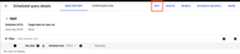
- Optional: Change the query text in the query editing pane.
- ClickSchedule query and then selectUpdate scheduled query.
- Optional: Change any other scheduling options for the query.
- ClickUpdate.
bq
Scheduled queries are a kind of transfer. To update scheduled query, you can usethe bq command-line tool to make a transfer configuration.
Enter thebq update command with the required--transfer_configflag.
Optional flags:
--project_idis your project ID. If--project_idisn't specified,the default project is used.--scheduleis how often you want the query to run. If--scheduleisn'tspecified, the default is 'every 24 hours' based on creation time.--service_account_nameonly takes effect if--update_credentialsisalso set. For more information, seeUpdate scheduled query credentials.--target_dataset(optional for DDL and DML queries) is an alternativeway to name the target dataset for the query results, when used with DDLand DML queries.--display_nameis the name for the scheduled query.--paramsthe parameters for the created transfer configuration in JSONformat. For example: --params='{"param":"param_value"}'.--destination_kms_keyspecifies thekey resource IDfor the Cloud KMS key if you use a customer-managed encryption key (CMEK)for this transfer. For information about how customer-managed encryptionkeys (CMEK) works with the BigQuery Data Transfer Service, seeSpecify encryption key with scheduled queries.
bqupdate\--target_dataset=dataset\--display_name=name\--params='parameters'--transfer_config\RESOURCE_NAME
Replace the following:
dataset. The target dataset for the transferconfiguration. This parameter is optional for DDL and DML queries. It isrequired for all other queries.name. The display name for the transferconfiguration. The display name can be any value that you can identifylater if you need to modify the query.parameters. Contains the parameters for thecreated transfer configuration in JSON format. For example:--params='{"param":"param_value"}'.- For a scheduled query, you must supply the
queryparameter. - The
destination_table_name_templateparameter is the name of yourdestination table. This parameter is optional for DDL and DML queries.It is required for all other queries. - For the
write_dispositionparameter, you can chooseWRITE_TRUNCATEto truncate (overwrite) the destination table orWRITE_APPENDtoappend the query results to the destination table. This parameter isoptional for DDL and DML queries. It is required for all other queries.
- For a scheduled query, you must supply the
- Optional: The
--destination_kms_keyspecifies thekey resource IDfor the Cloud KMS key—for example,projects/project_name/locations/us/keyRings/key_ring_name/cryptoKeys/key_name. RESOURCE_NAME: The transfer's resource name(also referred to as the transfer configuration). If you don't know thetransfer's resource name, find the resource name with:bq ls --transfer_config --transfer_location=location.
destination_table_name_template parameter set to an ingestion-timepartitioned table while also supplying an error if settingto an ingestion-time partitioned thepartitioning_field parameter.Note: You cannot configure notifications using the command-linetool.For example, the following command updates a scheduled query transferconfiguration namedMy Scheduled Query using the querySELECT 1from mydataset.test. The destination tablemytable is truncated for everywrite, and the target dataset ismydataset:
bq update \--target_dataset=mydataset \--display_name='My Scheduled Query' \--params='{"query":"SELECT 1 from mydataset.test","destination_table_name_template":"mytable","write_disposition":"WRITE_TRUNCATE"}'--transfer_config \projects/myproject/locations/us/transferConfigs/1234a123-1234-1a23-1be9-12ab3c456de7API
Use theprojects.transferConfigs.patchmethod and supply the transfer's Resource Name using thetransferConfig.name parameter. If you don't know the transfer's ResourceName, use thebq ls --transfer_config --transfer_location=locationcommand to list all transfers or call theprojects.locations.transferConfigs.listmethod and supply the project ID using theparent parameter.
Java
Before trying this sample, follow theJava setup instructions in theBigQuery quickstart using client libraries. For more information, see theBigQueryJava API reference documentation.
To authenticate to BigQuery, set up Application Default Credentials. For more information, seeSet up authentication for client libraries.
importcom.google.api.gax.rpc.ApiException;importcom.google.cloud.bigquery.datatransfer.v1.DataTransferServiceClient;importcom.google.cloud.bigquery.datatransfer.v1.TransferConfig;importcom.google.cloud.bigquery.datatransfer.v1.UpdateTransferConfigRequest;importcom.google.protobuf.FieldMask;importcom.google.protobuf.util.FieldMaskUtil;importjava.io.IOException;// Sample to update transfer config.publicclassUpdateTransferConfig{publicstaticvoidmain(String[]args)throwsIOException{// TODO(developer): Replace these variables before running the sample.StringconfigId="MY_CONFIG_ID";TransferConfigtransferConfig=TransferConfig.newBuilder().setName(configId).setDisplayName("UPDATED_DISPLAY_NAME").build();FieldMaskupdateMask=FieldMaskUtil.fromString("display_name");updateTransferConfig(transferConfig,updateMask);}publicstaticvoidupdateTransferConfig(TransferConfigtransferConfig,FieldMaskupdateMask)throwsIOException{try(DataTransferServiceClientdataTransferServiceClient=DataTransferServiceClient.create()){UpdateTransferConfigRequestrequest=UpdateTransferConfigRequest.newBuilder().setTransferConfig(transferConfig).setUpdateMask(updateMask).build();TransferConfigupdateConfig=dataTransferServiceClient.updateTransferConfig(request);System.out.println("Transfer config updated successfully :"+updateConfig.getDisplayName());}catch(ApiExceptionex){System.out.print("Transfer config was not updated."+ex.toString());}}}Python
Before trying this sample, follow thePython setup instructions in theBigQuery quickstart using client libraries. For more information, see theBigQueryPython API reference documentation.
To authenticate to BigQuery, set up Application Default Credentials. For more information, seeSet up authentication for client libraries.
fromgoogle.cloudimportbigquery_datatransferfromgoogle.protobufimportfield_mask_pb2transfer_client=bigquery_datatransfer.DataTransferServiceClient()transfer_config_name="projects/1234/locations/us/transferConfigs/abcd"new_display_name="My Transfer Config"transfer_config=bigquery_datatransfer.TransferConfig(name=transfer_config_name)transfer_config.display_name=new_display_nametransfer_config=transfer_client.update_transfer_config({"transfer_config":transfer_config,"update_mask":field_mask_pb2.FieldMask(paths=["display_name"]),})print(f"Updated config: '{transfer_config.name}'")print(f"New display name: '{transfer_config.display_name}'")Update scheduled queries with ownership restrictions
If you try to update a scheduled query you don't own, the update might fail withthe following error message:
Cannot modify restricted parameters without taking ownership of the transfer configuration.
The owner of the scheduled query is the user associated with the scheduled queryor the user who has access to the service account associated with the scheduledquery. The associated user can be seen in the configuration details of thescheduled query. For information on how to update the scheduled query to takeownership, seeUpdate scheduled query credentials. Togrant users access to a service account, you must have theService Account user role.
The owner restricted parameters for scheduled queries are:
- The query text
- The destination dataset
- The destination table name template
Update scheduled query credentials
If you're scheduling an existing query, you might need to update the usercredentials on the query. Credentials are automatically up to date for newscheduled queries.
Some other situations that could require updating credentials include thefollowing:
- You want toquery Google Drive data in ascheduled query.
You receive anINVALID_USER error when you attempt to schedule the query:
Error code 5 : Authentication failure: User Id not found. Error code: INVALID_USERIDYou receive the following restricted parameters error when you attempt toupdate the query:
Cannot modify restricted parameters without taking ownership of the transfer configuration.
bigquery.transfers.update permission on your Google Cloud project toupdate the scheduled query credentials. For more information, seeRequired permissions.Console
Torefresh the existing credentials on a scheduled query:
Find andview the status of a scheduled query.
Click theMORE button and selectUpdate credentials.
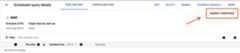
Allow 10 to 20 minutes for the change to take effect. You might need toclear your browser's cache.
bq
Scheduled queries are a kind of transfer. To update the credentials of ascheduled query, you can use the bq command-line tool toupdate the transfer configuration.
Enter thebq update command and supply the transfer flag--transfer_config. The following flags are also required:
--update_credentials
Optional flag:
--service_account_nameis for authenticating your scheduled query witha service account instead of your individual user account.
For example, the following command updates a scheduled query transferconfiguration to authenticate as a service account:
bqupdate\--update_credentials \--service_account_name=abcdef-test-sa@abcdef-test.iam.gserviceaccount.com \--transfer_config \projects/myproject/locations/us/transferConfigs/1234a123-1234-1a23-1be9-12ab3c456de7Java
Before trying this sample, follow theJava setup instructions in theBigQuery quickstart using client libraries. For more information, see theBigQueryJava API reference documentation.
To authenticate to BigQuery, set up Application Default Credentials. For more information, seeSet up authentication for client libraries.
importcom.google.api.gax.rpc.ApiException;importcom.google.cloud.bigquery.datatransfer.v1.DataTransferServiceClient;importcom.google.cloud.bigquery.datatransfer.v1.TransferConfig;importcom.google.cloud.bigquery.datatransfer.v1.UpdateTransferConfigRequest;importcom.google.protobuf.FieldMask;importcom.google.protobuf.util.FieldMaskUtil;importjava.io.IOException;// Sample to update credentials in transfer config.publicclassUpdateCredentials{publicstaticvoidmain(String[]args)throwsIOException{// TODO(developer): Replace these variables before running the sample.StringconfigId="MY_CONFIG_ID";StringserviceAccount="MY_SERVICE_ACCOUNT";TransferConfigtransferConfig=TransferConfig.newBuilder().setName(configId).build();FieldMaskupdateMask=FieldMaskUtil.fromString("service_account_name");updateCredentials(transferConfig,serviceAccount,updateMask);}publicstaticvoidupdateCredentials(TransferConfigtransferConfig,StringserviceAccount,FieldMaskupdateMask)throwsIOException{try(DataTransferServiceClientdataTransferServiceClient=DataTransferServiceClient.create()){UpdateTransferConfigRequestrequest=UpdateTransferConfigRequest.newBuilder().setTransferConfig(transferConfig).setUpdateMask(updateMask).setServiceAccountName(serviceAccount).build();dataTransferServiceClient.updateTransferConfig(request);System.out.println("Credentials updated successfully");}catch(ApiExceptionex){System.out.print("Credentials was not updated."+ex.toString());}}}Python
Before trying this sample, follow thePython setup instructions in theBigQuery quickstart using client libraries. For more information, see theBigQueryPython API reference documentation.
To authenticate to BigQuery, set up Application Default Credentials. For more information, seeSet up authentication for client libraries.
fromgoogle.cloudimportbigquery_datatransferfromgoogle.protobufimportfield_mask_pb2transfer_client=bigquery_datatransfer.DataTransferServiceClient()service_account_name="abcdef-test-sa@abcdef-test.iam.gserviceaccount.com"transfer_config_name="projects/1234/locations/us/transferConfigs/abcd"transfer_config=bigquery_datatransfer.TransferConfig(name=transfer_config_name)transfer_config=transfer_client.update_transfer_config({"transfer_config":transfer_config,"update_mask":field_mask_pb2.FieldMask(paths=["service_account_name"]),"service_account_name":service_account_name,})print("Updated config: '{}'".format(transfer_config.name))Set up a manual run on historical dates
In addition to scheduling a query to run in the future, you can also triggerimmediate runs manually. Triggering an immediate run would be necessary if yourquery uses therun_date parameter, and there were issues during a prior run.
For example, every day at 09:00 you query a source table for rows that matchthe current date. However, you find that data wasn't added to the source tablefor the last three days. In this situation, you can set the query to run onhistorical data within a date range that you specify. Your query runs usingcombinations ofrun_date andrun_time parameters that correspond to the dates youconfigured in your scheduled query.
Aftersetting up a scheduled query, here's howyou can run the query by using a historical date range:
Console
After clickingSchedule to save your scheduled query, you can click theScheduled queries button to see the list of scheduled queries.Click any display name to see the query schedule's details.At the top right of the page, clickSchedule backfill to specify ahistorical date range.
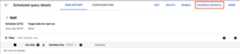
The chosen runtimes are all within your selected range, including the firstdate and excluding the last date.
Warning: The date ranges you provide are in UTC, but your query's scheduleis displayed in your local time zone (seeExample 2 to work aroundthis issue).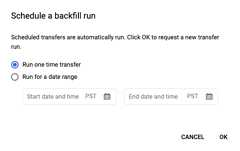
Example 1
Your scheduled query is set to runevery day 09:00 Pacific Time. You'remissing data from January 1, January 2, and January 3. Choose the following historicdate range:
Start Time = 1/1/19End Time = 1/4/19
Your query runs usingrun_date andrun_time parameters that correspondto the following times:
- 1/1/19 09:00 Pacific Time
- 1/2/19 09:00 Pacific Time
- 1/3/19 09:00 Pacific Time
Example 2
Your scheduled query is set to runevery day 23:00 Pacific Time. You'remissing data from January 1, January 2, and January 3. Choose the following historicdate ranges (later dates are chosen because UTC has a different date at23:00 Pacific Time):
Start Time = 1/2/19End Time = 1/5/19
Your query runs usingrun_date andrun_time parameters that correspondto the following times:
- 1/2/19 06:00 UTC, or 1/1/2019 23:00 Pacific Time
- 1/3/19 06:00 UTC, or 1/2/2019 23:00 Pacific Time
- 1/4/19 06:00 UTC, or 1/3/2019 23:00 Pacific Time
After setting up manual runs, refresh the page to see them in the list ofruns.
bq
To manually run the query on a historical date range:
Enter thebq mk command and supply the transfer run flag--transfer_run. The following flags are also required:
--start_time--end_time
bqmk\--transfer_run\--start_time='start_time'\--end_time='end_time'\resource_name
Replace the following:
start_timeandend_time.Timestamps that end in Z or contain a valid time zone offset. Examples:- 2017-08-19T12:11:35.00Z
- 2017-05-25T00:00:00+00:00
resource_name. The scheduled query's(or transfer's) Resource Name. The Resource Name is also known as thetransfer configuration.
For example, the following command schedules a backfill for scheduled queryresource (or transfer configuration):projects/myproject/locations/us/transferConfigs/1234a123-1234-1a23-1be9-12ab3c456de7.
bq mk \ --transfer_run \ --start_time 2017-05-25T00:00:00Z \ --end_time 2017-05-25T00:00:00Z \ projects/myproject/locations/us/transferConfigs/1234a123-1234-1a23-1be9-12ab3c456de7For more information, seebq mk --transfer_run.
API
Use theprojects.locations.transferConfigs.scheduleRun method and supply a path of theTransferConfig resource.
Java
Before trying this sample, follow theJava setup instructions in theBigQuery quickstart using client libraries. For more information, see theBigQueryJava API reference documentation.
To authenticate to BigQuery, set up Application Default Credentials. For more information, seeSet up authentication for client libraries.
importcom.google.api.gax.rpc.ApiException;importcom.google.cloud.bigquery.datatransfer.v1.DataTransferServiceClient;importcom.google.cloud.bigquery.datatransfer.v1.ScheduleTransferRunsRequest;importcom.google.cloud.bigquery.datatransfer.v1.ScheduleTransferRunsResponse;importcom.google.protobuf.Timestamp;importjava.io.IOException;importorg.threeten.bp.Clock;importorg.threeten.bp.Instant;importorg.threeten.bp.temporal.ChronoUnit;// Sample to run schedule back fill for transfer configpublicclassScheduleBackFill{publicstaticvoidmain(String[]args)throwsIOException{// TODO(developer): Replace these variables before running the sample.StringconfigId="MY_CONFIG_ID";Clockclock=Clock.systemDefaultZone();Instantinstant=clock.instant();TimestampstartTime=Timestamp.newBuilder().setSeconds(instant.minus(5,ChronoUnit.DAYS).getEpochSecond()).setNanos(instant.minus(5,ChronoUnit.DAYS).getNano()).build();TimestampendTime=Timestamp.newBuilder().setSeconds(instant.minus(2,ChronoUnit.DAYS).getEpochSecond()).setNanos(instant.minus(2,ChronoUnit.DAYS).getNano()).build();scheduleBackFill(configId,startTime,endTime);}publicstaticvoidscheduleBackFill(StringconfigId,TimestampstartTime,TimestampendTime)throwsIOException{try(DataTransferServiceClientclient=DataTransferServiceClient.create()){ScheduleTransferRunsRequestrequest=ScheduleTransferRunsRequest.newBuilder().setParent(configId).setStartTime(startTime).setEndTime(endTime).build();ScheduleTransferRunsResponseresponse=client.scheduleTransferRuns(request);System.out.println("Schedule backfill run successfully :"+response.getRunsCount());}catch(ApiExceptionex){System.out.print("Schedule backfill was not run."+ex.toString());}}}Python
Before trying this sample, follow thePython setup instructions in theBigQuery quickstart using client libraries. For more information, see theBigQueryPython API reference documentation.
To authenticate to BigQuery, set up Application Default Credentials. For more information, seeSet up authentication for client libraries.
importdatetimefromgoogle.cloud.bigquery_datatransfer_v1import(DataTransferServiceClient,StartManualTransferRunsRequest,)# Create a client objectclient=DataTransferServiceClient()# Replace with your transfer configuration nametransfer_config_name="projects/1234/locations/us/transferConfigs/abcd"now=datetime.datetime.now(datetime.timezone.utc)start_time=now-datetime.timedelta(days=5)end_time=now-datetime.timedelta(days=2)# Some data sources, such as scheduled_query only support daily run.# Truncate start_time and end_time to midnight time (00:00AM UTC).start_time=datetime.datetime(start_time.year,start_time.month,start_time.day,tzinfo=datetime.timezone.utc)end_time=datetime.datetime(end_time.year,end_time.month,end_time.day,tzinfo=datetime.timezone.utc)requested_time_range=StartManualTransferRunsRequest.TimeRange(start_time=start_time,end_time=end_time,)# Initialize request argument(s)request=StartManualTransferRunsRequest(parent=transfer_config_name,requested_time_range=requested_time_range,)# Make the requestresponse=client.start_manual_transfer_runs(request=request)# Handle the responseprint("Started manual transfer runs:")forruninresponse.runs:print(f"backfill:{run.run_time} run:{run.name}")Set up alerts for scheduled queries
You can configure alert policies for scheduled queries based on row countmetrics. For more information, seeSet up alerts with scheduled queries.
Delete scheduled queries
Console
To delete a scheduled query on theScheduled queries page of the Google Cloud console, do the following:
- In the navigation menu, clickScheduled queries.
- In the list of scheduled queries, click the name of the scheduled querythat you want to delete.
On theScheduled query details page, clickDelete.
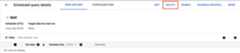
Alternatively, you can delete a scheduled query on theScheduling page ofthe Google Cloud console:
- In the navigation menu, clickScheduling.
- In the list of scheduled queries, click theActions menu for the scheduled query that you want to delete.
SelectDelete.

Java
Before trying this sample, follow theJava setup instructions in theBigQuery quickstart using client libraries. For more information, see theBigQueryJava API reference documentation.
To authenticate to BigQuery, set up Application Default Credentials. For more information, seeSet up authentication for client libraries.
importcom.google.api.gax.rpc.ApiException;importcom.google.cloud.bigquery.datatransfer.v1.DataTransferServiceClient;importcom.google.cloud.bigquery.datatransfer.v1.DeleteTransferConfigRequest;importjava.io.IOException;// Sample to delete a transfer configpublicclassDeleteTransferConfig{publicstaticvoidmain(String[]args)throwsIOException{// TODO(developer): Replace these variables before running the sample.// i.e projects/{project_id}/transferConfigs/{config_id}` or// `projects/{project_id}/locations/{location_id}/transferConfigs/{config_id}`StringconfigId="MY_CONFIG_ID";deleteTransferConfig(configId);}publicstaticvoiddeleteTransferConfig(StringconfigId)throwsIOException{try(DataTransferServiceClientdataTransferServiceClient=DataTransferServiceClient.create()){DeleteTransferConfigRequestrequest=DeleteTransferConfigRequest.newBuilder().setName(configId).build();dataTransferServiceClient.deleteTransferConfig(request);System.out.println("Transfer config deleted successfully");}catch(ApiExceptionex){System.out.println("Transfer config was not deleted."+ex.toString());}}}Python
Before trying this sample, follow thePython setup instructions in theBigQuery quickstart using client libraries. For more information, see theBigQueryPython API reference documentation.
To authenticate to BigQuery, set up Application Default Credentials. For more information, seeSet up authentication for client libraries.
importgoogle.api_core.exceptionsfromgoogle.cloudimportbigquery_datatransfertransfer_client=bigquery_datatransfer.DataTransferServiceClient()transfer_config_name="projects/1234/locations/us/transferConfigs/abcd"try:transfer_client.delete_transfer_config(name=transfer_config_name)exceptgoogle.api_core.exceptions.NotFound:print("Transfer config not found.")else:print(f"Deleted transfer config:{transfer_config_name}")Disable or enable scheduled queries
To pause the scheduled runs of a selected query without deleting the schedule,you can disable the schedule.
To disable a schedule for a selected query, follow these steps:
- In the navigation menu of the Google Cloud console, clickScheduling.
- In the list of scheduled queries, click theActions menu for the scheduled query that you want to disable.
SelectDisable.

To enable a disabled scheduled query, click theActions menu for the scheduled query that you want to enable and selectEnable.
Quotas
Scheduled queries are always run asbatch query jobs and are subject to the same BigQueryquotas and limits asmanual queries.
Although scheduled queries use features ofBigQuery Data Transfer Service, they are not transfersand are not subject to the load jobs quota.
The identity used to execute the query determines which quotas are applied. Thisdepends on the scheduled query's configuration:
Creator's Credentials (Default): If you don't specify a service account, thescheduled query runs using the credentials of the user who created it. The queryjob is billed to the creator's project and is subject to that user's and project'squotas.
Service Account Credentials: If you configure the scheduled query to use aservice account, it runs using the service account's credentials. In this case,the job is still billed to the project containing the scheduled query, but theexecution is subject to the quotas of the specified service account.
Pricing
Scheduled queries are priced the same as manualBigQuery queries.
Supported regions
Caution: Cross-region queries are not supported. The destination table for yourscheduled query must be in the same region as the data being queried. The selectedlocation for your scheduled query must also be the same region as the data beingqueried.Scheduled queries are supported in the following locations.
Regions
The following table lists the regions in the Americas where BigQuery is available.| Region description | Region name | Details |
|---|---|---|
| Columbus, Ohio | us-east5 | |
| Dallas | us-south1 |  Low CO2 Low CO2 |
| Iowa | us-central1 | Low CO2 |
| Las Vegas | us-west4 | |
| Los Angeles | us-west2 | |
| Mexico | northamerica-south1 | |
| Montréal | northamerica-northeast1 | Low CO2 |
| Northern Virginia | us-east4 | |
| Oregon | us-west1 | Low CO2 |
| Salt Lake City | us-west3 | |
| São Paulo | southamerica-east1 | Low CO2 |
| Santiago | southamerica-west1 | Low CO2 |
| South Carolina | us-east1 | |
| Toronto | northamerica-northeast2 | Low CO2 |
| Region description | Region name | Details |
|---|---|---|
| Delhi | asia-south2 | |
| Hong Kong | asia-east2 | |
| Jakarta | asia-southeast2 | |
| Melbourne | australia-southeast2 | |
| Mumbai | asia-south1 | |
| Osaka | asia-northeast2 | |
| Seoul | asia-northeast3 | |
| Singapore | asia-southeast1 | |
| Sydney | australia-southeast1 | |
| Taiwan | asia-east1 | |
| Tokyo | asia-northeast1 |
| Region description | Region name | Details |
|---|---|---|
| Belgium | europe-west1 | Low CO2 |
| Berlin | europe-west10 | |
| Finland | europe-north1 | Low CO2 |
| Frankfurt | europe-west3 | |
| London | europe-west2 | Low CO2 |
| Madrid | europe-southwest1 | Low CO2 |
| Milan | europe-west8 | |
| Netherlands | europe-west4 | Low CO2 |
| Paris | europe-west9 | Low CO2 |
| Stockholm | europe-north2 | Low CO2 |
| Turin | europe-west12 | |
| Warsaw | europe-central2 | |
| Zürich | europe-west6 | Low CO2 |
| Region description | Region name | Details |
|---|---|---|
| Dammam | me-central2 | |
| Doha | me-central1 | |
| Tel Aviv | me-west1 |
| Region description | Region name | Details |
|---|---|---|
| Johannesburg | africa-south1 |
Multi-regions
The following table lists the multi-regions where BigQuery is available. When you select amulti-region, you let BigQuery select a single region within themulti-region where your data is stored and processed.| Multi-region description | Multi-region name |
|---|---|
| Data centers withinmember states of the European Union1 | EU |
| Data centers in the United States2 | US |
1 Data located in theEU multi-region is onlystored in one of the following locations:europe-west1 (Belgium) oreurope-west4 (Netherlands).The exact location in which the data is stored and processed is determined automatically by BigQuery.
2 Data located in theUS multi-region is onlystored in one of the following locations:us-central1 (Iowa),us-west1 (Oregon), orus-central2 (Oklahoma). The exactlocation in which the data is stored and processed is determinedautomatically by BigQuery.
What's next
- For an example of a scheduled query that uses a service account and includesthe
@run_dateand@run_timeparameters, seeCreating table snapshots with a scheduled query.
Except as otherwise noted, the content of this page is licensed under theCreative Commons Attribution 4.0 License, and code samples are licensed under theApache 2.0 License. For details, see theGoogle Developers Site Policies. Java is a registered trademark of Oracle and/or its affiliates.
Last updated 2025-12-15 UTC.