

Try BigQuery using the sandbox
The BigQuery sandbox lets you explore limited BigQuery capabilitiesat no cost to confirm whether BigQuery fits your needs. TheBigQuery sandbox lets you experience BigQuery withoutproviding a credit card or creating a billing account for your project. If youalready created a billing account, you can still use BigQuery atno cost in the free usage tier.
The BigQuery sandbox lets you learn BigQuery with alimited set of BigQuery features at no charge. You can evaluateBigQuery by using the BigQuery sandbox to view and query apublic dataset.
Google Cloud offers public datasets that are stored in BigQueryand made available to the general public through theGoogle Cloud Public Dataset Program. For more information aboutworking with public datasets, seeBigQuery public datasets.
To follow step-by-step guidance for this task directly in the Google Cloud console, clickGuide me:
Before you begin
Enable the BigQuery sandbox
In the Google Cloud console, go to theBigQuery page.
You can also open BigQuery in the Google Cloud consoleby entering the following URL in your browser:
https://console.cloud.google.com/bigquery
The Google Cloud console is the graphical interface that you use to createand manage BigQuery resources and to run SQL queries.
Authenticate with your Google Account, or create a new one.
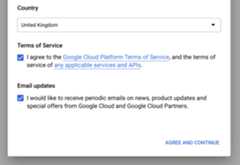
On the welcome page, do the following:
ForCountry, select your country.
ForTerms of Service, select the checkbox if you agree to the termsof service.
Optional: If you are asked about email updates, select the checkbox ifyou want to receive email updates.
ClickAgree and continue.
ClickCreate project.
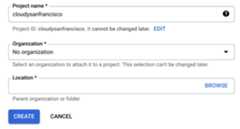
On theNew Project page, do the following:
ForProject name, enter a name for your project.
ForOrganization, select an organization or selectNo organization if you are not part of one. Managed accounts, suchas those associated with academic institutions, must select anorganization.
If you are asked to select aLocation, clickBrowse and select alocation for your project.
ClickCreate. You are redirected back to theBigQuery page inthe Google Cloud console.
You have successfully enabled the BigQuery sandbox. ABigQuery sandbox notice is now displayed on theBigQuery page:

Limitations
The BigQuery sandbox is subject to the following limits:
- All BigQueryquotas and limits apply.
- You are granted the same free usage limits as the BigQueryfree tier, including 10 GB of active storageand 1 TB of processed query data each month.
- All BigQuerydatasets have adefault table expiration time,and alltables,views, andpartitions automatically expire after 60days.
The BigQuery sandbox does not support several BigQueryfeatures, including the following:
View a public dataset
BigQuery public datasets are available by default inBigQuery Studio in a project namedbigquery-public-data. In thistutorial you query the NYC Citi Bike Trips dataset. Citi Bike is a large bikeshare program, with 10,000 bikes and 600 stations across Manhattan, Brooklyn,Queens, and Jersey City. This dataset includes Citi Bike trips since Citi Bikelaunched in September 2013.
In the Google Cloud console, go to theBigQuery page.
In the left pane, clickExplorer:

If you don't see the left pane, clickExpand left pane to open the pane.
In theExplorer pane, clickAdd data.
In theAdd data dialog, click
 Public datasets.
On theMarketplace page, in theSearch Marketplace field, type
NYCCiti Bike Tripsto narrow your search.In the search results, clickNYC Citi Bike Trips.
On theProduct details page, clickView dataset. You can viewinformation about the dataset on theDetails tab.
Query a public dataset
In the following steps, you query thecitibike_trips table to determine the100 most popular Citi Bike stations in the NYC Citi Bike Trips public dataset.The query retrieves the station's name and location, and the number oftrips that started at that station.
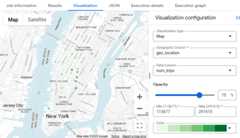
The query uses theST_GEOGPOINT functionto create a point from each station's longitude and latitude parameters andreturns that point in aGEOGRAPHY column. TheGEOGRAPHY column is used togenerate a heatmap in the integrated geography data viewer.
In the Google Cloud console, open theBigQuery page.
Click
SQL query .In the
query editor , enter the following query:SELECTstart_station_name,start_station_latitude,start_station_longitude,ST_GEOGPOINT(start_station_longitude,start_station_latitude)ASgeo_location,COUNT(*)ASnum_tripsFROM`bigquery-public-data.new_york.citibike_trips`GROUPBY1,2,3ORDERBYnum_tripsDESCLIMIT100;If the query is valid, then a check mark appears along with the amount ofdata that the query processes. If the query is invalid, then anexclamation point appears along with an error message.

Click
Run .The most popular stations are listed in theQuery results section.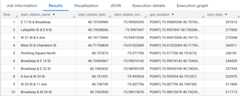
Optional: To display the duration of the job and the amount of data that thequery job processed, click theJob information tab in theQueryresults section.
Switch to the
Visualization tab. This tab generates a map to quickly visualize your results.In theVisualization configuration panel:
- Verify thatVisualization type is set toMap.
- Verify thatGeography column is set to
geo_location. - ForData column, choose
num_trips. - Use theZoom in option toreveal the map of Manhattan.
Upgrade from the BigQuery sandbox
The BigQuery sandbox lets you explorelimited BigQuery capabilitiesat no cost. When you are ready to increase your storage and querycapabilities, upgrade from the BigQuery sandbox.
To upgrade, do the following:
Enable billingfor your project.
ExploreBigQuery editionsand determine the pricing model that is right for you.
Once you have upgraded from the BigQuery sandbox, you shouldupdate the default expiration times for your BigQuery resourcessuch as tables, views, and partitions.
Clean up
To avoid incurring charges to your Google Cloud account for the resources used on this page, follow these steps.
Delete the project
If you used theBigQuery sandbox to querythe public dataset, then billing is not enabled for your project, and you don'tneed to delete the project.
The easiest way to eliminate billing is to delete the project that you created for the tutorial.
To delete the project:
What's next
- For more information about using BigQuery at no cost in thefree usage tier, seeFree usage tier.
- Learn how tocreate a dataset, load data, and query tables inBigQuery.
Except as otherwise noted, the content of this page is licensed under theCreative Commons Attribution 4.0 License, and code samples are licensed under theApache 2.0 License. For details, see theGoogle Developers Site Policies. Java is a registered trademark of Oracle and/or its affiliates.
Last updated 2025-12-15 UTC.