

Use raster data to analyze temperature
This tutorial describes how to perform geospatial analysis onraster data.
Objectives
- Find publicly available Google Earth Engine data in BigQuery sharing (formerly Analytics Hub).
- Use the
ST_REGIONSTATSfunctionto calculate the average temperature in each country at a point in time. - Visualize your results inBigQuery Geo Viz,which is a web tool for visualization of geospatial data inBigQuery using Google Maps APIs.
Costs
In this tutorial, you use the following billable components of Google Cloud:
Before you begin
We recommend that you create a Google Cloud project for this tutorial.Make sure that you have the required roles to complete this tutorial.
Set up a Google Cloud project
- Sign in to your Google Cloud account. If you're new to Google Cloud, create an account to evaluate how our products perform in real-world scenarios. New customers also get $300 in free credits to run, test, and deploy workloads.
In the Google Cloud console, on the project selector page, select or create a Google Cloud project.
Roles required to select or create a project
- Select a project: Selecting a project doesn't require a specific IAM role—you can select any project that you've been granted a role on.
- Create a project: To create a project, you need the Project Creator role (
roles/resourcemanager.projectCreator), which contains theresourcemanager.projects.createpermission.Learn how to grant roles.
Verify that billing is enabled for your Google Cloud project.
Enable the BigQuery, BigQuery sharing, andGoogle Earth Engine APIs.
Roles required to enable APIs
To enable APIs, you need the Service Usage Admin IAM role (
roles/serviceusage.serviceUsageAdmin), which contains theserviceusage.services.enablepermission.Learn how to grant roles.In the Google Cloud console, on the project selector page, select or create a Google Cloud project.
Roles required to select or create a project
- Select a project: Selecting a project doesn't require a specific IAM role—you can select any project that you've been granted a role on.
- Create a project: To create a project, you need the Project Creator role (
roles/resourcemanager.projectCreator), which contains theresourcemanager.projects.createpermission.Learn how to grant roles.
Verify that billing is enabled for your Google Cloud project.
Enable the BigQuery, BigQuery sharing, andGoogle Earth Engine APIs.
Roles required to enable APIs
To enable APIs, you need the Service Usage Admin IAM role (
roles/serviceusage.serviceUsageAdmin), which contains theserviceusage.services.enablepermission.Learn how to grant roles.
Required roles
To get the permissions that you need to perform the tasks in this tutorial, ask your administrator to grant you the following IAM roles on your project:
- Earth Engine Resource Viewer (
roles/earthengine.viewer) - Service Usage Consumer (
roles/serviceusage.serviceUsageConsumer) - BigQuery Data Editor (
roles/bigquery.dataEditor)
For more information about granting roles, seeManage access to projects, folders, and organizations.
These predefined roles contain the permissions required to perform the tasks in this tutorial. To see the exact permissions that are required, expand theRequired permissions section:
Required permissions
The following permissions are required to perform the tasks in this tutorial:
earthengine.computations.createserviceusage.services.usebigquery.datasets.create
You might also be able to get these permissions withcustom roles or otherpredefined roles.
Subscribe to a dataset
To find the dataset used for this tutorial, follow these steps:
Go to theSharing (Analytics Hub) page.
ClickSearch listings.
In theSearch for listings field, enter
"ERA5-Land Daily Aggregated".Click the result. A details pane opens with information about the ERA5-Landclimate reanalysis dataset, including a description, a link to bandinformation, the availability, the pixel size, and the terms of use.
ClickSubscribe.
Optional: Update theProject.
Update theLinked dataset name to
era5_climate_tutorial.ClickSave. The linked dataset is added to your project and contains asingle table called
climate.
Find the raster ID
Each row in theera5_climate_tutorial.climate table contains metadata for araster image that has climate data for a particular day. Run the following queryto extract the raster ID of the raster image for January 1, 2025:
SELECTassets.image.hrefFROM`era5_climate_tutorial.climate`WHEREproperties.start_datetime='2025-01-01';The result isee://ECMWF/ERA5_LAND/DAILY_AGGR/20250101. In the next section,you use this for theraster_id argument to theST_REGIONSTATS function.
Compute the average temperature
Run the following query to compute the average temperature of each countryon January 1, 2025 using theST_REGIONSTATS function:
WITHSimplifiedCountriesAS(SELECTST_SIMPLIFY(geometry,10000)ASsimplified_geometry,names.primaryASnameFROM`bigquery-public-data.overture_maps.division_area`WHEREsubtype='country')SELECTsc.simplified_geometryASgeometry,sc.name,ST_REGIONSTATS(sc.simplified_geometry,'ee://ECMWF/ERA5_LAND/DAILY_AGGR/20250101','temperature_2m').mean-273.15ASmean_temperatureFROMSimplifiedCountriesASscORDERBYmean_temperatureDESC;This query runs on the publicly availabledivision_area table that containsGEOGRAPHY values representing the boundaries of various regions on Earth,including countries. TheST_REGIONSTATS function uses thetemerature_2mband of the raster image, which contains the temperature of the air at 2 metersabove the surface of the land at the given pixel.
Visualize the query results in BigQuery
To visualize your results in BigQuery, follow these steps:
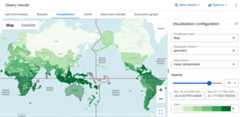
In theQuery results pane, click theVisualization tab.
ForData column, select
mean_temperature.A world map appears, styled by a color gradient for the average temperatureof each country.
Visualize the query results in Geo Viz
You can also visualize your results using BigQuery Geo Viz.
Launch Geo Viz and authenticate
Before using Geo Viz, you must authenticate and grant access to data inBigQuery.
To set up Geo Viz, do the following:
Open the Geo Viz web tool.
Alternatively, in theQuery results pane, clickOpen in> GeoViz.
In step one,Query, clickAuthorize.
In theChoose an account dialog, click your Google Account.
In the access dialog, clickAllow to give Geo Viz access to yourBigQuery data.
Run your query in Geo Viz
After you authenticate and grant access, the next step is to run the query inGeo Viz.
To run the query, do the following:
For step one,Select data, enter your project ID in theProject IDfield.
In the query window, enter the following GoogleSQL query. If youopened Geo Viz from your query results, this field is already populated withyour query.
WITHSimplifiedCountriesAS(SELECTST_SIMPLIFY(geometry,10000)ASsimplified_geometry,names.primaryASnameFROM`bigquery-public-data.overture_maps.division_area`WHEREsubtype='country')SELECTsc.simplified_geometryASgeometry,sc.name,ST_REGIONSTATS(sc.simplified_geometry,'ee://ECMWF/ERA5_LAND/DAILY_AGGR/20250101','temperature_2m').mean-273.15ASmean_temperatureFROMSimplifiedCountriesASscORDERBYmean_temperatureDESC;ClickRun.
Apply styles
TheStyle section provides a list of visual styles for customization. Formore information about each style, seeFormat your visualization.
To format your map, do the following:
To open thefillColor panel, click step 3,Style.
Click theData-driven toggle to the on position.
ForFunction, chooselinear.
ForField, choose
mean_temperature.ForDomain, enter
-20in the first box and32in the second box.ForRange, click the first box and enter
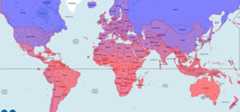
#0006ffin theHexbox, and then click the second box and enter#ff0000. This changes thecolor of each country based on its average temperature on January 1, 2025.Blue indicates a colder temperature and red indicates a warmer temperature.ClickfillOpacity.
In theValue field, enter
.5.ClickApply style.
Examine your map. If you click a country, the country's name,average temperature, and simplified geometry are displayed.
Clean up
What's next
- To learn more about how to visualize options for geospatial analytics, seeVisualizing geospatial data.
- To work with raster data, seeWork with raster data.
- To learn more about the geography functions you can use in geospatial analytics,seeGeography functions in GoogleSQL.
Except as otherwise noted, the content of this page is licensed under theCreative Commons Attribution 4.0 License, and code samples are licensed under theApache 2.0 License. For details, see theGoogle Developers Site Policies. Java is a registered trademark of Oracle and/or its affiliates.
Last updated 2025-12-15 UTC.