

Work with raster data using Earth Engine in BigQuery
This documentexplains how to combine raster and vector data by using theST_REGIONSTATS function,which uses Google Earth Engine to get access to image and raster datain BigQuery.
Overview
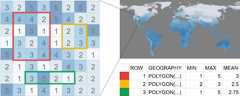
Araster is a two-dimensional grid of pixels, each of which is assigned oneor more values calledbands. For example, each pixel could correspond to oneparticular square kilometer on the earth's surface and have bands foraverage temperature and average rainfall. Raster data includes satelliteimagery and other continuous, grid-based data such as weather forecasts andland cover. Many common imageformats, such as PNG or JPEG files, are formatted as raster data.
Raster datais often contrasted withvector data, in which the data is described bylines or curves rather than a fixed rectangular grid. Forexample, you can use theGEOGRAPHY data type in BigQuery todescribe the boundaries of countries, cities, or other regions.
Geospatial raster and vector data is often combined using azonal statisticsoperation, which computes an aggregate of all raster values within a givenvector region. For example, you might want to compute the following:
- Average air quality in a collection of cities.
- Solar potential for a collection of building polygons.
- Fire risk summarized along power line corridors in forested areas.
BigQuery excels in processing vector data, and Google Earth Engineexcels in processing raster data. You can use theST_REGIONSTATS geography functionto combine raster data using Earth Engine with your vector data storedin BigQuery.
Before you begin
To use the
ST_REGIONSTATSfunction in your queries,enable the Earth Engine API.Optional: To subscribe to and use data published toBigQuery sharing (formerly Analytics Hub) by using the
ST_REGIONSTATSfunction, enable the Analytics Hub API.
Required permissions
To get the permissions that you need to call theST_REGIONSTATS function, ask your administrator to grant you the following IAM roles on your project:
- Earth Engine Resource Viewer (
roles/earthengine.viewer) - Service Usage Consumer (
roles/serviceusage.serviceUsageConsumer) - Subscribe to datasets in BigQuery sharing:BigQuery Data Editor (
roles/bigquery.dataEditor)
For more information about granting roles, seeManage access to projects, folders, and organizations.
These predefined roles contain the permissions required to call theST_REGIONSTATS function. To see the exact permissions that are required, expand theRequired permissions section:
Required permissions
The following permissions are required to call theST_REGIONSTATS function:
earthengine.computations.createserviceusage.services.usebigquery.datasets.create
You might also be able to get these permissions withcustom roles or otherpredefined roles.
Find raster data
Theraster_id parameter in theST_REGIONSTATS function is a string thatspecifies the source of your raster data. The following sections explain how tofind and format the raster ID.
BigQuery image tables
You can use BigQuery sharing (formerly Analytics Hub) to discover andaccess raster datasetsin BigQuery. To use BigQuery sharing, you need toenable the Analytics Hub APIand ensure that you have required permissions toview and subscribe to listings and data exchanges.
Google Earth Engine publishes publicly available datasetsthat contain raster data in theUS andEU multi-regions. Tosubscribeto an Earth Engine dataset with raster data, follow these steps:
Go to theSharing (Analytics Hub) page.
ClickSearch listings.
In theSearch for listings field, enter
"Google Earth Engine".Click a dataset that you want to subscribe to.
ClickSubscribe.
Optional: Update theProject orLinked dataset name fields.
ClickSave. The linked dataset is added to your project.
The dataset contains animage table thatstores metadata for a collection of raster images followingtheSTAC items specification. An image table isanalogous to an Earth Engine image collection(ImageCollection).
Each row in the table corresponds to a single raster image, with columnscontaining image properties and metadata. The raster ID for each image is storedin theassets.image.href column. Reference images in your queries using thisID as theraster_id parameter value.
Filter the table using property columns to select specific images or imagesubsets that meet your criteria. For more information aboutavailable bands, pixel size, and property definitions, open the table and clicktheImage details tab.
Each image table includes a corresponding*_metadata table thatprovides supporting information for the image table.
For example, the ERA5-Land dataset provides daily climate variable statisticsand is publicly available. Theclimatetable contains multiple raster IDs. The following query filters the image tableusing thestart_datetime column to get the raster ID for theimage corresponding to January 1, 2025 and computes the average temperaturefor each country using thetemperature_2m band:
SQL
WITHSimplifiedCountriesAS(SELECTST_SIMPLIFY(geometry,10000)ASsimplified_geometry,names.primaryASnameFROM`bigquery-public-data.overture_maps.division_area`WHEREsubtype='country')SELECTsc.simplified_geometryASgeometry,sc.name,ST_REGIONSTATS(sc.simplified_geometry,(SELECTassets.image.hrefFROM`LINKED_DATASET_NAME.climate`WHEREstart_datetime='2025-01-01 00:00:00'),'temperature_2m').mean-273.15ASmean_temperatureFROMSimplifiedCountriesASscORDERBYmean_temperatureDESC;BigQuery DataFrames
Before trying this sample, follow the BigQuery DataFrames setup instructions in theBigQuery quickstart using BigQuery DataFrames. For more information, see theBigQuery DataFrames reference documentation.
To authenticate to BigQuery, set up Application Default Credentials. For more information, seeSet up ADC for a local development environment.
importdatetimefromtypingimportcastimportbigframes.bigqueryasbbqimportbigframes.pandasasbpd# TODO: Set the project_id to your Google Cloud project ID.# project_id = "your-project-id"bpd.options.bigquery.project=project_id# TODO: Set the dataset_id to the ID of the dataset that contains the# `climate` table. This is likely a linked dataset to Earth Engine.# See: https://cloud.google.com/bigquery/docs/link-earth-enginelinked_dataset="era5_land_daily_aggregated"# For the best efficiency, use partial ordering mode.bpd.options.bigquery.ordering_mode="partial"# Load the table of country boundaries.countries=bpd.read_gbq("bigquery-public-data.overture_maps.division_area")# Filter to just the countries.countries=countries[countries["subtype"]=="country"].copy()countries["name"]=countries["names"].struct.field("primary")countries["simplified_geometry"]=bbq.st_simplify(countries["geometry"],tolerance_meters=10_000,)# Get the reference to the temperature data from a linked dataset.# Note: This sample assumes you have a linked dataset to Earth Engine.image_href=(bpd.read_gbq(f"{project_id}.{linked_dataset}.climate").set_index("start_datetime").loc[[datetime.datetime(2025,1,1,tzinfo=datetime.timezone.utc)],:])raster_id=image_href["assets"].struct.field("image").struct.field("href")raster_id=raster_id.item()stats=bbq.st_regionstats(countries["simplified_geometry"],raster_id=cast(str,raster_id),band="temperature_2m",)# Extract the mean and convert from Kelvin to Celsius.countries["mean_temperature"]=stats.struct.field("mean")-273.15# Sort by the mean temperature to find the warmest countries.result=countries[["name","mean_temperature"]].sort_values("mean_temperature",ascending=False)print(result.head(10))Cloud Storage GeoTIFF
GeoTIFF is a common file format for storing geospatial raster data. TheST_REGIONSTATS function supports raster data stored in theCloud Optimized GeoTIFF(COG) format inCloud Storage buckets that are located in the following regions:
USmulti-regionus-central1EUmulti-regioneurope-west1
Provide the Cloud Storage URI as the raster ID, such asgs://bucket/folder/raster.tif.
Earth Engine image assets
TheST_REGIONSTATS function supports passing an Earth Engineimage asset path for theraster_id argument. Earth Engine rasterdata is available as individual images or collections of images. These dataexist in theUS region and are only compatible with queries that run in theUS region. To find the raster ID for an image, followthese steps:
- Search theEarth Engine data catalogfor the dataset that you're interested in.
To open the description page for that entry, click the dataset name.TheEarth Engine Snippet either describes a single image or acollection of images.
If the Earth Engine snippet is of the form
ee.Image('IMAGE_PATH'),then the raster ID is'ee://IMAGE_PATH'.If the Earth Engine snippet is of the form
ee.ImageCollection('IMAGE_COLLECTION_PATH'), youcan use theEarth Engine Code Editortofilter the ImageCollectionto a single image. Use theee.Image.get('system:id')method to print theIMAGE_PATHvalue for that image to the console. The raster ID is'ee://IMAGE_PATH'.
Pixel weights
You can specify aweight, sometimes referred to as amask value,for theinclude parameter in theST_REGIONSTATSfunction that determines how much toweight each pixel in calculations. Weight values must range from 0 to 1.Weights outside this range are set to the nearest limit, either 0 or 1.
A pixel is consideredvalid ifit has a weight greater than 0. A weight of 0 indicates aninvalid pixel.Invalid pixels usually represent missing or unreliable data, such as areasobscured by clouds, sensor anomalies, processing errors, or locations outsideof a defined boundary.
If you don't specify a weight, each pixel is automatically weighted bythe proportion of the pixel that falls within the geometry,allowing for proportional inclusion in zonal statistics. If the geometry is lessthan 1/256 of the size of the pixel, the weight of the pixel is 0. In thesecases,null is returned for all statistics exceptcount andarea,which are 0.
If a partially intersecting pixel has a weight from theincludeargument toST_REGIONSTATS, then BigQuery uses the minimum ofthat weight and the fraction of the pixel that intersects the region.
Weight values don't have the same precision asFLOAT64 values. In practice,their true value might differ from the value used in computations by up to1/256 (about 0.4%).
You can provide an expression using Earth Engineimage expression syntaxin yourinclude argument to dynamically weightpixels based on specific criteria within raster bands. For example, thefollowing expression restricts calculations to pixels where theprobabilityband exceeds 70%:
include => 'probability > 0.7'If the dataset includes a weight-factor band, you can use it withthe following syntax:
include => 'weight_factor_band_name'Pixel size and scale of analysis
A geospatial raster image is a grid of pixels that corresponds to some locationon the surface of the Earth. The pixel size of a raster, sometimes called thescale, is the nominal size of one edge of a pixel in the grid's coordinatereference system.For example, a raster with 10-meter resolution has pixels of size 10 meters by10 meters. Original reported pixel size can vary dramatically between datasets,from less than 1 meter to greater than 20 kilometers.
When using theST_REGIONSTATS function to compute zonal statistics, the pixelsize of the raster data is a crucial consideration. For example, aggregatinghigh-resolution raster data over the region of a country can be computationallyintensive and unnecessarily granular. Conversely, aggregating low-resolutiondata over the region, such as city parcels, might not provide sufficient detail.
To get meaningful and efficient results from your analysis, we recommendchoosing a pixel size appropriate for the size of yourpolygons and the objective of your analysis. You can find the pixel sizefor each raster dataset in the description section of image tables inBigQuery sharing.
Changing the pixel size changes the number of pixels that intersect a givengeography, which affects the results and their interpretation. We don'trecommend changing the pixel size for production analyses. However, if you'reprototyping a query, increasing the pixel size can reduce query runtime andcost, especially for high-resolution data.
To change the pixel size, set thescale in theoptions argument to theST_REGIONSTATS function. For example,to compute statistics over 1,000-meter pixels, useoptions => JSON '{"scale":1000}'
Computing statistics for polygons that are significantly smaller than thepixels of the raster can produce inaccurate or null results. In such a case,one alternative is to replace the polygon with its centroid point usingST_CENTROID.
Billing
When you run a query, usage of theST_REGIONSTATS function is billedseparately from the rest of the query because Earth Engine computesthe results of the function call. You arebilled for this usage in slot hours under the BigQuery ServicesSKU, regardless of whether you use on-demand billing or reservations. To see theamount billed for BigQuery calls to Earth Engine,view your billing reportand uselabels to filter bythe label keygoog-bq-feature-type, with valueEARTH_ENGINE. If theST_REGIONSTATS function fails, then you aren't billed for anyEarth Engine computation that was used.
For each query, you can use thejobs.get methodin the BigQuery API to see the following information:
- The
slotMsfield,which shows the number of slot milliseconds consumed by Earth Enginewhen theexternalServicefield isEARTH_ENGINEand thebillingMethodfield isSERVICES_SKU. - The
totalServicesSkuSlotMsfield,which shows the total number of slot milliseconds used by allBigQuery external services that get billed on theBigQuery Services SKU.
You can also query thetotal_services_sku_slot_ms field in theINFORMATION_SCHEMA.JOBS viewto find the total slot milliseconds consumed by external services billed on theBigQuery Services SKU.
Cost factors
The following factors impact the compute usage when you run theST_REGIONSTATSfunction:
- The number of input rows.
- The raster image that you use. Some rasters are composites created fromsource image collections in the Earth Engine data catalog, and thecomputational resources to produce the composite result varies.
- The resolution of the image.
- The size and complexity of the input geography, number of pixels thatintersect the geography, and the number of image tiles and bytes read byEarth Engine.
The location of the input geography on Earth relative to the source imagesand the image's projection and resolution.
- Image projections can warp pixels, especially pixels at high latitudesor far outside the image's intended coverage area.
- For composite rasters, the number of source images intersecting theinput geography can vary regionally and over time. For example, somesatellites produce more images at low or high latitudes, depending ontheir orbit and data collection parameters, or may omit images dependingon changing atmospheric conditions.
The use of formulas in the
includeorband_namearguments, and thenumber of bands they involve.The caching of previous results.
Control costs
To control costs associated with theST_REGIONSTATS function, you can adjustthe quota that controls the amount of slot time that the function isallowed to consume. The default is 350 slot-hours per day.When youview your quotas,filter theMetric list toearthengine.googleapis.com/bigquery_slot_usage_timeto see the Earth Engine quota associated with calls fromBigQuery. For more information, read aboutBigQueryraster functions quotasin the Google Earth Engine documentation.
Supported regions
Queries that call theST_REGIONSTATS function must run in one of the followingregions:
USmulti-regionus-central1us-central2EUmulti-regioneurope-west1
What's next
- Try the tutorial that shows you how touse raster data to analyze temperature.
- Learn more aboutgeography functions in BigQuery.
- Learn more aboutworking with geospatial data.
Except as otherwise noted, the content of this page is licensed under theCreative Commons Attribution 4.0 License, and code samples are licensed under theApache 2.0 License. For details, see theGoogle Developers Site Policies. Java is a registered trademark of Oracle and/or its affiliates.
Last updated 2025-12-15 UTC.