

Load and query data
Get started with BigQuery by creating a dataset, loading data into atable, and querying the table.
To follow step-by-step guidance for this task directly in the Google Cloud console, clickGuide me:
Before you begin
- Sign in to your Google Cloud account. If you're new to Google Cloud, create an account to evaluate how our products perform in real-world scenarios. New customers also get $300 in free credits to run, test, and deploy workloads.
In the Google Cloud console, on the project selector page, select or create a Google Cloud project.
Roles required to select or create a project
- Select a project: Selecting a project doesn't require a specific IAM role—you can select any project that you've been granted a role on.
- Create a project: To create a project, you need the Project Creator role (
roles/resourcemanager.projectCreator), which contains theresourcemanager.projects.createpermission.Learn how to grant roles.
If you're using an existing project for this guide,verify that you have the permissions required to complete this guide. If you created a new project, then you already have the required permissions.
In the Google Cloud console, on the project selector page, select or create a Google Cloud project.
Roles required to select or create a project
- Select a project: Selecting a project doesn't require a specific IAM role—you can select any project that you've been granted a role on.
- Create a project: To create a project, you need the Project Creator role (
roles/resourcemanager.projectCreator), which contains theresourcemanager.projects.createpermission.Learn how to grant roles.
If you're using an existing project for this guide,verify that you have the permissions required to complete this guide. If you created a new project, then you already have the required permissions.
Enable the BigQuery API.
Roles required to enable APIs
To enable APIs, you need the Service Usage Admin IAM role (
roles/serviceusage.serviceUsageAdmin), which contains theserviceusage.services.enablepermission.Learn how to grant roles.For new projects, the BigQuery API is automatically enabled.
- Optional:Enable billing for the project. If you don't want to enable billing or provide a credit card, the steps in this document still work. BigQuery provides you a sandbox to perform the steps. For more information, seeEnable the BigQuery sandbox.Note: If your project has a billing account and you want to use the BigQuery sandbox, thendisable billing for your project.
Required roles
To get the permissions that you need to create a dataset, create a table, load data, and query data, ask your administrator to grant you the following IAM roles on the project:
- Run load jobs and query jobs:BigQuery Job User (
roles/bigquery.jobUser) - Create a dataset, create a table, load data into a table, and query a table:BigQuery Data Editor (
roles/bigquery.dataEditor)
For more information about granting roles, seeManage access to projects, folders, and organizations.
You might also be able to get the required permissions throughcustom roles or otherpredefined roles.
Create a BigQuery dataset
Use the Google Cloud console to create a dataset to store the data. Youcreate your dataset in the US multi-region location. For information onBigQuery regions and multi-regions, seeLocations.
- In the Google Cloud console, open the BigQuery page. Go to BigQuery
- In the left pane, clickExplorer.
- In the
Explorer pane, click your project name. - ClickView actions.
- SelectCreate dataset.
- On theCreate dataset page, do the following:
- ForDataset ID, enter
babynames. - ForLocation type, selectMulti-region, and then chooseUS (multiple regions in United States). The public datasets are stored in the
usmulti-region location. For simplicity, store your dataset in the same location. - Leave the remaining default settings as they are, and click
Create dataset .
Download the file that contains the source data
The file that you're downloading contains approximately 7 MB of data aboutpopular baby names. It's provided by the US Social Security Administration.For more information about the data, see the Social Security Administration'sBackground information for popular names.
Download the US Social Security Administration's data by opening thefollowing URL in a new browser tab:
https://www.ssa.gov/OACT/babynames/names.zipExtract the file.
For more information about the dataset schema, see the zip file's
NationalReadMe.pdffile.To see what the data looks like, open the
yob2024.txtfile. This filecontains comma-separated values for name, assigned sex at birth, and numberof children with that name. The file has no header row.Note the location of the
yob2024.txtfile so that you can find it later.
Load data into a table
Next, load the data into a new table.
- In the left pane, clickExplorer.
- In the
Explorer pane, expand your project name. - ClickDatasets and then next to thebabynames dataset, clickView actions and selectOpen.
- ClickCreate table.
Unless otherwise indicated, use the default values for all settings.
- On theCreate table page, do the following:
- In theSource section, for
Create table from , chooseUpload from the list. - In theSelect file field, clickBrowse.
- Navigate to and open your local
yob2024.txtfile, and clickOpen. - From the
File format list, chooseCSV. - In theDestination section, in the
Table field, enternames_2024. - In theSchema section, click the
Edit as text toggle, and paste the following schema definition into the text field: - Click
Create table .Wait for BigQuery to create the table and load the data.
name:string,assigned_sex_at_birth:string,count:integerPreview table data
To preview the table data, follow these steps:
- In the left pane, clickExplorer.
- In the
Explorer pane, expand your project and clickDatasets. - Click the
babynamesdataset, and then select thenames_2024table. - Click the
Preview tab. BigQuery displays the first few rows of the table.
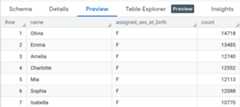
Query table data
Next, query the table.
- Next to thenames_2024 tab, click theSQL query option. A new editor tab opens.
- In the query editor, paste the following query. This query retrieves the top five names for babies born in the US that were assigned male at birth in 2024.
SELECTname,countFROM`babynames.names_2024`WHEREassigned_sex_at_birth='M'ORDERBYcountDESCLIMIT5; - Click
Run . The results are displayed in theQuery results section.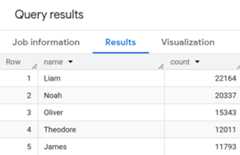
You have successfully queried a table in a public dataset and then loaded yoursample data into BigQuery using the Google Cloud console.
Clean up
To avoid incurring charges to your Google Cloud account for the resources used on this page, follow these steps.
- In the Google Cloud console, open the BigQuery page. Go to BigQuery
- In the left pane, clickExplorer.
- In theExplorer pane, clickDatasets and then click the
babynamesdataset that you created. - Expand theView actions option and clickDelete.
- In theDelete dataset dialog, confirm the delete command: type the word
deleteand then clickDelete.
What's next
- To learn more about loading data into BigQuery, seeIntroduction to loading data.
- To learn more about querying data, seeOverview of BigQuery analytics.
- To learn how to load a JSON file with nested and repeated data, seeLoading nested and repeated JSON data.
- To learn more about accessing BigQuery programmatically, see theREST API reference or theBigQuery client libraries page.
Except as otherwise noted, the content of this page is licensed under theCreative Commons Attribution 4.0 License, and code samples are licensed under theApache 2.0 License. For details, see theGoogle Developers Site Policies. Java is a registered trademark of Oracle and/or its affiliates.
Last updated 2026-02-19 UTC.