

Schedule notebooks
This document describes how to scheduleColab Enterprise notebooks in BigQuery, and inspect scheduled notebook runs.
Notebooks are code assets powered byDataform.However, notebooks aren't visible inDataform.
You can schedule a notebook to automatically run at aspecified time and frequency—for example, to train an ML model,call external APIs, or run BigQuery DataFrames code.
Changes that you make to a notebook are automatically saved,but are available only to you and to users who haveaccess to the notebook.To update the schedule with a new version of the notebook,you need todeploy the notebook.By deploying a notebook, you update its schedule with yourcurrent version of the notebook. Schedules run the latest deployed version of the notebook.
Each notebook schedule is run using your Google Account user credentials or aDataform service accountthat you select when you configure the schedule.
Dataform writes the output of scheduled notebook runs to theCloud Storage bucket selected duringschedule creation.
Notebook schedules use astandard E2 runtime.Colab Enterprise charges for runtimes apply. You are charged forruntime processing based on the E2 machine type.For information about pricing of standard E2 runtimes,seeColab Enterprise pricing.
Before you begin
Before you begin,create a notebook.
Enable notebook scheduling
To schedule notebooks, you must grant the following roles to theservice account that you plan to use for notebook schedules:
- Notebook Executor User (
roles/aiplatform.notebookExecutorUser) - FollowGrant a single role on a projectto grant the Notebook Executor User role to yourservice account on the selected project.
- Storage Admin (
roles/storage.admin) - FollowAdd a principal to a bucket-level policyto add your service account as a principal to theCloud Storage bucket which you plan to use for storing output ofscheduled notebook runs, and grant the Storage Admin role to this principal.
- Service Account User (
roles/iam.serviceAccountUser) - FollowGrant a single role on a service accountto add your service account as a principal to itself. In other words, add theservice account as a principal to the same service account. Then, grant theService Account User role to this principal.
Additionally, you must grant the following role to thedefault Dataform service agent:
- Service Account Token Creator (
roles/iam.serviceAccountTokenCreator) - FollowGrant token creation access to a custom Dataform service accountto add the default Dataform service agent as a principal to yourservice account, and grant the Service Account Token Creator role to thisprincipal.
To learn more about service accounts in Dataform, seeAbout service accounts in Dataform.
Required permissions
To create notebook schedules, you need the following roles:
- Dataform Admin (
roles/dataform.admin) - BigQuery Read Session User (
roles/bigquery.readSessionUser)orBigQuery Studio User (roles/bigquery.studioUser) - Notebook Runtime User (
roles/aiplatform.notebookRuntimeUser)
To use notebook runtime templates when scheduling notebooks, you need theNotebook Runtime User (roles/aiplatform.notebookRuntimeUser)role.
To edit and delete notebook schedules, you need theDataform Editor (roles/dataform.editor)role.
To view notebook schedules, you need theDataform Viewer (roles/dataform.viewer)role.
To enhance security for scheduling, seeImplement enhanced scheduling permissions.
For more information about BigQuery IAM, seeBigQuery IAM roles and permissions.
For more information about Dataform IAM, seeControl access with IAM.
Create a schedule
To create a notebook schedule, follow these steps:
Explorer pane
In the Google Cloud console, go to theBigQuery page.
In the left pane, clickExplorer:

If you don't see the left pane, clickExpand left pane to open the pane.
In theExplorer pane, expand your project and clickNotebooks.
Click the name of the notebook that you want to schedule. You can use thesearch feature or filters to find your notebook.
In theNotebook toolbar, clickSchedule.
Alternatively, clickSchedule,and then clickCreate schedule.
In theSchedule Notebook pane, in theSchedule name field,enter a name for the schedule.
In theAuthentication section, authorize thenotebook with your Google Account user credentials or a serviceaccount.
- To use your Google Account user credentials(Preview), selectExecute with my user credentials.
- To use a service account, selectExecute with selected service account, then select a service account.
In theNotebook options section, in theRuntime template field,select a Colab notebook runtime template or the default runtime specifications.For details on creating a Colab notebook runtime template, seeCreate a runtime template.
Note: A notebook runtime template must be in the same region as thenotebook.Note: If you don't have therequired rolefor using notebook runtime templates, you can still run and schedulenotebooks with the default runtime specifications.In theCloud Storage bucket field, clickBrowseand select or create a Cloud Storage bucket.
The selected service account must be granted theStorage Admin (
roles/storage.admin)IAM role on the selected bucket. For more information, seeEnable notebook scheduling.In theSchedule frequency section, do the following:
- In theRepeats menu, select the frequency of scheduled notebook runs.
- In theAt time field, enter the time for scheduled notebook runs.
- In theTimezone menu, select the timezone for the schedule.
ClickCreate schedule. If you selectedExecute with my user credentialsfor your authentication method, you mustauthorize your Google Account(Preview).
When you create the schedule, the current version of the notebook isautomatically deployed. To update the schedule with a new version of thenotebook,deploy the notebook.
The latest deployed version of the notebook runs at the selected time andfrequency.
Scheduling page
In the Google Cloud console, go to theScheduling page.
ClickCreate, and then selectNotebook schedule from the menu.
In theSchedule notebook pane, in theNotebook field, select the notebook you want to schedule.
In theSchedule name field, enter a name for the schedule.
In theAuthentication section, authorize thenotebook with your Google Account user credentials or a serviceaccount.
- To use your Google Account user credentials(Preview), selectExecute with my user credentials.
- To use a service account, selectExecute with selected service account, and then select a service account.
In theNotebook options section, in theRuntime template field,select a Colab notebook runtime template or the default runtimespecifications. For details on creating a Colab notebook runtime template, seeCreate a runtime template.
Note: A notebook runtime template must be in the same region as thenotebook.Note: If you don't have therequired rolefor using notebook runtime templates, you can still run and schedulenotebooks with the default runtime specifications.In theCloud Storage bucket field, clickBrowseand select or create a Cloud Storage bucket.
The selected service account must be granted theStorage Admin (
roles/storage.admin)IAM role on the selected bucket. For more information, seeEnable notebook scheduling.In theSchedule frequency section, do the following:
- In theRepeats menu, select the frequency of scheduled notebook runs.
- In theAt time field, enter the time for scheduled notebook runs.
- In theTimezone menu, select the timezone for the schedule.
ClickCreate schedule. If you selectedExecute with my user credentialsfor your authentication method, you mustauthorize your Google Account(Preview).
When you create the schedule, the current version of the notebook isautomatically deployed. To update the schedule with a new version of thenotebook,deploy the notebook.
The latest deployed version of the notebook runs at the selected time andfrequency.
Authorize your Google Account
Preview
This product or feature is subject to the "Pre-GA Offerings Terms" in the General Service Terms section of theService Specific Terms. Pre-GA products and features are available "as is" and might have limited support. For more information, see thelaunch stage descriptions.
Note: To request support or provide feedback for this feature, contactdataform-preview-support@google.com.To authenticate the resource with yourGoogle Accountuser credentials, you must manually grant permission for BigQuerypipelines to get the access token for your Google Account and access the sourcedata on your behalf. You can grant manual approval with the OAuth dialoginterface.
You only need to give permission to BigQuery pipelines once.
To revoke the permission that you granted, follow these steps:
- Go to yourGoogle Account page.
- ClickBigQuery Pipelines.
- ClickRemove access.
Changing the notebook schedule owner by updating credentials alsorequires manual approval if the new Google Account owner has never created aschedule before.
Deploy a notebook
Deploying a notebook updates its schedule with the current version of the notebook.Schedules run the latest deployed version of the notebook.
If you have a schedule for this notebook, BigQuery prompts you todeploy changes to update your schedule when you edit the notebook.
To deploy a notebook, follow these steps:
In the Google Cloud console, go to theBigQuery page.
In the left pane, clickExplorer:
In theExplorer pane, expand your project and clickNotebooks.
Click the name of the selected notebook.
ClickDeploy.
The corresponding schedule is updated with the current version of the notebook.The latest deployed version of the notebook runs at the scheduled time.
Manually run a deployed notebook
When you manually run a notebook deployed in a selected schedule,BigQuery executes the deployed notebook once,independently from the schedule.
To manually run a deployed notebook, follow these steps:
In the Google Cloud console, go to theScheduling page.
Click the name of the selected notebook schedule.
On theSchedule details page, clickRun.
View all schedules
To view all notebook schedules in your project, follow these steps:
In the Google Cloud console, go to theScheduling page.
Optional: To display additional columns with notebook schedule details,clickColumn display options,and then select columns and clickOK.
View schedule details
You can view details of a selected schedule in theExplorer paneor on theScheduling page.
To view schedule details for a selected notebook, follow these steps:
Explorer pane
In the Google Cloud console, go to theBigQuerypage.
In the left pane, clickExplorer:
In theExplorer pane, expand your project and clickNotebooks.
Click the name of the selected notebook.
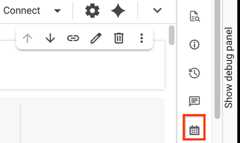
In theNotebook toolbar, clickSchedule.
Alternatively, clickSchedule:
Scheduling page
In the Google Cloud console, go to theScheduling page.
Click the name of the selected notebook schedule.
View past executions
You can view past executions of a selected notebook schedule intheExplorer pane or on theScheduling page.
To view past executions of a selected notebook schedule, follow these steps:
Explorer pane
In the Google Cloud console, go to theBigQuery page.
In the left pane, clickExplorer:
In theExplorer pane, expand your project and clickNotebooks.
Click the name of the selected notebook.
ClickSchedule, and then clickView past executions.
Scheduling page
In the Google Cloud console, go to theScheduling page.
Click the name of the selected notebook schedule.
On theSchedule details page, in thePast executions section,inspect past executions.
Optional: To refresh the list of past executions, clickRefresh.
Disable a schedule
To pause scheduled runs of a selected notebook without deleting the schedule,you can disable the schedule.
To disable a schedule for a selected notebook, follow these steps:
Explorer pane
In the Google Cloud console, go to theBigQuery page.
In the left pane, clickExplorer:
In theExplorer pane, expand your project and clickNotebooks.
Click the name of the selected notebook.
In theNotebook toolbar, clickSchedule.
Alternatively, clickSchedule:
In the schedule details table, in theSchedule state row,click theSchedule is enabled toggle.
Scheduling page
In the Google Cloud console, go to theScheduling page.
Click the name of the selected notebook.
On theSchedule details page, clickDisable.
Enable a schedule
To resume scheduled runs of a disabled notebook schedule, follow these steps:
Explorer pane
In the Google Cloud console, go to theBigQuery page.
In the left pane, clickExplorer:
In theExplorer pane, expand your project and clickNotebooks.
Click the name of the selected notebook.
In theNotebook toolbar, clickSchedule.
Alternatively, clickSchedule.
In the schedule details table, in theSchedule state row,click theSchedule is disabled toggle.
Scheduling page
In the Google Cloud console, go to theScheduling page.
Click the name of the selected notebook.
On theSchedule details page, clickEnable.
Edit a schedule
You can edit a schedule in theExplorer pane oron theScheduling page.
To edit a schedule, follow these steps:
Explorer pane
In the Google Cloud console, go to theBigQuery page.
In the left pane, clickExplorer:
In theExplorer pane, expand your project and clickNotebooks.
Click the name of the selected notebook.
ClickSchedule, and then clickEdit.
In theSchedule details dialog, edit the schedule, and then clickUpdate schedule.
Scheduling page
In the Google Cloud console, go to theScheduling page.
Click the name of the selected notebook schedule.
On theSchedule details page, clickEdit.
ClickView schedule, and then clickEdit.
In theSchedule notebook dialog, edit the schedule,and then clickUpdate schedule.
Delete a schedule
To permanently delete a schedule for a selected notebook, follow these steps:
In the Google Cloud console, go to theScheduling page.
Do either of the following:
Click the name of the selected schedule, and thenon theSchedule details page, clickDelete.
In the row that contains the selected schedule, clickView actions in theActions column, and then clickDelete.
In the dialog that appears, clickDelete.
What's next
- Learn more aboutColab Enterprise notebooks in BigQuery.
- Learn how tocreate notebooks.
Except as otherwise noted, the content of this page is licensed under theCreative Commons Attribution 4.0 License, and code samples are licensed under theApache 2.0 License. For details, see theGoogle Developers Site Policies. Java is a registered trademark of Oracle and/or its affiliates.
Last updated 2025-12-15 UTC.