

Connect to Blob Storage
As a BigQuery administrator, you can create aconnection to let data analysts access data stored in Azure Blob Storage.
BigQuery Omni accesses Blob Storage data through connections. BigQuery Omni supportsAzure workload identityfederation.BigQuery Omni support of Azure workload identity federation letsyou grant access for an Azure application in your tenant to a Google serviceaccount. There are no application client secrets to be managed by you or Google.
After you create a BigQuery Azure connection, you can eitherquery theBlob Storage data orexport query results to Blob Storage.
Before you begin
Ensure that you have created the following resources:
AGoogle Cloud project withBigQuery Connection API enabled.
If you are on the capacity-based pricing model, then ensure that you have enabledBigQuery Reservation API for your project. Forinformation about pricing, seeBigQuery Omni pricing.
An Azure tenant with an Azure subscription.
An Azure Storage account that meets the following specifications:
It's a general-purpose V2 account or a Blob Storage account.
It uses a hierarchical namespace. For more information, seeCreate astorage account to use with Azure Data Lake Storage Gen2.
Data is populated in one of thesupported formats.
Data is in the
azure-eastus2region.
Required roles
To get the permissions that you need to create a connection to access Azure Blob Storage data, ask your administrator to grant you theBigQuery Connection Admin (
roles/bigquery.connectionAdmin) IAM role on the project. For more information about granting roles, seeManage access to projects, folders, and organizations.You might also be able to get the required permissions throughcustom roles or otherpredefined roles.
- Ensure that you have the following Azure IAM permissions on your tenant:
Application.ReadWrite.AllAppRoleAssignment.ReadWrite.All
Quotas
For more information about quotas, seeBigQuery Connection API.
Create an Azure connection
To create an Azure connection, follow these steps:
- Create an application in your Azure tenant.
- Create the BigQuery Azure connection.
- Add a federated credential.
- Assign a role to BigQuery Azure AD applications.
For more information about using federated identity credentials to access datain Azure, seeWorkload identity federation.
Create an application in your Azure tenant
To create an application in your Azure tenant, follow these steps:
Azure Portal
In the Azure portal, go toApp registrations, and then clickNewregistration.
ForNames, enter a name for your application.
ForSupported account types, selectAccounts in this organizationaldirectory only.
To register the new application, clickRegister.
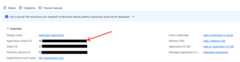
Make a note of theApplication (client) ID. You need to provide this IDwhen youcreate the connection.
Terraform
Add the following to your Terraform configuration file:
data"azuread_client_config""current"{}resource"azuread_application""example"{display_name="bigquery-omni-connector"owners=[data.azuread_client_config.current.object_id]}resource"azuread_service_principal""example"{client_id=azuread_application.example.client_idapp_role_assignment_required=falseowners=[data.azuread_client_config.current.object_id]}
For more information, see how toregister an application in Azure.
Create a connection
Console
In the Google Cloud console, go to theBigQuery page.
In theExplorer pane, clickAdd data.
TheAdd data dialog opens.
In theFilter By pane, in theData Source Type section, selectDatabases.
Alternatively, in theSearch for data sources field, you can enter
Azure.In theFeatured data sources section, clickAzure Blob Storage.
Click theAzure Blob Storage Omni: BigQuery Federation solutioncard.
In theCreate table dialog, in theConnection ID field, selectCreate a new ABS connection.
In theExternal data source pane, enter the following information:
- ForConnection type, selectBigLake on Azure (via BigQuery Omni).
- ForConnection ID, enter an identifier for the connectionresource. You can use letters, numbers, dashes, and underscores.
- Select the location where you want to create the connection.
- Optional: ForFriendly name, enter a user-friendly name forthe connection, such as
My connection resource. The friendly namecan be any value that helps you identify the connection resource ifyou need to modify it later. - Optional: ForDescription, enter a description for theconnection resource.
- ForAzure tenant id, enter the Azure tenant ID, which is alsoreferred to as the Directory (tenant) ID.
Enable theUse federated identity checkbox and then enter theAzure federated application (client) ID.
To learn how to get Azure IDs, seeCreate an application in yourAzure tenant.
ClickCreate connection.
ClickGo to connection.
In theConnection info section, notethe value ofBigQuery Google identity, which is the service account ID. This ID isfor theGoogle Cloud service account thatyou authorize to access your application.
Terraform
resource"google_bigquery_connection""connection"{connection_id="omni-azure-connection"location="azure-eastus2"description="created by terraform"azure{customer_tenant_id="TENANT_ID"federated_application_client_id=azuread_application.example.client_id}}
ReplaceTENANT_ID with the tenant ID of the Azuredirectory that contains the Blob Storage account.
bq
Use thebq mk command. Toget the output in JSON format, use the--format=json parameter.
bqmk--connection--connection_type='Azure'\--tenant_id=TENANT_ID\--location=AZURE_LOCATION\--federated_azure=true\--federated_app_client_id=APP_ID\CONNECTION_ID
Replace the following:
TENANT_ID: the tenant ID of the Azure directorythat contains the Azure Storage account.AZURE_LOCATION: the Azure region whereyour Azure Storage data is located. BigQuery Omni supportstheazure-eastus2region.APP_ID: the Azure Application (client) ID. Tolearn how to get this ID, seeCreate application in Azure tenant.CONNECTION_ID: the name of the connection.
The output is similar to the following:
ConnectionCONNECTION_IDsuccessfullycreatedPleaseaddthefollowingidentitytoyourAzureapplicationAPP_IDIdentity:SUBJECT_ID
This output includes the following values:
APP_ID: the ID of the application that youcreated.SUBJECT_ID: the ID of the Google Cloudservice account that the user authorizes to access their application.This value is required when you create a federated credential in Azure.
Note theAPP_ID and theSUBJECT_IDvalues for use in the next steps.
--project_id=PROJECT_ID parameter. ReplacePROJECT_ID with the ID of yourGoogle Cloud project.Next, add a federated credential for your application.
Add a federated credential
To create a federated credential, follow these steps:
Azure Portal
In the Azure portal, go toApp registrations, and then click yourapplication.
SelectCertificates & secrets> Federated credentials> Add credentials. Then, do the following:
From theFederated credential scenario list, selectOther issuer.
ForIssuer, enter
https://accounts.google.com.ForSubject identifier, enter theBigQuery Google identity ofthe Google Cloud service account that you got when youcreated the connection.
ForName, enter a name for the credential.
ClickAdd.
Terraform
Add the following to your Terraform configuration file:
resource"azuread_application_federated_identity_credential""example"{application_id=azuread_application.example.iddisplay_name="omni-federated-credential"description="BigQuery Omni federated credential"audiences=["api://AzureADTokenExchange"]issuer="https://accounts.google.com"subject=google_bigquery_connection.connection.azure[0].identity}
For more information, seeConfigure an app to trust an external identity provider.
Assign a role to BigQuery's Azure applications
To assign a role to BigQuery's Azure application, use theAzure Portal, the Azure PowerShell, or the Microsoft Management REST API:
Azure Portal
You can perform role assignments in the Azure Portal by logging in as a userwith theMicrosoft.Authorization/roleAssignments/write permission. The roleassignment lets the BigQuery Azure connection access theAzure Storage data as specified in the roles policy.
To add role assignments using the Azure Portal, follow these steps:
From your Azure Storage account, enter
IAMin the search bar.ClickAccess Control (IAM).
ClickAdd and selectAdd role assignments.
To provide read-only access, select theStorage Blob Data Reader role.To provide read-write access, select theStorage Blob DataContributor role.
SetAssign access to toUser, group, or service principal.
ClickSelect members.
In theSelect field, enter the Azure application name that you gave when youcreated the application in the Azure tenant.
ClickSave.
For more information, seeAssign Azure roles using the Azureportal.
Terraform
Add the following to your Terraform configuration file:
resource"azurerm_role_assignment""data_role"{scope=data.azurerm_storage_account.example.id # Read permission for Omni on the storage accountrole_definition_name="Storage Blob Data Reader"principal_id=azuread_service_principal.example.id}
Azure PowerShell
To add a role assignment for a service principal at a resource scope, you canuse theNew-AzRoleAssignment command:
New-AzRoleAssignment`-SignInNameAPP_NAME`-RoleDefinitionNameROLE_NAME`-ResourceNameRESOURCE_NAME`-ResourceTypeRESOURCE_TYPE`-ParentResourcePARENT_RESOURCE`-ResourceGroupNameRESOURCE_GROUP_NAME
Replace the following:
APP_NAME: the application name.ROLE_NAME: the role name you want to assign.RESOURCE_NAME: the resource name.RESOURCE_TYPE: the resource type.PARENT_RESOURCE: the parent resource.RESOURCE_GROUP_NAME: the resource group name.
For more information about using Azure PowerShell to add a new serviceprincipal, see theAssign Azure roles using Azure PowerShell.
Azure CLI
To add a role assignment for a service principal at a resource scope, you canuse the Azure command-line tool. You must have theMicrosoft.Authorization/roleAssignments/write permission for the storageaccount to grant roles.
To assign a role, such as theStorage Blob Data Reader role, to theservice principal, run theaz role assignment create command:
azroleassignmentcreate--role"Storage Blob Data Reader"\--assignee-object-id${SP_ID}\--assignee-principal-typeServicePrincipal\--scopesubscriptions/SUBSCRIPTION_ID/resourcegroups/RESOURCE_GROUP_NAME/providers/Microsoft.Storage/storageAccounts/STORAGE_ACCOUNT_NAME
Replace the following:
SP_ID: the service principal ID. This serviceprincipal is forthe application that you created.To get the service principal for a federated connection, seeService principalobject.STORAGE_ACCOUNT_NAME: the storage account name.RESOURCE_GROUP_NAME: the resource group name.SUBSCRIPTION_ID: the subscription ID.
For more information, seeAssign Azure roles using Azure CLI.
Microsoft REST API
To add role assignments for a service principal, you can send an HTTPrequest to Microsoft Management.
To call the Microsoft Graph REST API,retrieve an OAuth token for an application. For more information, seeGetaccess without a user.The application that called the Microsoft Graph REST API must havetheApplication.ReadWrite.All application permission.
To generate an OAuth token, run the following command:
exportTOKEN=$(curl-XPOST\https://login.microsoftonline.com/TENANT_ID/oauth2/token\-H'cache-control: no-cache'\-H'content-type: application/x-www-form-urlencoded'\--data-urlencode"grant_type=client_credentials"\--data-urlencode"resource=https://graph.microsoft.com/"\--data-urlencode"client_id=CLIENT_ID"\--data-urlencode"client_secret=CLIENT_SECRET"\|jq--raw-output'.access_token')
Replace the following:
TENANT_ID: the tenant ID matching the ID of theAzure directory that contains the Azure Storage account.CLIENT_ID: the Azure client ID.CLIENT_SECRET: the Azure client secret.
Get the ID of theAzure built-in roles that you want to assign to the service principal.
These are some common roles:
- Storage Blob Data Contributor:
ba92f5b4-2d11-453d-a403-e96b0029c9fe - Storage Blob Data Reader:
2a2b9908-6ea1-4ae2-8e65-a410df84e7d1
To assign a role to the service principal, call the Microsoft Graph REST APIto the Azure Resource Management REST API:
exportROLE_ASSIGNMENT_ID=$(uuidgen)curl-XPUT\'https://management.azure.com/subscriptions/SUBSCRIPTION_ID/resourcegroups/RESOURCE_GROUP_NAME/providers/Microsoft.Storage/storageAccounts/STORAGE_ACCOUNT_NAME/providers/Microsoft.Authorization/roleAssignments/ROLE_ASSIGNMENT_ID?api-version=2018-01-01-preview'\-H"authorization: Bearer${TOKEN?}"\-H'cache-control: no-cache'\-H'content-type: application/json'\-d'{ "properties": { "roleDefinitionId": "subscriptions/SUBSCRIPTION_ID/resourcegroups/RESOURCE_GROUP_NAME/providers/Microsoft.Storage/storageAccounts/STORAGE_ACCOUNT_NAME/providers/Microsoft.Authorization/roleDefinitions/ROLE_ID", "principalId": "SP_ID" } }'
Replace the following:
ROLE_ASSIGNMENT_ID: the role ID.SP_ID: the service principal ID. This serviceprincipal is forthe application that you created.To get the service principal for a federated connection, seeServiceprincipal object.SUBSCRIPTION_ID: the subscription ID.RESOURCE_GROUP_NAME: the resource group name.STORAGE_ACCOUNT_NAME: the storage account name.SUBSCRIPTION_ID: the subscription ID.
The connection is now ready to use. However, there might be a propagation delayfor a role assignment in Azure. If you are not able to use the connection due topermission issues, then retry after some time.
Caution: When you delete the connection, the Google identity used to access theAzure application is deleted. The application in the Azure tenant is notdeleted.Share connections with users
You can grant the following roles to let users query data and manage connections:
roles/bigquery.connectionUser: enables users to use connections to connectwith external data sources and run queries on them.roles/bigquery.connectionAdmin: enables users to manage connections.
For more information about IAM roles and permissions inBigQuery, seePredefined roles and permissions.
Select one of the following options:
Console
Go to theBigQuery page.
Connections are listed in your project, in a group calledConnections.
In the left pane, clickExplorer:

If you don't see the left pane, clickExpand left pane to open the pane.
Click your project, clickConnections, and then select a connection.
In theDetails pane, clickShare to share a connection.Then do the following:
In theConnection permissions dialog, share theconnection with other principals by adding or editingprincipals.
ClickSave.
bq
You cannot share a connection with the bq command-line tool.To share a connection, use the Google Cloud console orthe BigQuery Connections API method to share a connection.
API
Use theprojects.locations.connections.setIAM methodin the BigQuery Connections REST API reference section, andsupply an instance of thepolicy resource.
Java
Before trying this sample, follow theJava setup instructions in theBigQuery quickstart using client libraries. For more information, see theBigQueryJava API reference documentation.
To authenticate to BigQuery, set up Application Default Credentials. For more information, seeSet up authentication for client libraries.
importcom.google.api.resourcenames.ResourceName;importcom.google.cloud.bigquery.connection.v1.ConnectionName;importcom.google.cloud.bigqueryconnection.v1.ConnectionServiceClient;importcom.google.iam.v1.Binding;importcom.google.iam.v1.Policy;importcom.google.iam.v1.SetIamPolicyRequest;importjava.io.IOException;// Sample to share connectionspublicclassShareConnection{publicstaticvoidmain(String[]args)throwsIOException{// TODO(developer): Replace these variables before running the sample.StringprojectId="MY_PROJECT_ID";Stringlocation="MY_LOCATION";StringconnectionId="MY_CONNECTION_ID";shareConnection(projectId,location,connectionId);}staticvoidshareConnection(StringprojectId,Stringlocation,StringconnectionId)throwsIOException{try(ConnectionServiceClientclient=ConnectionServiceClient.create()){ResourceNameresource=ConnectionName.of(projectId,location,connectionId);Bindingbinding=Binding.newBuilder().addMembers("group:example-analyst-group@google.com").setRole("roles/bigquery.connectionUser").build();Policypolicy=Policy.newBuilder().addBindings(binding).build();SetIamPolicyRequestrequest=SetIamPolicyRequest.newBuilder().setResource(resource.toString()).setPolicy(policy).build();client.setIamPolicy(request);System.out.println("Connection shared successfully");}}}What's next
- Learn about differentconnection types.
- Learn aboutmanaging connections.
- Learn more aboutBigQuery Omni.
- Learn aboutBigLake tables.
- Learn how toquery Blob Storage data.
- Learn how toexport query results to Blob Storage.
Except as otherwise noted, the content of this page is licensed under theCreative Commons Attribution 4.0 License, and code samples are licensed under theApache 2.0 License. For details, see theGoogle Developers Site Policies. Java is a registered trademark of Oracle and/or its affiliates.
Last updated 2025-12-15 UTC.