

Create dashboards, charts, and alerts
This document describes how to create charts and alerts to monitorBigQuery resources using Cloud Monitoring.
Before you begin
Before you use Cloud Monitoring, ensure that you have the following:
- A Cloud Billing account.
- A BigQuery project with billing enabled.
One way to ensure that you have both is to complete theQuickstart using the Google Cloud console.
View and create dashboards, charts, and alerts
View the Cloud Monitoring dashboard
To use Cloud Monitoring to monitor your BigQuery project:
In the Google Cloud console, go to theMonitoring page.
Select the name of your project if it is not already selected at the top ofthe page.
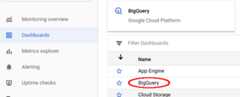
To view BigQuery resources, selectDashboards >BigQuery. On this page you see a list of tables, events, and incidentreporting that are user-configurable as well as charts of project metrics ordataset metrics.
Visualize slots available and slots allocated
To visualize the slots available and slots allocated to your project, go to thedashboard for BigQuery described inViewing the Cloud Monitoring dashboard:
In the Google Cloud console, go to theMonitoring page.
SelectDashboards > BigQuery.
On the Cloud Monitoring dashboard for BigQuery, scroll tothe chart namedSlot Utilization.
TheSlot Utilization chart appears on both the main Cloud Monitoringdefault dashboard and the Cloud Monitoring dashboard forBigQuery.
Create a dashboard and chart
Display the metrics collected by Cloud Monitoring in your own charts anddashboards:
In the Google Cloud console, go to theMonitoring page.
SelectDashboards > Create Dashboard.
ClickAdd Chart. You see the Add Chart page:
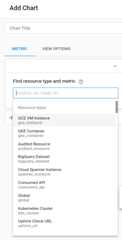
In theFind resource type and metric panel fields:
- For theResource type drop-down list, selectGlobal. You mightneed to expand the list ofResource types for theGlobal optionto be visible.
- For theMetric drop-down list, selectQuery execution time.
TheAggregation pane fields control how the execution-time data aredisplayed. You can modify the default settings for these fields.
ClickSave.
View quota usage and limits
In Cloud Monitoring, you can view metrics for quota usage and limits:
In the Google Cloud console, go to theMonitoring page.
In the navigation pane, select
 Metrics explorer.
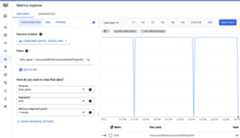
In the toolbar, selectExplorer> Configuration.
In theResource & Metric section, clickSelect a metric.
SelectConsumer Quota> Quota> Quota limit, and then clickApply.
ClickAdd filter, and then in theLabel menu, selectlimit_name.
In theValue menu, select the quota for which you want to view the metrics.
Create an alert
To create an alerting policy that triggers when the 99th percentile of the execution time of aBigQuery query exceeds a user-defined limit, use the following settings.
Steps to create an alerting policy.
To create an alerting policy, do the following:
In the Google Cloud console, go to thenotifications Alerting page:
If you use the search bar to find this page, then select the result whose subheading isMonitoring.
- If you haven't created your notification channels and if you want to be notified, then clickEdit Notification Channels and add your notification channels. Return to theAlerting page after you add your channels.
- From theAlerting page, selectCreate policy.
- To select the resource, metric, and filters, expand theSelect a metric menu and then use the values in theNew condition table:
- Optional: To limit the menu to relevant entries, enter the resource or metric name in the filter bar.
- Select aResource type. For example, selectVM instance.
- Select aMetric category. For example, selectinstance.
- Select aMetric. For example, selectCPU Utilization.
- SelectApply.
- ClickNext and then configure the alerting policy trigger. To complete these fields, use the values in theConfigure alert trigger table.
- ClickNext.
Optional: To add notifications to your alerting policy, clickNotification channels. In the dialog, select one or more notification channels from the menu, and then clickOK.
To be notified when incidents are openend and closed, checkNotify on incident closure. By default, notifications are sent only when incidents are openend.
- Optional: Update theIncident autoclose duration. This field determines when Monitoring closes incidents in the absence of metric data.
- Optional: ClickDocumentation, and then add any information that you want included in a notification message.
- ClickAlert name and enter a name for the alerting policy.
- ClickCreate Policy.
| New condition Field | Value |
|---|---|
| Resource and Metric | In theResources menu, selectBigQuery Project. In theMetric categories menu, selectQuery. In theMetrics menu, selectQuery execution times. |
| Filter | |
| Across time series Time series group by | priority |
| Across time series Time series aggregation | 99th percentile |
| Rolling window | 5 m |
| Rolling window function | sum |
| Configure alert trigger Field | Value |
|---|---|
| Condition type | Threshold |
| Alert trigger | Any time series violates |
| Threshold position | Above threshold |
| Threshold value | You determine this value; however, a threshold of 60 seconds is recommended. |
| Retest window | most recent value |
To create an alerting policy that triggers when the total scanned bytes billed for aBigQuery project exceeds a user-defined limit, use the followingalerting policy configuration.
| New condition Field | Value |
|---|---|
| Resource and Metric | In theResources menu, selectBigQuery Project. In theMetric categories menu, selectQuery. In theMetrics menu, selectStatement scanned bytes billed. |
| Filter | (No filter needed for a project-wide alert) |
| Across time series Time series group by | (Leave blank to aggregate all series) |
| Across time series Time series aggregation | sum |
| Rolling window | 5 m |
| Rolling window function | sum |
| Configure alert trigger Field | Value |
|---|---|
| Condition type | Threshold |
| Alert trigger | Any time series violates |
| Threshold position | Above threshold |
| Threshold value | You determine this value. For example, to trigger an alert when usage exceeds 1 TiB, enter1000000000000. |
While the alerting policy monitors the total bytes scanned, you can set a thresholdbased on a specific budget. To accomplish this budget based alerting policy, youmust first convert your desired cost threshold into the equivalent number of bytes.The formula relies on the BigQuery on-demand compute pricing.For more information, seeOn-demand compute pricing.
You can use the following formula to convert your cost threshold into bytes:
Threshold in Bytes = (Target Amount / (price per TiB)) * 1,000,000,000,000Example: Trigger an alert when usage exceeds $100
Let's say you want to be alerted when your project's query costs exceed$100.
- Calculate the equivalent data volume in TiB:
$100 / (price per TiB) = Equivalent Data Volume in TiB - Convert data volume to bytes:
(Equivalent Data Volume in TiB) * 1,000,000,000,000 = Threshold Value in Bytes - Set the Threshold Value:
In theConfigure alert trigger section of your policy, enter the "Threshold Value in Bytes" as theThreshold value.
Now, your alerting policy triggers when the total scanned bytes billed in therolling window corresponds to approximately$100 in on-demand querycosts.
Metrics available for visualization
The following metrics are available, time delayed up to several hours.
| Resource type | Name | Units | Description |
|---|---|---|---|
| BigQuery | Scanned bytes | Bytes per minute | Number of bytes scanned. |
| BigQuery | Scanned bytes billed | Bytes per minute | Number of bytes sent for billing when using the on-demand analysis model. Scanned bytes and scanned bytes billed can differ as charges are rounded up, with a minimum amount of data processed per query. |
| BigQuery | BI Engine Query Fallback Count (Preview) | Queries | The amount of queries that did not use BI Engine as a rate. You can set theGroup By option toreason to separate the count into different fallback reasons, including:
| BigQuery | Query count | Queries | Queries in flight. |
| BigQuery | Query execution count (Preview) | Queries | The number of queries executed. |
| BigQuery | Query execution times | Seconds | Non-cached query execution times. |
| BigQuery | Slots used by project | Slots | Number of BigQuery slots allocated for query jobs in the project. Slots are allocated per billing account and multiple projects can share the samereservation of slots. |
| BigQuery | Slots used by project and job type | Slots | Number of slots allocated to the project at any time separated byjob type. This can also be thought of as the number of slots being utilized by that project. Load and extract jobs are free operations, and they run in a public pool of resources. Slots are allocated per billing account and multiple projects can share the samereservation of slots. |
| BigQuery | Slots used by project, reservation, and job type | Slots | Number of BigQuery slots allocated for project. Slot allocation can be broken down based on reservation and job type. |
| BigQuery | Total slots | Slots | Total number of slots available to the project. If the project shares a reservation of slots with other projects the slots beingused by the other projects is not depicted. |
| BigQuery | Slots used across projects in reservations | Slots | Number of BigQuery slots allocated across projects in the reservation. Note that the metric data is only reported while at least one project has been assigned to the reservation and is consuming slots. As an alternative, consider querying reservations information fromINFORMATION_SCHEMA. |
| BigQuery | Slots used by project in reservation | Slots | Number of BigQuery slots allocated for project in the reservation. |
| BigQuery continuous job | Estimated backlog logical bytes | Bytes | The number of bytes in the backlog for each stage of the continuous job. |
| BigQuery continuous job | Estimated backlog records | Records | The estimated number of backlog records for each stage of the continuous job. |
| BigQuery continuous job | Estimated bytes processed | Bytes | The estimated number of bytes processed for each stage of the continuous job. |
| BigQuery continuous job | Output watermark | Timestamp | The most recent timestamp, in microseconds since the epoch, up to which all data has been processed by this stage of the continuous job. |
| BigQuery continuous job | Records read | Records | The number of input records read for each stage of the continuous job. |
| BigQuery continuous job | Records written | Records | The number of output records written for each stage of the continuous job. |
| BigQuery continuous job | Slots used | Slot milliseconds | The total slot milliseconds used by the continuous job. |
| BigQuery dataset | Stored bytes | Bytes | Bytes stored in the dataset - For the 100 largest tables in the dataset, bytes stored is displayed for each individual table (by name). Any additional tables in the dataset (beyond the 100 largest) are reported as single sum, and the table name for the summary is an empty string. |
| BigQuery dataset | Table count | Tables | Number of tables in the dataset. |
| BigQuery dataset | Uploaded bytes | Bytes per minute | Number of bytes uploaded to any table in the dataset. |
| BigQuery dataset | Uploaded rows | Rows per minute | Number of records uploaded to any table in the dataset. |
For a complete list of available Google Cloud metrics, seeGoogle Cloud metrics.
Known issues
If no queries are running, then no data is returned for slots allocated, slots available, or any query-related variables. Zoom out to see data.
If queries are running in both the US and the EU, then slots allocated andslots available might be incorrect.
Slots allocated is reported as the average value in a time window (the widthof the time window depends on the zoom level of the chart). Zooming in andout can change the value of slots allocated. Zooming in to a time window of1 hr or less shows the true values of slots allocated. At this range for anytime visible on the chart,
avg(slots allocated) = slots allocated.The data in Cloud Monitoring charts pertains only to the selectedproject.
Metrics are instantaneous values, sampled at a point in time, and might missdata points between sample intervals. For example, the job count metric issampled every minute. The value is the number of jobs at that particulartime, not the maximum number of jobs throughout the entire minute.
Except as otherwise noted, the content of this page is licensed under theCreative Commons Attribution 4.0 License, and code samples are licensed under theApache 2.0 License. For details, see theGoogle Developers Site Policies. Java is a registered trademark of Oracle and/or its affiliates.
Last updated 2025-12-15 UTC.