

Migrate schema and data from Teradata
The combination of the BigQuery Data Transfer Service and a special migration agent allowsyou to copy your data from a Teradata on-premises data warehouse instance toBigQuery. This document describes the step-by-step process ofmigrating data from Teradata using the BigQuery Data Transfer Service.
Before you begin
- Sign in to your Google Cloud account. If you're new to Google Cloud, create an account to evaluate how our products perform in real-world scenarios. New customers also get $300 in free credits to run, test, and deploy workloads.
In the Google Cloud console, on the project selector page, select or create a Google Cloud project.
Roles required to select or create a project
- Select a project: Selecting a project doesn't require a specific IAM role—you can select any project that you've been granted a role on.
- Create a project: To create a project, you need the Project Creator role (
roles/resourcemanager.projectCreator), which contains theresourcemanager.projects.createpermission.Learn how to grant roles.
Verify that billing is enabled for your Google Cloud project.
Enable the BigQuery, BigQuery Data Transfer Service, Cloud Storage, and Pub/Sub APIs.
Roles required to enable APIs
To enable APIs, you need the Service Usage Admin IAM role (
roles/serviceusage.serviceUsageAdmin), which contains theserviceusage.services.enablepermission.Learn how to grant roles.Create a service account:
- Ensure that you have the Create Service Accounts IAM role (
roles/iam.serviceAccountCreator) and the Project IAM Admin role (roles/resourcemanager.projectIamAdmin).Learn how to grant roles. In the Google Cloud console, go to theCreate service account page.
Go to Create service account- Select your project.
In theService account name field, enter a name. The Google Cloud console fills in theService account ID field based on this name.
In theService account description field, enter a description. For example,
Service account for quickstart.- ClickCreate and continue.
Grant the following roles to the service account:roles/bigquery.user, roles/storage.objectAdmin, roles/iam.serviceAccountTokenCreator.
To grant a role, find theSelect a role list, then select the role.
To grant additional roles, clickAdd another role and add each additional role.
Note: TheRole field affects which resources the service account can access in your project. You can revoke these roles or grant additional roles later.- ClickContinue.
ClickDone to finish creating the service account.
Do not close your browser window. You will use it in the next step.
- Ensure that you have the Create Service Accounts IAM role (
Create a service account key:
- In the Google Cloud console, click the email address for the service account that you created.
- ClickKeys.
- ClickAdd key, and then clickCreate new key.
- ClickCreate. A JSON key file is downloaded to your computer.
- ClickClose.
In the Google Cloud console, on the project selector page, select or create a Google Cloud project.
Roles required to select or create a project
- Select a project: Selecting a project doesn't require a specific IAM role—you can select any project that you've been granted a role on.
- Create a project: To create a project, you need the Project Creator role (
roles/resourcemanager.projectCreator), which contains theresourcemanager.projects.createpermission.Learn how to grant roles.
Verify that billing is enabled for your Google Cloud project.
Enable the BigQuery, BigQuery Data Transfer Service, Cloud Storage, and Pub/Sub APIs.
Roles required to enable APIs
To enable APIs, you need the Service Usage Admin IAM role (
roles/serviceusage.serviceUsageAdmin), which contains theserviceusage.services.enablepermission.Learn how to grant roles.Create a service account:
- Ensure that you have the Create Service Accounts IAM role (
roles/iam.serviceAccountCreator) and the Project IAM Admin role (roles/resourcemanager.projectIamAdmin).Learn how to grant roles. In the Google Cloud console, go to theCreate service account page.
Go to Create service account- Select your project.
In theService account name field, enter a name. The Google Cloud console fills in theService account ID field based on this name.
In theService account description field, enter a description. For example,
Service account for quickstart.- ClickCreate and continue.
Grant the following roles to the service account:roles/bigquery.user, roles/storage.objectAdmin, roles/iam.serviceAccountTokenCreator.
To grant a role, find theSelect a role list, then select the role.
To grant additional roles, clickAdd another role and add each additional role.
Note: TheRole field affects which resources the service account can access in your project. You can revoke these roles or grant additional roles later.- ClickContinue.
ClickDone to finish creating the service account.
Do not close your browser window. You will use it in the next step.
- Ensure that you have the Create Service Accounts IAM role (
Create a service account key:
- In the Google Cloud console, click the email address for the service account that you created.
- ClickKeys.
- ClickAdd key, and then clickCreate new key.
- ClickCreate. A JSON key file is downloaded to your computer.
- ClickClose.
If you acquired the service account key from an external source, you must validate it before use. For more information, see Security requirements for externally sourced credentials.
Set required permissions
Ensure that the principal creating the transfer has the followingroles in the project containing the transfer job:
- Logs Viewer (
roles/logging.viewer) - Storage Admin (
roles/storage.admin), or acustom role that grants thefollowing permissions:storage.objects.createstorage.objects.getstorage.objects.list
- BigQuery Admin (
roles/bigquery.admin), or acustom role that grants the following permissions:bigquery.datasets.createbigquery.jobs.createbigquery.jobs.getbigquery.jobs.listAllbigquery.transfers.getbigquery.transfers.update
Create a dataset
Create a BigQuery datasetto store your data. You do not need to create any tables.
Create a Cloud Storage bucket
Create a Cloud Storage bucket for stagingthe data during the transfer job.
Prepare the local environment
Complete the tasks in this section to prepare your local environment for thetransfer job.
Local machine requirements
- The migration agent uses a JDBC connection with the Teradata instanceand Google Cloud APIs. Ensure that network access is not blocked by afirewall.
- Ensure that Java Runtime Environment 8 or later is installed.
- Ensure that you have enough storage space for the extraction method you havechosen, as described inExtraction method.
- If you have decided to use Teradata Parallel Transporter (TPT) extraction,ensure that the
tbuildutility is installed. For more information on choosing an extractionmethod, seeExtraction method.
Teradata connection details
Make sure you have the username and password of a Teradata user with readaccess to the system tables and the tables that are being migrated.
The username and password are captured through aprompt and are only stored in RAM. Optionally, you can create acredentials file for the username or password in a later step. When usinga credentials file, take appropriate steps to control access to thefolder where you store it on the local file system, because it is notencrypted.Make sure you know the hostname and port number to connect to theTeradata instance.
Authentication modes, such as LDAP, are not supported.
Download the JDBC driver
Download theterajdbc4.jar JDBC driver file from Teradatato a machine that can connect to the data warehouse.
Set theGOOGLE_APPLICATION_CREDENTIALS variable
Set the environment variableGOOGLE_APPLICATION_CREDENTIALSto the service account key you downloaded in theBefore you begin section.
Update the VPC Service Controls egress rule
Add a BigQuery Data Transfer Service managed Google Cloud project (project number: 990232121269)to theegress rulein the VPC Service Controls perimeter.
The communication channel between the agent running on premises and BigQuery Data Transfer Serviceis by publishing Pub/Sub messages to a per transfer topic. BigQuery Data Transfer Serviceneeds to send commands to the agent to extract data, and the agent needs topublish messages back to BigQuery Data Transfer Service to update the status and return dataextraction responses.
Create a custom schema file
To use acustom schema fileinstead of automatic schema detection, create one manually, orhave the migration agent create one for you when youinitialize the agent.
If you create a schema filemanually and you intend to use the Google Cloud console to create a transfer,upload the schema file to a Cloud Storage bucket in the same projectyou plan to use for the transfer.
Download the migration agent
Download the migration agent to a machine which can connect to the data warehouse. Move the migration agentJAR file to the same directory as the Teradata JDBC driver JAR file.
Setup credential file for access module
A credential file is required if you are using theaccess module for Cloud Storage with the Teradata Parallel Transporter (TPT) utility for extraction.
Before you create a credential file, you must havecreated a service account key. From your downloaded service account key file, obtain the following information:
client_emailprivate_key: Copy all characters within-----BEGIN PRIVATE KEY-----and-----END PRIVATE KEY-----, including all/ncharacters and without the enclosing double quotes.
Once you have the required information, create a credential file. The following is an example credential file with a defaultlocation of$HOME/.gcs/credentials:
[default]gcs_access_key_id=ACCESS_IDgcs_secret_access_key=ACCESS_KEY
Replace the following:
ACCESS_ID: the access key ID, or theclient_emailvalue in your service account key file.ACCESS_KEY: the secret access key, or theprivate_keyvalue in your service account key file.
gcs-module-config-dir parameter when youset up the transferSet up a transfer
Create a transfer with the BigQuery Data Transfer Service.
If you want a custom schema file created automatically, use the migrationagent to set up the transfer.
You can't create an on-demand transfer by using the bq command-line tool;you must use the Google Cloud console or the BigQuery Data Transfer Service API instead.
If you are creating a recurring transfer, we strongly recommend that youspecify a schema file so that data from subsequent transfers can be properlypartitioned when it is loaded into BigQuery. Without a schemafile, the BigQuery Data Transfer Service infers the table schema from the source databeing transferred, and all information about partitioning, clustering,primary keys, and change tracking is lost. In addition, subsequent transfersskip previously migrated tables after the initial transfer. For moreinformation on how to create a schema file, seeCustom schema file.
Console
In the Google Cloud console, go to the BigQuery page.
ClickData transfers.
ClickCreate Transfer.
In theSource type section, do the following:
- ChooseMigration: Teradata.
- ForTransfer config name, enter a display name for the transfer suchas
My Migration. The display name can be any value that lets youeasily identify the transfer if you need to modify it later. - Optional: ForSchedule options, you can leave the default value ofDaily (based on creation time) or choose another time if you wanta recurring, incremental transfer. Otherwise, chooseOn-demand fora one-time transfer.
ForDestination settings, choose the appropriate dataset.
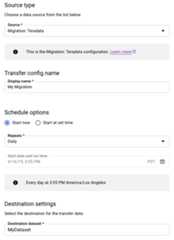
In theData source details section, continue with specific details for yourTeradata transfer.
- ForDatabase type, chooseTeradata.
- ForCloud Storage bucket, browse for the name of the Cloud Storagebucket for staging the migration data. Do not type in the prefix
gs://– enter only the bucket name. - ForDatabase name, enter the name of the source database inTeradata.
ForTable name patterns, enter a pattern for matching the tablenames in the source database. You can use regular expressions tospecify the pattern. For example:
sales|expensesmatches tables that are namedsalesandexpenses..*matches all tables.
ForService account email, enter the email address associated withthe service account's credentials used by an migration agent.
Optional: ForSchema file path, enter the path and filename of acustom schema file. For more information about creating a custom schemafile, seeCustom schema file.You can leave this field blank to have BigQueryautomatically detect your source table schema for you.
Optional: ForTranslation output root directory, enter the path andfilename of the schema mapping file provided by the BigQuerytranslation engine. For more information about generating a schemamapping file, seeUsing translation engine output for schema(Preview). You can leave this fieldblank to have BigQueryautomatically detect your sourcetable schema for you.
Optional: ForEnable direct unload to GCS, select the checkbox to enable theaccess module for Cloud Storage.
In theService Account menu, select aservice accountfrom the service accounts associated with yourGoogle Cloud project. You can associate a service account withyour transfer instead of using your user credentials. For moreinformation about using service accounts with data transfers, seeUse service accounts.
- If you signed in with afederated identity,then a service account is required to create a transfer. If you signedin with aGoogle Account, then aservice account for the transfer is optional.
- The service account must have therequired permissions.
Optional: In theNotification options section, do the following:
- Click theEmail notifications toggle if you want the transferadministrator to receive an email notificationwhen a transfer run fails.
- Click thePub/Sub notifications toggle to configurePub/Sub runnotificationsfor your transfer. ForSelect a Pub/Sub topic,choose yourtopicname or clickCreate a topic.
ClickSave.
On theTransfer details page, click theConfiguration tab.
Note the resource name for this transfer because you need it to runthe migration agent.
bq
When you create a Cloud Storage transfer using the bq tool,the transfer configuration is set to recur every 24 hours. For on-demandtransfers, use the Google Cloud console or the BigQuery Data Transfer Service API.
You cannot configure notifications using the bq tool.
Enter thebq mkcommand and supply the transfer creation flag--transfer_config. The following flags are also required:
--data_source--display_name--target_dataset--params
bqmk\--transfer_config\--project_id=projectID\--target_dataset=dataset\--display_name=name\--service_account_name=service_account\--params='parameters'\--data_source=datasource
Where:
- project ID is your project ID. If
--project_idisn't suppliedto specify a particular project, the default project is used. - dataset is the dataset you want to target (
--target_dataset)for the transfer configuration. - name is the display name (
--display_name) for the transferconfiguration. The transfer's display name can be any value that lets youidentify the transfer if you need to modify it later. - service_account is the service account name used toauthenticate your transfer. The service account should be owned by the same
project_idused to create the transfer and it should have all the listedrequired permissions. - parameters contains the parameters (
--params) for the createdtransfer configuration in JSON format.For example:--params='{"param":"param_value"}'.- For Teradata migrations, use the following parameters:
bucketis the Cloud Storage bucket that will act as a staging areaduring the migration.database_typeis Teradata.agent_service_accountis the email address associated with theservice account that you created.database_nameis the name of the source database in Teradata.table_name_patternsis a pattern(s) for matching the table names inthe source database. You can use regular expressions to specifythe pattern. The pattern should follow Java regular expressionsyntax. For example:sales|expensesmatches tables that are namedsalesandexpenses..*matches all tables.
is_direct_gcs_unload_enabledis a boolean flag to enable direct unload to Cloud Storage.
- For Teradata migrations, use the following parameters:
- data_source is the data source (
--data_source):on_premises.
For example, the following command creates a Teradata transfer namedMy Transfer using Cloud Storage bucketmybucket and target datasetmydataset. The transfer will migrate all tables from the Teradata datawarehousemydatabase and the optional schema file ismyschemafile.json.
bqmk\--transfer_config\--project_id=123456789876\--target_dataset=MyDataset\--display_name='My Migration'\--params='{"bucket": "mybucket", "database_type": "Teradata","database_name":"mydatabase", "table_name_patterns": ".*","agent_service_account":"myemail@mydomain.com", "schema_file_path":"gs://mybucket/myschemafile.json", "is_direct_gcs_unload_enabled": true}'\--data_source=on_premises
After running the command, you receive a message like the following:
[URL omitted] Please copy and paste the above URL into your web browser andfollow the instructions to retrieve an authentication code.
Follow the instructions and paste the authentication code on the commandline.
API
Use theprojects.locations.transferConfigs.createmethod and supply an instance of theTransferConfigresource.
Java
Before trying this sample, follow theJava setup instructions in theBigQuery quickstart using client libraries. For more information, see theBigQueryJava API reference documentation.
To authenticate to BigQuery, set up Application Default Credentials. For more information, seeSet up authentication for client libraries.
importcom.google.api.gax.rpc.ApiException;importcom.google.cloud.bigquery.datatransfer.v1.CreateTransferConfigRequest;importcom.google.cloud.bigquery.datatransfer.v1.DataTransferServiceClient;importcom.google.cloud.bigquery.datatransfer.v1.ProjectName;importcom.google.cloud.bigquery.datatransfer.v1.TransferConfig;importcom.google.protobuf.Struct;importcom.google.protobuf.Value;importjava.io.IOException;importjava.util.HashMap;importjava.util.Map;// Sample to create a teradata transfer config.publicclassCreateTeradataTransfer{publicstaticvoidmain(String[]args)throwsIOException{// TODO(developer): Replace these variables before running the sample.finalStringprojectId="MY_PROJECT_ID";StringdatasetId="MY_DATASET_ID";StringdatabaseType="Teradata";Stringbucket="cloud-sample-data";StringdatabaseName="MY_DATABASE_NAME";StringtableNamePatterns="*";StringserviceAccount="MY_SERVICE_ACCOUNT";StringschemaFilePath="/your-schema-path";Map<String,Value>params=newHashMap<>();params.put("database_type",Value.newBuilder().setStringValue(databaseType).build());params.put("bucket",Value.newBuilder().setStringValue(bucket).build());params.put("database_name",Value.newBuilder().setStringValue(databaseName).build());params.put("table_name_patterns",Value.newBuilder().setStringValue(tableNamePatterns).build());params.put("agent_service_account",Value.newBuilder().setStringValue(serviceAccount).build());params.put("schema_file_path",Value.newBuilder().setStringValue(schemaFilePath).build());TransferConfigtransferConfig=TransferConfig.newBuilder().setDestinationDatasetId(datasetId).setDisplayName("Your Teradata Config Name").setDataSourceId("on_premises").setParams(Struct.newBuilder().putAllFields(params).build()).setSchedule("every 24 hours").build();createTeradataTransfer(projectId,transferConfig);}publicstaticvoidcreateTeradataTransfer(StringprojectId,TransferConfigtransferConfig)throwsIOException{try(DataTransferServiceClientclient=DataTransferServiceClient.create()){ProjectNameparent=ProjectName.of(projectId);CreateTransferConfigRequestrequest=CreateTransferConfigRequest.newBuilder().setParent(parent.toString()).setTransferConfig(transferConfig).build();TransferConfigconfig=client.createTransferConfig(request);System.out.println("Cloud teradata transfer created successfully :"+config.getName());}catch(ApiExceptionex){System.out.print("Cloud teradata transfer was not created."+ex.toString());}}}Migration agent
You can optionally set up the transfer directly from the migration agent.For more information, seeInitialize the migration agent.
Initialize the migration agent
You must initialize the migration agent for a new transfer. Initialization isrequired only once for a transfer, whether or not it is recurring.Initialization only configures the migration agent, it doesn't startthe transfer.
If you are going to use the migration agent to create a custom schema file,ensure that you have a writeable directory under yourworking directory with the same name as the project you want to use for thetransfer. This is where the migration agent creates the schema file.For example, if you are working in/home and you are setting upthe transfer in projectmyProject, create directory/home/myProjectand make sure it is writeable by users.
Open a new session. On the command line, issue the initialization command,which follows this form:
java-cp\OS-specific-separated-paths-to-jars(JDBCandagent)\com.google.cloud.bigquery.dms.Agent\--initialize
The following example shows the initialization command when the JDBC driverand migration agent JAR files are in a local
migrationdirectory:Unix, Linux, Mac OS
java-cp\/usr/local/migration/terajdbc4.jar:/usr/local/migration/mirroring-agent.jar\com.google.cloud.bigquery.dms.Agent\--initialize
Windows
Copy all the files into the
C:\migrationfolder (or adjust the paths inthe command), then run:java-cpC:\migration\terajdbc4.jar;C:\migration\mirroring-agent.jarcom.google.cloud.bigquery.dms.Agent--initialize
When prompted, configure the following options:
- Choose whether to save the Teradata Parallel Transporter (TPT)template to disk. If you are planning to use the TPT extraction method,you can modify the saved template with parameters that suit yourTeradata instance.
- Type the path to a local directory that the transfer job can use for fileextraction. Ensure you have the minimum recommended storage space asdescribed inExtraction method.
- Type the database hostname.
- Type the database port.
- Choose whether to use Teradata Parallel Transporter (TPT) as theextraction method.
- Optional: Type the path to a database credential file.
Choose whether to specify a BigQuery Data Transfer Service config name.
If you are initializing the migration agent for a transfer youhave alreadyset up, then do the following:
- Type theResource name of the transfer. You can find this in theConfiguration tab of theTransfer details page for the transfer.
- When prompted, type a path and file name for the migration agent configuration file that will be created. You refer to this file when yourun the migration agent to start the transfer.
- Skip the remaining steps.
If you are using the migration agent to set up a transfer, pressEnter to skip to the next prompt.
Type the Google Cloud Project ID.
Type the name of the source database in Teradata.
Type a pattern for matching the table names in the source database.You can use regular expressions to specify the pattern. For example:
sales|expensesmatches tables that are namedsalesandexpenses..*matches all tables.
Optional: Type the path to a local JSON schema file. This is stronglyrecommended for recurring transfers.
If you aren't using a schema file, or if you want the migration agentto create one for you, pressEnter to skip to the next prompt.
Choose whether to create a new schema file.
If you do want to create a schema file:
- Type
yes. - Type the username of a teradata user who has read access tothe system tables and the tables you want to migrate.
Type the password for that user.
The migration agent creates the schema file and outputs its location.
Modify the schema file to mark partitioning, clustering, primarykeys and change tracking columns, and verify that you wantto use this schema for the transfer configuration. SeeCustom schema filefor tips.
Press
Enterto skip to the next prompt.
If you don't want to create a schema file, type
no.- Type
Type the name of the target Cloud Storage bucket for staging migrationdata before loading to BigQuery. If you had themigration agent create a custom schema file, it is also uploaded tothis bucket.
Type the name of the destination dataset in BigQuery.
Type a display name for the transfer configuration.
Type a path and file name for the migrationagent configuration file that will be created.
After entering all the requested parameters, the migration agent creates aconfiguration file and outputs it to the local path that you specified. Seethe next section for a closer look at the configuration file.
Configuration file for the migration agent
The configuration file created in the initialization step looks similar to thisexample:
{"agent-id":"81f452cd-c931-426c-a0de-c62f726f6a6f","transfer-configuration":{"project-id":"123456789876","location":"us","id":"61d7ab69-0000-2f6c-9b6c-14c14ef21038"},"source-type":"teradata","console-log":false,"silent":false,"teradata-config":{"connection":{"host":"localhost"},"local-processing-space":"extracted","database-credentials-file-path":"","max-local-storage":"50GB","gcs-upload-chunk-size":"32MB","use-tpt":true,"transfer-views":false,"max-sessions":0,"spool-mode":"NoSpool","max-parallel-upload":4,"max-parallel-extract-threads":1,"session-charset":"UTF8","max-unload-file-size":"2GB"}}Transfer job options in the migration agent configuration file
transfer-configuration: Information about this transfer configurationin BigQuery.teradata-config: Information specific for this Teradata extraction:connection: Information about the hostname and portlocal-processing-space: The extraction folder where the agent will extracttable data to, before uploading it to Cloud Storage.database-credentials-file-path:(Optional) The path to a file thatcontains credentials for connecting to the Teradata database automatically.The file should contain two lines for the credentials. You can use a username/password,as shown in the following example:username=abcpassword=123
username=abcsecret_resource_id=projects/my-project/secrets/my-secret-name/versions/1
max-local-storage: The maximum amount of local storage to use forthe extraction in the specified staging directory. The default value is50GB. The supported format is:numberKB|MB|GB|TB.In all extraction modes, files are deleted from your local stagingdirectory after they are uploaded to Cloud Storage.
Note: the `max-local-storage` limit has additionaleffects when Teradata Parallel Transporter (TPT) is used. If the table hasmultiple partitions smaller than the `max-local-storage` value, then tableextraction is split into multiple TPT jobs, each not exceeding the`max-local-storage` value. If the table is not partitioned, or if any ofthe partitions is bigger than `max-local-storage`, then extraction proceedsbut the actual space required for extraction exceeds the limit.use-tpt: Directs the migration agent to use Teradata ParallelTransporter (TPT) as an extraction method.For each table, the migration agent generates a TPT script, starts a
Warning: An agent generates and saves a TPT scriptinto a file in the local extraction folder. The script contains aTeradata username and password. Take appropriate steps to restrictaccess to files in the local extraction folder, because the username andpassword will not be encrypted.tbuildprocess and waits for completion. Once thetbuildprocesscompletes, the agent lists and uploads the extracted files toCloud Storage, and then deletes the TPT script. For more information, seeExtraction method.transfer-views: Directs the migration agent to also transfer data from views.Use this only when you require data customization during migration.In other cases, migrate views toBigQuery Views.This option has the following prerequisites:- You can only use this option with Teradata versions 16.10 and higher.
- A view should have an integer column "partition" defined, pointing to an ID of partition for the given row in the underlying table.
max-sessions: Specifies the maximum number of sessions used by the extractjob (either FastExport or TPT). If set to 0, then the Teradata databasewill determine the maximum number of sessions for each extract job.gcs-upload-chunk-size: A large file is uploaded to Cloud Storage in chunks.This parameter along withmax-parallel-uploadare used to control howmuch data gets uploaded to Cloud Storage at the same time. For example, if thegcs-upload-chunk-sizeis 64 MB andmax-parallel-uploadis 10 MB, thentheoretically a migration agent can upload 640 MB (64 MB * 10) of data atthe same time. If the chunk fails to upload, then the entire chunk has tobe retried. The chunk size must be small.max-parallel-upload: This value determines the maximum number of threadsused by the migration agent to upload files to Cloud Storage. If notspecified, defaults to the number of processors available to the Java virtualmachine. The general rule of thumb is to choose the value based on the numberof cores that you have in the machine which runs the agent. So if you havencores,then the optimal number of threads should ben. If the cores are hyper-threaded,then the optimal number should be(2 * n). There are also othersettings like network bandwidth that you must consider while adjustingmax-parallel-upload. Adjusting this parameter can improve theperformance of uploading to Cloud Storage.spool-mode: In most cases, the NoSpool mode is the best option.NoSpoolis the default value in agent configuration. You can change thisparameter if any of thedisadvantages of NoSpool apply to your case.max-unload-file-size: Determines the maximum extracted file size. Thisparameter is not enforced for TPT extractions.max-parallel-extract-threads: This configuration is used only inFastExport mode. It determines the number of parallel threads used forextracting the data from Teradata. Adjusting this parameter could improvethe performance of extraction.tpt-template-path: Use this configuration to provide a custom TPTextraction script as input. You can use this parameter to applytransformations to your migration data.schema-mapping-rule-path:(Optional) The path to a configurationfile that contains a schema mapping to override the default mapping rules.Some mapping types work only with Teradata Parallel Transporter (TPT) mode.Example: Mapping from Teradata type
TIMESTAMPto BigQuerytypeDATETIME:{"rules":[{"database":{"name":"database.*","tables":[{"name":"table.*"}]},"match":{"type":"COLUMN_TYPE","value":"TIMESTAMP"},"action":{"type":"MAPPING","value":"DATETIME"}}]}
Attributes:
database:(Optional)nameis a regular expression for databasesto include. All the databases are included by default.tables:(Optional) contains an array of tables.nameis aregular expression for tables to include. All the tables are includedby default.match:(Required)typesupported values:COLUMN_TYPE.valuesupported values:TIMESTAMP,DATETIME.
action:(Required)typesupported values:MAPPING.valuesupported values:TIMESTAMP,DATETIME.
compress-output:(Optional) dictates whether data should be compressedbefore storing on Cloud Storage. This is only applied intpt-mode.By default this value isfalse.gcs-module-config-dir:(Optional) the path to thecredentials fileto access the Cloud Storage bucket. The default directory is$HOME/.gcs, but you can use this parameter to change the directory.gcs-module-connection-count:(Optional) Specifies the number of TCP connections to the Cloud Storage service.The default value is 10.gcs-module-buffer-size:(Optional) Specifies the size of the buffers to be used for the TCP connections.The default is 8 MB (8388608 bytes). For ease of use, you can use the following multipliers:k (1000)K (1024)m (1000 * 1000)M (1024*1024)
gcs-module-buffer-count:(Optional) Specifies the number of buffers to be used withthe TCP connections specified by thegcs-module-connection-count. We recommend using avalue that is equal to twice the number of TCP connections to the Cloud Storage service.The default value is 2 *gcs-module-connection-count.gcs-module-max-object-size:(Optional) This parameter controls the sizes of Cloud Storage objects.Value of this parameter can be an integer or an integer followed by, without a space,one of the following multipliers:k (1000)K (1024)m (1000 * 1000)M (1024*1024)
gcs-module-writer-instances:(Optional) This parameter specifies number of Cloud Storage writer instances.By default, the value is 1. You can increase this value to increasethroughput during the writing phase of the TPT export.
java -cp … --teradata-config.local-processing-space=<value>Run the migration agent
After initializing the migration agent and creating the configuration file, usethe following steps to run the agent and start the migration:
Run the agent by specifying the paths to the JDBC driver, the migrationagent, and the configuration file that was created in the previousinitialization step.
The migration agent must keep running for the entire period of the transfer.If you run the agent remotely, for example by using SSH, make sure it remainsactive even if the remote connection is closed. You can do this by using`tmux` or similar utilities.java-cp\OS-specific-separated-paths-to-jars(JDBCandagent)\com.google.cloud.bigquery.dms.Agent\--configuration-file=pathtoconfigurationfile
Unix, Linux, Mac OS
java-cp\/usr/local/migration/Teradata/JDBC/terajdbc4.jar:mirroring-agent.jar\com.google.cloud.bigquery.dms.Agent\--configuration-file=config.json
Windows
Copy all the files into the
C:\migrationfolder (or adjust the paths inthe command), then run:java-cpC:\migration\terajdbc4.jar;C:\migration\mirroring-agent.jarcom.google.cloud.bigquery.dms.Agent--configuration-file=config.json
If you are ready to proceed with the migration, press
Enterand the agentwill proceed if the classpath provided during initialization is valid.When prompted, type the username and password for the database connection.If the username and password are valid, the data migration starts.
Optional In the command to start the migration, you can also use a flagthat passes a credentials file to the agent, instead of entering the usernameand password each time. See the optional parameter
database-credentials-file-pathin the agent configuration file for more information. When using acredentials file, take appropriate steps to control access to the folderwhere you store it on the local file system, because it will not be encrypted.Leave this session open until the migration is completed. If you created arecurring migration transfer, keep this session open indefinitely. If thissession is interrupted, current and future transfer runs fail.
Periodically monitor if the agent is running. If a transfer run is inprogress and no agent responds within 24 hours, the transfer run fails.
If the migration agent stops working while the transfer is in progress orscheduled, the Google Cloud console shows the error status and prompts youto restart the agent. To start the migration agent again, resume from thebeginning of this section,running the migration agent,with the command forrunning the migration agent.You do not need to repeat the initialization command. The transfer resumesfrom the point where tables were not completed.
WARNING: The extracted data from Teradata is notencrypted. Please take appropriate steps to restrict access to extractedfiles in the local machine's extraction folder, and ensure that yourCloud Storage bucket is not publicly available. Read more about controllingaccess to Cloud Storage buckets withIAM roles.
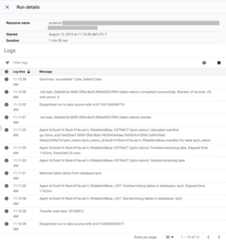
Track the progress of the migration
You can view the status of the migration in the Google Cloud console. Youcan also set up Pub/Sub or email notifications. SeeBigQuery Data Transfer Service notifications.
The BigQuery Data Transfer Service schedules and initiates a transfer run on a schedulespecified upon the creation of transfer configuration. It is important thatthe migration agent is running when a transfer run is active. If there are noupdates from the agent side within 24 hours, a transfer run fails.
Example of migration status in the Google Cloud console:
Upgrade the migration agent
If a new version of the migration agent is available,you must manually update the migration agent. To receive notices aboutthe BigQuery Data Transfer Service, subscribe to therelease notes.
What's next
- Try atest migration ofTeradata to BigQuery.
- Learn more about theBigQuery Data Transfer Service.
- Migrate SQL code with theBatch SQL translation.
Except as otherwise noted, the content of this page is licensed under theCreative Commons Attribution 4.0 License, and code samples are licensed under theApache 2.0 License. For details, see theGoogle Developers Site Policies. Java is a registered trademark of Oracle and/or its affiliates.
Last updated 2025-12-15 UTC.