

Build and use a classification model on census data
In this tutorial, you use a binarylogistic regression modelin BigQuery ML to predict the income range of individuals based on theirdemographic data. A binary logistic regression model predicts whether avalue falls into one of two categories, in this case whether an individual'sannual income falls above or below $50,000.
This tutorial uses thebigquery-public-data.ml_datasets.census_adult_incomedataset. This dataset contains the demographic and income information of USresidents from 2000 and 2010.
Objectives
In this tutorial you will perform the following tasks:- Create a logistic regression model.
- Evaluate the model.
- Make predictions by using the model.
- Explain the results produced by the model.
Costs
This tutorial uses billable components of Google Cloud, including the following:
- BigQuery
- BigQuery ML
For more information on BigQuery costs, see theBigQuery pricing page.
For more information on BigQuery ML costs, seeBigQuery ML pricing.
Before you begin
In the Google Cloud console, on the project selector page, select or create a Google Cloud project.
Roles required to select or create a project
- Select a project: Selecting a project doesn't require a specific IAM role—you can select any project that you've been granted a role on.
- Create a project: To create a project, you need the Project Creator role (
roles/resourcemanager.projectCreator), which contains theresourcemanager.projects.createpermission.Learn how to grant roles.
Verify that billing is enabled for your Google Cloud project.
Enable the BigQuery API.
Roles required to enable APIs
To enable APIs, you need the Service Usage Admin IAM role (
roles/serviceusage.serviceUsageAdmin), which contains theserviceusage.services.enablepermission.Learn how to grant roles.
Required permissions
To create the model using BigQuery ML, you need the followingIAM permissions:
bigquery.jobs.createbigquery.models.createbigquery.models.getDatabigquery.models.updateDatabigquery.models.updateMetadata
To run inference, you need the following permissions:
bigquery.models.getDataon the modelbigquery.jobs.create
Introduction
A common task in machine learning is to classify data into one of two types,known as labels. For example, a retailer might want to predict whether a givencustomer will purchase a new product, based on other information about thatcustomer. In that case, the two labels might bewill buy andwon't buy. Theretailer can construct a dataset such that one column represents both labels,and also contains customer information such as the customer's location, theirprevious purchases, and their reported preferences. The retailer can then use abinary logistic regression model that uses this customer information to predictwhich label best represents each customer.
In this tutorial, you create a binary logistic regression model that predictswhether a US Census respondent's income falls into one of two ranges based onthe respondent's demographic attributes.
Create a dataset
Create a BigQuery dataset to store your model:
In the Google Cloud console, go to theBigQuery page.
In the left pane, clickExplorer:

If you don't see the left pane, clickExpand left pane to open the pane.
In theExplorer pane, click your project name.
ClickView actions > Create dataset.
On theCreate dataset page, do the following:
ForDataset ID, enter
census.ForLocation type, selectMulti-region, and then selectUS (multiple regions in United States).
The public datasets are stored in the
USmulti-region. Forsimplicity, store your dataset in the same location.Leave the remaining default settings as they are, and clickCreate dataset.
Examine the data
Examine the dataset and identify which columns to use astraining data for the logistic regression model. Select 100 rows from thecensus_adult_income table:
SQL
In the Google Cloud console, go to theBigQuery page.
In the query editor, run the following GoogleSQL query:
SELECTage,workclass,marital_status,education_num,occupation,hours_per_week,income_bracket,functional_weightFROM`bigquery-public-data.ml_datasets.census_adult_income`LIMIT100;
The results look similar to the following:

BigQuery DataFrames
Before trying this sample, follow the BigQuery DataFrames setup instructions in theBigQuery quickstart using BigQuery DataFrames. For more information, see theBigQuery DataFrames reference documentation.
To authenticate to BigQuery, set up Application Default Credentials. For more information, seeSet up ADC for a local development environment.
importbigframes.pandasasbpddf=bpd.read_gbq("bigquery-public-data.ml_datasets.census_adult_income",columns=("age","workclass","marital_status","education_num","occupation","hours_per_week","income_bracket","functional_weight",),max_results=100,)df.peek()# Output:# age workclass marital_status education_num occupation hours_per_week income_bracket functional_weight# 47 Local-gov Married-civ-spouse 13 Prof-specialty 40 >50K 198660# 56 Private Never-married 9 Adm-clerical 40 <=50K 85018# 40 Private Married-civ-spouse 12 Tech-support 40 >50K 285787# 34 Self-emp-inc Married-civ-spouse 9 Craft-repair 54 >50K 207668# 23 Private Married-civ-spouse 10 Handlers-cleaners 40 <=50K 40060The query results show that theincome_bracket column in thecensus_adult_income table has only one of two values:<=50K or>50K.
Prepare the sample data
In this tutorial, you predict census respondent income based on values of thefollowing columns in thecensus_adult_income table:
age: the age of the respondent.workclass: class of work performed. For example local government, private,or self-employed.marital_statuseducation_num: the respondent's higheset level of education.occupationhours_per_week: hours worked per week.
You exclude columns that duplicate data. For example, theeducation column,because theeducation andeducation_num column values express thesame data in different formats.
Thefunctional_weight column is the number of individuals that the censusorganization believes a particular row represents. Because the value of thiscolumn is unrelated to the value of theincome_bracket for any given row, youuse the value in this column to separate the data into training, evaluation,and prediction sets by creating a newdataframe column that is derived fromthefunctional_weight column. You label 80% of the data for training themodel, 10% of data for evaluation, and 10% of the data for prediction.
SQL
Create aview a view with the sample data.This view is used by theCREATE MODEL statement later in this tutorial.
Run the query that prepares the sample data:
In the Google Cloud console, go to theBigQuery page.
In the query editor, run the following query:
CREATEORREPLACEVIEW`census.input_data`ASSELECTage,workclass,marital_status,education_num,occupation,hours_per_week,income_bracket,CASEWHENMOD(functional_weight,10)<8THEN'training'WHENMOD(functional_weight,10)=8THEN'evaluation'WHENMOD(functional_weight,10)=9THEN'prediction'ENDASdataframeFROM`bigquery-public-data.ml_datasets.census_adult_income`;
View the sample data:
SELECT*FROM`census.input_data`;
BigQuery DataFrames
Create aDataFrame calledinput_data. You useinput_data later inthis tutorial to use to train the model, evaluate it, and make predictions.
Before trying this sample, follow the BigQuery DataFrames setup instructions in theBigQuery quickstart using BigQuery DataFrames. For more information, see theBigQuery DataFrames reference documentation.
To authenticate to BigQuery, set up Application Default Credentials. For more information, seeSet up ADC for a local development environment.
importbigframes.pandasasbpdinput_data=bpd.read_gbq("bigquery-public-data.ml_datasets.census_adult_income",columns=("age","workclass","marital_status","education_num","occupation","hours_per_week","income_bracket","functional_weight",),)input_data["dataframe"]=bpd.Series("training",index=input_data.index,).case_when([(((input_data["functional_weight"]%10)==8),"evaluation"),(((input_data["functional_weight"]%10)==9),"prediction"),])delinput_data["functional_weight"]Create a logistic regression model
Create a logistic regression model with the training data you labeled in theprevious section.
SQL
Use theCREATE MODEL statementand specifyLOGISTIC_REG for the model type.
The following are useful things to know about theCREATE MODEL statement:
The
input_label_colsoption specifies which column in theSELECTstatement to use as the labelcolumn. Here, the label column isincome_bracket, so the model learnswhich of the two values ofincome_bracketis most likely for a given rowbased on the other values present in that row.It is not necessary to specify whether a logistic regression model is binaryor multiclass. BigQuery ML determines which type of model totrain based on the number of unique values in the label column.
The
auto_class_weightsoption is set toTRUEin order to balance the class labels in the trainingdata. By default, the training data is unweighted. If the labels in thetraining data are imbalanced, the model may learn to predict the mostpopular class of labels more heavily. In this case, most of the respondentsin the dataset are in the lower income bracket. This may lead to a modelthat predicts the lower income bracket too heavily. Class weights balancethe class labels by calculating the weights for each class in inverseproportion to the frequency of that class.The
enable_global_explainoptionis set toTRUEin order to let youuse theML.GLOBAL_EXPLAINfunction on the modellater in the tutorial.The
SELECTstatementqueries theinput_dataview that contains the sample data. TheWHEREclause filters the rows so that only those rows labeled astraining data are used to train the model.
Run the query that creates your logistic regression model:
In the Google Cloud console, go to theBigQuery page.
In the query editor, run the following query:
CREATEORREPLACEMODEL`census.census_model`OPTIONS(model_type='LOGISTIC_REG',auto_class_weights=TRUE,enable_global_explain=TRUE,data_split_method='NO_SPLIT',input_label_cols=['income_bracket'],max_iterations=15)ASSELECT*EXCEPT(dataframe)FROM`census.input_data`WHEREdataframe='training'
In the left pane, clickExplorer:
In theExplorer pane, clickDatasets.
In theDatasets pane, click
census.Click theModels tab.
Click
census_model.TheDetails tab lists the attributesthat BigQuery ML used to perform logistic regression.
BigQuery DataFrames
Use thefitmethod to train the model and theto_gbqmethod to save it to your dataset.
Before trying this sample, follow the BigQuery DataFrames setup instructions in theBigQuery quickstart using BigQuery DataFrames. For more information, see theBigQuery DataFrames reference documentation.
To authenticate to BigQuery, set up Application Default Credentials. For more information, seeSet up ADC for a local development environment.
importbigframes.ml.linear_model# input_data is defined in an earlier step.training_data=input_data[input_data["dataframe"]=="training"]X=training_data.drop(columns=["income_bracket","dataframe"])y=training_data["income_bracket"]census_model=bigframes.ml.linear_model.LogisticRegression(# Balance the class labels in the training data by setting# class_weight="balanced".## By default, the training data is unweighted. If the labels# in the training data are imbalanced, the model may learn to# predict the most popular class of labels more heavily. In# this case, most of the respondents in the dataset are in the# lower income bracket. This may lead to a model that predicts# the lower income bracket too heavily. Class weights balance# the class labels by calculating the weights for each class in# inverse proportion to the frequency of that class.class_weight="balanced",max_iterations=15,)census_model.fit(X,y)census_model.to_gbq(your_model_id,# For example: "your-project.census.census_model"replace=True,)Evaluate the model's performance
After creating the model, evaluate the model's performance against theevaluation data.
SQL
TheML.EVALUATE functionfunction evaluates the predicted values generated by the model against theevaluation data.
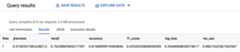
For input, theML.EVALUATE function takes the trained model and the rowsfrom theinput_data view that haveevaluation as thedataframe columnvalue. The function returns a single row of statistics about the model.
Run theML.EVALUATE query:
In the Google Cloud console, go to theBigQuery page.
In the query editor, run the following query:
SELECT*FROMML.EVALUATE(MODEL`census.census_model`,(SELECT*FROM`census.input_data`WHEREdataframe='evaluation'));
The results look similar to the following:
BigQuery DataFrames
Use thescoremethod to evaluate model against the actual data.
Before trying this sample, follow the BigQuery DataFrames setup instructions in theBigQuery quickstart using BigQuery DataFrames. For more information, see theBigQuery DataFrames reference documentation.
To authenticate to BigQuery, set up Application Default Credentials. For more information, seeSet up ADC for a local development environment.
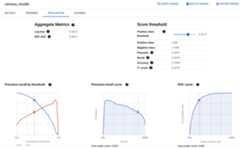
# Select model you'll use for predictions. `read_gbq_model` loads model# data from BigQuery, but you could also use the `census_model` object# from previous steps.census_model=bpd.read_gbq_model(your_model_id,# For example: "your-project.census.census_model")# input_data is defined in an earlier step.evaluation_data=input_data[input_data["dataframe"]=="evaluation"]X=evaluation_data.drop(columns=["income_bracket","dataframe"])y=evaluation_data["income_bracket"]# The score() method evaluates how the model performs compared to the# actual data. Output DataFrame matches that of ML.EVALUATE().score=census_model.score(X,y)score.peek()# Output:# precision recall accuracy f1_score log_loss roc_auc# 0 0.685764 0.536685 0.83819 0.602134 0.350417 0.882953You can also look at the model'sEvaluation pane in the Google Cloud consoleto view the evaluation metrics calculated during the training:
Predict the income bracket
Use the model to predict the most likely income bracket for each respondent.
SQL
Use theML.PREDICT functionto make predictions about the likely income bracket. For input, theML.PREDICT function takes the trained model and the rows from theinput_data view that haveprediction as thedataframe column value.
Run theML.PREDICT query:
In the Google Cloud console, go to theBigQuery page.
In the query editor, run the following query:
SELECT*FROMML.PREDICT(MODEL`census.census_model`,(SELECT*FROM`census.input_data`WHEREdataframe='prediction'));
The results look similar to the following:
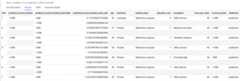
Thepredicted_income_bracket column contains the predicted income bracketfor the respondent.
BigQuery DataFrames
Use thepredictmethod to make predictions about the likely income bracket.
Before trying this sample, follow the BigQuery DataFrames setup instructions in theBigQuery quickstart using BigQuery DataFrames. For more information, see theBigQuery DataFrames reference documentation.
To authenticate to BigQuery, set up Application Default Credentials. For more information, seeSet up ADC for a local development environment.
# Select model you'll use for predictions. `read_gbq_model` loads model# data from BigQuery, but you could also use the `census_model` object# from previous steps.census_model=bpd.read_gbq_model(your_model_id,# For example: "your-project.census.census_model")# input_data is defined in an earlier step.prediction_data=input_data[input_data["dataframe"]=="prediction"]predictions=census_model.predict(prediction_data)predictions.peek()# Output:# predicted_income_bracket predicted_income_bracket_probs age workclass ... occupation hours_per_week income_bracket dataframe# 18004 <=50K [{'label': ' >50K', 'prob': 0.0763305999358786... 75 ? ... ? 6 <=50K prediction# 18886 <=50K [{'label': ' >50K', 'prob': 0.0448866871906495... 73 ? ... ? 22 >50K prediction# 31024 <=50K [{'label': ' >50K', 'prob': 0.0362982319421936... 69 ? ... ? 1 <=50K prediction# 31022 <=50K [{'label': ' >50K', 'prob': 0.0787836112058324... 75 ? ... ? 5 <=50K prediction# 23295 <=50K [{'label': ' >50K', 'prob': 0.3385373037905673... 78 ? ... ? 32 <=50K predictionExplain the prediction results
To understand why the model is generating these prediction results, you can usetheML.EXPLAIN_PREDICT function.
ML.EXPLAIN_PREDICT is an extended version of theML.PREDICT function.ML.EXPLAIN_PREDICT not only outputs prediction results, but also outputsadditional columns to explain the prediction results. For more informationabout explainability, seeBigQuery ML explainable AI overview.
Run theML.EXPLAIN_PREDICT query:
In the Google Cloud console, go to theBigQuery page.
In the query editor, run the following query:
SELECT*FROMML.EXPLAIN_PREDICT(MODEL`census.census_model`,(SELECT*FROM`census.input_data`WHEREdataframe='evaluation'),STRUCT(3astop_k_features));
The results look similar to the following:
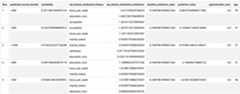
ML.EXPLAIN_PREDICT query outputs all the input feature columns,similar to whatML.PREDICT does. For readability purposes, only one feature column,age, is shown in the preceding figure.For logistic regression models,Shapleyvalues are used to determine relativefeature attribution for each feature in the model. Because thetop_k_featuresoption was set to3 in the query,ML.EXPLAIN_PREDICT outputs the top threefeature attributions for each row of theinput_data view. These attributionsare shown in descending order by the absolute value of the attribution.
Globally explain the model
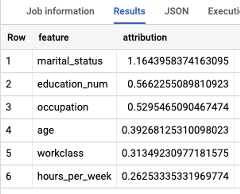
To know which features are the most important to determine the income bracket,use theML.GLOBAL_EXPLAIN function.
Get global explanations for the model:
In the Google Cloud console, go to theBigQuery page.
In the query editor, run the following query to get global explanations:
SELECT*FROMML.GLOBAL_EXPLAIN(MODEL`census.census_model`)
The results look similar to the following:
Clean up
To avoid incurring charges to your Google Cloud account for the resources used in this tutorial, either delete the project that contains the resources, or keep the project and delete the individual resources.
Delete your dataset
Deleting your project removes all datasets and all tables in the project. If youprefer to reuse the project, you can delete the dataset you created in thistutorial:
If necessary, open the BigQuery page in theGoogle Cloud console.
In the navigation, click thecensus dataset you created.
ClickDelete dataset on the right side of the window.This action deletes the dataset and the model.
In theDelete dataset dialog, confirm the delete command by typingthe name of your dataset (
census) and then clickDelete.
Delete your project
To delete the project:
What's next
- For an overview of BigQuery ML, seeIntroduction to BigQuery ML.
- For information on creating models, see the
CREATE MODELsyntax page.
Except as otherwise noted, the content of this page is licensed under theCreative Commons Attribution 4.0 License, and code samples are licensed under theApache 2.0 License. For details, see theGoogle Developers Site Policies. Java is a registered trademark of Oracle and/or its affiliates.
Last updated 2026-02-19 UTC.