

Translate queries with the interactive SQL translator
This document describes how to translate a query from a different SQL dialectinto a GoogleSQL query by using the BigQueryinteractive SQL translator. The interactive SQL translator can helpreduce time and effort when you migrate workloads to BigQuery.This document is intended for users who are familiar with theGoogle Cloud console.
If yourlocation is supported, you can use thetranslation rule featureto customize the way the interactive SQL translator translates SQL.
Before you begin
If your Google Cloud CLI project was created before February 15, 2022, enablethe BigQuery Migration API as follows:
In the Google Cloud console, go to theBigQuery Migration API page.
ClickEnable.
Permissions and roles
This section describes theIdentity and Access Management (IAM) permissionsthat you need in order to use the interactive SQL translator, includingthepredefined IAM rolesthat grant those permissions. The section also describes the permissions neededto configure additional translation configurations.
Permissions to use the interactive SQL translator
To get the permissions that you need to use the interactive translator, ask your administrator to grant you theMigrationWorkflow Editor (roles/bigquerymigration.editor) IAM role on theparent resource. For more information about granting roles, seeManage access to projects, folders, and organizations.
This predefined role contains the permissions required to use the interactive translator. To see the exact permissions that are required, expand theRequired permissions section:
Required permissions
The following permissions are required to use the interactive translator:
bigquerymigration.workflows.createbigquerymigration.workflows.get
You might also be able to get these permissions withcustom roles or otherpredefined roles.
Permissions to configure additional translation configurations
You can configure additional translation configurations using theTranslationConfig ID andTranslation Configuration Source Location fields in thetranslation settings. To configure these translation configurations, you needthe following permissions:
bigquerymigration.workflows.getbigquerymigration.workflows.list
The following predefined IAM role provide the permissions that you needto configure additional translation configurations:
roles/bigquerymigration.viewer
For more information aboutBigQuery IAM, seeAccess control with IAM.
Supported SQL dialects
The BigQuery interactive SQL translator can translate thefollowing SQL dialects into GoogleSQL:
- Amazon Redshift SQL
- Apache HiveQL and Beeline CLI
- IBM Netezza SQL and NZPLSQL
- Teradata and Teradata Vantage:
- SQL
- Basic Teradata Query (BTEQ)
- Teradata Parallel Transport (TPT)
Additionally, translation of the following SQL dialects is supported inpreview:
- Apache Impala SQL
- Apache Spark SQL
- Azure Synapse T-SQL
- GoogleSQL (BigQuery)
- Greenplum SQL
- IBM DB2 SQL
- MySQL SQL
- Oracle SQL, PL/SQL, Exadata
- PostgreSQL SQL
- Trino or PrestoSQL
- Snowflake SQL
- SQL Server T-SQL
- SQLite
- Vertica SQL
Handling unsupported SQL functions with helper UDFs
When translating SQL from a source dialect to BigQuery, some functions might not have a direct equivalent. To address this, the BigQuery Migration Service (and the broader BigQuery community) provide helper user-defined functions (UDFs) that replicate the behavior of these unsupported source dialect functions.
These UDFs are often found in thebqutil public dataset, allowing translated queries to initially reference them using the formatbqutil.<dataset>.<function>(). For example,bqutil.fn.cw_count().
Important considerations for production environments:
Whilebqutil offers convenient access to these helper UDFs for initial translation and testing, direct reliance onbqutil for production workloads is not recommended for several reasons:
- Version control: The
bqutilproject hosts the latest version of these UDFs, which means their definitions can change over time. Relying directly onbqutilcould lead to unexpected behavior or breaking changes in your production queries if a UDF's logic is updated. - Dependency isolation: Deploying UDFs to your own project isolates your production environment from external changes.
- Customization: You might need to modify or optimize these UDFs to better suit your specific business logic or performance requirements. This is only possible if they are within your own project.
- Security and governance: Your organization's security policies might restrict direct access to public datasets like
bqutilfor production data processing. Copying UDFs to your controlled environment aligns with such policies.
Deploying helper UDFs to your project:
For reliable and stable production use, you should deploy these helper UDFs into your own project and dataset. This gives you full control over their version, customization, and access.For detailed instructions on how to deploy these UDFs, refer to theUDFs deployment guide on GitHub. This guide provides the necessary scripts and steps to copy the UDFs into your environment.
Locations
The interactive SQL translator is available in the followingprocessing locations:
| Region description | Region name | Details | |
|---|---|---|---|
| Asia Pacific | |||
| Delhi | asia-south2 | ||
| Hong Kong | asia-east2 | ||
| Jakarta | asia-southeast2 | ||
| Melbourne | australia-southeast2 | ||
| Mumbai | asia-south1 | ||
| Osaka | asia-northeast2 | ||
| Seoul | asia-northeast3 | ||
| Singapore | asia-southeast1 | ||
| Sydney | australia-southeast1 | ||
| Taiwan | asia-east1 | ||
| Tokyo | asia-northeast1 | ||
| Europe | |||
| Belgium | europe-west1 |  Low CO2 Low CO2 | |
| Berlin | europe-west10 | ||
| EU multi-region | eu | ||
| Finland | europe-north1 | Low CO2 | |
| Frankfurt | europe-west3 | ||
| London | europe-west2 | Low CO2 | |
| Madrid | europe-southwest1 | Low CO2 | |
| Milan | europe-west8 | ||
| Netherlands | europe-west4 | Low CO2 | |
| Paris | europe-west9 | Low CO2 | |
| Stockholm | europe-north2 | Low CO2 | |
| Turin | europe-west12 | ||
| Warsaw | europe-central2 | ||
| Zürich | europe-west6 | Low CO2 | |
| Americas | |||
| Columbus, Ohio | us-east5 | ||
| Dallas | us-south1 | Low CO2 | |
| Iowa | us-central1 | Low CO2 | |
| Las Vegas | us-west4 | ||
| Los Angeles | us-west2 | ||
| Mexico | northamerica-south1 | ||
| Northern Virginia | us-east4 | ||
| Oregon | us-west1 | Low CO2 | |
| Québec | northamerica-northeast1 | Low CO2 | |
| São Paulo | southamerica-east1 | Low CO2 | |
| Salt Lake City | us-west3 | ||
| Santiago | southamerica-west1 | Low CO2 | |
| South Carolina | us-east1 | ||
| Toronto | northamerica-northeast2 | Low CO2 | |
| US multi-region | us | ||
| Africa | |||
| Johannesburg | africa-south1 | ||
| MiddleEast | |||
| Dammam | me-central2 | ||
| Doha | me-central1 | ||
| Israel | me-west1 | ||
By default, thetranslation rulefeature is available in the following processing locations:
us(US multi-region)eu(EU multi-region)us-central1(Iowa)europe-west4(Netherlands)
Gemini-based translation configurations are only available in specific processing locations. For more information, seeGoogle model endpoint locations
Translate a query into GoogleSQL
Follow these steps to translate a query into GoogleSQL:
In the Google Cloud console, go to theBigQuery page.
In theEditor pane, clickMore, and then selectTranslation settings.
ForSource dialect, select the SQL dialect that you want to translate.
Optional. ForProcessing location, select the location where you want thetranslation job to run. For example, if you are in Europe and you don't wantyour data to cross any location boundaries, select the
euregion.ClickSave.
In theEditor pane, clickMore, and then selectEnable SQLtranslation.
TheEditor pane splits into two panes.
In the left pane, enter the query you want to translate.
ClickTranslate.
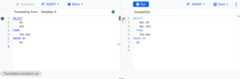
BigQuery translates your query into GoogleSQL and displays it in the rightpane. For example, the following screenshot shows translated Teradata SQL:
Optional: To run the translated GoogleSQL query, clickRun.
Optional: To return to the SQL editor, clickMore, and then selectDisable SQL translation.
TheEditor pane returns to a single pane.
Use Gemini with the interactive SQL translator
You can configure the interactive SQL translator to adjust how theinteractive SQL translator translates your source SQL. You can do so byproviding your own rules for use with Gemini in a YAML configurationfile, or by providing a configuration YAML file containingSQL object metadata or object mapping information.
Create and apply Gemini-enhanced translation rules
Note: To get support and provide feedback for preview features, contactai-sql-translation-help@google.com.You can customize the way the interactive SQL translatortranslates SQL by creating translation rules. The interactive SQL translatoradjusts its translations based on any Gemini-enhanced SQLtranslation rules that you assign to it, letting you customize the translationresults based on your migration needs. This feature is supported only in certainlocations.
To create a Gemini-enhanced SQL translation rule, you can eithercreate it in the console, or create a configuration YAML file and upload itto Cloud Storage.
Console
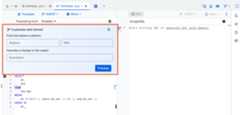
To create a Gemini-enhanced SQL translation rule for the inputSQL, write an input SQL query in the query editor,then clickASSIST>Customize. (Preview)
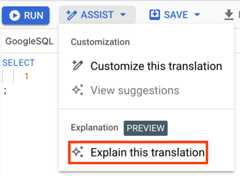
Similarly, to create a Gemini-enhanced SQL translation rulefor the output SQL, run an interactive translation, then clickASSIST>Customize this translation.
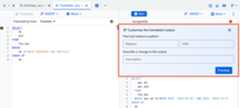
When theCustomize menu appears, continue with the following steps.
Use one or both of the following prompts to create a translation rule:
In theFind and replace a pattern prompt, specify a SQLpattern that you want to replace in theReplace field, and a SQL patternto replace it in theWith field.
A SQL pattern can contain any number of statements, clauses, or functionsin a SQL script. When you create a rule using this prompt, the Geminienhanced SQL translation identifies any instances of that SQL pattern inthe SQL query and dynamically replaces it with another SQLpattern. For example, you can use this prompt to create a rule thatreplaces all occurrences of
months_between (X,Y)withdate_diff(X,Y,MONTH).In theDescribe a change to the output field, typea change to the SQL translation output in natural language.
When you create a rule using this prompt, the Gemini-enhancedSQL translation identifies the request and makes the specifiedchange to the SQL query.
ClickPreview.
In theSuggestions generated by Gemini dialog, review the changes made by theGemini-enhanced SQL translation to the SQL query basedon your rule.
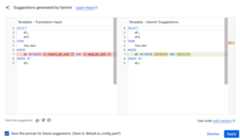
Optional: To add this rule for use with future translations, select theSave this prompt... checkbox.
Rules are saved in the default configuration YAML file, or
__default.ai_config.yaml. This configuration YAML file is saved to the Cloud Storage folder as specified in theTranslation Configuration Source Location field in thetranslation settings. If theTranslation Configuration Source Location isn't already set, a folder browser appears and lets you select one. A configuration YAML file is subject toconfiguration file size limitations.To apply the suggested changes to the SQL query, clickApply.
YAML
To create a Gemini-enhanced SQL translation rule, you cancreate a Gemini-based configuration YAML file and uploadit to Cloud Storage. For more information, seeCreate a Gemini-based configuration YAML file.
Once you have uploaded a Gemini-enhanced SQL translation ruleand uploaded it to Cloud Storage, you can apply the rule by doingthe following:
In the Google Cloud console, go to theBigQuery page.
In the query editor, clickMore> Translation settings.
In theTranslation Configuration Source Location field, specify the path to the Gemini-based YAML file stored in a Cloud Storage folder.
ClickSave.
Once saved, run an interactive translation. The interactive translator suggestschanges to your translations based on the rules in your configuration YAMLfile if one is available.
If a Geminisuggestion is available for the input based on your rule, then thePreview suggested changes dialog appears and shows possible changes tothe translation input. (Preview)
If a Gemini suggestion is available for the output based onyour rule, a notification banner appears in the codeeditor. To review and apply these suggestions, do the following:
ClickAssist>View suggestions on either side of the code editor to revisit the suggested changes to the corresponding query.
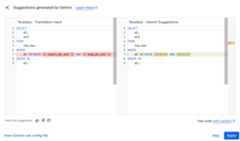
In theSuggestions generated by Gemini dialog, review the changes made by Gemini to the SQL query based on your translation rule.
To apply the suggested changes to the translation output, clickApply.
Update Gemini-based configuration YAML file
To update an existing configuration YAML file, do the following:
On theSuggestions generated in Gemini dialog, clickView Gemini rule config file.
When the configuration editor appears, select the configuration YAML file that youwant to edit.
Make the change and clickSave.
Close the YAML editor by clickingDone.
Run an interactive translation to apply the updated rule.
Explain a translation
Preview
This product or feature is subject to the "Pre-GA Offerings Terms" in the General Service Terms section of theService Specific Terms. Pre-GA products and features are available "as is" and might have limited support. For more information, see thelaunch stage descriptions.
Note: With Gemini-enhanced SQL translations, you can generate textexplanation for your scripts by the Gemini model.Gemini-enhanced SQL translations are allowed a limitedamount of Gemini usage at no charge. This usage issufficient for most migration projects. To request an increase to this limit,or to get support and provide feedback for this Preview feature, contactai-sql-translation-help@google.com.After running an interactive translation, you can request aGemini-generated text explanation. The generated text includes asummary of the translated SQL query. Gemini also identifiestranslation differences and inconsistencies between the source SQL query and thetranslated GoogleSQL query.
To get Gemini-generate SQL translation explanation, do thefollowing:
To create a Gemini-generated SQL translation explanation, clickAssist, and then clickExplain this translation.
Translate with a batch translation configuration ID
You can run an interactive query with the same translation configurations asa batch translation job by providing a batch translation configuration ID.
- In the query editor, clickMore> Translation settings.
In theTranslation Configuration ID field, provide a batch translationconfiguration ID to apply the same translation configuration from a completedBigQuery batch migration job.
To find a job's batch translation configuration ID, select a batchtranslation job from theSQL translation page, and then click theTranslation Configuration tab. The batch translation configurationID is listed asResource name.
ClickSave.
Translate with additional configurations
You can run an interactive query with additional translation configurationsby specifying configuration YAML filesstored on a Cloud Storage folder. Translation configurations might includeSQL object metadata or object mapping information from the source database thatcan improve translation quality. For example, include DDL information or schemasfrom the source database to improve interactive SQL translation quality.
To specify translation configurations by providing a location to the translationconfiguration source files, do the following:
- In the query editor, clickMore> Translation settings.
In theTranslation Configuration Source Location field, specify the pathto the translation configuration files stored in a Cloud Storage folder.
The BigQuery interactive SQL translator supportsmetadata ZIP files containingtranslation metadataandobject name mapping.For information on how to upload files to Cloud Storage, seeUpload objects from a filesystem.
ClickSave.
Configuration file size limitations
When you use a translation configuration file with the BigQueryinteractive SQL translator, the compressed metadata file or YAML config filemust be smaller than 50 MB. If the file size exceeds 50 MB, the interactivetranslator skips that configuration file during translation and produces anerror message similar to the following:
CONFIG ERROR: Skip reading file "gs://metadata-file.zip". File size (150,000,000 bytes)exceeds limit (50 MB).
One method to reduce metadata file size is to use the--database or--schemaflags to only extract metadata for databases or schemas that are relevant forthe translation input queries. For more information about using these flags whenyougenerate metadata files, seeGlobal flags.
Troubleshoot translation errors
The following are commonly encountered errors when using the interactive SQL translator.
RelationNotFound orAttributeNotFound translation issues
To ensure the most accurate translation,you can input the data definition language (DDL) statements for any tables usedin a query prior to the query itself. For example, if you wantto translate the Amazon Redshift queryselect table1.field1, table2.field1from table1, table2 where table1.id = table2.id;, you would input thefollowing SQL statements into the interactive SQL translator:
createtableschema1.table1(idint,field1int,field2varchar(16));createtableschema1.table2(idint,field1varchar(30),field2date);selecttable1.field1,table2.field1fromtable1,table2wheretable1.id=table2.id;Pricing
There is no charge to use the interactive SQL translator. However,storage used to store input and output files incurs the normal fees. For moreinformation, seeStorage pricing.
What's next
Learn more about the following steps in data warehouse migration:
- Migration overview
- Migration assessment
- Schema and data transfer overview
- Batch SQL translation
- Data pipelines
- Data security and governance
- Data validation tool
Except as otherwise noted, the content of this page is licensed under theCreative Commons Attribution 4.0 License, and code samples are licensed under theApache 2.0 License. For details, see theGoogle Developers Site Policies. Java is a registered trademark of Oracle and/or its affiliates.
Last updated 2025-12-15 UTC.