

Generate text with the AI.GENERATE function
This tutorial shows you how to generate text from text or multimodal databy using theAI.GENERATE function.With theAI.GENERATE function, you use aCloud resource connectionto connect to a hosted Gemini model so that you don't have tocreate and maintain a model of your own.
This tutorial shows you how to complete the following tasks:
- Summarize text content and output results in the function's defaultformat.
- Summarize text content and output structured results.
- Transcribe and translate video content.
- Analyze audio file content.
Costs
In this document, you use the following billable components of Google Cloud:
- BigQuery ML: You incur costs for the data that you process in BigQuery.
- Vertex AI: You incur costs for calls to the Vertex AI model.
To generate a cost estimate based on your projected usage, use thepricing calculator.
For more information about BigQuery pricing, seeBigQuery pricing inthe BigQuery documentation.
For more information about Vertex AI generative AI pricing,see theVertex AI pricingpage.
Before you begin
- Sign in to your Google Cloud account. If you're new to Google Cloud, create an account to evaluate how our products perform in real-world scenarios. New customers also get $300 in free credits to run, test, and deploy workloads.
In the Google Cloud console, on the project selector page, select or create a Google Cloud project.
Roles required to select or create a project
- Select a project: Selecting a project doesn't require a specific IAM role—you can select any project that you've been granted a role on.
- Create a project: To create a project, you need the Project Creator role (
roles/resourcemanager.projectCreator), which contains theresourcemanager.projects.createpermission.Learn how to grant roles.
Verify that billing is enabled for your Google Cloud project.
In the Google Cloud console, on the project selector page, select or create a Google Cloud project.
Roles required to select or create a project
- Select a project: Selecting a project doesn't require a specific IAM role—you can select any project that you've been granted a role on.
- Create a project: To create a project, you need the Project Creator role (
roles/resourcemanager.projectCreator), which contains theresourcemanager.projects.createpermission.Learn how to grant roles.
Verify that billing is enabled for your Google Cloud project.
- BigQuery is automatically enabled in new projects. To activate BigQuery in a pre-existing project, go to
Enable the BigQuery API.
Roles required to enable APIs
To enable APIs, you need the Service Usage Admin IAM role (
roles/serviceusage.serviceUsageAdmin), which contains theserviceusage.services.enablepermission.Learn how to grant roles.
Required roles
To use theAI.GENERATE function, you need thefollowing Identity and Access Management (IAM) roles:
- Create and use BigQuery datasets and tables:BigQuery Data Editor (
roles/bigquery.dataEditor) on your project. - Create, delegate, and use BigQuery connections:BigQuery Connections Admin (
roles/bigquery.connectionsAdmin) on yourproject. - Grant permissions to the connection's service account: Project IAM Admin(
roles/resourcemanager.projectIamAdmin) on the project that contains theVertex AI endpoint. - Create BigQuery jobs: BigQuery Job User(
roles/bigquery.jobUser) on your project.
These predefined roles contain the permissions required to perform the tasks inthis document. To see the exact permissions that are required, expand theRequired permissions section:
Required permissions
- Create a dataset:
bigquery.datasets.create - Create, delegate, and use a connection:
bigquery.connections.* - Set service account permissions:
resourcemanager.projects.getIamPolicyandresourcemanager.projects.setIamPolicy - Query table data:
bigquery.tables.getData
You might also be able to get these permissions withcustom roles or otherpredefined roles.
Create a dataset
Create a BigQuery dataset to store your ML model.
Console
In the Google Cloud console, go to theBigQuery page.
In theExplorer pane, click your project name.
ClickView actions > Create dataset
On theCreate dataset page, do the following:
ForDataset ID, enter
bqml_tutorial.ForLocation type, selectMulti-region, and then selectUS (multiple regions in United States).
Leave the remaining default settings as they are, and clickCreate dataset.
bq
To create a new dataset, use thebq mk commandwith the--location flag. For a full list of possible parameters, see thebq mk --dataset commandreference.
Create a dataset named
bqml_tutorialwith the data location set toUSand a description ofBigQuery ML tutorial dataset:bq --location=US mk -d \ --description "BigQuery ML tutorial dataset." \ bqml_tutorial
Instead of using the
--datasetflag, the command uses the-dshortcut.If you omit-dand--dataset, the command defaults to creating adataset.Confirm that the dataset was created:
bqls
API
Call thedatasets.insertmethod with a defineddataset resource.
{"datasetReference":{"datasetId":"bqml_tutorial"}}
BigQuery DataFrames
Before trying this sample, follow the BigQuery DataFrames setup instructions in theBigQuery quickstart using BigQuery DataFrames. For more information, see theBigQuery DataFrames reference documentation.
To authenticate to BigQuery, set up Application Default Credentials. For more information, seeSet up ADC for a local development environment.
importgoogle.cloud.bigquerybqclient=google.cloud.bigquery.Client()bqclient.create_dataset("bqml_tutorial",exists_ok=True)Create a connection
Create aCloud resource connectionand get the connection's service account. Create the connection in the samelocation as the dataset that you created in theprevious step.
Follow these steps to create a connection:
Go to theBigQuery page.
In theExplorer pane, clickAdd data:
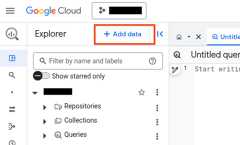
TheAdd data dialog opens.
In theFilter By pane, in theData Source Type section, selectBusiness Applications.
Alternatively, in theSearch for data sources field, you can enter
Vertex AI.In theFeatured data sources section, clickVertex AI.
Click theVertex AI Models: BigQuery Federation solution card.
In theConnection type list, selectVertex AI remote models, remote functions, BigLake and Spanner (Cloud Resource).
In theConnection ID field, type
test_connection.ClickCreate connection.
ClickGo to connection.
In theConnection info pane, copy the service account ID for use in thenext step.
Give the service account access
Grant the connection's service account the Vertex AI User role.
To grant the role, follow these steps:
Go to theIAM & Admin page.
ClickAdd.
TheAdd principals dialog opens.
In theNew principals field, enter the service account ID that youcopied earlier.
In theSelect a role field, selectVertex AI, and then selectVertex AI User.
ClickAdd another role.
In theSelect a role field, chooseCloud Storage, and thenselectStorage Object Viewer.
ClickSave.
Summarize text and use the default output format
Follow these steps to generate text using theAI.GENERATE function,and output the results in theAI.GENERATE function's default format:
In the Google Cloud console, go to theBigQuery page.
In the query editor, run the following query:
WITHbbc_newsAS(SELECTbodyFROM`bigquery-public-data.bbc_news.fulltext`LIMIT5)SELECTAI.GENERATE(body,connection_id=>'us.test_connection')ASnewsFROMbbc_news;
The output is similar to the following:
+---------------------------------------------+------------------------------------+---------------+| news.result | news.full_response | news.status |+---------------------------------------------+------------------------------------+---------------+| This article presents a debate about the | {"candidates":[{"avg_logprobs": | || "digital divide" between rich and poor | -0.31465074559841777, content": | || nations. Here's a breakdown of the key.. | {"parts":[{"text":"This article.. | |+---------------------------------------------+------------------------------------+---------------+| This article discusses how advanced | {"candidates":[{"avg_logprobs": | || mapping technology is aiding humanitarian | -0.21313422900091983,"content": | || efforts in Darfur, Sudan. Here's a... | {"parts":[{"text":"This article.. | |+---------------------------------------------+------------------------------------+---------------+| ... | ... | ... |+---------------------------------------------+------------------------------------+---------------+
Summarize text and output structured results
Follow these steps to generate text using theAI.GENERATE function, and usetheAI.GENERATE function'soutput_schema argument to format the output:
In the Google Cloud console, go to the BigQuery page.
In the query editor, run the following query:
WITHbbc_newsAS(SELECTbodyFROM`bigquery-public-data`.bbc_news.fulltextLIMIT5)SELECTnews.good_sentiment,news.summaryFROMbbc_news,UNNEST(ARRAY[AI.GENERATE(body,connection_id=>'us.test',output_schema=>'summary STRING, good_sentiment BOOL')])ASnews;
The output is similar to the following:
+----------------+--------------------------------------------+| good_sentiment | summary |+----------------+--------------------------------------------+| true | A World Bank report suggests the digital || | divide is rapidly closing due to increased || | access to technology in developing.. |+----------------+--------------------------------------------+| true | A review of sports games, focusing on the || | rivalry between EA Sports and ESPN, and || | the recent deal where EA acquired the.. |+----------------+--------------------------------------------+| ... | ... |+----------------+--------------------------------------------+
Transcribe and translate video content
Follow these steps to create an object table over public video content, and thentranscribe and translate a video:
In the Google Cloud console, go to the BigQuery page.
In the query editor, run the following query to create the object table:
CREATEORREPLACEEXTERNALTABLE`bqml_tutorial.video`WITHCONNECTION`us.test_connection`OPTIONS(object_metadata='SIMPLE',uris=['gs://cloud-samples-data/generative-ai/video/*']);
In the query editor, run the following query to transcribe and translatethe
pixel8.mp4file:SELECTAI.GENERATE((OBJ.GET_ACCESS_URL(ref,'r'),'Transcribe the video in Japanese and then translate to English.'),connection_id=>'us.test_connection',endpoint=>'gemini-2.5-flash',output_schema=>'japanese_transcript STRING, english_translation STRING').*EXCEPT(full_response,status)FROM`bqml_tutorial.video`WHEREREGEXP_CONTAINS(uri,'pixel8.mp4');
The output is similar to the following:
+--------------------------------------------+--------------------------------+| english_translation | japanese_transcript |+--------------------------------------------+--------------------------------+| My name is Saeka Shimada. I'm a | 島田 さえか です 。 東京 で フ || photographer in Tokyo. Tokyo has many | ォトグラファー を し て い ま || faces. The city at night is totally... | す 。 東京 に は いろんな 顔 が |+--------------------------------------------+--------------------------------+
Analyze audio file content
Follow these steps to create an object table over public audio content, and thenanalyze the content of the audio files.
In the Google Cloud console, go to the BigQuery page.
In the query editor, run the following query to create the object table:
CREATEORREPLACEEXTERNALTABLE`bqml_tutorial.audio`WITHCONNECTION`us.test_connection`OPTIONS(object_metadata='SIMPLE',uris=['gs://cloud-samples-data/generative-ai/audio/*']);
In the query editor, run the following query to analyze the audio files:
SELECTAI.GENERATE((OBJ.GET_ACCESS_URL(ref,'r'),'Summarize the content of this audio file.'),connection_id=>'us.test_connection',endpoint=>'gemini-2.5-flash',output_schema=>'topic ARRAY<STRING>, summary STRING').*EXCEPT(full_response,status),uriFROM`bqml_tutorial.audio`;
The results look similar to the following:
+--------------------------------------------+-----------------------------------------------------------+| summary | topic | uri |+--------------------------------------------+-----------------------------------------------------------+| The audio contains a distinctive 'beep' | beep sound | gs://cloud-samples-data/generativ... || sound, followed by the characteristic | | || sound of a large vehicle or bus backing.. | | |+--------------------------------------------+--------------------+--------------------------------------+| | vehicle backing up | || +--------------------+ || | bus | || +--------------------+ || | alarm | |+--------------------------------------------+--------------------+--------------------------------------+| The speaker introduces themselves | Introduction | gs://cloud-samples-data/generativ... || as Gemini and expresses their excitement | | || and readiness to dive into something.. | | |+--------------------------------------------+--------------------+--------------------------------------+| | Readiness | || +--------------------+ || | Excitement | || +--------------------+ || | Collaboration | |+--------------------------------------------+--------------------+--------------------------------------+| ... | ... | ... |+--------------------------------------------+--------------------+--------------------------------------+
Clean up
Except as otherwise noted, the content of this page is licensed under theCreative Commons Attribution 4.0 License, and code samples are licensed under theApache 2.0 License. For details, see theGoogle Developers Site Policies. Java is a registered trademark of Oracle and/or its affiliates.
Last updated 2026-02-19 UTC.