

Load Facebook Ads data into BigQuery
You can load data from Facebook Ads to BigQuery using theBigQuery Data Transfer Service for Facebook Ads connector. With theBigQuery Data Transfer Service, you can schedule recurring transfer jobs thatadd your latest data from your Facebook Ads toBigQuery.
Connector overview
The BigQuery Data Transfer Service for the Facebook Ads connector supports the following options for your data transfer.
| Data transfer options | Support |
|---|---|
| Supported reports | The BigQuery Data Transfer Service for Facebook Ads supports the transfer of the following Facebook Ads reports:
For information about how Facebook Ads reports are transformed into BigQuery tables and views, seeFacebook Ads report transformation. |
| Repeat frequency | The Facebook Ads connector supports daily data transfers. By default, data transfers are scheduled at the time when the data transfer is created. You can configure the time of data transfer when youset up your data transfer. |
| Refresh window | The Facebook Ads connector retrieves Facebook Ads data from up to 30 days at the time the data transfer is run. You cannot configure the refresh window for this connector. For more information, seeRefresh windows. |
| Backfill data availability | Run a data backfill to retrieve data outside of your scheduled data transfer. You can retrieve data as far back as the data retention policy on your data source allows. |
Limitations
Facebook Ads data transfers are subject to the following limitations:
- The minimum interval time between recurring Facebook Ads data transfers is24 hours. The default interval for a recurring data transfer is 24 hours.
- The BigQuery Data Transfer Service for Facebook Ads only supports a fixed setof tables. Custom reports aren't supported.
- Facebook Ads data transfers have a maximum duration of six hours. Atransfer fails if it takes longer than this maximum duration.
- Incremental transfers aren't supported for
AdInsightsandAdInsightsActionstables. When you create a data transfer that includesAdInsightsandAdInsightsActionstables, and you specified a date inSchedule options, all data that is available for that date istransferred. - The BigQuery Data Transfer Service supports a refresh window of up to 30 days to the
AdInsightsandAdInsightsActionstables. The refresh window refers to thenumber of days that a data transfer will retrievesource data from. When you run a data transfer for the first time, thedata transfer retrieves all source data available within the refreshwindow. The long-lived user access token that is required for Facebook Adstransfers expires after 60 days.
If your long-lived user access token is expired,you can obtain the new one by navigating to your data transfer details andclickingEdit. In the edit transfer page, follow the same steps inFacebook Ads prerequisites to generatea new long-lived user access token.
To use a network attachment with this data transfer, you must firstcreate anetwork attachment by defining a static IPaddress.
If your configured network attachment and virtual machine (VM) instance arelocated in different regions, there might be cross-region data movement whenyou transfer data from Facebook Ads.
Data ingestion from Facebook Ads transfers
When you transfer data from Facebook Ads into BigQuery, thedata is loaded into BigQuery tables that are partitioned by date.The table partition that the data is loaded into corresponds to the date fromthe data source. If you schedule multiple transfers for the same date,BigQuery Data Transfer Service overwrites the partition for that specific date withthe latest data. Multiple transfers in the same day or running backfills don'tresult in duplicate data, and partitions for other dates are not affected.ForAdInsights andAdInsightsActions tables, the table partition that thedata is loaded into corresponds to the date from the data source.
ForAdAccounts tables, snapshots are taken once a day and stored in thepartition of the last transfer run date. The refresh window does not apply totheAdAccounts table.
Refresh windows
Arefresh window is the number of days that a data transfer retrieves datawhen a data transfer occurs. For example, if the refresh window is three daysand a daily transfer occurs, the BigQuery Data Transfer Service retrieves all data fromyour source table from the past three days. In thisexample, when a daily transfer occurs, the BigQuery Data Transfer Service creates a newBigQuery destination table partition with a copy of your source table datafrom the current day, then automatically triggers backfill runs to update theBigQuery destination table partitions with your source table data from thepast two days. The automatically triggered backfill runs will either overwriteor incrementally update your BigQuery destination table,depending on whether or not incremental updates are supported in theBigQuery Data Transfer Service connector.
When you run a data transfer for the first time, the data transfer retrieves allsource data available within the refresh window. For example, if the refreshwindow is three days and you run the data transfer for the first time, theBigQuery Data Transfer Service retrieves all source data within three days.
To retrieve data outside the refresh window, such as historical data, or torecover data from any transfer outages or gaps, you can initiate or schedule abackfill run.
Before you begin
The following sections describe the steps that you need to take before youcreate a Facebook Ads data transfer.
Facebook Ads prerequisites
Ensure that you have the following Facebook Ads information whencreating a Facebook Ads data transfer.
| Facebook Ads parameters | Description |
|---|---|
clientID | The app ID name for the OAuth 2.0 client. |
clientSecret | The app secret for the OAuth 2.0 client. |
refreshToken | The long-lived user access token, also known as arefresh token. |
To obtain aclientID andclientSecret, perform thefollowing steps:
- Create a Facebook developer appwith the app type
Business. - In theFacebook App dashboard,clickApp Settings>Basic and findthe app ID and app secret that correspond to the app.
To obtain a long-lived user access token, also known as arefresh token,perform the following steps:
In the Google Cloud console, proceed with the steps tocreate a Facebook Ads transfer.
In theData Source Details section, copy the redirect URI listed aftertheRefresh Token field.
Click theFacebook App dashboard,then clickSet up in theFacebook login for Business section.
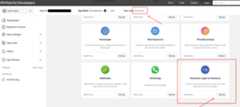
In theSettings page, enter the redirect URL in theValid OAuth Redirect URIs field and clickSave.
Return to the Google Cloud console. In theData Source Details section,clickAuthorize. You will be redirected to a Facebook authentication page.
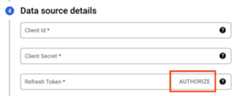
Select the Facebook developer app to authorize the account that connects with the BigQuery Data Transfer Service.
Once complete, clickGot it to return to the Google Cloud console. Thelong-lived user access token is now populated in the transfer configuration.
Long-lived user access tokens expire after 60 days. For information on how toobtain a new long-lived user access token, seeLimitations.
Refresh token alternatives
Alternatively, you can provide a refresh token when youcreate a data transferif you have obtained one using one of the following methods:
- Generate a long-lived user access token using the Graph API.The
ads_management,ads_read, andbusiness_managementpermissions arerequired for a valid token for the data transfer. - Generate a system user token.A system user token lets you manually add assets, such as ad accounts, to beincluded in the data transfer. If a system user token is expired, you mustmanually update the transfer configuration with new credentials. You alsohave the option to create a token that doesn't expire when you create a systemuser token. For more information, seeSupported access tokens.
BigQuery prerequisites
- Verify that you have completed all actions required toenable the BigQuery Data Transfer Service.
- Create a BigQuery datasetto store your data.
- If you intend to set up transfer run notifications for Pub/Sub,ensure that you have the
pubsub.topics.setIamPolicyIdentity and Access Management (IAM) permission. If you only set up email notifications, Pub/Sub permissions aren't required. For moreinformation, seeBigQuery Data Transfer Service run notifications.
Required BigQuery roles
To get the permissions that you need to create a BigQuery Data Transfer Service data transfer, ask your administrator to grant you theBigQuery Admin (roles/bigquery.admin) IAM role on your project. For more information about granting roles, seeManage access to projects, folders, and organizations.
This predefined role contains the permissions required to create a BigQuery Data Transfer Service data transfer. To see the exact permissions that are required, expand theRequired permissions section:
Required permissions
The following permissions are required to create a BigQuery Data Transfer Service data transfer:
- BigQuery Data Transfer Service permissions:
bigquery.transfers.updatebigquery.transfers.get
- BigQuery permissions:
bigquery.datasets.getbigquery.datasets.getIamPolicybigquery.datasets.updatebigquery.datasets.setIamPolicybigquery.jobs.create
You might also be able to get these permissions withcustom roles or otherpredefined roles.
For more information, seeGrantbigquery.admin access.
Create a Facebook Ads data transfer
Select one of the following options:
Console
Go to the Data transfers page in the Google Cloud console.
ClickCreate transfer.
In theSource type section, forSource, selectFacebook Ads.
In theData source details section, do the following:
- ForNetwork attachment, select a network attachment from the menu.Before you can use a network attachment with this data transfer, youmustcreate a network attachment by defining a static IP address.
- ForClient ID, enter the app ID.
- ForClient secret, enter the app secret.
- ForRefresh token, enter the long-lived user access token ID byclickingAuthorize. Alternatively, if youalready have a refresh token or a system user token,you can enter the refresh token directly in this field. For informationabout retrieving a long-lived user access token, seeFacebook Ads prerequisites.
- ForFacebook Ads objects to transfer: specify Facebook Adsreports or objects to include in this transfer.
- SelectFetch Data for Authorized Ad Accounts Only to only fromadvertising accounts that are authorized to yourFacebook App. You can find your authorized advertising accounts underApp Settings>Advanced, and in theAdvertisingaccounts section.
- ForActionsCollections, specify one or moreaction collections.
- ForGeneric Breakdowns, select the generic breakdowns for your insightsdata. These breakdowns determine how your transferred data is organizedin the
AdInsightsandAdInsightsActionstables. Facebook Adsonly permits certain combinations of breakdowns. For more informationabout permitted breakdown combinations, seeCombining breakdowns - ForAction Breakdowns, select the action breakdowns for your insightsdata. These breakdowns determine how your transferred data is organizedin the
AdInsightsActionstable. For informationabout combining breakdowns, seeCombining breakdowns. - ForRefresh window, specify arefresh windowduration.
In theDestination settings section, forDataset, select thedataset that you created to store your data.
In theTransfer config name section, forDisplay name, enter aname for the data transfer.
In theSchedule options section, do the following:
- In theRepeat frequency list, select an option to specify howoften this data transfer runs. To specify a custom repeat frequency,selectCustom. If you selectOn-demand, then this transferruns when youmanually trigger the transfer.
- If applicable, select eitherStart now orStart at set time,and provide a start date and run time.
Optional: In theNotification options section, do the following:
- To enable email notifications, click theEmail notificationtoggle. When you enable this option, the transfer administratorreceives an email notification when a transfer run fails.
- To enablePub/Sub transfer run notificationsfor this data transfer, click thePub/Sub notifications toggle. Youcan select yourtopic name, or you canclickCreate a topic to create one.
ClickSave.
When this data transfer runs, the BigQuery Data Transfer Service automatically populates thefollowing tables.
| Table Name | Description |
|---|---|
AdAccounts | The ad accounts available for a user. |
AdInsights | Ad insights report for all ad accounts. |
AdInsightsActions | Ad insights actions report for all ad accounts. |
bq
Enter thebq mk commandand supply the transfer creation flag--transfer_config:
bqmk--transfer_config--project_id=PROJECT_ID--data_source=DATA_SOURCE--display_name=DISPLAY_NAME--target_dataset=DATASET--params='PARAMETERS'
Where:
- PROJECT_ID (optional): your Google Cloud project ID.If
--project_idisn't supplied to specify a particular project, thedefault project is used. - DATA_SOURCE: the data source (for example,
facebook-ads). - DISPLAY_NAME: the display name for the data transferconfiguration. The transfer name can be any value that lets youidentify the transfer if you need to modify it later.
- DATASET: the target dataset for the data transfer configuration.
- PARAMETERS: the parameters for the created data transferconfiguration in JSON format. For example:
--params='{"param":"param_value"}'. The following are the parameters fora Facebook Ads transfer:connector.authentication.oauth.clientId: The app ID name for the OAuth 2.0 client.connector.authentication.oauth.clientSecret: The app secret for the OAuth 2.0 client.connector.authentication.oauth.refreshToken: The long-lived token ID.connector.authorizedAdAccountsOnly: If set totrue, the connector onlyretrieves data from advertising accounts that are authorized to yourFacebook App. You can find your authorized advertising accounts underApp Settings>Advanced, and in theAdvanced accounts section.connector.actionCollections: Action collections are objects that specify thedifferent types of actions people have taken in response to your ad. Fora full list ofactionCollectionsvalues, seeAction collections.- For more information, seeAd Insights.
connector.genericBreakdowns: Specify the generic breakdowns for your insightsdata. These breakdowns determine how your transferred data is organizedin theAdInsightsandAdInsightsActionstables. Facebook Adsonly permits certain combinations of breakdowns. For more informationabout permitted breakdown combinations, seeCombining breakdowns.actionBreakdowns: Specify the action breakdowns for your insightsdata. These breakdowns determine how your transferred data is organizedin theAdInsightsandAdInsightsActionstables. For informationabout combining breakdowns, seeCombining breakdowns.
For example, the following command creates a Facebook Ads data transfer in thedefault project with all the required parameters:
bqmk--transfer_config--target_dataset=mydataset--data_source=facebook_ads--display_name='My Transfer'--params='{"connector.authentication.oauth.clientId": "1650000000", "connector.authentication.oauth.clientSecret":"TBA99550", "connector.authentication.oauth.refreshToken":"abcdef", "connector.authorizedAdAccountsOnly":true, "connector.actionCollections":["Actions", "Conversions"], "connector.genericBreakdowns":["PublisherPlatform", "PlatformPosition"], "connector.actionBreakdowns":["ActionDevice", "ActionType"]}'
API
Use theprojects.locations.transferConfigs.createmethod and supply an instance of theTransferConfigresource.
To manually run a data transfer outside of your regular schedule, you can startabackfill run.
For information on how your transferred data maps to Meta API fields, seeFacebook Ads report transformation.
Action collections
Action collections are objects that specify the different types of actionspeople have taken in response to your ad. You can specify action collectionswhen youset up your transfer configuration.
Action collections represent the fields of thelist<AdsActionStats> typethat are present in theAd Account, Insights endpoint response.
When a transfer completes, these action collections are populated in theAdInsightsActions table.
The following is a list of action collections supported in a Facebook Adsdata transfer:
ActionValuesActionsAdClickActionsAdImpressionActionsCatalogSegmentActionsCatalogSegmentValueCatalogSegmentValueMobilePurchaseRoasCatalogSegmentValueOmniPurchaseRoasCatalogSegmentValueWebsitePurchaseRoasConversionValuesConversionsConvertedProductQuantityConvertedProductValueCostPer15_secVideoViewCostPer2SecContinuousVideoViewCostPerActionTypeCostPerAdClickCostPerConversionCostPerOneThousandAdImpressionCostPerOutboundClickCostPerThruplayCostPerUniqueActionTypeCostPerUniqueConversionCostPerUniqueOutboundClickInteractiveComponentTapMobileAppPurchaseRoasOutboundClicksOutboundClicksCtrPurchaseRoasUniqueActionsUniqueConversionsUniqueOutboundClicksUniqueOutboundClicksCtrUniqueVideoView15_secVideo15_secWatchedActionsVideo30_secWatchedActionsVideoAvgTimeWatchedActionsVideoContinuous2SecWatchedActionsVideoP100_watchedActionsVideoP25WatchedActionsVideoP50WatchedActionsVideoP75WatchedActionsVideoP95WatchedActionsVideoPlayActionsVideoPlayCurveActionsVideoPlayRetentionGraphActionsVideoTimeWatchedActionsWebsiteCtrWebsitePurchaseRoas
Combining breakdowns
Facebook Ads has restrictions on what columns can be selectedtogether. Using these restricted combinations will cause the data transfer tofail.
For more information about what breakdowns can be combined, seeCombining Breakdowns.
Troubleshoot transfer configuration
If you are having issues setting up a Facebook Ads data transfer, try thefollowing troubleshooting steps:
- Check if your user access token has expired using theFacebook Access Token Debugger. Long-lived user accesstokens expire after 60 days. If your long-lived user access token has expired,navigate to your transfer details then clickEdit to modify your transferconfiguration. In the edit transfer page, follow the same steps inFacebook Ads prerequisites to generate a new one.
Check that the long-lived user access token is generated with the requiredpermissions -
ads_management,ads_read, andbusiness_management. You cancheck the permissions on your long-lived user access token by entering thefollowing link into your browser:https://graph.facebook.com/me/permissions?access_token=TOKEN
WhereTOKEN is the value of the long-lived user access token.
If you don't have the required permissions, generate a new long-lived useraccess token by following the steps inFacebook Ads prerequisites.
Check theRequired Actions tab on theFacebook App dashboard for any itemsthat require attention.
You might encounter the following error messages related to Meta API rate limiterrors:
- Error:
There have been too many calls from this ad-account. Wait a bit and try again. - Resolution: Check that there are no parallel workflows using the same appsor credentials. If these errors persist, try upgrading your permissions toAdvanced Accessto get more rate limiting quota. For more information, seeMarketing API Rate Limiting.
Common monitoring metrics messages
You can also check theBigQuery Data Transfer Service monitoring metricsto determine the cause of a data transfer failure. The following table lists somecommonERROR_CODE messages for Facebook Ads data transfers.
| Error | Description |
|---|---|
INVALID_ARGUMENT | The supplied configuration is invalid. You might also encounter this error with the messageThis combination of action and generic breakdowns is not allowed. For information about valid breakdown combinations, seeCombining breakdowns. |
PERMISSION_DENIED | The credentials are invalid |
UNAUTHENTICATED | Authentication is required |
SERVICE_UNAVAILABLE | The service is temporarily unable to handle this data transfer |
DEADLINE_EXCEEDED | The data transfer did not finish within the maximum duration of six hours |
NOT_FOUND | A requested resource is not found |
INTERNAL | Something else caused the connector to fail |
FAILED_PRECONDITION | This error can appear with the messageThere was an issue connecting to Facebook Ads API. This error can occur when you include a network attachment with your transfer but have not configured your public network address translation (NAT) correctly. To resolve this error, follow the stepsto create your network attachment by defining a static IP address. |
RESOURCE_EXHAUSTED | A data source quota or limit was exhausted |
Pricing
For pricing information about Facebook Ads transfers, seeData Transfer Service pricing.
What's next
- Learn more about theBigQuery Data Transfer Service.
- Learn more aboutworking with transfers,such as viewing configurations and run history.
- Learn how toload data with cross-cloud operations.
Except as otherwise noted, the content of this page is licensed under theCreative Commons Attribution 4.0 License, and code samples are licensed under theApache 2.0 License. For details, see theGoogle Developers Site Policies. Java is a registered trademark of Oracle and/or its affiliates.
Last updated 2026-02-19 UTC.