

Create datasets
This document describes how to create datasets in BigQuery.
You can create datasets in the following ways:
- Using the Google Cloud console.
- Using a SQL query.
- Using the
bq mkcommand in the bq command-line tool. - Calling the
datasets.insertAPI method. - Using the client libraries.
- Copying an existing dataset.
To see steps for copying a dataset, including across regions, seeCopying datasets.
Copying datasets is currently inbeta.This document describes how to work with regular datasets that store data inBigQuery. To learn how to work with Spanner external datasetsseeCreate Spanner externaldatasets. To learn how to work withAWS Glue federated datasets seeCreate AWS Glue federateddatasets.
To learn to query tables in a public dataset, seeQuery a public dataset withthe Google Cloud console.
Dataset limitations
BigQuery datasets are subject to the following limitations:
- Thedataset location can only be set at creationtime. After a dataset is created, its location cannot be changed.
- All tables that are referenced in a query must be stored in datasets in thesame location.
External datasets don't support table expiration, replicas, time travel, default collation, default rounding mode, or the option to enable or disable case-insensitive table names.
Whenyou copy a table, thedatasets that contain the source table and destination table must reside inthe same location.
Dataset names must be unique for each project.
If you change a dataset'sstorage billing model, you must wait 14days before you can change the storage billing model again.
You can't enroll a dataset in physical storage billing if you have anyexisting legacyflat-rate slot commitmentslocated in the same region as the dataset.
Before you begin
Grant Identity and Access Management (IAM) roles that give users the necessary permissionsto perform each task in this document.
Required permissions
To create a dataset, you need thebigquery.datasets.createIAM permission.
Each of the following predefined IAM roles includes thepermissions that you need in order to create a dataset:
roles/bigquery.dataEditorroles/bigquery.dataOwnerroles/bigquery.userroles/bigquery.admin
For more information about IAM roles in BigQuery,seePredefined roles andpermissions.
Note: The creator of a dataset is automatically assigned theBigQuery Data Owner (roles/bigquery.dataOwner) roleon that dataset. So, a user or service account that has the ability to create adataset also has the ability to delete it, even though that permission wasn'texplicitly granted.Create datasets
To create a dataset:
Console
- Open the BigQuery page in the Google Cloud console. Go to the BigQuery page
- In the left pane, clickExplorer.
- Select the project where you want to create the dataset.
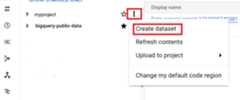
- ClickView actions, and then clickCreate dataset.
- On theCreate dataset page:
- ForDataset ID, enter a unique datasetname.
- ForLocation type, choose a geographiclocation for the dataset. After a dataset is created, the location can't be changed. Note: If you choose
- Optional: SelectLink to an external dataset if you're creating anexternal dataset.
- If you don't need to configure additional options such as tags and table expirations, clickCreate dataset. Otherwise, expand the following section to configure the additional dataset options.
- Optional: Expand theTags section to addtags to your dataset.
- To apply an existing tag, do the following:
- Click the drop-down arrow besideSelect scope and chooseCurrent scope—Select current organization orSelect current project.
- ForKey 1 andValue 1, choose the appropriate values from the lists.
- To manually enter a new tag, do the following:
- Click the drop-down arrow besideSelect a scope and chooseManually enter IDs>Organization,Project, orTags.
- If you're creating a tag for your project or organization, in the dialog, enter the
PROJECT_IDor theORGANIZATION_ID, and then clickSave. - ForKey 1 andValue 1, choose the appropriate values from the lists.
- To add additional tags to the table, clickAdd tag and follow the previous steps.
- Optional: Expand theAdvanced options section to configure one or more of the following options.
- To change theEncryption option to use your own cryptographic key with theCloud Key Management Service, selectCloud KMS key.
- To use case-insensitive table names, selectEnable case insensitive table names.
- To change theDefault collationspecification, choose the collation type from the list.
- To set an expiration for tables in the dataset, selectEnable table expiration, then specify theDefault maximum table age in days. Note: If your project is not associated with a billing account, BigQuery automatically sets the default table expiration for datasets that you create in the project. You can specify a shorter default table expiration for a dataset, but you can't specify a longer default table expiration.
- To set aDefault rounding mode, choose the rounding mode from the list.
- To enable the physicalStorage billing model, choose the billing model from the list.
- To set the dataset'stime travel window, choose the window size from the list.
- ClickCreate dataset.
EU or an EU-based region for the dataset location, your Core BigQuery Customer Data resides in the EU. Core BigQuery Customer Data is defined in theService Specific Terms.Additional options for datasets
Alternatively, clickSelect scope to search for a resource or to see a list of current resources.
When you change a dataset's billing model, it takes 24 hours for the change to take effect.
Once you change a dataset's storage billing model, you must wait 14 days before you can change the storage billing model again.
SQL
Use theCREATE SCHEMA statement.
To create a dataset in a project other than your default project, add theproject ID to the dataset ID in the following format:PROJECT_ID.DATASET_ID.
In the Google Cloud console, go to theBigQuery page.
In the query editor, enter the following statement:
CREATESCHEMAPROJECT_ID.DATASET_IDOPTIONS(default_kms_key_name='KMS_KEY_NAME',default_partition_expiration_days=PARTITION_EXPIRATION,default_table_expiration_days=TABLE_EXPIRATION,description='DESCRIPTION',labels=[('KEY_1','VALUE_1'),('KEY_2','VALUE_2')],location='LOCATION',max_time_travel_hours=HOURS,storage_billing_model=BILLING_MODEL);
Replace the following:
PROJECT_ID: your project IDDATASET_ID: the ID of the dataset that you're creatingKMS_KEY_NAME: the name of the default Cloud Key Management Service key used to protect newly created tables in this dataset unless a different key is supplied at the time of creation. You cannot create a Google-encrypted table in a dataset with this parameter set.PARTITION_EXPIRATION: the default lifetime (in days) for partitions in newly created partitioned tables. The default partition expiration has no minimum value. The expiration time evaluates to the partition's date plus the integer value. Any partition created in a partitioned table in the dataset is deletedPARTITION_EXPIRATIONdays after the partition's date. If you supply thetime_partitioning_expirationoption when you create or update a partitioned table, the table-level partition expiration takes precedence over the dataset-level default partition expiration.TABLE_EXPIRATION: the default lifetime (in days) for newly created tables. The minimum value is 0.042 days (one hour). The expiration time evaluates to the current time plus the integer value. Any table created in the dataset is deletedTABLE_EXPIRATIONdays after its creation time. This value is applied if you do not set a table expiration when youcreate the table.DESCRIPTION: a description of the datasetKEY_1:VALUE_1: the key-value pair that you want to set as the first label on this datasetKEY_2:VALUE_2: the key-value pair that you want to set as the second labelLOCATION: the dataset'slocation. After a dataset is created, the location can't be changed.Note: If you chooseEUor an EU-based region for the dataset location, your Core BigQuery Customer Data resides in the EU. Core BigQuery Customer Data is defined in theService Specific Terms.HOURS: the duration in hours of the time travel window for the new dataset. TheHOURSvalue must be an integer expressed in multiples of 24 (48, 72, 96, 120, 144, 168) between 48 (2 days) and 168 (7 days). 168 hours is the default if this option isn't specified.BILLING_MODEL: sets thestorage billing model for the dataset. Set theBILLING_MODELvalue toPHYSICALto use physical bytes when calculating storage charges, or toLOGICALto use logical bytes.LOGICALis the default.When you change a dataset's billing model, it takes 24 hours for the change to take effect.
Once you change a dataset's storage billing model, you must wait 14 days before you can change the storage billing model again.
ClickRun.
For more information about how to run queries, seeRun an interactive query.
bq
To create a new dataset, use thebq mk commandwith the--location flag. For a full list of possible parameters, see thebq mk --dataset commandreference.
To create a dataset in a project other than your default project, add theproject ID to the dataset name in the following format:PROJECT_ID:DATASET_ID.
bq--location=LOCATIONmk\--dataset\--default_kms_key=KMS_KEY_NAME\--default_partition_expiration=PARTITION_EXPIRATION\--default_table_expiration=TABLE_EXPIRATION\--description="DESCRIPTION"\--label=KEY_1:VALUE_1\--label=KEY_2:VALUE_2\--add_tags=KEY_3:VALUE_3[,...]\--max_time_travel_hours=HOURS\--storage_billing_model=BILLING_MODEL\PROJECT_ID:DATASET_ID
Replace the following:
LOCATION: the dataset'slocation.After a dataset is created, the location can't be changed. You can set adefault value for the location by using the.bigqueryrcfile.Note: If you chooseEU for the dataset location, your Core BigQuery Customer Data resides in the EU. Core BigQuery Customer Data is defined in theService Specific Terms.
KMS_KEY_NAME: the name of the default Cloud Key Management Servicekey used to protect newly created tables in this dataset unless adifferent key is supplied at the time of creation. You cannot create aGoogle-encrypted table in a dataset with this parameter set.PARTITION_EXPIRATION: the default lifetime (in seconds) forpartitions in newly created partitioned tables. The default partitionexpiration has no minimum value. The expiration time evaluates to thepartition's date plus the integer value. Any partition created in apartitioned table in the dataset is deletedPARTITION_EXPIRATIONseconds after the partition's date. Ifyou supply the--time_partitioning_expirationflag when you create orupdate a partitioned table, the table-level partition expiration takesprecedence over the dataset-level default partition expiration.TABLE_EXPIRATION: the default lifetime (in seconds) fornewly created tables. The minimum value is 3600 seconds (one hour). Theexpiration time evaluates to the current time plus the integer value. Anytable created in the dataset is deletedTABLE_EXPIRATIONseconds after its creation time. Thisvalue is applied if you don't set a table expiration when youcreate the table.DESCRIPTION: a description of the datasetKEY_1:VALUE_1: the key-valuepair that you want to set as the first label on this dataset, andKEY_2:VALUE_2is the key-valuepair that you want to set as the second label.KEY_3:VALUE_3: the key-valuepair that you want to set as a tag on the dataset. Add multiple tagsunder the same flag with commas between key:value pairs.HOURS: the duration in hours of the time travelwindow for the new dataset.TheHOURSvalue mustbe an integer expressed in multiples of 24 (48, 72, 96, 120, 144, 168)between 48 (2 days) and 168 (7 days). 168 hours is the defaultif this option isn't specified.BILLING_MODEL: sets thestorage billing modelfor the dataset. Set theBILLING_MODELvalue toPHYSICALto use physical bytes when calculating storagecharges, or toLOGICALto use logical bytes.LOGICALis the default.When you change a dataset's billing model, it takes 24 hours for the change to take effect.
Once you change a dataset's storage billing model, you must wait 14 days before you can change the storage billing model again.
PROJECT_ID: your project ID.DATASET_IDis the ID of the dataset that you'recreating.
For example, the following command creates a dataset namedmydataset with datalocation set toUS, a default table expiration of 3600 seconds (1 hour), and adescription ofThis is my dataset. Instead of using the--dataset flag, thecommand uses the-d shortcut. If you omit-d and--dataset, the commanddefaults to creating a dataset.
bq--location=USmk-d\--default_table_expiration3600\--description"This is my dataset."\mydataset
To confirm that the dataset was created, enter thebq ls command. Also,you can create a table when you create a new dataset using thefollowing format:bq mk -tdataset.table.For more information about creating tables, seeCreating a table.
Terraform
Use thegoogle_bigquery_datasetresource.
To authenticate to BigQuery, set up Application DefaultCredentials. For more information, seeSet up authentication for client libraries.
Create a dataset
The following example creates a dataset namedmydataset:
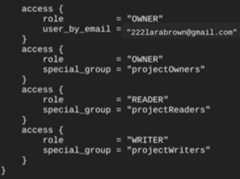
resource "google_bigquery_dataset" "default" { dataset_id = "mydataset" default_partition_expiration_ms = 2592000000 # 30 days default_table_expiration_ms = 31536000000 # 365 days description = "dataset description" location = "US" max_time_travel_hours = 96 # 4 days labels = { billing_group = "accounting", pii = "sensitive" }}When you create a dataset using thegoogle_bigquery_dataset resource,it automatically grants access to the dataset to all accounts that aremembers of project-levelbasic roles.If you run theterraform show commandafter creating the dataset, theaccess block for the dataset looks similar to thefollowing:
To grant access to the dataset, we recommend that you use one of thegoogle_bigquery_iam resources, as shown in the following example, unless you planto create authorized objects, such asauthorized views, within the dataset.In that case, use thegoogle_bigquery_dataset_access resource. Refer to that documentation for examples.
Create a dataset and grant access to it
The following example creates a dataset namedmydataset, then uses thegoogle_bigquery_dataset_iam_policy resource to grantaccess to it.
google_bigquery_dataset_accessresource. For examples, seegoogle_bigquery_dataset_access.resource "google_bigquery_dataset" "default" { dataset_id = "mydataset" default_partition_expiration_ms = 2592000000 # 30 days default_table_expiration_ms = 31536000000 # 365 days description = "dataset description" location = "US" max_time_travel_hours = 96 # 4 days labels = { billing_group = "accounting", pii = "sensitive" }}# Update the user, group, or service account# provided by the members argument with the# appropriate principals for your organization.data "google_iam_policy" "default" { binding { role = "roles/bigquery.dataOwner" members = [ "user:raha@altostrat.com", ] } binding { role = "roles/bigquery.admin" members = [ "user:raha@altostrat.com", ] } binding { role = "roles/bigquery.user" members = [ "group:analysts@altostrat.com", ] } binding { role = "roles/bigquery.dataViewer" members = [ "serviceAccount:bqcx-1234567891011-abcd@gcp-sa-bigquery-condel.iam.gserviceaccount.com", ] }}resource "google_bigquery_dataset_iam_policy" "default" { dataset_id = google_bigquery_dataset.default.dataset_id policy_data = data.google_iam_policy.default.policy_data}Create a dataset with a customer-managed encryption key
The following example creates a dataset namedmydataset, and also uses thegoogle_kms_crypto_keyandgoogle_kms_key_ringresources to specify a Cloud Key Management Service key for the dataset. You mustenable the Cloud Key Management Service API before running this example.
resource "google_bigquery_dataset" "default" { dataset_id = "mydataset" default_partition_expiration_ms = 2592000000 # 30 days default_table_expiration_ms = 31536000000 # 365 days description = "dataset description" location = "US" max_time_travel_hours = 96 # 4 days default_encryption_configuration { kms_key_name = google_kms_crypto_key.crypto_key.id } labels = { billing_group = "accounting", pii = "sensitive" } depends_on = [google_project_iam_member.service_account_access]}resource "google_kms_crypto_key" "crypto_key" { name = "example-key" key_ring = google_kms_key_ring.key_ring.id}resource "random_id" "default" { byte_length = 8}resource "google_kms_key_ring" "key_ring" { name = "${random_id.default.hex}-example-keyring" location = "us"}# Enable the BigQuery service account to encrypt/decrypt Cloud KMS keysdata "google_project" "project" {}resource "google_project_iam_member" "service_account_access" { project = data.google_project.project.project_id role = "roles/cloudkms.cryptoKeyEncrypterDecrypter" member = "serviceAccount:bq-${data.google_project.project.number}@bigquery-encryption.iam.gserviceaccount.com"}To apply your Terraform configuration in a Google Cloud project, complete the steps in the following sections.
Prepare Cloud Shell
- LaunchCloud Shell.
Set the default Google Cloud project where you want to apply your Terraform configurations.
You only need to run this command once per project, and you can run it in any directory.
export GOOGLE_CLOUD_PROJECT=PROJECT_ID
Environment variables are overridden if you set explicit values in the Terraform configuration file.
Prepare the directory
Each Terraform configuration file must have its own directory (alsocalled aroot module).
- InCloud Shell, create a directory and a new file within that directory. The filename must have the
.tfextension—for examplemain.tf. In this tutorial, the file is referred to asmain.tf.mkdirDIRECTORY && cdDIRECTORY && touch main.tf
If you are following a tutorial, you can copy the sample code in each section or step.
Copy the sample code into the newly created
main.tf.Optionally, copy the code from GitHub. This is recommended when the Terraform snippet is part of an end-to-end solution.
- Review and modify the sample parameters to apply to your environment.
- Save your changes.
- Initialize Terraform. You only need to do this once per directory.
terraform init
Optionally, to use the latest Google provider version, include the
-upgradeoption:terraform init -upgrade
Apply the changes
- Review the configuration and verify that the resources that Terraform is going to create or update match your expectations:
terraform plan
Make corrections to the configuration as necessary.
- Apply the Terraform configuration by running the following command and entering
yesat the prompt:terraform apply
Wait until Terraform displays the "Apply complete!" message.
- Open your Google Cloud project to view the results. In the Google Cloud console, navigate to your resources in the UI to make sure that Terraform has created or updated them.
API
Call thedatasets.insertmethod with a defineddataset resource.
C#
Before trying this sample, follow theC# setup instructions in theBigQuery quickstart using client libraries. For more information, see theBigQueryC# API reference documentation.
To authenticate to BigQuery, set up Application Default Credentials. For more information, seeSet up authentication for client libraries.
usingGoogle.Apis.Bigquery.v2.Data;usingGoogle.Cloud.BigQuery.V2;publicclassBigQueryCreateDataset{publicBigQueryDatasetCreateDataset(stringprojectId="your-project-id",stringlocation="US"){BigQueryClientclient=BigQueryClient.Create(projectId);vardataset=newDataset{// Specify the geographic location where the dataset should reside.Location=location};// Create the datasetreturnclient.CreateDataset(datasetId:"your_new_dataset_id",dataset);}}Go
Before trying this sample, follow theGo setup instructions in theBigQuery quickstart using client libraries. For more information, see theBigQueryGo API reference documentation.
To authenticate to BigQuery, set up Application Default Credentials. For more information, seeSet up authentication for client libraries.
import("context""fmt""cloud.google.com/go/bigquery")// createDataset demonstrates creation of a new dataset using an explicit destination location.funccreateDataset(projectID,datasetIDstring)error{// projectID := "my-project-id"// datasetID := "mydataset"ctx:=context.Background()client,err:=bigquery.NewClient(ctx,projectID)iferr!=nil{returnfmt.Errorf("bigquery.NewClient: %v",err)}deferclient.Close()meta:=&bigquery.DatasetMetadata{Location:"US",// See https://cloud.google.com/bigquery/docs/locations}iferr:=client.Dataset(datasetID).Create(ctx,meta);err!=nil{returnerr}returnnil}Java
Before trying this sample, follow theJava setup instructions in theBigQuery quickstart using client libraries. For more information, see theBigQueryJava API reference documentation.
To authenticate to BigQuery, set up Application Default Credentials. For more information, seeSet up authentication for client libraries.
importcom.google.cloud.bigquery.BigQuery;importcom.google.cloud.bigquery.BigQueryException;importcom.google.cloud.bigquery.BigQueryOptions;importcom.google.cloud.bigquery.Dataset;importcom.google.cloud.bigquery.DatasetInfo;publicclassCreateDataset{publicstaticvoidrunCreateDataset(){// TODO(developer): Replace these variables before running the sample.StringdatasetName="MY_DATASET_NAME";createDataset(datasetName);}publicstaticvoidcreateDataset(StringdatasetName){try{// Initialize client that will be used to send requests. This client only needs to be created// once, and can be reused for multiple requests.BigQuerybigquery=BigQueryOptions.getDefaultInstance().getService();DatasetInfodatasetInfo=DatasetInfo.newBuilder(datasetName).build();DatasetnewDataset=bigquery.create(datasetInfo);StringnewDatasetName=newDataset.getDatasetId().getDataset();System.out.println(newDatasetName+" created successfully");}catch(BigQueryExceptione){System.out.println("Dataset was not created. \n"+e.toString());}}}Node.js
Before trying this sample, follow theNode.js setup instructions in theBigQuery quickstart using client libraries. For more information, see theBigQueryNode.js API reference documentation.
To authenticate to BigQuery, set up Application Default Credentials. For more information, seeSet up authentication for client libraries.
// Import the Google Cloud client library and create a clientconst{BigQuery}=require('@google-cloud/bigquery');constbigquery=newBigQuery();asyncfunctioncreateDataset(){// Creates a new dataset named "my_dataset"./** * TODO(developer): Uncomment the following lines before running the sample. */// const datasetId = "my_new_dataset";// Specify the geographic location where the dataset should resideconstoptions={location:'US',};// Create a new datasetconst[dataset]=awaitbigquery.createDataset(datasetId,options);console.log(`Dataset${dataset.id} created.`);}createDataset();PHP
Before trying this sample, follow thePHP setup instructions in theBigQuery quickstart using client libraries. For more information, see theBigQueryPHP API reference documentation.
To authenticate to BigQuery, set up Application Default Credentials. For more information, seeSet up authentication for client libraries.
use Google\Cloud\BigQuery\BigQueryClient;/** Uncomment and populate these variables in your code */// $projectId = 'The Google project ID';// $datasetId = 'The BigQuery dataset ID';$bigQuery = new BigQueryClient([ 'projectId' => $projectId,]);$dataset = $bigQuery->createDataset($datasetId);printf('Created dataset %s' . PHP_EOL, $datasetId);Python
Before trying this sample, follow thePython setup instructions in theBigQuery quickstart using client libraries. For more information, see theBigQueryPython API reference documentation.
To authenticate to BigQuery, set up Application Default Credentials. For more information, seeSet up authentication for client libraries.
fromgoogle.cloudimportbigquery# Construct a BigQuery client object.client=bigquery.Client()# TODO(developer): Set dataset_id to the ID of the dataset to create.# dataset_id = "{}.your_dataset".format(client.project)# Construct a full Dataset object to send to the API.dataset=bigquery.Dataset(dataset_id)# TODO(developer): Specify the geographic location where the dataset should reside.dataset.location="US"# Send the dataset to the API for creation, with an explicit timeout.# Raises google.api_core.exceptions.Conflict if the Dataset already# exists within the project.dataset=client.create_dataset(dataset,timeout=30)# Make an API request.print("Created dataset{}.{}".format(client.project,dataset.dataset_id))Ruby
Before trying this sample, follow theRuby setup instructions in theBigQuery quickstart using client libraries. For more information, see theBigQueryRuby API reference documentation.
To authenticate to BigQuery, set up Application Default Credentials. For more information, seeSet up authentication for client libraries.
require"google/cloud/bigquery"defcreate_datasetdataset_id="my_dataset",location="US"bigquery=Google::Cloud::Bigquery.new# Create the dataset in a specified geographic locationbigquery.create_datasetdataset_id,location:locationputs"Created dataset:#{dataset_id}"endName datasets
When you create a dataset in BigQuery, the dataset name mustbe unique for each project. The dataset name can contain the following:
- Up to 1,024 characters.
- Letters (uppercase or lowercase), numbers, and underscores.
Dataset names are case-sensitive by default.mydataset andMyDataset cancoexist in the same project, unless one of them has case-sensitivityturned off. For examples, seeCreating a case-insensitive datasetandResource: Dataset.
Dataset names cannot contain spaces or special characters such as-,&,@,or%.
Hidden datasets
A hidden dataset is a dataset whose name begins with an underscore. You canquery tables and views in hidden datasets the same way you would in any otherdataset. Hidden datasets have the following restrictions:
- They are hidden from theExplorer panel in the Google Cloud console.
- They don't appear in any
INFORMATION_SCHEMAviews. - They can't be used withlinked datasets.
- They can't be used as a source dataset with the following authorized resources:
- They don't appear in Data Catalog (deprecated) or Dataplex Universal Catalog.
Dataset security
To control access to datasets in BigQuery, seeControlling access to datasets.For information about data encryption, seeEncryption at rest.
What's next
- For more information about listing datasets in a project, seeListing datasets.
- For more information about dataset metadata, seeGetting information about datasets.
- For more information about changing dataset properties, seeUpdating datasets.
- For more information about creating and managing labels, seeCreating and managing labels.
Try it for yourself
If you're new to Google Cloud, create an account to evaluate how BigQuery performs in real-world scenarios. New customers also get $300 in free credits to run, test, and deploy workloads.
Try BigQuery freeExcept as otherwise noted, the content of this page is licensed under theCreative Commons Attribution 4.0 License, and code samples are licensed under theApache 2.0 License. For details, see theGoogle Developers Site Policies. Java is a registered trademark of Oracle and/or its affiliates.
Last updated 2025-12-15 UTC.