

Analyze with BigQuery data canvas
This document describes how to use data canvas for data analysis.You can also manage data canvas metadata by usingDataplex Universal Catalog.
BigQuery data canvas, which is aGemini in BigQueryfeature, lets you find, transform, query, and visualize data by using naturallanguage prompts and a graphic interface for analysis workflows.
For analysis workflows, BigQuery data canvas uses adirected acyclicgraph (DAG), whichprovides a graphical view of your workflow. In BigQuery data canvas, youcan iterate on query results and work with multiple branches of inquiry in asingle place.
BigQuery data canvas is designed to accelerate analytics tasks and helpdata professionals such as data analysts, data engineers, and others with theirdata-to-insights journey. It doesn't require that you have technical knowledgeof specific tools, only basic familiarity with reading and writing SQL.BigQuery data canvas works withDataplex Universal Catalog metadata to identifyappropriate tables based on natural language.
BigQuery data canvas isn't intended for direct useby business users.
BigQuery data canvas uses Gemini in BigQueryto find your data, create SQL, generate charts, and create data summaries.
Learnhow and when Gemini for Google Cloud uses your data.
Capabilities
BigQuery data canvas lets you do the following:
Use natural language queries orkeyword search syntax withDataplex Universal Catalog metadata to find assets such as tables, views, ormaterialized views.
Use natural language for basic SQL queries such as the following:
- Queries that contain
FROMclauses, math functions, arrays, andstructs. JOINoperations for two tables.
- Queries that contain
Create custom visualizations by using natural language to describe what youwant.
Automate data insights.
Limitations
Natural language commands might not work well with the following:
- BigQuery ML
- Apache Spark
- Object tables
- BigLake
INFORMATION_SCHEMAviews- JSON
- Nested and repeated fields
- Complex functions and data types such as
DATETIMEandTIMEZONE
Data visualizations don't work with geomap charts.
Prompting best practices
With the right prompting techniques, you can generate complex SQL queries. Thefollowing suggestions help BigQuery data canvas refine your naturallanguage prompts to increase the accuracy of your queries:
Write with clarity. State your request clearly and avoid being vague.
Ask direct questions. For the most precise answer, ask one question at atime, and keep your prompts concise. If you initially gave a prompt with morethan one question, itemize each distinct part of the question so that it's clear toGemini.
Give focused and explicit instructions. Emphasize key terms in yourprompts.
Specify the order of operations. Provide instructions in a clear andordered manner. Divide tasks into small, focused steps.
Refine and iterate. Try different phrases and approaches to see whatyields the best results.
For more information, seePrompting best practices for BigQuery data canvas.
Before you begin
- Ensure that Gemini in BigQuery is enabled foryour Google Cloud project. Anadministrator typically performs this step.
- Ensure that you have thenecessary Identity and Access Management (IAM) permissionsto use BigQuery data canvas.
- To manage data canvas metadata in Dataplex Universal Catalog,ensure that theDataplex API is enabledin your Google Cloud project.
Required roles
To get the permissions that you need to use BigQuery data canvas, ask your administrator to grant you the following IAM roles on the project:
- BigQuery Studio User (
roles/bigquery.studioUser) - Gemini for Google Cloud User (
roles/cloudaicompanion.user)
For more information about granting roles, seeManage access to projects, folders, and organizations.
You might also be able to get the required permissions throughcustom roles or otherpredefined roles.
For more information about IAM roles and permissions inBigQuery, seeIntroduction to IAM.
To manage data canvas metadata in Dataplex Universal Catalog,ensure that you have the requiredDataplex Universal Catalog roles and thedataform.repositories.get permission.
roles/dataform.admin) on that data canvas. All users with theDataform Admin role granted on the Google Cloud project have owner access to allthe data canvases created in the project. To override this behavior, seeGrant a specific role upon resource creation.Node types
A canvas is a collection of one or more nodes. Nodes can beconnected in any order. BigQuery data canvas has the following node types:
- Text
- Search
- Table
- SQL
- Destination node
- Visualization
- Insights
Text node
In BigQuery data canvas, a text node lets you add rich text content to yourcanvas. It's useful for adding explanations, notes, or instructions to yourcanvas, making it easier for you and others to understand the context andpurpose of your analysis. You can enter any text content you want into the textnode editor, including Markdown for formatting. This ability lets you createvisually appealing and informative text blocks.
From the text node, you can do the following:
- Delete the node.
- Debug the node.
- Duplicate the node.
Search node
In BigQuery data canvas, a search node lets you find and incorporate dataassets into your canvas. It acts as a bridge between your natural languagequeries or keyword searches and the actual data you want to work with.
You provide a search query, either with natural language or using keywords. Thesearch node searches through your data assets. It leverages Dataplex Universal Catalogmetadata for enhanced context awareness. BigQuery data canvas alsosuggests recently used tables, queries, and saved queries.
The search node returns a list of relevant data assets that match your query. Itfactors in column names and table descriptions. You can then select the assetsyou want to add to your data canvas as table nodes, where you can furtheranalyze and visualize the data.
From the search node, you can do the following:
- Delete the node.
- Debug the node.
- Duplicate the node.
Table node
In BigQuery data canvas, a table node represents a specific table thatyou've incorporated into your analysis workflow. It represents the data you'reworking with and lets you interact with it directly.
A table node displays information about the table, such as its name, schema, anda preview of the data. You can interact with the table by viewing details suchas the table schema, table details, and a table preview.
From the table node, you can do the following:
- Delete the node.
- Debug the node.
- Duplicate the node.
- Run the node.
- Run the node and the following node.
Within the data canvas, you can do the following:
- Query the results in a new SQL node.
- Join the results to another table.
SQL node
In BigQuery data canvas, a SQL node lets you execute custom SQL queriesdirectly within your canvas. You can either write SQL code directly in the SQLnode editor or use a natural language prompt to generate the SQL.
The SQL node executes the provided SQL query against the specified data sources.The SQL node produces a result table, which can then be connected to other nodesin the canvas for further analysis or visualization. The outputs from theexecution of a SQL node, known as thequery result, can also be persisted totheir own table through adestination node.
After the query has run, you can export it as ascheduledquery,export the queryresults, orshare the canvas,similar torunning an interactivequery.
From the SQL node, you can do the following:
- Export the SQL statement as a scheduled query.
- Delete the node.
- Debug the node.
- Duplicate the node.
- Run the node.
- Run the node and the following node.
Within the data canvas, you can do the following:
- Query the results in a new SQL node.
- Save the results to a table.
- Visualize the results in a visualization node.
- Generate insights on the results in an insights node.
- Join the results to another table.
Destination node
In BigQuery data canvas, a destination node is a child of a SQL node thatpersists the result of a SQL execution to a dedicated table. Youcan save the table in a new or existing dataset, or as a new or existing tablein a dataset. After a destination table is created, use the SQL toggle button tokeep the table updated in real time when the parent SQL node is re-executed.
A destination node can become a table node when it's detached from its parentand the content of the table isn't affected by any upstream changes at theparent SQL node.
From the destination node, you can do the following:
- Detach the node from the parent to make it a standalone table node.
- Query the table in a new SQL node.
- Join the results to another table.
Visualization node
In BigQuery data canvas, a visualization node lets you display datavisually, making it easier to understand trends, patterns, and insights. Itprovides a variety of chart types to choose from, letting you select andcustomize the best visualization for your data.
A visualization node takes a table as input, which can be the result of a SQLquery or a table node. Based on the selected chart type and the data in theinput table, the visualization node generates a chart. You can selectAuto-Chart to let BigQuery select the best chart type foryour data. The visualization node then displays the generated chart.
The visualization node lets you customize your chart, including changing thecolors, labels, and data sources. You can also export the chart as a PNG file.
Visualize data by using the following graphic types:
- Bar chart
- Heat map
- Line graph
- Pie chart
- Scatter chart
From the visualization node, you can do the following:
- Export the chart as a PNG file.
- Debug the node.
- Duplicate the node.
- Run the node.
- Run the node and the following node.
Within the data canvas, you can do the following:
- Generate insights on the results in an insights node.
- Edit the visualization.
Insights node
In BigQuery data canvas, an insights node lets you generate insights andsummaries from the data within your data canvas. This helps you uncoverpatterns, assess data quality, and perform statistical analysis on your canvas.It identifies trends, patterns, anomalies, and correlations within your data, aswell as generates concise and clear summaries of the data analysisresults.
For more information about data insights, seeGenerate data insights inBigQuery.
From the insights node, you can do the following:
- Delete the node.
- Duplicate the node.
- Run the node.
Use BigQuery data canvas
You can use BigQuery data canvas in the Google Cloud console, a query, ora table.
Go to theBigQuery page.
In the query editor, next toSQL query, clickCreate new, and then clickData canvas.
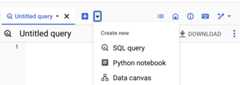
In theNatural language prompt field, enter a natural language prompt.
For example, if you enter
Find me tables related to trees,BigQuery data canvas returns a list of possible tables, includingpublic datasets likebigquery-public-data.usfs_fia.plot_treeorbigquery-public-data.new_york_trees.tree_species.Select a table.
A table node for the selected table is added to BigQuery data canvas.To view schema information, view table details, or preview the data, selectthe various tabs in the table node.
Optional: After you save the data canvas, use the following toolbar to viewdata canvas details or theversion history, add new comments,or reply to or get a link to an existing comment:
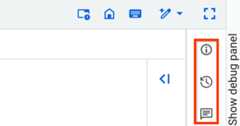
TheComments toolbar feature is inPreview. Toprovide feedback or request support for this feature, send an email tobqui-workspace-pod@google.com.
The following examples demonstrate different ways to useBigQuery data canvas in analysis workflows.
Example workflow: Find, query, and visualize data
In this example, you use natural language prompts in BigQuery data canvasto find data, generate a query, and edit the query. Then, you create a chart.
Prompt 1: Find data
In the Google Cloud console, go theBigQuery page.
In the query editor, next toSQL query, clickCreate new, and then clickData canvas.
ClickSearch for data.
Clickfilter_listEdit searchfilters, and then, in theFilter search pane, click theBigQuerypublic datasets toggle to the on position.
In theNatural language prompt field, enter the following natural language prompt:
Chicago taxi tripsBigQuery data canvas generates a list of potential tables based onDataplex Universal Catalog metadata. You can select multiple tables.
Select
bigquery-public-data.chicago_taxi_trips.taxi_tripstable, and thenclickAdd to canvas.A table node for
taxi_tripsis added to BigQuery data canvas. Toview schema information, view table details, or preview the data, selectthe various tabs in the table node.
Prompt 2: Generate a SQL query in the selected table
As an early-stage technology, Gemini for Google Cloud products can generate output that seems plausible but is factually incorrect. We recommend that you validate all output from Gemini for Google Cloud products before you use it. For more information, seeGemini for Google Cloud and responsible AI.
To generate a SQL query for thebigquery-public-data.chicago_taxi_trips.taxi_trips table, do the following:
In the data canvas, clickQuery.
In theNatural language prompt field, enter the following:
Get me the 100 longest tripsBigQuery data canvas generates a SQL query similar to the following:
SELECTtaxi_id,trip_start_timestamp,trip_end_timestamp,trip_milesFROM`bigquery-public-data.chicago_taxi_trips.taxi_trips`ORDERBYtrip_milesDESCLIMIT100;
Prompt 3: Edit the query
To edit the query that you generated, you can manually edit the query, or youcan change the natural language prompt and regenerate the query. In thisexample, you use a natural language prompt to edit the query to select onlytrips where the customer paid with cash.
In theNatural language prompt field, enter the following:
Get me the 100 longest trips where the payment type is cashBigQuery data canvas generates a SQL query similar to the following:
SELECTtaxi_id,trip_start_timestamp,trip_end_timestamp,trip_milesFROM`PROJECT_ID.chicago_taxi_trips_123123.taxi_trips`WHEREpayment_type='Cash'ORDERBYtrip_milesDESCLIMIT100;
In the preceding example,
PROJECT_IDis the ID ofyour Google Cloud project.To view the results of the query, clickRun.
Create a chart
- In the data canvas, clickVisualize.
ClickCreate bar chart.
BigQuery data canvas creates a bar chart showing the most trip milesby trip ID. Along with providing a chart, BigQuery data canvassummarizes some of the key details of the data backing the visualization.
Optional: Do one or more of the following:
- To modify the chart, clickEdit, and then editthe chart in theEdit visualization pane.
- To share the data canvas, clickShare, then clickShare Linkto copy BigQuery data canvas link.
- To clean up the data canvas, selectMore actions, andthen selectClear canvas.This step results in a blank canvas.
Example workflow: Join tables
In this example, you use natural language prompts inBigQuery data canvas to find data and join tables. Then, you export aquery as a notebook.
Prompt 1: Find data
In theNatural language prompt field, enter the following prompt:
Information about treesBigQuery data canvas suggests several tables that have informationabout trees.
For this example, select the
bigquery-public-data.new_york_trees.tree_census_1995table, and then clickAdd to canvas.The table is displayed on the canvas.
Prompt 2: Join the tables on their address
On the data canvas, clickJoin.
BigQuery data canvas suggests tables to join.
To open a newNatural language prompt field, clickSearch fortables.
In theNatural language prompt field, enter the following prompt:
Information about treesSelect the
bigquery-public-data.new_york_trees.tree_census_2005table, andthen clickAdd to canvas.The table is displayed on the canvas.
On the data canvas, clickJoin.
In theOn this canvas section, select theTable cell checkbox, andthen clickOK.
In theNatural language prompt field, enter the following prompt:
Join on addressBigQuery data canvas suggests the SQL query to join these two tableson their address:
SELECT*FROM`bigquery-public-data.new_york_trees.tree_census_2015`ASt2015JOIN`bigquery-public-data.new_york_trees.tree_census_1995`ASt1995ONt2015.address=t1995.address;
To run the query and view the results, clickRun.
Export query as a notebook
BigQuery data canvas lets you export your queries as a notebook.
- In the data canvas, clickExport as notebook.
- In theSave Notebook pane, enter the name for the notebook and theregion where you want to save it.
- ClickSave. The notebook is created successfully.
- Optional: To view the created notebook, clickOpen.
Example workflow: Edit a chart by using a prompt
In this example, you use natural language prompts in BigQuery data canvasto find, query, and filter data, and then edit visualization details.
Prompt 1: Find data
To find data about US names, enter the following prompt:
Find data about USA namesBigQuery data canvas generates a list of tables.
For this example, select the
bigquery-public-data.usa_names.usa_1910_currenttable, and thenclickAdd to canvas.
Prompt 2: Query the data
To query the data, in the data canvas, clickQuery, and thenenter the following prompt:
Summarize this dataBigQuery data canvas generates a query similar to the following:
SELECTstate,gender,year,name,numberFROM`bigquery-public-data.usa_names.usa_1910_current`
ClickRun. The query results are displayed.
Prompt 3: Filter the data
- In the data canvas, clickQuery these results.
To filter the data, in theSQL prompt field, enter the followingprompt:
Get me the top 10 most popular names in 1980BigQuery data canvas generates a query similar to the following:
SELECTname,SUM(number)AStotal_countFROM`bigquery-public-data`.usa_names.usa_1910_currentWHEREyear=1980GROUPBYnameORDERBYtotal_countDESCLIMIT10;
When you run the query, you get a table with the ten most common names ofchildren born in 1980.
Create and edit a chart
In the data canvas, clickVisualize.
BigQuery data canvas suggests several visualization options, includinga bar chart, pie chart, line graph, and custom visualization.
For this example, clickCreate bar chart.
BigQuery data canvas creates a bar chart similar to the following:
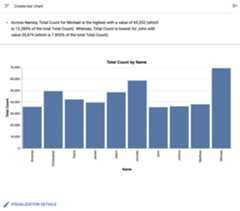
Along with providing a chart, BigQuery data canvas summarizes some of the key detailsof the data backing the visualization. You can modify the chart by clickingVisualization details and editing your chart in the side panel.
Prompt 4: Edit visualization details
In theVisualization prompt field, enter the following:
Create a bar chart sorted high to low, with a gradientBigQuery data canvas creates a bar chart similar to the following:
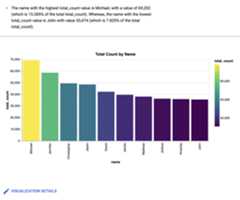
Optional: To make further changes, clickEdit.
TheEdit visualization pane is displayed. You can edit detailssuch as the chart title, x-axis name, and y-axis name. Also, ifyou click theJSON Editor tab, you can directly edit the chartbased on the JSON values.
Work with a Gemini assistant
Preview
This product or feature is subject to the "Pre-GA Offerings Terms" in the General Service Terms section of theService Specific Terms. Pre-GA products and features are available "as is" and might have limited support. For more information, see thelaunch stage descriptions.
Note: To provide feedback or request support for this feature, send an email todatacanvas-feedback@google.com.You can use a Gemini-powered chat experience to work withBigQuery data canvas. The chat assistant can create nodes based on yourrequests, run queries, and create visualizations. You can choose tables for theassistant to work with, and you can add instructions to the assistant to directits behavior. The assistant works with new or existing data canvases.
To work with the Gemini assistant, do the following:
- To open the assistant, on the data canvas, clicksparkOpen Data Canvas Assistant.
In theAsk a data question field, enter a natural languageprompt—for example, one of the following:
Show me interesting statistics of my data.Make a chart based on my data, sorted high to low.I want to see sample data from my table.
The response includes a node or nodes based on the request. For example,if you ask the assistant to create a chart of your data, it creates avisualization node on the data canvas.
When you click theAsk a data question field, you can alsodo the following:
- To add data, clickSettings.
- To add instructions, clickSettings.
To continue working with the assistant, add additional natural languageprompts.
You can continue to make natural language prompts as you work with your datacanvas.
Add data
When you work with the Gemini chat interface, you can add data sothat the assistant knows which dataset to reference. The assistant asks you toselect a table before you run any prompts. When you search for data within theassistant, you can limit the scope of the searchable data to all projects,starred projects, or your current project. You can also decide whether toinclude public datasets in your search.
To add data to the Gemini assistant, do the following:
- To open the assistant, on the data canvas, clicksparkOpen Data Canvas Assistant.
- ClickSettings, and then clickAdd Data.
- Optional: To expand the search results to include public datasets, click thePublic datasets toggle to the on position.
- Optional: To change the scope of the search results to different projects,select the appropriate project option from theScope menu.
- Select the checkbox for each of the tables that you want to add to the assistant.
- To search for tables that aren't suggested by the assistant, clickSearchfor tables.
- In theNatural language prompt field, enter a prompt describing whattable you are looking for, and then pressEnter.
- Select the checkbox for each of the tables you want to add to the assistant,and then clickOk.
- Close theCanvas assistant settings pane.
The assistant bases its analysis on the data you choose.
Add instructions
When you work with the Gemini chat interface, you can addinstructions so that the assistant knows how to behave. These instructions areapplied to all prompts within the data canvas. Examples of potential instructionsinclude the following:
Visualize trends over time.Chart colors: Red (negative), Green (positive)Domain: USA
To add instructions to the assistant, do the following:
- To open the assistant, on the data canvas, clicksparkOpen Data Canvas Assistant.
- ClickSettings.
- In theInstructions field, add a list of your instructions for theassistant, and then close theCanvas assistant settings pane.
The assistant remembers the instructions and applies them to future prompts.
Gemini assistant best practices
To get the best results when working with the BigQuery data canvasassistant, follow these best practices:
Be specific and unambiguous. Clearly state what you want to calculate,analyze, or visualize. For example, instead of
Analyze trip data, sayCalculate the average trip duration for trips starting in council districteight.Ensure accurate data context. The assistant can only work with the datayou provide. Ensure all relevant tables and columns have been added to thecanvas.
Start simply, then iterate. Begin with a straightforward question toensure the assistant understands the basic structure and data. For example,first say
Show total trips by, and then saysubscriber_typeShow total trips by.subscriber_typeand break down the result bycouncil_districtBreak down complex questions. For multi-step processes, consider phrasingyour prompt clearly with distinct parts, or using separate prompts for eachmajor step. For example, say
First, find the top five busiest stations bytrip count. Second, calculate the average trip duration for trips startingfrom only those top five stations.Clearly state calculations. Specify the chosen calculation, such as
SUM,MAX, orAVERAGE. For example, sayFind the.MAXtrip duration perbike_idUse system instructions for persistent context and preferences. Usesystem instructions to state information rules, andpreferences that apply across all prompts.
Review the canvas. Always review the generated nodes to verify that thelogic aligns with your request and the results are accurate.
Experiment. Try different phrasing, levels of detail, and promptstructures to learn how the assistant responds to your specific data andanalytical needs.
Reference column names. Whenever possible, use the actual column namesfrom your selected data. For example, instead of
Show trips bysubscriber type, sayShow the count of trips grouped by.subscriber_typeandstart_station_name
Example workflow: Work with a Gemini assistant
In this example, you use natural language prompts with the Gemini assistant to find, query, and visualize data.
In the Google Cloud console, go theBigQuery page.
In the query editor, next toSQL query, clickCreate new, and then clickData canvas.
ClickSearch for data.
Clickfilter_listEdit searchfilters, and then, in theFilter search pane, click theBigQuerypublic datasets toggle to the on position.
In theNatural language prompt field, enter the following natural language prompt:
bikeshareBigQuery data canvas generates a list of potential tables based onDataplex Universal Catalog metadata. You can select multiple tables.
Select
bigquery-public-data.austin_bikeshare.bikeshare_stationstable andbigquery-public-data.austin_bikeshare.bikeshare_trips, and thenclickAdd to canvas.A table node for each of the selected tables is added to BigQuery data canvas. Toview schema information, view table details, or preview the data, selectthe various tabs in the table node.
To open the assistant, on the data canvas, clicksparkOpen Data Canvas Assistant.
ClickSettings.
In theInstructions field, add the following instructions for theassistant:
Tasks: - Visualize findings with charts - Show many charts per question - Make sure to cover each part via a separate line of reasoningClose theCanvas assistant settings pane.
In theAsk a data question field, enter the following natural languageprompt:
Show the number of trips by council district and subscriber typeYou can continue to enter prompts in theAsk a data question field. Enterthe following natural language prompt:
What are most popular stations among the top 5 subscriber typesEnter the final prompt:
What station is least used to start and end a tripOnce you've asked all of the relevant prompts, your canvas is populated with therelevant query and visualization nodes according to the prompts and instructionsyou gave the assistant. Continue to enter prompts or modify existing prompts toget the results you are looking for.
View all data canvases
To view a list of all data canvases in your project, do the following:
In the Google Cloud console, go to theBigQuery page.
In the left pane, clickExplorer:

If you don't see the left pane, clickExpand left pane to open the pane.
In theExplorer pane,clickView actions next toData canvases, and then do one of the following:
- To open the list in the current tab, clickShow all.
- To open the list in a new tab, clickShow all in> New tab.
- To open the list in a split tab, clickShow all in> Split tab.
View data canvas metadata
To view data canvas metadata, do the following:
In the Google Cloud console, go to theBigQuery page.
In the left pane, clickExplorer:
In theExplorer pane, expand your project and clickData canvases.
Click the name of the data canvas you want to view metadata for.
Click
 Detailsto see information about the data canvas such as theregionit uses and the date it was last modified.
Work with data canvas versions
You can choose to create a data canvas either inside of or outside ofarepository. Data canvas versioningis handled differently based on where the data canvas is located.
Data canvas versioning in repositories
Repositories are Git repositories that reside either in BigQueryor with a third-party provider. You can useworkspaces in repositories to performversion control on data canvases. For more information, seeUse version control with a file.
Data canvas versioning outside of repositories
You can view, compare, and restore versions of a data canvas.
View and compare data canvas versions
To view different versions of a data canvas and compare them with the currentversion, do the following:
In the Google Cloud console, go to theBigQuery page.
In the left pane, clickExplorer:
In theExplorer pane, expand your project and clickData canvases.
Click the name of the data canvas that you want to view version history for.
ClickVersion historyto see a list of the data canvas versions indescending order by date.
ClickView actionsnext to a data canvas version and then clickCompare.The comparison pane opens, comparing the data canvas version that youselected with the current data canvas version.
Optional: To compare the versions inline instead of in separate panes,clickCompare and then clickInline.
Restore a data canvas version
Restoring from the comparison pane lets you compare the previous version ofthe data canvas to the current version before choosing whether to restore it.
In the left pane, clickExplorer:
In theExplorer pane, expand your project and clickData canvases.
Click the name of the data canvas that you want to restore a previous version of.
ClickVersion history.
ClickView actions next to the version of the data canvas that you want torestore, and then clickCompare.
The comparison pane opens, comparing the data canvasversion that you selected with the most recent data canvas version.
To restore the previous data canvas version aftercomparison, clickRestore.
ClickConfirm.
Manage metadata in Dataplex Universal Catalog
Dataplex Universal Catalog lets you view andmanage metadata for data canvases. Data canvases are available inDataplex Universal Catalog by default, without additional configuration.
You can use Dataplex Universal Catalog to manage data canvasesin allBigQuery locations.Managing data canvases in Dataplex Universal Catalogis subject toDataplex Universal Catalog quotas and limitsandDataplex Universal Catalog pricing.
Dataplex Universal Catalog automatically retrievesthe following metadata from data canvases:
- Data asset name
- Data asset parent
- Data asset location
- Data asset type
- Corresponding Google Cloud project
Dataplex Universal Catalog logs data canvases asentries with the followingentry values:
- System entry group
- Thesystem entry groupfor data canvases is
@dataform. To view details of data canvas entriesin Dataplex Universal Catalog, you need to view thedataformsystem entry group.For instructions about how to view a list of all entries in an entry group, seeView details of an entry groupin the Dataplex Universal Catalog documentation. - System entry type
- Thesystem entry typefor data canvases is
dataform-code-asset. To view details of data canvases,you need to view thedataform-code-assetsystem entry type,filter the results with an aspect-based filter,andset thetypefield insidedataform-code-assetaspect toDATA_CANVAS.Then, select an entry of the selected data canvas.For instructions about how to view details of a selected entry type, seeView details of an entry typein the Dataplex Universal Catalog documentation.For instructions about how to view details of a selected entry, seeView details of an entryin the Dataplex Universal Catalog documentation. - System aspect type
- Thesystem aspect typefor data canvases is
dataform-code-asset. Toprovide additional context to data canvases in Dataplex Universal Catalogby annotating data canvas entries withaspects,view thedataform-code-assetaspect type,filter the results with an aspect-based filter,andset thetypefield insidedataform-code-assetaspect toDATA_CANVAS.For instructions about how to annotate entries with aspects, seeManage aspects and enrich metadatain the Dataplex Universal Catalog documentation. - Type
- The type for data canvases is
DATA_CANVAS.This type lets you filter data canvases in thedataform-code-assetsystem entry type and thedataform-code-assetaspect type by using theaspect:dataplex-types.global.dataform-code-asset.type=DATA_CANVASquery in anaspect-based filter.
For instructions about how to search for assets in Dataplex Universal Catalog, seeSearch for data assets in Dataplex Universal Catalogin the Dataplex Universal Catalog documentation.
Pricing
For details about pricing for this feature, seeGemini in BigQuery pricing overview.
Quotas and limits
For information about quotas and limits for this feature, seeQuotas for Gemini in BigQuery.
Locations
You can use BigQuery data canvas in allBigQuery locations.Gemini in BigQuery operates globally, so you can'trestrict data processing to a specific region. To learn more about locations whereGemini in BigQuery processes data, seeGemini serving locations.
Provide feedback
You can help improve BigQuery data canvas suggestions by submittingfeedback to Google. To provide feedback, do the following:
- In the BigQuery data canvas toolbar, click
- Click the category your feedback applies to.
- In theDescribe your feedback (required) field, enter your feedback.
- Optional: To provide BigQuery with a screenshot of your datacanvas, clickscreenshot_monitorCapture screenshot.
- Optional: To provide your generation history, selectAllow Google tocollect my generation history and submit it with my feedback.
- ClickSend.
Data sharing settings apply to the entire project and can only be set by aproject administrator who has theserviceusage.services.enable andserviceusage.services.list IAM permissions.
To provide direct feedback about this feature, you can also contactdatacanvas-feedback@google.com.
What's next
Learn how towrite queries with Geminiassistance.
Learn how tocreate notebooks.
Learn how to generate natural language queries about your data withdata insights.
Except as otherwise noted, the content of this page is licensed under theCreative Commons Attribution 4.0 License, and code samples are licensed under theApache 2.0 License. For details, see theGoogle Developers Site Policies. Java is a registered trademark of Oracle and/or its affiliates.
Last updated 2025-12-16 UTC.