

Customer-managed Cloud KMS keys
Note: This feature may not be available when using reservations that are created with certain BigQuery editions. For more information about which features are enabled in each edition, seeIntroduction to BigQuery editions.By default, BigQueryencrypts your content stored at rest.BigQuery handles and manages this default encryption for youwithout any additional actions on your part. First, data in aBigQuery table is encrypted using adata encryption key. Then,those data encryption keys are encrypted withkey encryption keys, which isknown asenvelope encryption. Key encryptionkeys don't directly encrypt your data but are used to encrypt the dataencryption keys that Google uses to encrypt your data.
If you want to control encryption yourself, you can use customer-managedencryption keys (CMEK) for BigQuery. Instead of Google owning andmanaging the key encryption keys that protect your data, you control and managekey encryption keys inCloud KMS. This document providesdetails about manually creating Cloud KMS keys forBigQuery.
Learn more aboutencryption options on Google Cloud.For specific information about CMEK, including its advantages and limitations,seeCustomer-managed encryption keys.
Before you begin
All data assets residing in BigQuery managed storage supportCMEK. However, if you are also querying data stored in anexternal data sourcesuch as Cloud Storage that has CMEK-encrypteddata, then the data encryption is managed byCloud Storage.For example, BigLake tables support data encrypted with CMEK inCloud Storage.
BigQuery andBigLake tablesdon't support Customer-Supplied Encryption Keys (CSEK).
Decide whether you are going to run BigQuery andCloud KMS in the same Google Cloud project, or in differentprojects. For documentation example purposes, the following convention is used:
PROJECT_ID: the project ID of the project runningBigQueryPROJECT_NUMBER: the project number of the projectrunning BigQueryKMS_PROJECT_ID: the project ID of the projectrunning Cloud KMS (even if this is the same project runningBigQuery)
BigQuery is automatically enabled in new projects. If you areusing a pre-existing project to run BigQuery,enable the BigQuery API.
For the Google Cloud project that runs Cloud KMS,enable the Cloud Key Management Service API.
A decryption call is performed using Cloud KMS once per query to aCMEK-encrypted table. For more information, seeCloud KMS pricing.
Encryption specification
Cloud KMS keys used to protect your data in BigQuery areAES-256 keys. These keys are used as key encryption keys inBigQuery, in that they encrypt the data encryption keys thatencrypt your data.
Manual or automated key creation
You can either create your CMEK keys manually or use Cloud KMS Autokey.Autokey simplifies creating andmanaging your CMEK keys by automating provisioning and assignment. WithAutokey, you don't need to provision key rings, keys, and serviceaccounts ahead of time. Instead, they are generated on demand as part ofBigQuery resource creation. For more information, see theAutokey overview.
Manually create key ring and key
For the Google Cloud project that runs Cloud KMS, create a key ringand a key as described inCreating key rings and keys. Create the key ring in alocation that matches the location of your BigQuery dataset:
Any multi-regional dataset should use a multi-regional key ring from amatching location. For examples, a dataset in region
USshould beprotected with a key ring from regionus, and a dataset in regionEUshould be protected with a key ring from regioneurope.Regional datasets should use matching regional keys. For example,a dataset in region
asia-northeast1should be protected with a keyring from regionasia-northeast1.You can't use the
globalregion when configuring CMEK forBigQuery in the Google Cloud console. However, you canuse theglobalregion when configuring CMEK forBigQuery by using the bq command-line tool or GoogleSQL.
For more information about the supported locations for BigQueryand Cloud KMS, seeCloud locations.
Grant encryption and decryption permission
To protect your BigQuery data with a CMEK key, grant theBigQuery service account permission to encrypt and decrypt usingthat key. TheCloud KMS CryptoKey Encrypter/Decrypterrole grants this permission.
Make sure your service account has been created, and then use theGoogle Cloud consoleto determine the BigQuery serviceaccount ID. Next, provide the service account with the appropriate role toencryptand decrypt using Cloud KMS.
Trigger creation of your service account
Your BigQuery service account is not initially created when youcreate a project. To trigger the creation of your serviceaccount, enter a command that uses it, such as thebq show --encryption_service_accountcommand, or call the projects.getServiceAccount API method. For example:
bq show --encryption_service_account --project_id=PROJECT_ID
Determine the service account ID
The BigQuery service account ID is of the form:
bq-PROJECT_NUMBER@bigquery-encryption.iam.gserviceaccount.com
The following techniques show how you can determine the BigQueryservice account ID for your project.
Console
Go to theDashboard pagein the Google Cloud console.
Click theSelect from drop-down list at the top of the page. In theSelect From window that appears, select your project.
Both the project ID and project number are displayed on the project DashboardProject info card:
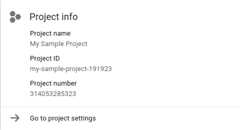
In the following string, replacePROJECT_NUMBER with yourproject number. The new string identifies your BigQueryservice account ID.
bq-PROJECT_NUMBER@bigquery-encryption.iam.gserviceaccount.com
bq
Use thebq show command with the--encryption_service_account flag todetermine the service account ID:
bq show --encryption_service_account
The command displays the service account ID:
ServiceAccountID-------------------------------------------------------------bq-PROJECT_NUMBER@bigquery-encryption.iam.gserviceaccount.com
Assign the Encrypter/Decrypter role
Assign the Cloud KMS CryptoKey Encrypter/Decrypterrole to theBigQuery system service account that you copied to yourclipboard. This account is of the form:
bq-PROJECT_NUMBER@bigquery-encryption.iam.gserviceaccount.com
Console
Open theCryptographic Keys page in the Google Cloud console.
Click the name of the key ring that contains the key.
Click the checkbox for the encryption key to which you want to add therole. ThePermissions tab opens.
ClickAdd member.
Enter the email address of the service account,
bq-PROJECT_NUMBER@bigquery-encryption.iam.gserviceaccount.com.- If the service account is already on the members list, it hasexisting roles. Click the current role drop-down list for the
bq-PROJECT_NUMBER@bigquery-encryption.iam.gserviceaccount.comservice account.
- If the service account is already on the members list, it hasexisting roles. Click the current role drop-down list for the
Click the drop-down list forSelect a role, clickCloud KMS, andthen click theCloud KMS CryptoKey Encrypter/Decrypter role.
ClickSave to apply the role to the
bq-PROJECT_NUMBER@bigquery-encryption.iam.gserviceaccount.comserviceaccount.
gcloud
You can use the Google Cloud CLI to assign the role:
gcloud kms keys add-iam-policy-binding \--project=KMS_PROJECT_ID \--member serviceAccount:bq-PROJECT_NUMBER@bigquery-encryption.iam.gserviceaccount.com \--role roles/cloudkms.cryptoKeyEncrypterDecrypter \--location=KMS_KEY_LOCATION \--keyring=KMS_KEY_RING \KMS_KEY
Replace the following:
KMS_PROJECT_ID: the ID of your Google Cloudproject that is running Cloud KMSPROJECT_NUMBER: the project number (not projectID) of your Google Cloud project that is running BigQueryKMS_KEY_LOCATION: the location name of yourCloud KMS keyKMS_KEY_RING: the key ring name of yourCloud KMS keyKMS_KEY: the key name of yourCloud KMS key
Key resource ID
The resource ID for the Cloud KMS key is required for CMEK use, asshown in the examples. This key is case-sensitive and in the form:
projects/KMS_PROJECT_ID/locations/LOCATION/keyRings/KEY_RING/cryptoKeys/KEY
/cryptoKeyVersions/ token. BigQuery always uses the key version marked asprimary to protect a table when it is created.Retrieve the key resource ID
Open theCryptographic Keys page in the Google Cloud console.
Click the name of the key ring that contains the key.
For the key whose resource ID you are retrieving, clickMoremore_vert.
ClickCopy Resource Name. The resource ID for the key is copied to yourclipboard. The resource ID is also known as the resource name.
Create a table protected by Cloud KMS
To create a table that is protected by Cloud KMS:
Console
Open the BigQuery page in the Google Cloud console.
In the left pane, clickExplorer:

If you don't see the left pane, clickExpand left pane to open the pane.
In theExplorer pane, expand your project, clickDatasets, and then click a dataset. The dataset opens in a tab.
In the details pane, clickCreate table.
On theCreate table page, fill in the information needed tocreate an empty table with a schema definition.Before you clickCreate Table, set the encryption type and specify theCloud KMS key to use with the table:
- ClickAdvanced options.
- ClickCustomer-managed key.
- Select the key. If the key you want to use is not listed, enter theresource ID for the key.
ClickCreate table.
SQL
Use theCREATE TABLE statementwith thekms_key_name option:
In the Google Cloud console, go to theBigQuery page.
In the query editor, enter the following statement:
CREATETABLEDATASET_ID.TABLE_ID(nameSTRING,valueINT64)OPTIONS(kms_key_name='projects/KMS_PROJECT_ID/locations/LOCATION/keyRings/KEY_RING/cryptoKeys/KEY');
ClickRun.
For more information about how to run queries, seeRun an interactive query.
bq
You can use the bq command-line tool with the--destination_kms_key flagto create the table. The--destination_kms_key flag specifies theresource ID of the key to use with the table.
To create an empty table with a schema:
bq mk --schema name:string,value:integer -t \--destination_kms_key projects/KMS_PROJECT_ID/locations/LOCATION/keyRings/KEY_RING/cryptoKeys/KEY \DATASET_ID.TABLE_ID
To create a table from a query:
bq query --destination_table=DATASET_ID.TABLE_ID \--destination_kms_key projects/KMS_PROJECT_ID/locations/LOCATION/keyRings/KEY_RING/cryptoKeys/KEY \"SELECT name,count FROMDATASET_ID.TABLE_ID WHERE gender = 'M' ORDER BY count DESC LIMIT 6"
For more information about the bq command-line tool, seeUsing the bq command-line tool.
Terraform
Use thegoogle_bigquery_tableresource.
To authenticate to BigQuery, set up Application DefaultCredentials. For more information, seeSet up authentication for client libraries.
The following example creates a table namedmytable, and also uses thegoogle_kms_crypto_keyandgoogle_kms_key_ringresources to specify aCloud Key Management Service key for thetable.
To run this example, you must enable theCloud Resource Manager APIand theCloud Key Management Service API.
resource "google_bigquery_dataset" "default" { dataset_id = "mydataset" default_partition_expiration_ms = 2592000000 # 30 days default_table_expiration_ms = 31536000000 # 365 days description = "dataset description" location = "US" max_time_travel_hours = 96 # 4 days labels = { billing_group = "accounting", pii = "sensitive" }}resource "google_bigquery_table" "default" { dataset_id = google_bigquery_dataset.default.dataset_id table_id = "mytable" schema = <<EOF[ { "name": "ID", "type": "INT64", "mode": "NULLABLE", "description": "Item ID" }, { "name": "Item", "type": "STRING", "mode": "NULLABLE" }]EOF encryption_configuration { kms_key_name = google_kms_crypto_key.crypto_key.id } depends_on = [google_project_iam_member.service_account_access]}resource "google_kms_crypto_key" "crypto_key" { name = "example-key" key_ring = google_kms_key_ring.key_ring.id}resource "random_id" "default" { byte_length = 8}resource "google_kms_key_ring" "key_ring" { name = "${random_id.default.hex}-example-keyring" location = "us"}# Enable the BigQuery service account to encrypt/decrypt Cloud KMS keysdata "google_project" "project" {}resource "google_project_iam_member" "service_account_access" { project = data.google_project.project.project_id role = "roles/cloudkms.cryptoKeyEncrypterDecrypter" member = "serviceAccount:bq-${data.google_project.project.number}@bigquery-encryption.iam.gserviceaccount.com"}To apply your Terraform configuration in a Google Cloud project, complete the steps in the following sections.
Prepare Cloud Shell
- LaunchCloud Shell.
Set the default Google Cloud project where you want to apply your Terraform configurations.
You only need to run this command once per project, and you can run it in any directory.
export GOOGLE_CLOUD_PROJECT=PROJECT_ID
Environment variables are overridden if you set explicit values in the Terraform configuration file.
Prepare the directory
Each Terraform configuration file must have its own directory (alsocalled aroot module).
- InCloud Shell, create a directory and a new file within that directory. The filename must have the
.tfextension—for examplemain.tf. In this tutorial, the file is referred to asmain.tf.mkdirDIRECTORY && cdDIRECTORY && touch main.tf
If you are following a tutorial, you can copy the sample code in each section or step.
Copy the sample code into the newly created
main.tf.Optionally, copy the code from GitHub. This is recommended when the Terraform snippet is part of an end-to-end solution.
- Review and modify the sample parameters to apply to your environment.
- Save your changes.
- Initialize Terraform. You only need to do this once per directory.
terraform init
Optionally, to use the latest Google provider version, include the
-upgradeoption:terraform init -upgrade
Apply the changes
- Review the configuration and verify that the resources that Terraform is going to create or update match your expectations:
terraform plan
Make corrections to the configuration as necessary.
- Apply the Terraform configuration by running the following command and entering
yesat the prompt:terraform apply
Wait until Terraform displays the "Apply complete!" message.
- Open your Google Cloud project to view the results. In the Google Cloud console, navigate to your resources in the UI to make sure that Terraform has created or updated them.
Go
Before trying this sample, follow theGo setup instructions in theBigQuery quickstart using client libraries. For more information, see theBigQueryGo API reference documentation.
To authenticate to BigQuery, set up Application Default Credentials. For more information, seeSet up authentication for client libraries.
import("context""fmt""cloud.google.com/go/bigquery")// createTableWithCMEK demonstrates creating a table protected with a customer managed encryption key.funccreateTableWithCMEK(projectID,datasetID,tableIDstring)error{// projectID := "my-project-id"// datasetID := "mydatasetid"// tableID := "mytableid"ctx:=context.Background()client,err:=bigquery.NewClient(ctx,projectID)iferr!=nil{returnfmt.Errorf("bigquery.NewClient: %v",err)}deferclient.Close()tableRef:=client.Dataset(datasetID).Table(tableID)meta:=&bigquery.TableMetadata{EncryptionConfig:&bigquery.EncryptionConfig{// TODO: Replace this key with a key you have created in Cloud KMS.KMSKeyName:"projects/cloud-samples-tests/locations/us/keyRings/test/cryptoKeys/test",},}iferr:=tableRef.Create(ctx,meta);err!=nil{returnerr}returnnil}Java
Before trying this sample, follow theJava setup instructions in theBigQuery quickstart using client libraries. For more information, see theBigQueryJava API reference documentation.
To authenticate to BigQuery, set up Application Default Credentials. For more information, seeSet up authentication for client libraries.
importcom.google.cloud.bigquery.BigQuery;importcom.google.cloud.bigquery.BigQueryException;importcom.google.cloud.bigquery.BigQueryOptions;importcom.google.cloud.bigquery.EncryptionConfiguration;importcom.google.cloud.bigquery.Field;importcom.google.cloud.bigquery.Schema;importcom.google.cloud.bigquery.StandardSQLTypeName;importcom.google.cloud.bigquery.StandardTableDefinition;importcom.google.cloud.bigquery.TableDefinition;importcom.google.cloud.bigquery.TableId;importcom.google.cloud.bigquery.TableInfo;// Sample to create a cmek tablepublicclassCreateTableCMEK{publicstaticvoidrunCreateTableCMEK(){// TODO(developer): Replace these variables before running the sample.StringdatasetName="MY_DATASET_NAME";StringtableName="MY_TABLE_NAME";StringkmsKeyName="MY_KEY_NAME";Schemaschema=Schema.of(Field.of("stringField",StandardSQLTypeName.STRING),Field.of("booleanField",StandardSQLTypeName.BOOL));// i.e. projects/{project}/locations/{location}/keyRings/{key_ring}/cryptoKeys/{cryptoKey}EncryptionConfigurationencryption=EncryptionConfiguration.newBuilder().setKmsKeyName(kmsKeyName).build();createTableCMEK(datasetName,tableName,schema,encryption);}publicstaticvoidcreateTableCMEK(StringdatasetName,StringtableName,Schemaschema,EncryptionConfigurationconfiguration){try{// Initialize client that will be used to send requests. This client only needs to be created// once, and can be reused for multiple requests.BigQuerybigquery=BigQueryOptions.getDefaultInstance().getService();TableIdtableId=TableId.of(datasetName,tableName);TableDefinitiontableDefinition=StandardTableDefinition.of(schema);TableInfotableInfo=TableInfo.newBuilder(tableId,tableDefinition).setEncryptionConfiguration(configuration).build();bigquery.create(tableInfo);System.out.println("Table cmek created successfully");}catch(BigQueryExceptione){System.out.println("Table cmek was not created. \n"+e.toString());}}}Python
Before trying this sample, follow thePython setup instructions in theBigQuery quickstart using client libraries. For more information, see theBigQueryPython API reference documentation. To authenticate to BigQuery, set up Application Default Credentials. For more information, seeSet up authentication for client libraries.fromgoogle.cloudimportbigqueryclient=bigquery.Client()# TODO(dev): Change table_id to the full name of the table you want to create.table_id="your-project.your_dataset.your_table_name"# Set the encryption key to use for the table.# TODO: Replace this key with a key you have created in Cloud KMS.kms_key_name="projects/your-project/locations/us/keyRings/test/cryptoKeys/test"table=bigquery.Table(table_id)table.encryption_configuration=bigquery.EncryptionConfiguration(kms_key_name=kms_key_name)table=client.create_table(table)# API requestprint(f"Created{table_id}.")print(f"Key:{table.encryption_configuration.kms_key_name}.")
Query a table protected by a Cloud KMS key
No special arrangements are required to query a table protected byCloud KMS. BigQuery stores the name of the key used toencrypt the table content and uses that key when a table protected byCloud KMS is queried.
All existing tools, the BigQuery console, and the bq command-line tool runthe same way as with default-encrypted tables, as long asBigQuery has access to the Cloud KMS key used to encryptthe table content.
Protect query results with a Cloud KMS key
By default, query results are stored in a temporary table encrypted with aGoogle-owned and Google-managed encryption key. If the project already has adefault key,the key is applied to the temporary (default) query results table. To use aCloud KMS key to encrypt your query results instead, select one of thefollowing options:
Console
Open the BigQuery page in the Google Cloud console.
ClickCompose new query.
Enter a valid GoogleSQL query in the query text area.
ClickMore, clickQuery settings, then clickAdvanced options.
SelectCustomer-managed encryption.
Select the key. If the key you want to use is not listed, enter theresource ID for the key.
ClickSave.
ClickRun.
bq
Specify the flag--destination_kms_key to protect the destination table orquery results (if using a temporary table) with your Cloud KMS key.The--destination_kms_key flag specifies theresource ID of the key to use with the destination orresulting table.
Optionally use the--destination_table flag to specify the destination forquery results. If--destination_table is not used, the query results arewritten to a temporary table.
To query a table:
bq query \--destination_table=DATASET_ID.TABLE_ID \--destination_kms_key projects/KMS_PROJECT_ID/locations/LOCATION/keyRings/KEY_RING/cryptoKeys/KEY \"SELECT name,count FROMDATASET_ID.TABLE_ID WHERE gender = 'M' ORDER BY count DESC LIMIT 6"
For more information about the bq command-line tool, seeUsing the bq command-line tool.
Go
Before trying this sample, follow theGo setup instructions in theBigQuery quickstart using client libraries. For more information, see theBigQueryGo API reference documentation.
To authenticate to BigQuery, set up Application Default Credentials. For more information, seeSet up authentication for client libraries.
Protect a new table with a customer-managed encryption key by setting theTable.encryption_configurationproperty to anEncryptionConfigurationobject before creating the table.import("context""fmt""io""cloud.google.com/go/bigquery""google.golang.org/api/iterator")// queryWithDestinationCMEK demonstrates saving query results to a destination table and protecting those results// by specifying a customer managed encryption key.funcqueryWithDestinationCMEK(wio.Writer,projectID,dstDatasetID,dstTableIDstring)error{// projectID := "my-project-id"// datasetID := "mydataset"// tableID := "mytable"ctx:=context.Background()client,err:=bigquery.NewClient(ctx,projectID)iferr!=nil{returnfmt.Errorf("bigquery.NewClient: %v",err)}deferclient.Close()q:=client.Query("SELECT 17 as my_col")q.Location="US"// Location must match the dataset(s) referenced in query.q.QueryConfig.Dst=client.Dataset(dstDatasetID).Table(dstTableID)q.DestinationEncryptionConfig=&bigquery.EncryptionConfig{// TODO: Replace this key with a key you have created in Cloud KMS.KMSKeyName:"projects/cloud-samples-tests/locations/us-central1/keyRings/test/cryptoKeys/test",}// Run the query and print results when the query job is completed.job,err:=q.Run(ctx)iferr!=nil{returnerr}status,err:=job.Wait(ctx)iferr!=nil{returnerr}iferr:=status.Err();err!=nil{returnerr}it,err:=job.Read(ctx)for{varrow[]bigquery.Valueerr:=it.Next(&row)iferr==iterator.Done{break}iferr!=nil{returnerr}fmt.Fprintln(w,row)}returnnil}Java
Before trying this sample, follow theJava setup instructions in theBigQuery quickstart using client libraries. For more information, see theBigQueryJava API reference documentation.
To authenticate to BigQuery, set up Application Default Credentials. For more information, seeSet up authentication for client libraries.
Protect a new table with a customer-managed encryption key by setting theTable.encryption_configurationproperty to anEncryptionConfigurationobject before creating the table.importcom.google.cloud.bigquery.BigQuery;importcom.google.cloud.bigquery.BigQueryException;importcom.google.cloud.bigquery.BigQueryOptions;importcom.google.cloud.bigquery.EncryptionConfiguration;importcom.google.cloud.bigquery.QueryJobConfiguration;importcom.google.cloud.bigquery.TableResult;// Sample to query on destination table with encryption keypublicclassQueryDestinationTableCMEK{publicstaticvoidrunQueryDestinationTableCMEK(){// TODO(developer): Replace these variables before running the sample.StringdatasetName="MY_DATASET_NAME";StringtableName="MY_TABLE_NAME";StringkmsKeyName="MY_KMS_KEY_NAME";Stringquery=String.format("SELECT stringField, booleanField FROM %s.%s",datasetName,tableName);EncryptionConfigurationencryption=EncryptionConfiguration.newBuilder().setKmsKeyName(kmsKeyName).build();queryDestinationTableCMEK(query,encryption);}publicstaticvoidqueryDestinationTableCMEK(Stringquery,EncryptionConfigurationencryption){try{// Initialize client that will be used to send requests. This client only needs to be created// once, and can be reused for multiple requests.BigQuerybigquery=BigQueryOptions.getDefaultInstance().getService();QueryJobConfigurationconfig=QueryJobConfiguration.newBuilder(query)// Set the encryption key to use for the destination..setDestinationEncryptionConfiguration(encryption).build();TableResultresults=bigquery.query(config);results.iterateAll().forEach(row->row.forEach(val->System.out.printf("%s,",val.toString())));System.out.println("Query performed successfully with encryption key.");}catch(BigQueryException|InterruptedExceptione){System.out.println("Query not performed \n"+e.toString());}}}Python
Before trying this sample, follow thePython setup instructions in theBigQuery quickstart using client libraries. For more information, see theBigQueryPython API reference documentation. To authenticate to BigQuery, set up Application Default Credentials. For more information, seeSet up authentication for client libraries. Protect a query destination table with a customer-managed encryption keyby setting theQueryJobConfig.destination_encryption_configurationproperty to anEncryptionConfigurationand run the query.fromgoogle.cloudimportbigquery# Construct a BigQuery client object.client=bigquery.Client()# TODO(developer): Set table_id to the ID of the destination table.# table_id = "your-project.your_dataset.your_table_name"# Set the encryption key to use for the destination.# TODO(developer): Replace this key with a key you have created in KMS.# kms_key_name = "projects/{}/locations/{}/keyRings/{}/cryptoKeys/{}".format(# your-project, location, your-ring, your-key# )job_config=bigquery.QueryJobConfig(destination=table_id,destination_encryption_configuration=bigquery.EncryptionConfiguration(kms_key_name=kms_key_name),)# Start the query, passing in the extra configuration.query_job=client.query("SELECT 17 AS my_col;",job_config=job_config)# Make an API request.query_job.result()# Wait for the job to complete.table=client.get_table(table_id)# Make an API request.iftable.encryption_configuration.kms_key_name==kms_key_name:print("The destination table is written using the encryption configuration")
Load a table protected by Cloud KMS
To load a data file into a table that is protected by Cloud KMS:
Console
Protect a load job destination table with a customer-managed encryption keyby specifying the key when you load the table.
Open the BigQuery page in the Google Cloud console.
In the left pane, clickExplorer:
In theExplorer pane, expand your project, clickDatasets, and then click a dataset. The dataset opens in a tab.
In the details pane, clickCreate table.
Enter the options you want to use for loading the table, but before youclickCreate table, clickAdvanced options.
UnderEncryption, selectCustomer-managed key.
Click theSelect a customer-managed key drop-down list and selectthe key to use. If you don't see any keys available, enter akey resource ID.
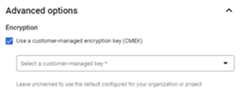
ClickCreate table.
bq
Protect a load job destination table with a customer-managed encryptionkey by setting the--destination_kms_key flag.
bq --location=LOCATION load \--autodetect \--source_format=FORMAT \--destination_kms_key projects/KMS_PROJECT_ID/locations/LOCATION/keyRings/KEY_RING/cryptoKeys/KEY \DATASET.TABLE \path_to_source
bq load \--autodetect \--source_format=NEWLINE_DELIMITED_JSON \--destination_kms_key projects/KMS_PROJECT_ID/locations/LOCATION/keyRings/KEY_RING/cryptoKeys/KEY \test2.table4 \gs://cloud-samples-data/bigquery/us-states/us-states.json
Go
Before trying this sample, follow theGo setup instructions in theBigQuery quickstart using client libraries. For more information, see theBigQueryGo API reference documentation.
To authenticate to BigQuery, set up Application Default Credentials. For more information, seeSet up authentication for client libraries.
import("context""fmt""cloud.google.com/go/bigquery")// importJSONWithCMEK demonstrates loading newline-delimited JSON from Cloud Storage,// and protecting the data with a customer-managed encryption key.funcimportJSONWithCMEK(projectID,datasetID,tableIDstring)error{// projectID := "my-project-id"// datasetID := "mydataset"// tableID := "mytable"ctx:=context.Background()client,err:=bigquery.NewClient(ctx,projectID)iferr!=nil{returnfmt.Errorf("bigquery.NewClient: %v",err)}deferclient.Close()gcsRef:=bigquery.NewGCSReference("gs://cloud-samples-data/bigquery/us-states/us-states.json")gcsRef.SourceFormat=bigquery.JSONgcsRef.AutoDetect=trueloader:=client.Dataset(datasetID).Table(tableID).LoaderFrom(gcsRef)loader.WriteDisposition=bigquery.WriteEmptyloader.DestinationEncryptionConfig=&bigquery.EncryptionConfig{// TODO: Replace this key with a key you have created in KMS.KMSKeyName:"projects/cloud-samples-tests/locations/us-central1/keyRings/test/cryptoKeys/test",}job,err:=loader.Run(ctx)iferr!=nil{returnerr}status,err:=job.Wait(ctx)iferr!=nil{returnerr}ifstatus.Err()!=nil{returnfmt.Errorf("job completed with error: %v",status.Err())}returnnil}Java
Before trying this sample, follow theJava setup instructions in theBigQuery quickstart using client libraries. For more information, see theBigQueryJava API reference documentation.
To authenticate to BigQuery, set up Application Default Credentials. For more information, seeSet up authentication for client libraries.
importcom.google.cloud.bigquery.BigQuery;importcom.google.cloud.bigquery.BigQueryException;importcom.google.cloud.bigquery.BigQueryOptions;importcom.google.cloud.bigquery.EncryptionConfiguration;importcom.google.cloud.bigquery.FormatOptions;importcom.google.cloud.bigquery.Job;importcom.google.cloud.bigquery.JobInfo;importcom.google.cloud.bigquery.LoadJobConfiguration;importcom.google.cloud.bigquery.TableId;// Sample to load JSON data with configuration key from Cloud Storage into a new BigQuery tablepublicclassLoadJsonFromGCSCMEK{publicstaticvoidrunLoadJsonFromGCSCMEK(){// TODO(developer): Replace these variables before running the sample.StringdatasetName="MY_DATASET_NAME";StringtableName="MY_TABLE_NAME";StringkmsKeyName="MY_KMS_KEY_NAME";StringsourceUri="gs://cloud-samples-data/bigquery/us-states/us-states.json";// i.e. projects/{project}/locations/{location}/keyRings/{key_ring}/cryptoKeys/{cryptoKey}EncryptionConfigurationencryption=EncryptionConfiguration.newBuilder().setKmsKeyName(kmsKeyName).build();loadJsonFromGCSCMEK(datasetName,tableName,sourceUri,encryption);}publicstaticvoidloadJsonFromGCSCMEK(StringdatasetName,StringtableName,StringsourceUri,EncryptionConfigurationencryption){try{// Initialize client that will be used to send requests. This client only needs to be created// once, and can be reused for multiple requests.BigQuerybigquery=BigQueryOptions.getDefaultInstance().getService();TableIdtableId=TableId.of(datasetName,tableName);LoadJobConfigurationloadConfig=LoadJobConfiguration.newBuilder(tableId,sourceUri)// Set the encryption key to use for the destination..setDestinationEncryptionConfiguration(encryption).setFormatOptions(FormatOptions.json()).setAutodetect(true).build();// Load data from a GCS JSON file into the tableJobjob=bigquery.create(JobInfo.of(loadConfig));// Blocks until this load table job completes its execution, either failing or succeeding.job=job.waitFor();if(job.isDone()){System.out.println("Table loaded succesfully from GCS with configuration key");}else{System.out.println("BigQuery was unable to load into the table due to an error:"+job.getStatus().getError());}}catch(BigQueryException|InterruptedExceptione){System.out.println("Column not added during load append \n"+e.toString());}}}Python
Before trying this sample, follow thePython setup instructions in theBigQuery quickstart using client libraries. For more information, see theBigQueryPython API reference documentation. To authenticate to BigQuery, set up Application Default Credentials. For more information, seeSet up authentication for client libraries. Protect a load job destination table with a customer-managed encryptionkey by setting theLoadJobConfig.destination_encryption_configurationproperty to anEncryptionConfigurationand load the table.fromgoogle.cloudimportbigquery# Construct a BigQuery client object.client=bigquery.Client()# TODO(developer): Set table_id to the ID of the table to create.# table_id = "your-project.your_dataset.your_table_name# Set the encryption key to use for the destination.# TODO: Replace this key with a key you have created in KMS.# kms_key_name = "projects/{}/locations/{}/keyRings/{}/cryptoKeys/{}".format(# "cloud-samples-tests", "us", "test", "test"# )job_config=bigquery.LoadJobConfig(autodetect=True,source_format=bigquery.SourceFormat.NEWLINE_DELIMITED_JSON,destination_encryption_configuration=bigquery.EncryptionConfiguration(kms_key_name=kms_key_name),)uri="gs://cloud-samples-data/bigquery/us-states/us-states.json"load_job=client.load_table_from_uri(uri,table_id,location="US",# Must match the destination dataset location.job_config=job_config,)# Make an API request.assertload_job.job_type=="load"load_job.result()# Waits for the job to complete.assertload_job.state=="DONE"table=client.get_table(table_id)iftable.encryption_configuration.kms_key_name==kms_key_name:print("A table loaded with encryption configuration key")
Stream into a table protected by Cloud KMS
You can stream data into your CMEK-protected BigQuery tablewithout specifying any additional parameters. Note that this data is encryptedusing your Cloud KMS key in the buffer as well as in the finallocation. Before using streaming with a CMEK table, review the requirements onkey availability and accessibility.
Learn more about streaming atStreaming data using the BigQuery Storage Write API.
Change a table from default encryption to Cloud KMS protection
bq
You can use thebq cp command with the--destination_kms_key flagto copy a table protected by default encryption into a new table, or intothe original table, protected by Cloud KMS. The--destination_kms_key flag specifies theresource IDof the key to use with the destination table.
To copy a table that has default encryption to a new table that hasCloud KMS protection:
bq cp \--destination_kms_key projects/KMS_PROJECT_ID/locations/LOCATION/keyRings/KEY_RING/cryptoKeys/KEY \SOURCE_DATASET_ID.SOURCE_TABLE_IDDESTINATION_DATASET_ID.DESTINATION_TABLE_ID
In you want to copy a table that has default encryption to the same tablewith Cloud KMS protection:
bq cp -f \--destination_kms_key projects/KMS_PROJECT_ID/locations/LOCATION/keyRings/KEY_RING/cryptoKeys/KEY \DATASET_ID.TABLE_IDDATASET_ID.TABLE_ID
If you want to change a table from Cloud KMS protection to defaultencryption, copy the file to itself by runningbq cp without using the--destination_kms_key flag.
For more information about the bq command-line tool, seeUsing the bq command-line tool.
Go
Before trying this sample, follow theGo setup instructions in theBigQuery quickstart using client libraries. For more information, see theBigQueryGo API reference documentation.
To authenticate to BigQuery, set up Application Default Credentials. For more information, seeSet up authentication for client libraries.
import("context""fmt""cloud.google.com/go/bigquery")// copyTableWithCMEK demonstrates creating a copy of a table and ensuring the copied data is// protected with a customer managed encryption key.funccopyTableWithCMEK(projectID,datasetID,tableIDstring)error{// projectID := "my-project-id"// datasetID := "mydataset"// tableID := "mytable"ctx:=context.Background()client,err:=bigquery.NewClient(ctx,projectID)iferr!=nil{returnfmt.Errorf("bigquery.NewClient: %v",err)}deferclient.Close()srcTable:=client.DatasetInProject("bigquery-public-data","samples").Table("shakespeare")copier:=client.Dataset(datasetID).Table(tableID).CopierFrom(srcTable)copier.DestinationEncryptionConfig=&bigquery.EncryptionConfig{// TODO: Replace this key with a key you have created in Cloud KMS.KMSKeyName:"projects/cloud-samples-tests/locations/us-central1/keyRings/test/cryptoKeys/test",}job,err:=copier.Run(ctx)iferr!=nil{returnerr}status,err:=job.Wait(ctx)iferr!=nil{returnerr}iferr:=status.Err();err!=nil{returnerr}returnnil}Java
Before trying this sample, follow theJava setup instructions in theBigQuery quickstart using client libraries. For more information, see theBigQueryJava API reference documentation.
To authenticate to BigQuery, set up Application Default Credentials. For more information, seeSet up authentication for client libraries.
importcom.google.cloud.bigquery.BigQuery;importcom.google.cloud.bigquery.BigQueryException;importcom.google.cloud.bigquery.BigQueryOptions;importcom.google.cloud.bigquery.CopyJobConfiguration;importcom.google.cloud.bigquery.EncryptionConfiguration;importcom.google.cloud.bigquery.Job;importcom.google.cloud.bigquery.JobInfo;importcom.google.cloud.bigquery.TableId;// Sample to copy a cmek tablepublicclassCopyTableCMEK{publicstaticvoidrunCopyTableCMEK(){// TODO(developer): Replace these variables before running the sample.StringdestinationDatasetName="MY_DESTINATION_DATASET_NAME";StringdestinationTableId="MY_DESTINATION_TABLE_NAME";StringsourceDatasetName="MY_SOURCE_DATASET_NAME";StringsourceTableId="MY_SOURCE_TABLE_NAME";StringkmsKeyName="MY_KMS_KEY_NAME";EncryptionConfigurationencryption=EncryptionConfiguration.newBuilder().setKmsKeyName(kmsKeyName).build();copyTableCMEK(sourceDatasetName,sourceTableId,destinationDatasetName,destinationTableId,encryption);}publicstaticvoidcopyTableCMEK(StringsourceDatasetName,StringsourceTableId,StringdestinationDatasetName,StringdestinationTableId,EncryptionConfigurationencryption){try{// Initialize client that will be used to send requests. This client only needs to be created// once, and can be reused for multiple requests.BigQuerybigquery=BigQueryOptions.getDefaultInstance().getService();TableIdsourceTable=TableId.of(sourceDatasetName,sourceTableId);TableIddestinationTable=TableId.of(destinationDatasetName,destinationTableId);// For more information on CopyJobConfiguration see:// https://googleapis.dev/java/google-cloud-clients/latest/com/google/cloud/bigquery/JobConfiguration.htmlCopyJobConfigurationconfiguration=CopyJobConfiguration.newBuilder(destinationTable,sourceTable).setDestinationEncryptionConfiguration(encryption).build();// For more information on Job see:// https://googleapis.dev/java/google-cloud-clients/latest/index.html?com/google/cloud/bigquery/package-summary.htmlJobjob=bigquery.create(JobInfo.of(configuration));// Blocks until this job completes its execution, either failing or succeeding.JobcompletedJob=job.waitFor();if(completedJob==null){System.out.println("Job not executed since it no longer exists.");return;}elseif(completedJob.getStatus().getError()!=null){System.out.println("BigQuery was unable to copy table due to an error: \n"+job.getStatus().getError());return;}System.out.println("Table cmek copied successfully.");}catch(BigQueryException|InterruptedExceptione){System.out.println("Table cmek copying job was interrupted. \n"+e.toString());}}}Python
Before trying this sample, follow thePython setup instructions in theBigQuery quickstart using client libraries. For more information, see theBigQueryPython API reference documentation. To authenticate to BigQuery, set up Application Default Credentials. For more information, seeSet up authentication for client libraries. Protect the destination of a table copy with a customer-managedencryption key by setting theQueryJobConfig.destination_encryption_configurationproperty to anEncryptionConfigurationand copy the table.fromgoogle.cloudimportbigquery# Construct a BigQuery client object.client=bigquery.Client()# TODO(developer): Set dest_table_id to the ID of the destination table.# dest_table_id = "your-project.your_dataset.your_table_name"# TODO(developer): Set orig_table_id to the ID of the original table.# orig_table_id = "your-project.your_dataset.your_table_name"# Set the encryption key to use for the destination.# TODO(developer): Replace this key with a key you have created in KMS.# kms_key_name = "projects/{}/locations/{}/keyRings/{}/cryptoKeys/{}".format(# your-project, location, your-ring, your-key# )job_config=bigquery.CopyJobConfig(destination_encryption_configuration=bigquery.EncryptionConfiguration(kms_key_name=kms_key_name))job=client.copy_table(orig_table_id,dest_table_id,job_config=job_config)job.result()# Wait for the job to complete.dest_table=client.get_table(dest_table_id)# Make an API request.ifdest_table.encryption_configuration.kms_key_name==kms_key_name:print("A copy of the table created")
Determine if a table is protected by Cloud KMS
In the Google Cloud console, click the blue arrow tothe left of your dataset to expand it, or double-click the dataset name. Thisdisplays the tables and views in the dataset.
Click the table name.
ClickDetails. TheTable Details page displays the table'sdescription and table information.
If the table is protected by Cloud KMS, theCustomer-ManagedEncryption Key field displays the key resource ID.
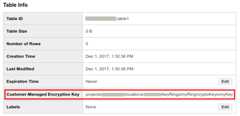
For each of the keys you've created or that protect your tables, you can seewhat resources that key protects with key usage tracking. For more information,seeView key usage.
Change the Cloud KMS key for a BigQuery table
To change the Cloud KMS key of an existing CMEK-protected table, youcan run anALTER TABLE query, use the API, or use the bq command-line tool.There are two ways to modify the Cloud KMS key using the API and thebq command-line tool:update orcp.
If you useupdate, you can change the Cloud KMS key used for aCMEK-protected table.
If you usecp, you can change the Cloud KMS key used for aCMEK-protected table, change a table from default encryption to CMEK-protection,or change a table from CMEK-protection to default encryption.
An advantage ofupdate is it is faster thancp and it lets you usetable decorators.
SQL
Use theALTER TABLE SET OPTIONS statementto update thekms_key_name field for a table:
In the Google Cloud console, go to theBigQuery page.
In the query editor, enter the following statement:
ALTERTABLEDATASET_ID.mytableSETOPTIONS(kms_key_name='projects/KMS_PROJECT_ID/locations/LOCATION/keyRings/KEY_RING/cryptoKeys/KEY');
ClickRun.
For more information about how to run queries, seeRun an interactive query.
bq
You can use thebq cp command with the--destination_kms_key flagto change the key for a table protected by Cloud KMS. The--destination_kms_key flag specifies theresource IDof the key to use with the table.
bq update \--destination_kms_key projects/KMS_PROJECT_ID/locations/LOCATION/keyRings/KEY_RING/cryptoKeys/KEY \-tDATASET_ID.TABLE_ID
Go
Before trying this sample, follow theGo setup instructions in theBigQuery quickstart using client libraries. For more information, see theBigQueryGo API reference documentation.
To authenticate to BigQuery, set up Application Default Credentials. For more information, seeSet up authentication for client libraries.
import("context""fmt""cloud.google.com/go/bigquery")// updateTableChangeCMEK demonstrates how to change the customer managed encryption key that protects a table.funcupdateTableChangeCMEK(projectID,datasetID,tableIDstring)error{// projectID := "my-project-id"// datasetID := "mydatasetid"// tableID := "mytableid"ctx:=context.Background()client,err:=bigquery.NewClient(ctx,projectID)iferr!=nil{returnfmt.Errorf("bigquery.NewClient: %v",err)}deferclient.Close()tableRef:=client.Dataset(datasetID).Table(tableID)meta,err:=tableRef.Metadata(ctx)iferr!=nil{returnerr}update:=bigquery.TableMetadataToUpdate{EncryptionConfig:&bigquery.EncryptionConfig{// TODO: Replace this key with a key you have created in Cloud KMS.KMSKeyName:"projects/cloud-samples-tests/locations/us-central1/keyRings/test/cryptoKeys/otherkey",},}if_,err:=tableRef.Update(ctx,update,meta.ETag);err!=nil{returnerr}returnnil}Java
Before trying this sample, follow theJava setup instructions in theBigQuery quickstart using client libraries. For more information, see theBigQueryJava API reference documentation.
To authenticate to BigQuery, set up Application Default Credentials. For more information, seeSet up authentication for client libraries.
importcom.google.cloud.bigquery.BigQuery;importcom.google.cloud.bigquery.BigQueryException;importcom.google.cloud.bigquery.BigQueryOptions;importcom.google.cloud.bigquery.EncryptionConfiguration;importcom.google.cloud.bigquery.Table;importcom.google.cloud.bigquery.TableId;// Sample to update a cmek tablepublicclassUpdateTableCMEK{publicstaticvoidrunUpdateTableCMEK(){// TODO(developer): Replace these variables before running the sample.StringdatasetName="MY_DATASET_NAME";StringtableName="MY_TABLE_NAME";StringkmsKeyName="MY_KEY_NAME";// Set a new encryption key to use for the destination.// i.e. projects/{project}/locations/{location}/keyRings/{key_ring}/cryptoKeys/{cryptoKey}EncryptionConfigurationencryption=EncryptionConfiguration.newBuilder().setKmsKeyName(kmsKeyName).build();updateTableCMEK(datasetName,tableName,encryption);}publicstaticvoidupdateTableCMEK(StringdatasetName,StringtableName,EncryptionConfigurationencryption){try{// Initialize client that will be used to send requests. This client only needs to be created// once, and can be reused for multiple requests.BigQuerybigquery=BigQueryOptions.getDefaultInstance().getService();Tabletable=bigquery.getTable(TableId.of(datasetName,tableName));bigquery.update(table.toBuilder().setEncryptionConfiguration(encryption).build());System.out.println("Table cmek updated successfully");}catch(BigQueryExceptione){System.out.println("Table cmek was not updated. \n"+e.toString());}}}Python
Change the customer-managed encryption key for a table by changing theTable.encryption_configurationproperty to a newEncryptionConfigurationobject and update the table. Before trying this sample, follow thePython setup instructions in theBigQuery quickstart using client libraries. For more information, see theBigQueryPython API reference documentation. To authenticate to BigQuery, set up Application Default Credentials. For more information, seeSet up authentication for client libraries.# from google.cloud import bigquery# client = bigquery.Client()asserttable.encryption_configuration.kms_key_name==original_kms_key_name# Set a new encryption key to use for the destination.# TODO: Replace this key with a key you have created in KMS.updated_kms_key_name=("projects/cloud-samples-tests/locations/us/keyRings/test/cryptoKeys/otherkey")table.encryption_configuration=bigquery.EncryptionConfiguration(kms_key_name=updated_kms_key_name)table=client.update_table(table,["encryption_configuration"])# API requestasserttable.encryption_configuration.kms_key_name==updated_kms_key_nameassertoriginal_kms_key_name!=updated_kms_key_name
Set a dataset default key
You can set a dataset-wide default Cloud KMS key that applies to allnewly created tables within the dataset, unless a different Cloud KMSkey is specified when you create the table. The default key does not apply toexisting tables. Changing the default key does not modify any existing tablesand applies only to new tables created after the change.
You can apply, change, or remove a dataset default key by
specifying the default key in the
EncryptionConfiguration.kmsKeyNamefield when you call thedatasets.insertordatasets.patchmethodsspecifying the default key in the
--default_kms_keyflag when you run thebq mk --datasetcommand.bq mk \--default_kms_key projects/KMS_PROJECT_ID/locations/LOCATION/keyRings/KEY_RING/cryptoKeys/KEY \--datasetDATASET_ID
bq update \--default_kms_key projects/KMS_PROJECT_ID/locations/LOCATION/keyRings/KEY_RING/cryptoKeys/KEY \--datasetDATASET_ID
Set a project default key
You can set project-default Cloud KMS keys that apply to allquery results and newly created tables in the project for that location, unlessyou specify a different Cloud KMS key. The default key also applies tonewly created cached results tables that are stored inanonymous datasets.
The default key does not apply to existing tables. Changing the default key doesnot modify any existing tables and applies only to new tables created after thechange.
SQL
Use theALTER PROJECT SET OPTIONS statementto update thedefault_kms_key_name field for a project. You can find theresource name for the key on the Cloud KMS page.
In the Google Cloud console, go to theBigQuery page.
In the query editor, enter the following statement:
ALTERPROJECTPROJECT_IDSETOPTIONS(`region-LOCATION.default_kms_key_name`='projects/KMS_PROJECT_ID/locations/LOCATION/keyRings/KEY_RING/cryptoKeys/KEY');
ClickRun.
For more information about how to run queries, seeRun an interactive query.
bq
You can use thebq command to run anALTER PROJECT SET OPTIONS statementto update thedefault_kms_key_name field for a project:
bq query --nouse_legacy_sql \ 'ALTER PROJECTPROJECT_ID SETOPTIONS ( `region-LOCATION.default_kms_key_name` ="projects/KMS_PROJECT_ID/locations/LOCATION/keyRings/KEY_RING/cryptoKeys/KEY");'Use CMEK to protect BigQuery ML models
BigQuery ML supports CMEK. Along with the default encryption providedby BigQuery, you can use your own Cloud Key Management Service keys for encryptingmachine learning models, including imported TensorFlow models.
Create an encrypted model with a Cloud KMS key
To create an encrypted model, use theCREATE MODEL statementand specifyKMS_KEY_NAME in the training options:
CREATEMODELmy_dataset.my_modelOPTIONS(model_type='linear_reg',input_label_cols=['your_label'],kms_key_name='projects/my_project/locations/my_location/keyRings/my_ring/cryptoKeys/my_key')ASSELECT*FROMmy_dataset.my_data
The same syntax also applies to imported TensorFlow models:
CREATEMODELmy_dataset.my_modelOPTIONS(model_type='tensorflow',path='gs://bucket/path/to/saved_model/*',kms_key_name='projects/my_project/locations/my_location/keyRings/my_ring/cryptoKeys/my_key')ASSELECT*FROMmy_dataset.my_data
Limitations
Customer-managed encryption keys have the following restrictions whenencrypting machine learning models:
Globalregion CMEK keys are not supported for the followingtypes of models:Globalregion CMEK keys and multi-region CMEK keys, for exampleEUorUS, are not supported when creating the following types of models:CMEK keys aren't supported for remote models:
Change a model from default encryption to Cloud KMS protection
You can use thebq cp commandwith the--destination_kms_key flag to copy a model protected by defaultencryption into a new model that is protected by Cloud KMS.Alternatively, you can use thebq cp command with the-f flag to overwrite amodel protected by default encryption and update it to use Cloud KMSprotection instead. The--destination_kms_key flag specifies theresource ID of the key to use with the destination model.
To copy a model that has default encryption to a new model that hasCloud KMS protection:
bq cp \--destination_kms_key projects/KMS_PROJECT_ID/locations/LOCATION/keyRings/KEY_RING/cryptoKeys/KEY \SOURCE_DATASET_ID.SOURCE_MODEL_IDDESTINATION_DATASET_ID.DESTINATION_MODEL_ID
To overwrite a model that has default encryption to the same modelwith Cloud KMS protection:
bq cp -f \--destination_kms_key projects/KMS_PROJECT_ID/locations/LOCATION/keyRings/KEY_RING/cryptoKeys/KEY \DATASET_ID.MODEL_IDDATASET_ID.MODEL_ID
To change a model from Cloud KMS protection to default encryption:
bq cp -f \DATASET_ID.MODEL_IDDATASET_ID.MODEL_ID
For more information about the bq command-line tool, seeUsing the bq command-line tool.
Determine if a model is protected by Cloud KMS
Use thebq show commandto see if a model is protected by Cloud KMS key. Theencryption key is in thekmsKeyName field.
bq show -m my_dataset.my_model
You can also use the Google Cloud console to find the Cloud KMSkey for an encrypted model. CMEK information is in theCustomer-managed keyfield in theModel Details section of the model'sDetails pane.
Change the Cloud KMS key for an encrypted model
Use thebq update command withthe--destination_kms_key flag to change the key for a model protected byCloud KMS:
bq update --destination_kms_key \projects/my_project/locations/my_location/keyRings/my_ring/cryptoKeys/my_key \-t my_dataset.my_model
Use default project or dataset keys
If you have a default Cloud KMS key set at the project or dataset level,BigQuery ML automatically uses this key when creating models.Use theCREATE MODEL statement to specify a different key to encrypt the modelif you don't want to use the default key.
Use BigQuery ML functions with encrypted models
You can use all BigQuery ML functions with an encrypted modelwithout specifying an encryption key.
Use CMEK to protect BigQuery Connection API
For Cloud SQL connections, you can protect your BigQuery Connection API credentials using CMEK.
For more information about how to create a CMEK-protected connection, seeCreate Cloud SQL connections.
Use CMEK to protect BigQuery Studio code assets
To use CMEK to protect your BigQuery Studio code assets,you must set a default Dataform CMEK key for the Google Cloud projectthat contains your code assets. Code assets include the following:
After you set a defaultDataform CMEK key, Dataform applies the key toall new resources created in the Google Cloud project by default,including any hidden resources created for storing your code assets.
The default Dataform CMEK key isn't applied to existingresources. If you already have code assets in that project, they won't beencrypted by the default Dataform CMEK key. To use CMEK with acode asset that was created before you set your project's defaultDataform CMEK key, you can save the asset as a newBigQuery Studio code asset.
Setting Dataform default CMEK configuration forBigQuery code assets through Terraform isn't supported.Instead, use the Dataform API. This configuration must be appliedon a per-project basis, not at the organization level. For instructions, seeSet a default Dataform CMEK key.
Remove BigQuery's access to the Cloud KMS key
You can remove BigQuery's access to the Cloud KMS key atany time, by revoking the Identity and Access Management (IAM) permission for that key.
Note: If you remove BigQuery's access to a key, this change doesn't take place instantly, but happens within an hour while the IAMpermission change propagates. If you are running a query at the time the querystill completes, but the results might not be viewable.If BigQuery loses access to the Cloud KMS key, the userexperience can suffer significantly and data loss can occur:
Data in these CMEK-protected tables can no longer be accessed:
query,cp,extract, andtabledata.listwill all fail.No new data can be added to these CMEK-protected tables.
After access is granted back, the performance of queries to these tablescan be degraded for multiple days.
Control CMEK use with organization policy
BigQuery integrates with CMEKorganization policy constraintsto let you specify encryption compliance requirements forBigQuery resources in your organization.
This integration lets you do the following:
Require CMEKs for all BigQuery resources in a project.
Restrict which Cloud KMS keys can be used to protect resources in aproject.
Require CMEKs for all resources
A common policy is to require CMEKs to be used to protect all resources in aspecific set of projects. You can use theconstraints/gcp.restrictNonCmekServices constraint to enforce this policy inBigQuery.
If set, this organization policy causes all resource creation requests without aspecified Cloud KMS key to fail.
After you set this policy, it applies only to new resources in the project. Anyexisting resources without Cloud KMS keys set continue to exist and areaccessible without issue.
Note: This constraint only applies to resources that contain data. Resourcesthat only use their specified Cloud KMS key as a default for newresources (for instance, datasets and project config) can still be created orupdated without a Cloud KMS key.Console
Open theOrganization policies page.
In theFilter field, enter
constraints/gcp.restrictNonCmekServices, and then clickRestrict which services may create resources without CMEK.ClickEdit.
SelectCustomize, selectReplace, and then clickAdd Rule.
SelectCustom, then clickDeny.
In theCustom Value field, enter
is:bigquery.googleapis.com.ClickDone, and then clickSave.
gcloud
gcloud resource-manager org-policies --project=PROJECT_ID \ deny gcp.restrictNonCmekServices is:bigquery.googleapis.com
To verify that the policy is successfully applied, you can try to create a tablein the project. The process fails unless you specify a Cloud KMSkey.
This policy also applies to query results tables in the project. You can specifyaproject default key so users don't have to manuallyspecify a key each time they execute a query in the project.
Restrict Cloud KMS keys for a BigQuery project
You can use theconstraints/gcp.restrictCmekCryptoKeyProjects constraint torestrict the Cloud KMS keys that you can use to protect a resource in aBigQuery project.
You might specify a rule - for example, "For all BigQueryresources in projects/my-company-data-project, Cloud KMS keys used inthis project must come from projects/my-company-central-keys ORprojects/team-specific-keys."
Console
Open theOrganization policies page.
In theFilter field, enter
constraints/gcp.restrictCmekCryptoKeyProjects, and then clickRestrict which projects may supply KMS CryptoKeys for CMEK.ClickEdit.
SelectCustomize, selectReplace, and then clickAdd Rule.
SelectCustom, then clickAllow.
In theCustom Value field, enter
under:projects/<var>KMS_PROJECT_ID</var>.ClickDone, and then clickSave.
gcloud
gcloud resource-manager org-policies --project=PROJECT_ID \ allow gcp.restrictCmekCryptoKeyProjects under:projects/KMS_PROJECT_ID
To verify that the policy is successfully applied, you can try to create a tableusing a Cloud KMS key from a different project. The process will fail.
Limitations of organization policies
There are limitations associated with setting an organization policy.
Propagation delay
After you set or update an organization policy, it can take up to 15 minutesfor the new policy to take effect. BigQuery caches policies inorder to not negatively affect query and table creation latency.
Required permissions to set an organization policy
The permission to set or update the organization policy might be difficult toacquire for testing purposes. You must be granted theOrganization Policy Administrator role,which can only be granted at the organization level (rather than the project orfolder level).
Although the role must be granted at the organization level, it is stillpossible to specify a policy that only applies to a specific projector folder.
Impact of Cloud KMS key rotation
BigQuery doesn't automatically rotate a table encryption key whenthe Cloud KMS key associated with the table is rotated. All data in theexisting tables continue to be protected by the key version with which they werecreated.
To update a table to use the most recent key version, update the table with thesame Cloud KMS key. This update won't check any organization policy.Only updating the key will check the organization policy.
If there is a default key on the dataset, and you rotate the key, any new tablescreated in the dataset after key rotation use the latest key version.
Impact on Cloud KMS billing
When you create or truncate a CMEK-protected table, BigQuerygenerates an intermediate key-encryption key which is then encrypted with thespecified Cloud KMS key.
For billing purposes, this means that neither your calls to Cloud KMSnor their associated costs scale with the table size. For CMEK-protected tables,You can expect one call to Cloud KMScryptoKeys.encryptfor each table creation or truncation and one call to Cloud KMScryptoKeys.decryptfor each table involved in a query. These methods both belong to the category ofKey operations: Cryptographic listed inCloud KMS Pricing.
Either reading from or writing to an existing CMEK-protected table invokesCloud KMScryptoKeys.decrypt because the intermediate key must bedecrypted.
Limitations
BigQuery access to the Cloud KMS key
A Cloud KMS key is considered available and accessible byBigQuery under the following conditions:
- The key isenabled
- The BigQuery service account has encrypt and decryptpermissions on the key
The following sections describe impact to streaming inserts and long-terminaccessible data when a key is inaccessible.
Impact to streaming inserts
The Cloud KMS key must be available and accessible for at least 24consecutive hours in the 48-hour period following a streaming insertion request.If the key is not available and accessible, the streamed data might not be fullypersisted and can be lost. For more information about streaming inserts, seeStreaming data into BigQuery.
Impact to long-term inaccessible data
As BigQuery provides managed storage, long-term inaccessible datais not compatible with BigQuery's architecture. If theCloud KMS key of a given BigQuery table is not availableand not accessible for 60 consecutive days, BigQuery might chooseto delete the table and its associated data. At least 7 days before thedata is deleted, BigQuery sends an email to the email addressassociated with the billing account.
Using external data sources
If you are querying data stored in anexternal data sourcesuch as Cloud Storage that has CMEK-encrypteddata, then the data encryption is managed byCloud Storage.For example, BigLake tables support data encrypted with CMEK inCloud Storage.
BigQuery andBigLake tablesdon't support Customer-Supplied Encryption Keys (CSEK).
Switching between CMEK-protected and default encryption
You cannot switch a table in place between default encryptions and CMEKencryption. To switch encryption,copy thetable with destination encryptioninformation set or use aSELECT * query to select the table into itself withWRITE_TRUNCATE disposition.
Using table decorators
If you protect a table with Cloud KMS and then replace the data in thetable by using the valueWRITE_TRUNCATE for aload,cp, orqueryoperation, thenrange decoratorsdon't work across the encryption change boundary. You can still use tabledecorators, including range decorators, to query the data before or after theboundary, or query the snapshot at a point in time.
Wildcard table queries
CMEK-protected tables cannot be queried with awildcardsuffix.
Script support
Scriptscannot define destination tables for CMEK operations.
Editions support
CMEK support for BigQuery is only available for BigQuery Enterprise, BigQuery Enterprise Plus and BigQuery On-Demand.
Note: Using CMEK to query data in a BigQuery project from a project that does not support CMEK is allowed, however the project storing the data must use a compatibleBigQuery edition and its service account must have the appropriateCloud KMS key permissions.BigQuery Studio support
BigQuery Studio code assets support CMEK. Code assets include thefollowing:
For more information, seeUse CMEK to protect BigQuery Studio code assets.
Frequently asked questions
Who needs permission to the Cloud KMS key?
With customer-managed encryption keys, specifying permissions repeatedly is notrequired. As long as the BigQuery service account has permissionto use the Cloud KMS key to encrypt and decrypt, anyone with permissionto the BigQuery table can access the data, even if theydon't have direct access to the Cloud KMS key.
Which service account is used?
The BigQuery service account associated with theGoogle Cloud project of the table is used to decrypt that table's data.The BigQuery service accounts are unique for each project. For ajob that writes data into a Cloud KMS-protected anonymous table, thejob's project's service account is used.
As an example, consider three CMEK-protected tables:table1,table2, andtable3. To query data from{project1.table1, project2.table2} withdestination table{project3.table3}:
- Use the
project1service account forproject1.table1 - Use the
project2service account forproject2.table2 - Use the
project3service account forproject3.table3
In what ways can BigQuery use my Cloud KMS key?
BigQuery uses the Cloud KMS key to decrypt data inresponse to a user query, for example,tabledata.list orjobs.insert.
BigQuery can also use the key for data maintenance and storageoptimization tasks, like data conversion into a read-optimized format.
What cryptography libraries are used?
BigQuery relies on Cloud KMS for CMEK functionality.Cloud KMS usesTink forencryption.
How to get more help?
If you have questions that are not answered here, seeBigQuery support.
Troubleshooting errors
The following describes common errors and recommended mitigations.
| Error | Recommendation |
|---|---|
| Please grant Cloud KMS CryptoKey Encrypter/Decrypter role | The BigQuery service account associated with your project doesn't have sufficient IAM permission to operate on the specified Cloud KMS key. Follow the instructions in the error orin this documentation to grant the proper IAM permission. |
| Existing table encryption settings don't match encryption settings specified in the request | This can occur in scenarios where the destination table has encryption settings that don't match the encryption settings in your request. As mitigation, use write dispositionTRUNCATE to replace the table, or specify a different destination table. |
| This region is not supported | The region of the Cloud KMS key does not match the region of the BigQuery dataset of the destination table. As a mitigation, select a key in a region that matches your dataset, or load into a dataset that matches the key region. |
| Your administrator requires that you specify an encryption key for queries in projectPROJECT_ID. | An organization policy prevented creating a resource or running a query. To learn more about this policy, seeRequiring CMEKs for all resources in a BigQuery project. |
| Your administrator prevents using KMS keys from projectKMS_PROJECT_ID to protect resources in projectPROJECT_ID. | An organization policy prevented creating a resource or running a query. To learn more about this policy, seeRestrict Cloud KMS keys for a BigQuery project. |
Except as otherwise noted, the content of this page is licensed under theCreative Commons Attribution 4.0 License, and code samples are licensed under theApache 2.0 License. For details, see theGoogle Developers Site Policies. Java is a registered trademark of Oracle and/or its affiliates.
Last updated 2026-02-19 UTC.