

Create notebooks
This document describes how to createColab Enterprise notebooks in BigQuery.Notebooks areBigQuery Studiocode assets powered byDataform.
Before you begin
- Sign in to your Google Cloud account. If you're new to Google Cloud, create an account to evaluate how our products perform in real-world scenarios. New customers also get $300 in free credits to run, test, and deploy workloads.
In the Google Cloud console, on the project selector page, select or create a Google Cloud project.
Roles required to select or create a project
- Select a project: Selecting a project doesn't require a specific IAM role—you can select any project that you've been granted a role on.
- Create a project: To create a project, you need the Project Creator role (
roles/resourcemanager.projectCreator), which contains theresourcemanager.projects.createpermission.Learn how to grant roles.
Verify that billing is enabled for your Google Cloud project.
Enable the BigQuery API.
Roles required to enable APIs
To enable APIs, you need the Service Usage Admin IAM role (
roles/serviceusage.serviceUsageAdmin), which contains theserviceusage.services.enablepermission.Learn how to grant roles.In the Google Cloud console, on the project selector page, select or create a Google Cloud project.
Roles required to select or create a project
- Select a project: Selecting a project doesn't require a specific IAM role—you can select any project that you've been granted a role on.
- Create a project: To create a project, you need the Project Creator role (
roles/resourcemanager.projectCreator), which contains theresourcemanager.projects.createpermission.Learn how to grant roles.
Verify that billing is enabled for your Google Cloud project.
Enable the BigQuery API.
Roles required to enable APIs
To enable APIs, you need the Service Usage Admin IAM role (
roles/serviceusage.serviceUsageAdmin), which contains theserviceusage.services.enablepermission.Learn how to grant roles.
Required permissions
Set the appropriate permissions to create, edit, or view notebooks.
All users with theDataform Admin (roles/dataform.admin) rolehave owner access to all notebooks created in the project.
For more information about BigQuery Identity and Access Management (IAM),seeAccess control with IAM.
Permissions to create notebooks
To get the permissions that you need to create and run notebooks, ask youradministrator to grant you the following IAM roles:
- BigQuery Read Session User (
roles/bigquery.readSessionUser) BigQuery Studio User (
roles/bigquery.studioUser)The BigQuery Studio User role combines the following IAM roles:- BigQuery Job User (
roles/bigquery.jobUser) - Notebook Runtime User (
roles/aiplatform.notebookRuntimeUser) Code Creator (
Note: Users assigned the Code Creator role in a project can list thenames of code assets in that project by using the Dataform API or theDataform command-line interface (CLI). Non-administratorsusing BigQuery Studio can only see code assetsthat they created or that were shared with them.roles/dataform.codeCreator)
- BigQuery Job User (
You might also be able to get the required permissions throughcustom roles or otherpredefined roles. To see the exact permissionsthat are required to create and run notebooks, expand theRequired permissions section:
Required permissions
bigquery.config.getbigquery.jobs.createbigquery.readsessions.createbigquery.readsessions.getDatabigquery.readsessions.updateresourcemanager.projects.getresourcemanager.projects.listdataform.locations.getdataform.locations.listdataform.repositories.createNote: Users who have thedataform.repositories.listdataform.collections.createdataform.collections.listaiplatform.notebookRuntimeTemplates.applyaiplatform.notebookRuntimeTemplates.getaiplatform.notebookRuntimeTemplates.listaiplatform.notebookRuntimeTemplates.getIamPolicyaiplatform.notebookRuntimes.assignaiplatform.notebookRuntimes.getaiplatform.notebookRuntimes.listaiplatform.operations.list
dataform.repositories.create permission can execute code using the default Dataform service account and all permissions granted to that service account. For more information, see Security considerations for Dataform permissions.roles/dataform.admin) on that notebook. All users with theDataform Admin role granted on the Google Cloud project have owner access to allthe notebooks created in the project. To override this behavior, seeGrant a specific role upon resource creation.Roles to edit notebooks
To edit and run notebooks, you need the following IAMroles:
- BigQuery Job User (
roles/bigquery.jobUser) - BigQuery Read Session User (
roles/bigquery.readSessionUser) - Notebook Runtime User (
roles/aiplatform.notebookRuntimeUser) - Code Editor (
roles/dataform.codeEditor)
Roles to view notebooks
To view and run notebooks, you need the following IAMroles:
- BigQuery Job User (
roles/bigquery.jobUser) - BigQuery Read Session User (
roles/bigquery.readSessionUser) - Notebook Runtime User (
roles/aiplatform.notebookRuntimeUser) - Code Viewer (
roles/dataform.codeViewer)
Create notebooks
Use the following sections to learn how to create a notebook.
Set the default region for code assets
If this is the first time you are creating a code asset, you should set thedefault region for code assets. You can't change the region for a code assetafter it is created.
Note: If you create a notebook and choose a different default region than theone you have been using for code assets—for example, choosingus-west1when you have been usingus-central1—then that notebook and all codeassets you create afterwards use that new region by default. Existing codeassets continue to use the region they were assigned when they were created.All code assets in BigQuery Studio use the same default region.To set the default region for code assets, follow these steps:
Go to theBigQuery page.
In theExplorer pane, find the project in which you have enabled codeassets.
ClickView actions next to the project, and then clickChange my default code region.
ForRegion, select the region that you want to use for code assets.
ClickSelect.
For a list of supported regions, seeBigQuery Studio locations.
Create a notebook using the notebook gallery
Preview
This feature is subject to the "Pre-GA Offerings Terms" in the General Service Terms section of theService Specific Terms. Pre-GA features are available "as is" and might have limited support. For more information, see thelaunch stage descriptions.
Note: To provide feedback or to request product enhancements, contactbigquery-notebook-gallery@google.com.The notebook gallery in the Google Cloud console for BigQueryis your central hub for discovering and using prebuilt notebook templates.
To create a notebook from a template in the notebook gallery, follow thesesteps:
Go to theBigQuery page.
To open the gallery, in the tab bar of the editor pane, click thearrow next toSQL query, and then clickNotebook> All templates.
In the notebook gallery, select a template. For example, you can selectGetting started with BigQuery DataFrames.
The new notebook opens, containing cells that show example queries againstthe
bigquery-public-data.ml_datasets.penguinspublic dataset.Alternatively, you can click thearrow next toSQL query, and then clickNotebook> Empty notebook,Notebook> BigQuery template, orNotebook> Spark template to open these specific templates.
To create a runnable notebook from the template, clickUse thistemplate.
Optional: To view notebook details or theversion history, add newcomments, or reply to or get a link to an existing comment, use thefollowing toolbar:
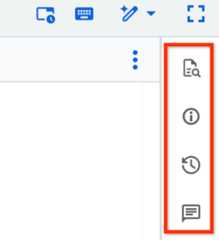
TheComments toolbar feature is inPreview. Toprovide feedback or request support for this feature, send an email tobqui-workspace-pod@google.com.
Optional: In the toolbar, you can use theReference panel topreview the schema details of tables, snapshots, views, or materializedviews, or open them in a new tab. The panel also has a list of recent andstarred resources.
Create a notebook from a table
To create a notebook containing a default query for a specific table, followthese steps:
Go to theBigQuery page.
In the left pane, clickExplorer:

If you don't see the left pane, clickExpand left pane to open the pane.
In theExplorer pane, expand your project, clickDatasets, and thenclick your dataset.
ClickOverview> Tables, and find the table that you want to query.
Next to the table, clickActions,and then clickOpen in> Python notebook.
The new notebook opens, containing cells that show example queries againstthe selected table.
Create a notebook to explore the result set of a query
To create a notebook to explore the result set of a query, follow these steps:
Go to theBigQuery page.
In the editor pane, run a query that generates a query result.
In theQuery results pane, clickOpen in> Notebook.
The new notebook opens, containing cells with code to return the query SQLand the query results.
Create a notebook from an existing notebook
To open any version of an existing notebook as a new notebook, follow thesesteps:
In the Google Cloud console, go to theBigQuery page.
In the left pane, clickExplorer:
In theExplorer pane, expand your project and clickNotebooks.
Select a notebook.
ClickVersion history.
ClickView actions next to a notebook version and then clickOpen as new Python notebook.
A copy of the notebook is opened as a new notebook.
Upload notebooks
You can upload a local notebook to use it inBigQuery Studio. The uploaded notebook is then visible in theBigQuery page of the Google Cloud console.
To upload a notebook, follow these steps:
In the Google Cloud console, go to theBigQuery page.
In the left pane, clickExplorer:
In theExplorer pane, expand your project, and then do one of the following:
- Next toNotebooks, clickView actions>Upload to Notebooks.
- Next to the Google Cloud project name,clickView actions>Upload to project>Notebook.
In theUpload Notebook dialog, in theNotebook field,clickBrowse, and then select the notebook that you want toupload.
Optional: In theNotebook name field, edit the name of the notebook.
In theRegion field, select the region where you want to upload your notebook.
ClickUpload.
Your notebook can be accessed through theExplorer pane.
Connect to a runtime
Use the following sections to learn how to connect a notebook to aVertex AI runtime. A runtime is acompute resource that runs the code in your notebook. The runtime must be in thesame region as your notebook.
For more information about runtimes, seeRuntimes and runtime templates.
Note: If you useVPC Service Controls,make sure you have configuredPrivate Google Access with VPC Service Controlsbefore connecting to a runtime. Otherwise, the service returns the errorFailed to connect to Runtime Networkprojects/projectid/global/networks/default' was not found.Connect to the default runtime
The default runtime is a preset runtime that requires minimal setup.
To connect to the default runtime, follow these steps:
In the Google Cloud console, go to theBigQuery page.
In the left pane, clickExplorer:
In theExplorer pane, expand your project and clickNotebooks.
Click the name of a notebook to open it.
In the notebook, clickConnect, or run any cell in the notebook.
It might take several minutes to connect to the default runtime if youdon't already have an active runtime.
Connect to a non-default runtime
If you want to use a runtime other than the default runtime, you must firstcreate that additional runtime in Vertex AI.
To connect to non-default runtime, follow these steps:
In the Google Cloud console, go to theBigQuery page.
In the left pane, clickExplorer:
In theExplorer pane, expand your project and clickNotebooks.
Click the name of a notebook to open it.
In the notebook, click thedrop-down next toConnect and then clickConnect to a runtime.
ClickConnect to an existing runtime.
InRuntimes, select the runtime to use. The runtime must be in the samelocation as the notebook.
ClickConnect.
Connect to a new runtime
To connect to a new runtime, follow these steps:
In the Google Cloud console, go to theBigQuery page.
In the left pane, clickExplorer:
In theExplorer pane, expand your project and clickNotebooks.
Click the name of a notebook to open it.
In the notebook, click thedrop-down next toConnect and then clickConnect to a runtime.
ClickCreate new runtime.
InRuntime Template, select theVertex AI runtime templateto use.
InRuntime name, type a name for the runtime.
ClickConnect.
Understand cells
A notebook is made up of cells that you can edit. Thefollowing types of cells are supported:
- Text cell: Use a text cell to add explanations and images to your notebookin Markdown.
- Code cell: Use a code cell to add Python to your notebook. You can runeach code cell individually. A code cell can reference any variables createdin another cell that you've already run.
SQL cell (Preview): Use aSQL cellto run GoogleSQL queries. The output of the query is automaticallysaved as a DataFrame with the same name as the title of thecell. You can run multiple SQL statements in a single SQL cell, but only theresults of the last statement are saved to a DataFrame.
You can refer to Python variables in expressions or useBigQuery DataFrames as tables in your query by enclosing the variablename in braces (
{ }):# Refer to the Python variable my_threshold in a SQL expression.SELECT*FROMmy_dataset.my_tableWHEREx >{my_threshold};# Reference previous query results to iterate on your queries.SELECT*FROM{df};Visualization cell (Preview): Use avisualization cell to automaticallygenerate a visualization of any DataFrame in your notebook.You can modify which columnsare displayed and select from various chart types and aggregations. You canalso choose custom colors, data labels, and titles.
Grant access to notebooks
To grant other users access to a notebook, add those users to an appropriateIAM role.
Important: Users who have access to the notebook can see all outputgenerated by code in the notebook, even if this output contains data fromtables they don't have access to. To prevent saved output from being shared,disable notebook output saving.In the Google Cloud console, go to theBigQuery page.
In the left pane, clickExplorer:
If you don't see the left pane, clickExpand left pane to open the pane.
In theExplorer pane, expand your project and clickNotebooks.
Find the notebook that you want to grant access to.
ClickOpen actions next to the notebook, and then clickShare.
In theShare permissions pane, clickAdd user/group.
In theNew principals field, enter a principal.
In theRole list, select one ofthe following roles:
- Code Owner: Canperform any action on the notebook, including deleting or sharing it.
- Code Editor: Canedit the notebook.
- Code Viewer: Canview the notebook.
roles/aiplatform.notebookRuntimeUser) andBigQuery User (roles/bigquery.user)roles to run the notebook.Optional: To view a complete list of roles and advanced sharing settings,clickAdvanced sharing.
ClickSave.
To return to the notebook information page, clickClose.
Share notebooks
To share a notebook with other users, you can generate and share a link tothe notebook. For other users to see the notebook you share, you mustfirstgrant access to the notebook.
To run a notebook, users must have access to the data that the notebookaccesses. For more information, seeGrant access to a dataset.
Important: Users who have access to the notebook can see all outputgenerated by code in the notebook, even if this output contains data fromtables they don't have access to. To prevent saved output from being shared,disable notebook output saving.In the Google Cloud console, go to theBigQuery page.
In the left pane, clickExplorer:
If you don't see the left pane, clickExpand left pane to open the pane.
In theExplorer pane, expand your project and clickNotebooks.
Find the notebook that you want to share. You can use thesearch feature or filters to find your notebook.
ClickView actions next to the notebook, and then clickShare>Copy link.
Share the link with other users.
Disable notebook output saving
You can prevent sharing saved notebook outputwith other users who have access to the notebook fileby disabling notebook output saving.
When you disable output saving for a selected notebook,BigQuery deletes all output saved in the notebook fileand doesn't save the output of subsequent runs.
However, users who haveaccess to the notebookcan still view its output in the following ways:
- Run the notebook to view its current output. This output is not saved.
- View an archival version of the notebook and its output in revision history.
To disable saving of output for a selected notebook, follow these steps:
In the Google Cloud console, go to theBigQuery page.
In the left pane, clickExplorer:
If you don't see the left pane, clickExpand left pane to open the pane.
In theExplorer pane, expand your project and clickNotebooks.
Click the notebook for which you want to disable saving output.
To expand the menu bar, clickkeyboard_arrow_downToggle header visibility.
ClickEdit> Notebook settings.
In theNotebook settings window, selectOmit code cell output when saving this notebook.
ClickSave.
ClickReload.
Resolve conflicts
If you and another user make conflicting changes in a notebook, the serviceraises the errorAutomatic saving failed. This file was updated remotely orin another tab. and provides aShow diff link. To resolve the conflict,follow these steps:
- Click the
Show difflink. TheReview remote changes dialog opens. - Optional: To compare the notebook source code, select theRaw sourcecheckbox.
- Optional: To compare the versions inline instead of in separate panes,select theInline diff checkbox.
- Review the changes and decide which to keep, revising your input ifnecessary.
- ClickSave your changes.
Rename notebooks
To rename a notebook, follow these steps:
In the Google Cloud console, go to theBigQuery page.
In the left pane, clickExplorer:
In theExplorer pane, expand your project and clickNotebooks.
Click the notebook that you want to rename.
Clickkeyboard_arrow_downToggle header visibilityto expand the menu bar.
ClickFile> Rename.
In theRename notebook dialog, type a name for the notebook, and thenclickRename.
Troubleshooting
For more information, seeTroubleshoot Colab Enterprise.
What's next
- Learn how tomanage notebooks.
- Learn how toschedule notebooks.
Except as otherwise noted, the content of this page is licensed under theCreative Commons Attribution 4.0 License, and code samples are licensed under theApache 2.0 License. For details, see theGoogle Developers Site Policies. Java is a registered trademark of Oracle and/or its affiliates.
Last updated 2025-12-15 UTC.