

Create an authorized view
In this tutorial, you create an authorized view in BigQuery that isused by your data analysts.Authorized viewslet you share query results with particular users and groups without giving themaccess to the underlying source data. The view is given access to the sourcedata instead of a user or group. You can also use the view's SQL query toexclude columns and fields from the query results.
An alternative approach to using an authorized view would be to set upcolumn-level access controls on the source data and then give your usersaccess to a view that queries the access-controlled data. For more informationon column-level access controls, seeIntroduction to column-level accesscontrol.
If you have multiple authorized views that access the same source dataset, youcanauthorize the dataset that containsthe views instead of authorizing an individual view.
Objectives
- Create a dataset to contain your source data.
- Run a query to load data into a destination table in the source dataset.
- Create a dataset to contain your authorized view.
- Create an authorized view from a SQL query that restricts the columnsthat your data analysts can see in the query results.
- Grant your data analysts permission to run query jobs.
- Grant your data analysts access to the dataset that contains the authorizedview.
- Grant the authorized view access to the source dataset.
Costs
In this document, you use the following billable components of Google Cloud:
To generate a cost estimate based on your projected usage, use thepricing calculator.
When you finish the tasks that are described in this document, you can avoid continued billing by deleting the resources that you created. For more information, seeClean up.
Before you begin
- Sign in to your Google Cloud account. If you're new to Google Cloud, create an account to evaluate how our products perform in real-world scenarios. New customers also get $300 in free credits to run, test, and deploy workloads.
In the Google Cloud console, on the project selector page, select or create a Google Cloud project.
Roles required to select or create a project
- Select a project: Selecting a project doesn't require a specific IAM role—you can select any project that you've been granted a role on.
- Create a project: To create a project, you need the Project Creator role (
roles/resourcemanager.projectCreator), which contains theresourcemanager.projects.createpermission.Learn how to grant roles.
In the Google Cloud console, on the project selector page, select or create a Google Cloud project.
Roles required to select or create a project
- Select a project: Selecting a project doesn't require a specific IAM role—you can select any project that you've been granted a role on.
- Create a project: To create a project, you need the Project Creator role (
roles/resourcemanager.projectCreator), which contains theresourcemanager.projects.createpermission.Learn how to grant roles.
Verify that billing is enabled for your Google Cloud project.
Enable the BigQuery API.
Roles required to enable APIs
To enable APIs, you need the Service Usage Admin IAM role (
roles/serviceusage.serviceUsageAdmin), which contains theserviceusage.services.enablepermission.Learn how to grant roles.- Ensure that you have thenecessary permissions to perform the tasks in this document.
Create a dataset to store your source data
You begin by creating a dataset to store your source data.
To create your source dataset, choose one of the following options:
Console
Go to theBigQuery page.
In the left pane, clickExplorer:

If you don't see the left pane, clickExpand left pane to open the pane.
In theExplorer pane, beside the project where you want to createthe dataset, clickView actions>Create dataset.
On theCreate dataset page, do the following:
ForDataset ID, enter
github_source_data.ForLocation type, verify thatMulti-region is selected.
ForMulti-region, chooseUS orEU. All the resources youcreate in this tutorial should be in the same multi-region location.
ClickCreate dataset.
SQL
Use theCREATE SCHEMA DDL statement:
In the Google Cloud console, go to theBigQuery page.
In the query editor, enter the following statement:
CREATESCHEMAgithub_source_data;
ClickRun.
For more information about how to run queries, seeRun an interactive query.
Java
Before trying this sample, follow theJava setup instructions in theBigQuery quickstart using client libraries. For more information, see theBigQueryJava API reference documentation.
To authenticate to BigQuery, set up Application Default Credentials. For more information, seeSet up authentication for client libraries.
// Create a source dataset to store your table.DatasetsourceDataset=bigquery.create(DatasetInfo.of(sourceDatasetId));Python
Before trying this sample, follow thePython setup instructions in theBigQuery quickstart using client libraries. For more information, see theBigQueryPython API reference documentation.
To authenticate to BigQuery, set up Application Default Credentials. For more information, seeSet up authentication for client libraries.
fromgoogle.cloudimportbigqueryfromgoogle.cloud.bigquery.enumsimportEntityTypesclient=bigquery.Client()source_dataset_id="github_source_data"source_dataset_id_full="{}.{}".format(client.project,source_dataset_id)source_dataset=bigquery.Dataset(source_dataset_id_full)# Specify the geographic location where the dataset should reside.source_dataset.location="US"source_dataset=client.create_dataset(source_dataset)# API requestCreate a table and load your source data
After you create the source dataset, you populate a table in it by saving theresults of a SQL query to a destination table. The query retrieves data from theGitHub public dataset.
Console
Go to theBigQuery page.
In the query editor, enter the following query:
SELECT commit, author, committer, repo_nameFROM`bigquery-public-data.github_repos.commits`LIMIT 1000;ClickMore and selectQuery settings.
ForDestination, selectSet a destination table for queryresults.
ForDataset, enter
PROJECT_ID.github_source_data.Replace
PROJECT_IDwith your project ID.ForTable Id, enter
github_contributors.ClickSave.
ClickRun.
When the query completes, in theExplorer pane, clickDatasets,and then click the
github_source_datadataset.ClickOverview> Tables, and then click the
github_contributorstable.To verify the data was written to the table, click thePreview tab.
Java
Before trying this sample, follow theJava setup instructions in theBigQuery quickstart using client libraries. For more information, see theBigQueryJava API reference documentation.
To authenticate to BigQuery, set up Application Default Credentials. For more information, seeSet up authentication for client libraries.
// Populate a source tableStringtableQuery="SELECT commit, author, committer, repo_name"+" FROM `bigquery-public-data.github_repos.commits`"+" LIMIT 1000";QueryJobConfigurationqueryConfig=QueryJobConfiguration.newBuilder(tableQuery).setDestinationTable(TableId.of(sourceDatasetId,sourceTableId)).build();bigquery.query(queryConfig);Python
Before trying this sample, follow thePython setup instructions in theBigQuery quickstart using client libraries. For more information, see theBigQueryPython API reference documentation.
To authenticate to BigQuery, set up Application Default Credentials. For more information, seeSet up authentication for client libraries.
source_table_id="github_contributors"job_config=bigquery.QueryJobConfig()job_config.destination=source_dataset.table(source_table_id)sql=""" SELECT commit, author, committer, repo_name FROM `bigquery-public-data.github_repos.commits` LIMIT 1000"""client.query_and_wait(sql,# Location must match that of the dataset(s) referenced in the query# and of the destination table.location="US",job_config=job_config,)# API request - starts the query and waits for query to finishCreate a dataset to store your authorized view
After creating your source dataset, you create a new, separate dataset tostore the authorized view that you share with your data analysts. In alater step, you grant the authorized view access to the data in the sourcedataset. Your data analysts then have access to the authorized view, but notdirect access to the source data.
Authorized views should be created in a different dataset from the source data.That way, data owners can give users access to the authorized view withoutsimultaneously granting access to the underlying data. The source data datasetand authorized view dataset must be in the same regionallocation.
To create a dataset to store your view, choose one of the following options:
Console
Go to theBigQuery page.
In the left pane, clickExplorer:
In theExplorer pane, select the project where you want to createthe dataset.
Expand theView actions option and clickCreate dataset.
On theCreate dataset page, do the following:
ForDataset ID, enter
shared_views.ForLocation type, verify thatMulti-region is selected.
ForMulti-region, chooseUS orEU. All the resources youcreate in this tutorial should be in the same multi-region location.
ClickCreate dataset.
SQL
Use theCREATE SCHEMA DDL statement:
In the Google Cloud console, go to theBigQuery page.
In the query editor, enter the following statement:
CREATESCHEMAshared_views;
ClickRun.
For more information about how to run queries, seeRun an interactive query.
Java
Before trying this sample, follow theJava setup instructions in theBigQuery quickstart using client libraries. For more information, see theBigQueryJava API reference documentation.
To authenticate to BigQuery, set up Application Default Credentials. For more information, seeSet up authentication for client libraries.
// Create a separate dataset to store your viewDatasetsharedDataset=bigquery.create(DatasetInfo.of(sharedDatasetId));Python
Before trying this sample, follow thePython setup instructions in theBigQuery quickstart using client libraries. For more information, see theBigQueryPython API reference documentation.
To authenticate to BigQuery, set up Application Default Credentials. For more information, seeSet up authentication for client libraries.
shared_dataset_id="shared_views"shared_dataset_id_full="{}.{}".format(client.project,shared_dataset_id)shared_dataset=bigquery.Dataset(shared_dataset_id_full)shared_dataset.location="US"shared_dataset=client.create_dataset(shared_dataset)# API requestCreate the authorized view in the new dataset
In the new dataset, you create the view you intend to authorize. This is theview you share with your data analysts. This view is created using a SQL querythat excludes the columns you don't want the data analysts to see.
Thegithub_contributors source table contains two fields of typeRECORD:author andcommitter. For this tutorial, your authorized view excludes allof the author data except for the author's name, and it excludes all of thecommitter data except for the committer's name.
To create the view in the new dataset, choose one of the following options:
Console
Go to theBigQuery page.
In the query editor, enter the following query.
SELECTcommit,author.nameASauthor,committer.nameAScommitter,repo_nameFROM`PROJECT_ID.github_source_data.github_contributors`;
Replace
PROJECT_IDwith your project ID.ClickSave>Save view.
In theSave view dialog, do the following:
ForProject, verify your project is selected.
ForDataset, enter
shared_views.ForTable, enter
github_analyst_view.ClickSave.
SQL
Use theCREATE VIEW DDL statement:
In the Google Cloud console, go to theBigQuery page.
In the query editor, enter the following statement:
CREATEVIEWshared_views.github_analyst_viewAS(SELECTcommit,author.nameASauthor,committer.nameAScommitter,repo_nameFROM`PROJECT_ID.github_source_data.github_contributors`);
Replace
PROJECT_IDwith your project ID.ClickRun.
For more information about how to run queries, seeRun an interactive query.
Java
Before trying this sample, follow theJava setup instructions in theBigQuery quickstart using client libraries. For more information, see theBigQueryJava API reference documentation.
To authenticate to BigQuery, set up Application Default Credentials. For more information, seeSet up authentication for client libraries.
// Create the view in the new datasetStringviewQuery=String.format("SELECT commit, author.name as author, committer.name as committer, repo_name FROM %s.%s.%s",projectId,sourceDatasetId,sourceTableId);ViewDefinitionviewDefinition=ViewDefinition.of(viewQuery);Tableview=bigquery.create(TableInfo.of(TableId.of(sharedDatasetId,sharedViewId),viewDefinition));Python
Before trying this sample, follow thePython setup instructions in theBigQuery quickstart using client libraries. For more information, see theBigQueryPython API reference documentation.
To authenticate to BigQuery, set up Application Default Credentials. For more information, seeSet up authentication for client libraries.
shared_view_id="github_analyst_view"view=bigquery.Table(shared_dataset.table(shared_view_id))sql_template=""" SELECT commit, author.name as author, committer.name as committer, repo_name FROM `{}.{}.{}`"""view.view_query=sql_template.format(client.project,source_dataset_id,source_table_id)view=client.create_table(view)# API requestGrant your data analysts permission to run query jobs
To query the view, your data analysts need thebigquery.jobs.create permissionso they can run query jobs, and they need to be granted access to the view. Inthis section, you grant thebigquery.user role to your data analysts. Thebigquery.user role includesbigquery.jobs.create permission. In a laterstep, you grant your data analysts permission to access the view.
To assign the data analysts group to thebigquery.user role at theproject level, do the following:
In the Google Cloud console, go to theIAM page.
Ensure your project is selected in the project selector.
ClickGrant access.
In theGrant access to dialog, do the following:
In theNew principals field, enter the group that contains your data analysts. For example,
data_analysts@example.com.In theSelect a role field, search for theBigQuery User role and select it.
ClickSave.
Grant your data analysts permission to query the authorized view
For your data analysts to query the view, they need to be granted thebigquery.dataViewer role at either the dataset level or the view level.Granting this role at the dataset level gives your analysts access to all tablesand views in the dataset. Because the dataset created in this tutorial containsa single authorized view, you're granting access at the dataset level. If youhave a collection of authorized views that you need to grant access to, considerusing anauthorized dataset instead.
Thebigquery.user role you granted to your data analysts previouslygives them the permissions required to create query jobs. However, they cannotsuccessfully query the view unless they also havebigquery.dataViewer accessto the authorized view or to the dataset that contains the view.
To give your data analystsbigquery.dataViewer access to the dataset thatcontains the authorized view, do the following:
Console
Go to theBigQuery page.
In the left pane, clickExplorer:
In theExplorer pane, clickDatasets, and then select the
shared_viewsdataset to open theDetails tab.ClickSharing>Permissions.
In theShare permissions pane, clickAdd principal.
ForNew principals, enter the group that contains your dataanalysts—for example,
data_analysts@example.com.ClickSelect a role and selectBigQuery>BigQuery Data Viewer.
ClickSave.
ClickClose.
Java
Before trying this sample, follow theJava setup instructions in theBigQuery quickstart using client libraries. For more information, see theBigQueryJava API reference documentation.
To authenticate to BigQuery, set up Application Default Credentials. For more information, seeSet up authentication for client libraries.
// Assign access controls to the dataset containing the viewList<Acl>viewAcl=newArrayList<>(sharedDataset.getAcl());viewAcl.add(Acl.of(newAcl.Group("example-analyst-group@google.com"),Acl.Role.READER));sharedDataset.toBuilder().setAcl(viewAcl).build().update();Python
Before trying this sample, follow thePython setup instructions in theBigQuery quickstart using client libraries. For more information, see theBigQueryPython API reference documentation.
To authenticate to BigQuery, set up Application Default Credentials. For more information, seeSet up authentication for client libraries.
# analyst_group_email = 'data_analysts@example.com'access_entries=shared_dataset.access_entriesaccess_entries.append(bigquery.AccessEntry("READER",EntityTypes.GROUP_BY_EMAIL,analyst_group_email))shared_dataset.access_entries=access_entriesshared_dataset=client.update_dataset(shared_dataset,["access_entries"])# API requestAuthorize the view to access the source dataset
After you create access controls for the dataset that contains the authorizedview, you grant the authorized view access to the source dataset. Thisauthorization gives the view, but not your data analysts group, access to thesource data.
To grant the authorized view access the source data, choose one of theseoptions:
Console
Go to theBigQuery page.
In the left pane, clickExplorer:
In theExplorer pane, clickDatasets, and then select the
github_source_datadataset to open theDetails tab.ClickSharing>Authorize views.
In theAuthorized views pane, forAuthorized view enter
PROJECT_ID.shared_views.github_analyst_view.ReplacePROJECT_ID with your project ID.
ClickAdd authorization.
Java
Before trying this sample, follow theJava setup instructions in theBigQuery quickstart using client libraries. For more information, see theBigQueryJava API reference documentation.
To authenticate to BigQuery, set up Application Default Credentials. For more information, seeSet up authentication for client libraries.
// Authorize the view to access the source datasetList<Acl>srcAcl=newArrayList<>(sourceDataset.getAcl());srcAcl.add(Acl.of(newAcl.View(view.getTableId())));sourceDataset.toBuilder().setAcl(srcAcl).build().update();Python
Before trying this sample, follow thePython setup instructions in theBigQuery quickstart using client libraries. For more information, see theBigQueryPython API reference documentation.
To authenticate to BigQuery, set up Application Default Credentials. For more information, seeSet up authentication for client libraries.
access_entries=source_dataset.access_entriesaccess_entries.append(bigquery.AccessEntry(None,EntityTypes.VIEW,view.reference.to_api_repr()))source_dataset.access_entries=access_entriessource_dataset=client.update_dataset(source_dataset,["access_entries"])# API requestVerify the configuration
When your configuration is complete, a member of your data analysts group (forexample,data_analysts) can verify the configuration by querying the view.
To verify the configuration, a data analyst should run the following query:
Go to theBigQuery page.
In the query editor, enter the following statement:
SELECT*FROM`
PROJECT_ID.shared_views.github_analyst_view`;Replace
PROJECT_IDwith your project ID.ClickRun.
The query results are similar to the following. Only the author name andcommitter name are visible in the results.
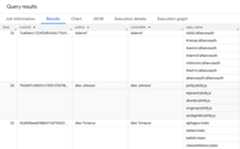
For more information about how to run queries, seeRun an interactive query.
Complete source code
Here is the complete source code for the tutorial for your reference.
Java
Before trying this sample, follow theJava setup instructions in theBigQuery quickstart using client libraries. For more information, see theBigQueryJava API reference documentation.
To authenticate to BigQuery, set up Application Default Credentials. For more information, seeSet up authentication for client libraries.
// Create a source dataset to store your table.DatasetsourceDataset=bigquery.create(DatasetInfo.of(sourceDatasetId));// Populate a source tableStringtableQuery="SELECT commit, author, committer, repo_name"+" FROM `bigquery-public-data.github_repos.commits`"+" LIMIT 1000";QueryJobConfigurationqueryConfig=QueryJobConfiguration.newBuilder(tableQuery).setDestinationTable(TableId.of(sourceDatasetId,sourceTableId)).build();bigquery.query(queryConfig);// Create a separate dataset to store your viewDatasetsharedDataset=bigquery.create(DatasetInfo.of(sharedDatasetId));// Create the view in the new datasetStringviewQuery=String.format("SELECT commit, author.name as author, committer.name as committer, repo_name FROM %s.%s.%s",projectId,sourceDatasetId,sourceTableId);ViewDefinitionviewDefinition=ViewDefinition.of(viewQuery);Tableview=bigquery.create(TableInfo.of(TableId.of(sharedDatasetId,sharedViewId),viewDefinition));// Assign access controls to the dataset containing the viewList<Acl>viewAcl=newArrayList<>(sharedDataset.getAcl());viewAcl.add(Acl.of(newAcl.Group("example-analyst-group@google.com"),Acl.Role.READER));sharedDataset.toBuilder().setAcl(viewAcl).build().update();// Authorize the view to access the source datasetList<Acl>srcAcl=newArrayList<>(sourceDataset.getAcl());srcAcl.add(Acl.of(newAcl.View(view.getTableId())));sourceDataset.toBuilder().setAcl(srcAcl).build().update();Python
Before trying this sample, follow thePython setup instructions in theBigQuery quickstart using client libraries. For more information, see theBigQueryPython API reference documentation.
To authenticate to BigQuery, set up Application Default Credentials. For more information, seeSet up authentication for client libraries.
# Create a source datasetfromgoogle.cloudimportbigqueryfromgoogle.cloud.bigquery.enumsimportEntityTypesclient=bigquery.Client()source_dataset_id="github_source_data"source_dataset_id_full="{}.{}".format(client.project,source_dataset_id)source_dataset=bigquery.Dataset(source_dataset_id_full)# Specify the geographic location where the dataset should reside.source_dataset.location="US"source_dataset=client.create_dataset(source_dataset)# API request# Populate a source tablesource_table_id="github_contributors"job_config=bigquery.QueryJobConfig()job_config.destination=source_dataset.table(source_table_id)sql=""" SELECT commit, author, committer, repo_name FROM `bigquery-public-data.github_repos.commits` LIMIT 1000"""client.query_and_wait(sql,# Location must match that of the dataset(s) referenced in the query# and of the destination table.location="US",job_config=job_config,)# API request - starts the query and waits for query to finish# Create a separate dataset to store your viewshared_dataset_id="shared_views"shared_dataset_id_full="{}.{}".format(client.project,shared_dataset_id)shared_dataset=bigquery.Dataset(shared_dataset_id_full)shared_dataset.location="US"shared_dataset=client.create_dataset(shared_dataset)# API request# Create the view in the new datasetshared_view_id="github_analyst_view"view=bigquery.Table(shared_dataset.table(shared_view_id))sql_template=""" SELECT commit, author.name as author, committer.name as committer, repo_name FROM `{}.{}.{}`"""view.view_query=sql_template.format(client.project,source_dataset_id,source_table_id)view=client.create_table(view)# API request# Assign access controls to the dataset containing the view# analyst_group_email = 'data_analysts@example.com'access_entries=shared_dataset.access_entriesaccess_entries.append(bigquery.AccessEntry("READER",EntityTypes.GROUP_BY_EMAIL,analyst_group_email))shared_dataset.access_entries=access_entriesshared_dataset=client.update_dataset(shared_dataset,["access_entries"])# API request# Authorize the view to access the source datasetaccess_entries=source_dataset.access_entriesaccess_entries.append(bigquery.AccessEntry(None,EntityTypes.VIEW,view.reference.to_api_repr()))source_dataset.access_entries=access_entriessource_dataset=client.update_dataset(source_dataset,["access_entries"])# API requestClean up
To avoid incurring charges to your Google Cloud account for the resources used in this tutorial, either delete the project that contains the resources, or keep the project and delete the individual resources.
Delete the project
Console
gcloud
Delete individual resources
Alternatively, to remove the individual resources used in this tutorial, do thefollowing:
Delete the dataset thatcontains the authorized view.
Delete the table in thesource dataset.
Because you created the resources used in this tutorial, no additionalpermissions are required to delete them.
What's next
- To learn about access controls in BigQuery, seeBigQuery IAM roles and permissions.
- To learn about BigQuery views, seeIntroduction to logical views.
- To learn more about authorized views, seeAuthorized views.
- To learn the basic concepts about access control, seeIAM overview.
- To learn how to manage access control, seeManaging policies.
Except as otherwise noted, the content of this page is licensed under theCreative Commons Attribution 4.0 License, and code samples are licensed under theApache 2.0 License. For details, see theGoogle Developers Site Policies. Java is a registered trademark of Oracle and/or its affiliates.
Last updated 2025-12-15 UTC.