

Using Connected Sheets
Connected Sheets brings the scale of BigQuery to thefamiliar Google Sheets interface. With Connected Sheets, you canpreview your BigQuery data and use it in pivot tables, formulas,and charts built from the entire set of data.
You can also do the following:
Collaborate with partners, analysts, or other stakeholders in a familiarspreadsheet interface.
Ensure a single source of truth for data analysis without additionalspreadsheet exports.
Streamline your reporting and dashboard workflows.
Connected Sheets runs BigQuery queries on yourbehalf either upon your request or on a defined schedule. Results ofthose queries are saved in your spreadsheet for analysis and sharing.
Example use cases
The following are just a few use cases that show howConnected Sheets lets you analyze large amounts of data within asheet, without needing to know SQL.
Business planning: Build and prepare datasets, then allow others to findinsights from the data. For example, analyze sales data to determine whichproducts sell better in different locations.
Customer service: Find out which stores have the most complaints per10,000 customers.
Sales: Create internal finance and sales reports, and share revenuereports with sales reps.
Access control
Direct access to BigQuery datasets and tables is controlledwithin BigQuery. If you want to give a user Google Sheets accessonly, share a spreadsheet and don't grant BigQuery access.
A user with Google Sheets-only access can perform analysis in the sheet anduse other Google Sheets features, but the user won't be able to perform thefollowing actions:
- Manually refresh the BigQuery data in the sheet.
- Schedule a refresh of the data in the sheet.
When you filter data in Connected Sheets, it refreshes the query that you send toBigQuery against the project that you selected.You can view the executed query with the following log filter in the relatedproject:
resource.type="bigquery_resource"protoPayload.metadata.firstPartyAppMetadata.sheetsMetadata.docId != NULL_VALUE
VPC Service Controls
You can useVPC Service Controls to restrict access toGoogle Cloud resources. Because VPC Service Controls does not supportSheets, you might not be able to access BigQuerydata that VPC Service Controls is protecting. If you have the required allowpermissions and meet theVPC Service Controls access restrictions, you can configure theVPC Service Controls perimeter to allow queries issued throughConnected Sheets. To do so, you must configure the perimeter usingthe following:
- An access level or ingress rule to allow requests from trusted IP addresses,identities, and trusted client devices from outside of the perimeter.
- An egress rule to allow query results to be copied to users' spreadsheets.
Learn aboutconfiguring ingress and egresspolicies andconfiguring access levels toproperly configure therules.To configure a perimeter to allow the required data copying, use the followingYAML file:
# Allows egress to Sheets through the Connected Sheets feature- egressTo: operations: - serviceName: 'bigquery.googleapis.com' methodSelectors: - permission: 'bigquery.vpcsc.importData' resources: - projects/628550087766 # Sheets-owned Google Cloud project egressFrom: identityType: ANY_USER_ACCOUNTBefore you begin
First, make sure that you meet the requirements for accessing BigQuerydata in Sheets, as described in the "What you need" section ofthe Google Workspace topicGet started with BigQuery data in Google Sheets.
If you don't have a Google Cloud project that is set up for billing, followthese steps:
- Sign in to your Google Cloud account. If you're new to Google Cloud, create an account to evaluate how our products perform in real-world scenarios. New customers also get $300 in free credits to run, test, and deploy workloads.
In the Google Cloud console, on the project selector page, select or create a Google Cloud project.
Roles required to select or create a project
- Select a project: Selecting a project doesn't require a specific IAM role—you can select any project that you've been granted a role on.
- Create a project: To create a project, you need the Project Creator role (
roles/resourcemanager.projectCreator), which contains theresourcemanager.projects.createpermission.Learn how to grant roles.
Verify that billing is enabled for your Google Cloud project.
In the Google Cloud console, on the project selector page, select or create a Google Cloud project.
Roles required to select or create a project
- Select a project: Selecting a project doesn't require a specific IAM role—you can select any project that you've been granted a role on.
- Create a project: To create a project, you need the Project Creator role (
roles/resourcemanager.projectCreator), which contains theresourcemanager.projects.createpermission.Learn how to grant roles.
Verify that billing is enabled for your Google Cloud project.
- BigQuery is automatically enabled in new projects. To activate BigQuery in a preexisting project, go to
Enable the BigQuery API.
Roles required to enable APIs
To enable APIs, you need the Service Usage Admin IAM role (
roles/serviceusage.serviceUsageAdmin), which contains theserviceusage.services.enablepermission.Learn how to grant roles.
To avoid continued billing, you can delete theresources that you created. SeeCleaning up for more detail.
Open BigQuery datasets from Connected Sheets
The following example uses a public dataset to show you how to connect toBigQuery from Google Sheets:
Create or open a Google Sheets spreadsheet.
ClickData, clickData connectors, and then clickConnect toBigQuery.
Note: If you don't see theData connectors option, seeBefore you begin.Select a Google Cloud project that has billing enabled.
ClickPublic datasets.
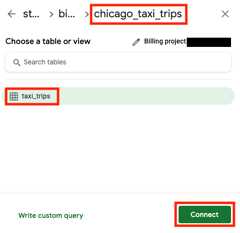
In the search box, typechicago and then select thechicago_taxi_trips dataset.
Select thetaxi_trips table and then clickConnect.
Your spreadsheet should look similar to the following:
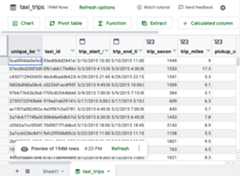
Start using the spreadsheet. You can create pivot tables, formulas, charts,calculated columns, and scheduled queriesusing familiar Google Sheets techniques. For more information, see theConnected Sheets tutorial.
Although the spreadsheet shows a preview of only 500 rows, any pivot tables,formulas, and charts use the entire set of data. The maximum number of rows forresults returned for pivot tables is 200,000.
You can also extract the data to a Google Sheets. The maximum number of rowsand cells for results returned for data extracts depends on the followingconditions:
- If the number of rows is less than or equal to 50,000, then there's no celllimit.
- If the number of rows is greater than 50,000 but less than or equal to500,000, then the number of cells must be less than or equal to 5 million.
- If the number of rows is greater than 500,000, then the data pull isn'tsupported.
When you use Connected Sheets to create a chart, pivot table, formula,or other computed cell from your data, Connected Sheets runs a queryin BigQuery on your behalf. To view this query, do the following:
- Select the cell or chart that you created.
- Hold the pointer overRefresh.
- Optional: To refresh the query results in Connected Sheets, clickRefresh.
To view the query in BigQuery,clickQuery details on BigQuery.
The query opens in the Google Cloud console.
Open tables in Connected Sheets
To open a table in Connected Sheets, follow these steps:
In the Google Cloud console, go to theBigQuery page.
In the left pane, clickExplorer:

If you don't see the left pane, clickExpand left pane to open the pane.
In theExplorer pane, expand your project, clickDatasets, and then click the dataset that contains the table that you want to open in Google Sheets.
ClickOverview> Tables, and next to your table name, clickView actions, and then selectOpen in> Connected Sheets.
Open saved queries in Connected Sheets
Ensure you have asaved query.For more information, seeCreate saved queries.
To open a saved query in Connected Sheets, follow these steps:
In the Google Cloud console, go to theBigQuery page.
In the left pane, clickExplorer:
In theExplorer pane, expand your project and clickQueries. Find the saved query that you want to open in Connected Sheets.
ClickOpen actions next to the saved query, and then clickOpen in> Connected Sheets.
Alternatively, click the name of the saved query to open it in the details pane, and then clickOpen in> Connected Sheets.
Monitor BigQuery usage from Connected Sheets
As a BigQuery administrator, you can monitor and audit resourceconsumption from Connected Sheets to understand usage patterns,manage costs, and identify frequently-used reports. The following sectionsprovide example SQL queries to help you monitor this usage at both theorganization and project levels. For more information, seeJOBS view.
All queries that originate from Connected Sheets are assigned a uniquejob ID prefix:sheets_dataconnector. You can use this prefix to filter jobs intheINFORMATION_SCHEMA.JOBS views.
Aggregate Connected Sheets usage by user at the organization level
The following query provides a summary of the top Connected Sheetsusers in your organization over the last 30 days, ranked by their totalbilled data. The query aggregates the total number of queries, totalbytes billed, and total slot milliseconds for each user. This information isuseful for understanding adoption and for identifying top consumers ofresources.
SELECTuser_email,COUNT(*)AStotal_queries,SUM(total_bytes_billed)AStotal_bytes_billed,SUM(total_slot_ms)AStotal_slot_msFROM`region-REGION_NAME.INFORMATION_SCHEMA.JOBS_BY_ORGANIZATION`WHERE-- Filter for jobs created in the last 30 dayscreation_time>=TIMESTAMP_SUB(CURRENT_TIMESTAMP(),INTERVAL30DAY)-- Filter for jobs originating from Connected SheetsANDjob_idLIKE'sheets_dataconnector%'-- Filter for completed jobsANDstate='DONE'AND(statement_typeISNULLORstatement_type <>'SCRIPT')GROUPBY1ORDERBYtotal_bytes_billedDESC;ReplaceREGION_NAME with the region for your project.For example,region-us.
INFORMATION_SCHEMA views. Thelocation of the query execution must match the region of theINFORMATION_SCHEMA view.The result looks similar to the following:
+---------------------+---------------+--------------------+-----------------+| user_email | total_queries | total_bytes_billed | total_slot_ms |+---------------------+---------------+--------------------+-----------------+| alice@example.com | 152 | 12000000000 | 3500000 || bob@example.com | 45 | 8500000000 | 2100000 || charles@example.com | 210 | 1100000000 | 1800000 |+---------------------+---------------+--------------------+-----------------+
Find job logs of Connected Sheets queries at the organization-level
The following query provides a detailed log of every individual job run byConnected Sheets. This information is useful for auditing andidentifying specific high-cost queries.
SELECTjob_id,creation_time,user_email,project_id,total_bytes_billed,total_slot_msFROM`region-REGION_NAME.INFORMATION_SCHEMA.JOBS_BY_ORGANIZATION`WHEREcreation_time>=TIMESTAMP_SUB(CURRENT_TIMESTAMP(),INTERVAL30DAY)ANDjob_idLIKE'sheets_dataconnector%'ANDstate='DONE'AND(statement_typeISNULLORstatement_type <>'SCRIPT')ORDERBYcreation_timeDESC;ReplaceREGION_NAME with the region for your project.For example,region-us.
INFORMATION_SCHEMA views. Thelocation of the query execution must match the region of theINFORMATION_SCHEMA view.The result looks similar to the following:
+---------------------------------+---------------------------------+-----------------+------------+--------------------+---------------+| job_id | creation_time | user_email | project_id | total_bytes_billed | total_slot_ms |+---------------------------------+---------------------------------+-----------------+------------+--------------------+---------------+| sheets_dataconnector_bquxjob_1 | 2025-11-06 00:26:53.077000 UTC | abc@example.com | my_project | 12000000000 | 3500000 || sheets_dataconnector_bquxjob_2 | 2025-11-06 00:24:04.294000 UTC | xyz@example.com | my_project | 8500000000 | 2100000 || sheets_dataconnector_bquxjob_3 | 2025-11-03 23:17:25.975000 UTC | bob@example.com | my_project | 1100000000 | 1800000 |+---------------------------------+---------------------------------+-----------------+------------+--------------------+---------------+
Aggregate Connected Sheets usage by user at the project level
If you don't have organization-level permissions or only need to monitor aspecific project, run the following query to identify the topConnected Sheets users within a project over the last 30 days. Thequery aggregates the total number of queries, total bytes billed, and total slotmilliseconds for each user. This information is useful for understandingadoption and for identifying top consumers of resources.
SELECTuser_email,COUNT(*)AStotal_queries,SUM(total_bytes_billed)AStotal_bytes_billed,SUM(total_slot_ms)AStotal_slot_msFROM-- This view queries the project you are currently running the query in.`region-REGION_NAME`.INFORMATION_SCHEMA.JOBS_BY_PROJECTWHERE-- Filter for jobs created in the last 30 dayscreation_time>=TIMESTAMP_SUB(CURRENT_TIMESTAMP(),INTERVAL30DAY)-- Filter for jobs originating from Connected SheetsANDjob_idLIKE'sheets_dataconnector%'-- Filter for completed jobsANDstate='DONE'AND(statement_typeISNULLORstatement_type <>'SCRIPT')GROUPBYuser_emailORDERBYtotal_bytes_billedDESCLIMIT10;ReplaceREGION_NAME with the region for your project.For example,region-us.
INFORMATION_SCHEMA views. Thelocation of the query execution must match the region of theINFORMATION_SCHEMA view.The result looks similar to the following:
+---------------------+---------------+--------------------+-----------------+| user_email | total_queries | total_bytes_billed | total_slot_ms |+---------------------+---------------+--------------------+-----------------+| alice@example.com | 152 | 12000000000 | 3500000 || bob@example.com | 45 | 8500000000 | 2100000 || charles@example.com | 210 | 1100000000 | 1800000 |+---------------------+---------------+--------------------+-----------------+
Find job logs of Connected Sheets queries at the project-level
If you don't have organization-level permissions or only need to monitor aspecific project, run the following query to see a detailed log of allConnected Sheets queries for the current project:
SELECTjob_id,creation_time,user_email,total_bytes_billed,total_slot_ms,queryFROM-- This view queries the project you are currently running the query in.`region-REGION_NAME.INFORMATION_SCHEMA.JOBS_BY_PROJECT`WHEREcreation_time>=TIMESTAMP_SUB(CURRENT_TIMESTAMP(),INTERVAL30DAY)ANDjob_idLIKE'sheets_dataconnector%'ANDstate='DONE'AND(statement_typeISNULLORstatement_type <>'SCRIPT')ORDERBYcreation_timeDESC;ReplaceREGION_NAME with the region for your project.For example,region-us.
INFORMATION_SCHEMA views. Thelocation of the query execution must match the region of theINFORMATION_SCHEMA view.The result looks similar to the following:
+---------------------------------+---------------------------------+------------------+--------------------+-----------------+---------------------------------+| job_id | creation_time | user_email | total_bytes_billed | total_slot_ms | query |+---------------------------------+---------------------------------+------------------+--------------------+-----------------+---------------------------------+| sheets_dataconnector_bquxjob_1 | 2025-11-06 00:26:53.077000 UTC | abc@example.com | 12000000000 | 3500000 | SELECT ... FROM dataset.table1 || sheets_dataconnector_bquxjob_2 | 2025-11-06 00:24:04.294000 UTC | xyz@example.com | 8500000000 | 2100000 | SELECT ... FROM dataset.table2 || sheets_dataconnector_bquxjob_3 | 2025-11-03 23:17:25.975000 UTC | bob@example.com | 1100000000 | 1800000 | SELECT ... FROM dataset.table3 |+---------------------------------+---------------------------------+------------------+--------------------+-----------------+---------------------------------+
Cleaning up
To avoid incurring charges to your Google Cloud account for the resourcesused in this tutorial:
What's next
Get more information from the Google WorkspaceGet started with BigQuery data in Google Sheets topic.
View videos from theUsing Connected Sheets playlist on YouTube.
Except as otherwise noted, the content of this page is licensed under theCreative Commons Attribution 4.0 License, and code samples are licensed under theApache 2.0 License. For details, see theGoogle Developers Site Policies. Java is a registered trademark of Oracle and/or its affiliates.
Last updated 2026-02-18 UTC.