

Load Cloud Storage data into BigQuery
You can load data from Cloud Storage to BigQuery using theBigQuery Data Transfer Service for Cloud Storage connector. With theBigQuery Data Transfer Service, you can schedule recurring transfer jobs thatadd your latest data from your Cloud Storage toBigQuery.
Before you begin
Before you create a Cloud Storage data transfer, do the following:
- Verify that you have completed all actions required inEnabling the BigQuery Data Transfer Service.
- Retrieve yourCloud Storage URI.
- Create a BigQuery datasetto store your data.
- Create the destination tablefor your data transfer and specify the schema definition.
- If you plan on specifying a customer-managed encryption key (CMEK), ensurethat yourservice account has permissions to encrypt and decrypt,and that you have theCloud KMS key resource IDrequired to use CMEK. For information about how CMEKworks with the BigQuery Data Transfer Service, seeSpecify encryption key with transfers.
Limitations
Recurring data transfers from Cloud Storage to BigQuery aresubject to the following limitations:
- All files matching the patterns defined by either a wildcard or by runtimeparameters for your data transfermust share the same schema you defined forthe destination table, or the transfer will fail. Table schema changes betweenruns also causes the transfer to fail.
- BecauseCloud Storage objects can be versioned,it's important to note that archived Cloud Storage objects are notsupported for BigQuery data transfers. Objects must be live to betransferred.
- Unlikeindividual loads of data from Cloud Storage to BigQuery,for ongoing data transfers you must create the destination table beforesetting up the transfer. For CSV and JSON files, you must also define thetable schema in advance. BigQuerycannot create the table as part of the recurring data transfer process.
- Data transfers from Cloud Storage set theWrite preference parameter to
APPENDby default. In this mode, an unmodified file can only be loaded intoBigQuery once. If the file'slast modification timepropertyis updated, then the file will be reloaded. - BigQuery Data Transfer Service does not guarantee all files will betransferred or transferred only once if Cloud Storage files are modifiedduring a data transfer.
You are subject to the following limitations when you load data intoBigQuery from a Cloud Storage bucket:
- BigQuery does not guarantee data consistency for external datasources. Changes to the underlying data while a query is running can result inunexpected behavior.
- BigQuery doesn't supportCloud Storage object versioning. If youinclude a generation number in the Cloud Storage URI, then the load jobfails.
Depending on the format of your Cloud Storage source data, there might beadditional limitations. For more information, see:
Minimum intervals
- Source files are picked up for data transfer immediately, with no minimum file age.
- The minimum interval time between recurring data transfers is 15 minutes. Thedefault interval for a recurring data transfer is every 24 hours.
- You can set up anEvent driven transfer to automatically schedule data transfers at lower intervals.
Required permissions
When you load data into BigQuery, you need permissions that allowyou to load data into new or existing BigQuery tables andpartitions. If you are loading data from Cloud Storage, you'll also needaccess to the bucket that contains your data. Ensure that you have the followingrequired permissions:
Required BigQuery roles
To get the permissions that you need to create a BigQuery Data Transfer Service data transfer, ask your administrator to grant you theBigQuery Admin (roles/bigquery.admin) IAM role on your project. For more information about granting roles, seeManage access to projects, folders, and organizations.
This predefined role contains the permissions required to create a BigQuery Data Transfer Service data transfer. To see the exact permissions that are required, expand theRequired permissions section:
Required permissions
The following permissions are required to create a BigQuery Data Transfer Service data transfer:
- BigQuery Data Transfer Service permissions:
bigquery.transfers.updatebigquery.transfers.get
- BigQuery permissions:
bigquery.datasets.getbigquery.datasets.getIamPolicybigquery.datasets.updatebigquery.datasets.setIamPolicybigquery.jobs.create
You might also be able to get these permissions withcustom roles or otherpredefined roles.
For more information, seeGrantbigquery.admin access.
Required Cloud Storage roles
You must have thestorage.objects.get permissions onthe individual bucket or higher. If you are using a URIwildcard,you must havestorage.objects.list permissions. If you would like todelete the source files after each successful transfer, you also needstorage.objects.delete permissions. Thestorage.objectAdmin predefinedIAM roleincludes all of these permissions.
Set up a Cloud Storage transfer
To create a Cloud Storage data transfer in the BigQuery Data Transfer Service:
Console
Go to the Data transfers page in the Google Cloud console.
ClickCreate transfer.
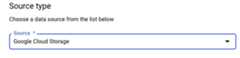
In theSource type section, forSource, chooseGoogle Cloud Storage.
In theTransfer config name section, forDisplay name, enter aname for the data transfer such as
My Transfer. The transfer name can beany value that lets you identify the transfer if you need to modify itlater.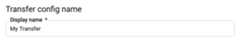
In theSchedule options section, select aRepeat frequency:
If you selectHours,Days,Weeks, orMonths, you must also specify a frequency. You canalso selectCustom to specify a custom repeat frequency. You can select eitherStart now orStart at set timeand provide a start date and run time.
If you selectOn-demand, then this data transfer runs when youmanually trigger the transfer.
If you selectEvent-driven, you must also specify aPub/Sub subscription. Choose yoursubscription name or clickCreate a subscription. This option enables anevent-driven transfer that trigger transfer runs when events arrive at the Pub/Sub subscription.
Note: You must setup allthe required configurations to enable an event-driven transfer.
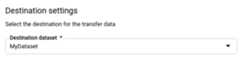
In theDestination settings section, forDestination dataset,choose the dataset that you created to store your data.
In theData source details section:
- ForDestination table, enter the name of your destination table.The destination table must follow thetable naming rules. Destinationtable names also supportparameters.
- ForCloud Storage URI, enter theCloud Storage URI.Wildcardsandparameters aresupported. If the URI doesn't match any files, no data isoverwritten in the destination table.
ForWrite preference, choose:
- APPEND to incrementally append new data to your existingdestination table.APPEND is the default value forWrite preference.
- MIRROR to overwrite data in the destination table duringeach data transfer run.
For more information about how BigQuery Data Transfer Service ingestsdata using eitherAPPEND orMIRROR, seeData ingestion for Cloud Storage transfers.For more information about the
writeDispositionfield, seeJobConfigurationLoad.ForDelete source files after transfer, check the box if you wantto delete the source files after each successful data transfer.Delete jobs are best effort. Delete jobs don't retry if the firsteffort to delete the source files fails.
In theTransfer Options section:
- UnderAll Formats:
- ForNumber of errors allowed, enter the maximum numberof bad records that BigQuery can ignore whenrunning the job. If the number of bad records exceeds thisvalue, an
invaliderror is returned in the job result,and the job fails. The default value is0. - (Optional) ForDecimal target types, enter acomma-separated list of possible SQL data types that thesource decimal values could be converted to. Which SQL datatype is selected for conversion depends on the followingconditions:
- The data type selected for conversion will be the first datatype in the following list that supports the precision andscale of the source data, in thisorder:
NUMERIC,BIGNUMERIC,andSTRING. - If none of the listed data types support the precision andthe scale, the data type supporting the widest range in thespecified list is selected. If a value exceeds the supportedrange when reading the source data, an error is thrown.
- The data type
STRINGsupports all precision and scalevalues. - If this field is left empty, the data type will default to
NUMERIC,STRINGfor ORC, andNUMERICfor the other fileformats. - This field can't contain duplicate data types.
- The order of the data types that you list in this field isignored.
- The data type selected for conversion will be the first datatype in the following list that supports the precision andscale of the source data, in thisorder:
- ForNumber of errors allowed, enter the maximum numberof bad records that BigQuery can ignore whenrunning the job. If the number of bad records exceeds thisvalue, an
- UnderJSON, CSV, forIgnore unknown values, check the boxif you want the data transfer to drop data that does not fit thedestination table's schema.
- UnderAVRO, forUse avro logical types, check the box ifyou want the data transfer to convert Avro logical types to theircorresponding BigQuery data types. The defaultbehavior is to ignore the
logicalTypeattribute for most of thetypes and use the underlying Avro type instead. UnderCSV:
- ForField delimiter, enter the character that separatesfields. The default value is a comma.
- ForQuote character, enter the character that is used toquote data sections in a CSV file. The default value is adouble-quote (
"). - ForHeader rows to skip, enter the number of header rowsin the source file(s) if you don't want to import them. Thedefault value is
0. - ForAllow quoted newlines, check the box if you want toallow newlines within quoted fields.
- ForAllow jagged rows, check the box if you want toallow the data transfer of rows with missing
NULLABLEcolumns.
SeeCSV-only optionsfor more information.
- UnderAll Formats:
In theService Account menu, select aservice account from the serviceaccounts associated with your Google Cloud project. You canassociate a service account with your data transfer instead of using youruser credentials. For more information about using service accounts withdata transfers, seeUse service accounts.
- If you signed in with afederated identity, then aservice account is required to create a data transfer. If you signed inwith aGoogle Account, then aservice account for the data transfer is optional.
- The service account must have therequired permissionsfor both BigQuery and Cloud Storage.
Optional: In theNotification options section:
- Click the toggle to enable email notifications. When you enable thisoption, the owner of the data transfer configuration receives an emailnotification when a transfer run fails.
- ForSelect a Pub/Sub topic, choose yourtopic name or clickCreate a topic.This option configures Pub/Sub runnotifications for yourtransfer.
Optional: In theAdvanced options section, if you useCMEKs, selectCustomer-managed key. A list of your available CMEKs appears for youto choose from. For information about how CMEKs work with theBigQuery Data Transfer Service, seeSpecify encryption key with transfers.
ClickSave.
bq
Enter thebq mk command and supply the transfer creation flag —--transfer_config. The following flags are also required:
--data_source--display_name--target_dataset--params
Optional flags:
--destination_kms_key: Specifies thekey resource IDfor the Cloud KMS key if you use a customer-managed encryption key (CMEK)for this data transfer. For information about how CMEKs work withthe BigQuery Data Transfer Service, seeSpecify encryption key with transfers.--service_account_name: Specifies a service account to use forCloud Storage transfer authentication instead of your user account.
bqmk\--transfer_config\--project_id=PROJECT_ID\--data_source=DATA_SOURCE\--display_name=NAME\--target_dataset=DATASET\--destination_kms_key="DESTINATION_KEY"\--params='PARAMETERS'\--service_account_name=SERVICE_ACCOUNT_NAME
Where:
- PROJECT_ID is your project ID. If
--project_idisn't suppliedto specify a particular project, the default project is used. - DATA_SOURCE is the data source, for example,
google_cloud_storage. - NAME is the display name for the data transfer configuration. Thetransfer name can be any value that lets you identify thetransfer if you need to modify it later.
- DATASET is the target dataset for the transfer configuration.
- DESTINATION_KEY: theCloud KMS key resource ID—forexample,
projects/project_name/locations/us/keyRings/key_ring_name/cryptoKeys/key_name. - PARAMETERS contains the parameters for the created transferconfiguration in JSON format. For example:
--params='{"param":"param_value"}'.destination_table_name_template: the name of the destinationBigQuery table.data_path_template: the Cloud Storage URI that containsyour files to be transferred.Wildcardsandparameters aresupported.write_disposition: determines if matching files are appended to thedestination table or mirrored entirely. The supported values areAPPENDorMIRROR. For information about how the BigQuery Data Transfer Serviceappends or mirrors data in Cloud Storage transfers,seeData ingestion for Cloud Storage transfers.file_format: the format of the files that you want totransfer. The format can beCSV,JSON,AVRO,PARQUET, orORC. The default value isCSV.max_bad_records: for anyfile_formatvalue, the maximum number ofbad records that can be ignored. The default value is0.decimal_target_types: for anyfile_formatvalue, a comma-separatedlist of possible SQL data types that the source decimal values could beconverted to. If this field is not provided, the data type defaults to"NUMERIC,STRING"forORC, and"NUMERIC"for the other file formats.ignore_unknown_values: for anyfile_formatvalue,set toTRUEto accept rows that contain values that don't match theschema. For more information, see theignoreUnknownvaluesfielddetails in theJobConfigurationLoadreference table.use_avro_logical_types: forAVROfile_formatvalues, set toTRUEto interpret logical types into their corresponding types (forexample,TIMESTAMP), instead of only using their raw types (forexample,INTEGER).parquet_enum_as_string: forPARQUETfile_formatvalues, set toTRUEto inferPARQUETENUMlogical type asSTRINGinstead of thedefaultBYTES.parquet_enable_list_inference: forPARQUETfile_formatvalues, settoTRUEto use schema inference specifically forPARQUETLISTlogical type.reference_file_schema_uri: a URI path to a reference file withthe reader schema.field_delimiter: forCSVfile_formatvalues, a characterthat separates fields. The default value is a comma.quote: forCSVfile_formatvalues, a character that is used toquote data sections in a CSV file. The defaultvalue is a double-quote (").skip_leading_rows: forCSVfile_formatvalues, indicate the numberof leading header rows that you don't want to import. The default valueis 0.allow_quoted_newlines: forCSVfile_formatvalues, set toTRUEto allow newlines within quoted fields.allow_jagged_rows: forCSVfile_formatvalues, set toTRUEtoaccept rows that are missing trailing optional columns. The missingvalues are filled in withNULL.preserve_ascii_control_characters: forCSVfile_formatvalues,set toTRUEto preserve any embedded ASCII control characters.encoding: specify theCSVencoding type. Supported values areUTF8,ISO_8859_1,UTF16BE,UTF16LE,UTF32BE, andUTF32LE.delete_source_files: set toTRUEto delete the source files aftereach successful transfer. Delete jobs don't rerun if the first try todelete the source file fails. The default value isFALSE.
- SERVICE_ACCOUNT_NAME is the service account name used toauthenticate your transfer. The service account should be owned by the same
project_idused to create the transfer and it should have all of therequired permissions.
For example, the following command creates a Cloud Storagedata transfer namedMy Transfer using adata_path_template value ofgs://mybucket/myfile/*.csv, target datasetmydataset, andfile_formatCSV. This example includes non-default values for the optional paramsassociated with theCSV file_format.
The data transfer is created in the default project:
bqmk--transfer_config \--target_dataset=mydataset \--project_id=myProject \--display_name='My Transfer' \--destination_kms_key=projects/myproject/locations/mylocation/keyRings/myRing/cryptoKeys/myKey \--params='{"data_path_template":"gs://mybucket/myfile/*.csv","destination_table_name_template":"MyTable","file_format":"CSV","max_bad_records":"1","ignore_unknown_values":"true","field_delimiter":"|","quote":";","skip_leading_rows":"1","allow_quoted_newlines":"true","allow_jagged_rows":"false","delete_source_files":"true"}'\--data_source=google_cloud_storage \--service_account_name=abcdef-test-sa@abcdef-test.iam.gserviceaccount.com projects/862514376110/locations/us/transferConfigs/ 5dd12f26-0000-262f-bc38-089e0820fe38After running the command, you receive a message like the following:
[URL omitted] Please copy and paste the above URL into your web browser andfollow the instructions to retrieve an authentication code.
Follow the instructions and paste the authentication code on the commandline.
Caution: When you create a Cloud Storage data transfer using thecommand-line tool, the transfer configuration is set up using the defaultvalue forSchedule (every 24 hours).API
Use theprojects.locations.transferConfigs.createmethod and supply an instance of theTransferConfigresource.
Java
Before trying this sample, follow theJava setup instructions in theBigQuery quickstart using client libraries. For more information, see theBigQueryJava API reference documentation.
To authenticate to BigQuery, set up Application Default Credentials. For more information, seeSet up authentication for client libraries.
importcom.google.api.gax.rpc.ApiException;importcom.google.cloud.bigquery.datatransfer.v1.CreateTransferConfigRequest;importcom.google.cloud.bigquery.datatransfer.v1.DataTransferServiceClient;importcom.google.cloud.bigquery.datatransfer.v1.ProjectName;importcom.google.cloud.bigquery.datatransfer.v1.TransferConfig;importcom.google.protobuf.Struct;importcom.google.protobuf.Value;importjava.io.IOException;importjava.util.HashMap;importjava.util.Map;// Sample to create google cloud storage transfer configpublicclassCreateCloudStorageTransfer{publicstaticvoidmain(String[]args)throwsIOException{// TODO(developer): Replace these variables before running the sample.finalStringprojectId="MY_PROJECT_ID";StringdatasetId="MY_DATASET_ID";StringtableId="MY_TABLE_ID";// GCS UriStringsourceUri="gs://cloud-samples-data/bigquery/us-states/us-states.csv";StringfileFormat="CSV";StringfieldDelimiter=",";StringskipLeadingRows="1";Map<String,Value>params=newHashMap<>();params.put("destination_table_name_template",Value.newBuilder().setStringValue(tableId).build());params.put("data_path_template",Value.newBuilder().setStringValue(sourceUri).build());params.put("write_disposition",Value.newBuilder().setStringValue("APPEND").build());params.put("file_format",Value.newBuilder().setStringValue(fileFormat).build());params.put("field_delimiter",Value.newBuilder().setStringValue(fieldDelimiter).build());params.put("skip_leading_rows",Value.newBuilder().setStringValue(skipLeadingRows).build());TransferConfigtransferConfig=TransferConfig.newBuilder().setDestinationDatasetId(datasetId).setDisplayName("Your Google Cloud Storage Config Name").setDataSourceId("google_cloud_storage").setParams(Struct.newBuilder().putAllFields(params).build()).setSchedule("every 24 hours").build();createCloudStorageTransfer(projectId,transferConfig);}publicstaticvoidcreateCloudStorageTransfer(StringprojectId,TransferConfigtransferConfig)throwsIOException{try(DataTransferServiceClientclient=DataTransferServiceClient.create()){ProjectNameparent=ProjectName.of(projectId);CreateTransferConfigRequestrequest=CreateTransferConfigRequest.newBuilder().setParent(parent.toString()).setTransferConfig(transferConfig).build();TransferConfigconfig=client.createTransferConfig(request);System.out.println("Cloud storage transfer created successfully :"+config.getName());}catch(ApiExceptionex){System.out.print("Cloud storage transfer was not created."+ex.toString());}}}Specify encryption key with transfers
You can specifycustomer-managed encryption keys (CMEKs)to encrypt data for a transfer run. You can use a CMEK to support transfers fromCloud Storage.When you specify a CMEK with a transfer, the BigQuery Data Transfer Service applies theCMEK to any intermediate on-disk cache of ingested data so that the entiredata transfer workflow is CMEK compliant.
You cannot update an existing transfer to add a CMEK if the transfer was notoriginally created with a CMEK. For example, you cannot change a destinationtable that was originally default encrypted to now be encrypted with CMEK.Conversely, you also cannot change a CMEK-encrypted destination tableto have a different type of encryption.
You can update a CMEK for a transfer if the transfer configuration wasoriginally created with a CMEK encryption. When you update a CMEK for a transferconfiguration, the BigQuery Data Transfer Service propagates the CMEK to the destinationtables at the next run of the transfer, where the BigQuery Data Transfer Servicereplaces any outdated CMEKs with the new CMEK during the transfer run.For more information, seeUpdate a transfer.
You can also useproject default keys.When you specify a project default key with a transfer, the BigQuery Data Transfer Serviceuses the project default key as the default key for any new transferconfigurations.
Manually trigger a transfer
In addition to automatically scheduled data transfers from Cloud Storage, youcan manually trigger a transfer to load additional data files.
If the transfer configuration isruntime parameterized,you will need to specify a range of dates for which additional transfers will bestarted.
To trigger a data transfer:
Console
Go to the BigQuery page in the Google Cloud console.
ClickData transfers.
Select your data transfer from the list.
ClickRun transfer now orSchedule backfill (for runtimeparameterized transfer configurations).
If you clickedRun transfer now, selectRun one time transferorRun for specific date as applicable. If you selectedRun for specific date, select a specific date and time:
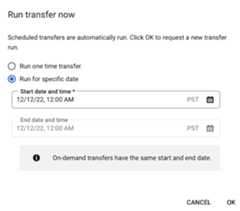
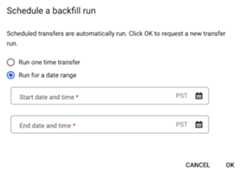
If you clickedSchedule backfill, selectRun one time transferorRun for a date range as applicable. If you selectedRun for a date range, select a start and end date and time:
ClickOk.
bq
Enter thebq mk commandand supply the--transfer_run flag. You may either use the--run_timeflag or the--start_time and--end_time flags.
bqmk\--transfer_run\--start_time='START_TIME'\--end_time='END_TIME'\RESOURCE_NAME
bqmk\--transfer_run\--run_time='RUN_TIME'\RESOURCE_NAME
Where:
START_TIME andEND_TIME are timestamps that end in
Zor contain a valid time zone offset. For example:2017-08-19T12:11:35.00Z2017-05-25T00:00:00+00:00
RUN_TIME is a timestamp that specifies the time to schedulethe data transfer run. If you want to run a one-time transfer for the currenttime, you may use the
--run_timeflag.RESOURCE_NAME is the transfer's resource name (also referred toas the transfer configuration), for example,
projects/myproject/locations/us/transferConfigs/1234a123-1234-1a23-1be9-12ab3c456de7. If you don't know the transfer's resourcename, run thebq ls --transfer_config --transfer_location=LOCATIONcommand to find the resource name.
API
Use theprojects.locations.transferConfigs.startManualRunsmethod and provide the transfer configuration resource using theparentparameter.
What's next
- Learn aboutruntime parameters in Cloud Storage transfers.
- Learn more about theBigQuery Data Transfer Service.
Except as otherwise noted, the content of this page is licensed under theCreative Commons Attribution 4.0 License, and code samples are licensed under theApache 2.0 License. For details, see theGoogle Developers Site Policies. Java is a registered trademark of Oracle and/or its affiliates.
Last updated 2025-12-15 UTC.