

Introduction to Blob Storage transfers
The BigQuery Data Transfer Service for Azure Blob Storage lets you automaticallyschedule and manage recurring load jobs from Azure Blob Storage andAzure Data Lake Storage Gen2into BigQuery.
Supported file formats
The BigQuery Data Transfer Service supports loading data fromBlob Storage in the following formats:
- Comma-separated values (CSV)
- JSON (newline delimited)
- Avro
- Parquet
- ORC
Supported compression types
The BigQuery Data Transfer Service for Blob Storage supports loadingcompressed data. The compression types supported by theBigQuery Data Transfer Service are the same as the compression types supported byBigQuery load jobs. For more information, seeLoading compressed and uncompressed data.
Transfer prerequisites
To load data from a Blob Storage data source, first gather thefollowing:
- The Blob Storage account name, container name, and data path(optional) for your source data. The data path field is optional; it's used tomatch common object prefixes and file extensions. If the data path is omitted,all files in the container are transferred.
- An Azure shared access signature (SAS) token that grants read access to yourdata source. For details on creating a SAS token, seeShared access signature (SAS).
Transfer runtime parameterization
The Blob Storage data path and the destination table can both beparameterized, letting you load data from containers organized by date. Theparameters used by Blob Storage transfers are the same as thoseused by Cloud Storage transfers. For details, seeRuntime parameters in transfers.
Data ingestion for Azure Blob transfers
You can specify how data is loaded into BigQuery by selecting aWrite Preference in the transfer configuration when youset up an Azure Blob transfer.
There are two types of write preferences available,incremental transfersandtruncated transfers.Incremental transfers
A transfer configuration with anAPPEND orWRITE_APPEND writepreference, also called an incremental transfer, incrementally appends new datasince the previous successful transfer to a BigQuery destinationtable. When a transfer configuration runs with anAPPEND write preference,theBigQuery Data Transfer Service filters for files which have been modified since theprevious successful transfer run. To determine when a file is modified,BigQuery Data Transfer Service looks at the file metadata for a "last modified time"property. For example, the BigQuery Data Transfer Service looks at theupdated timestamp propertyin a Cloud Storage file. If theBigQuery Data Transfer Service finds any files with a "last modified time" that haveoccurred after the timestamp of the last successful transfer, theBigQuery Data Transfer Service transfers those files in an incremental transfer.
To demonstrate how incremental transfers work, consider the followingCloud Storage transfer example. A user creates a file in aCloud Storage bucket at time 2023-07-01T00:00Z namedfile_1. Theupdated timestamp forfile_1 isthe time that the file was created. The user thencreates an incremental transfer from the Cloud Storage bucket,scheduled to run once daily at time 03:00Z, starting from 2023-07-01T03:00Z.
- At 2023-07-01T03:00Z, the first transfer run starts. As this is the firsttransfer run for this configuration, BigQuery Data Transfer Service attempts toload all files matching the source URI into the destinationBigQuery table. The transfer run succeeds andBigQuery Data Transfer Service successfully loads
file_1into the destinationBigQuery table. - The next transfer run, at 2023-07-02T03:00Z, detects no files where the
updatedtimestamp property is greaterthan the last successful transfer run (2023-07-01T03:00Z). The transfer runsucceeds without loading any additional data into the destinationBigQuery table.
The preceding example shows how the BigQuery Data Transfer Service looks at theupdated timestamp property of the source file to determine if any changes weremade to the source files, and to transfer those changes if any were detected.
Following the same example, suppose that the user then creates another file inthe Cloud Storage bucket at time 2023-07-03T00:00Z, namedfile_2. Theupdated timestamp forfile_2 isthe time that the file was created.
- The next transfer run, at 2023-07-03T03:00Z, detects that
file_2has anupdatedtimestamp greater than the last successful transfer run(2023-07-01T03:00Z). Suppose that when the transfer run starts it fails due toa transient error. In this scenario,file_2is not loaded into thedestination BigQuery table. The last successful transferrun timestamp remains at 2023-07-01T03:00Z. - The next transfer run, at 2023-07-04T03:00Z, detects that
file_2has anupdatedtimestamp greater than the last successful transfer run(2023-07-01T03:00Z). This time, the transfer run completes without issue, soit successfully loadsfile_2into the destination BigQuery table. - The next transfer run, at 2023-07-05T03:00Z, detects no files where the
updatedtimestamp is greater than the last successful transfer run(2023-07-04T03:00Z). The transfer run succeeds without loading any additionaldata into the destination BigQuery table.
The preceding example shows that when a transfer fails, no files aretransferred to the BigQuery destination table. Any file changesare transferred at the next successful transfer run. Any subsequentsuccessful transfers following a failed transfer does not cause duplicatedata. In the case of a failed transfer, you can also choose tomanually trigger a transferoutside its regularly scheduled time.
Warning: BigQuery Data Transfer Service relies on the "last modified time" property in each source file to determine which files to transfer, as seen in the incremental transfer examples. Modifying these properties can cause the transfer to skip certain files, or load the same file multiple times. This property can have different names in each storage system supported by BigQuery Data Transfer Service. For example, Cloud Storage objects call this propertyupdated.Truncated transfers
A transfer configuration with aMIRROR orWRITE_TRUNCATE writepreference, also called a truncated transfer, overwrites data in theBigQuery destination table during each transfer run with datafrom all files matching the source URI.MIRROR overwrites a fresh copy ofdata in the destination table. If the destination table is using a partitiondecorator, the transfer run only overwrites data in the specified partition. Adestination table with a partition decorator has the formatmy_table${run_date}—for example,my_table$20230809.
Repeating the same incremental or truncated transfers in a day does not causeduplicate data. However, if you run multiple different transferconfigurations that affect the same BigQuery destination table,this can cause the BigQuery Data Transfer Service to duplicate data.
Wildcard support for the Blob Storage data path
You can select source data that is separated into multiple files by specifyingone or more asterisk (*) wildcard characters in the data path.
While more than one wildcard can be used in the data path, some optimization ispossible when only a single wildcard is used:
- There is ahigher limit on the maximum number of filesper transfer run.
- The wildcard will span directory boundaries. For example, the data path
my-folder/*.csvwill match the filemy-folder/my-subfolder/my-file.csv.
Blob Storage data path examples
The following are examples of valid data paths for a Blob Storagetransfer. Note that data paths do not begin with/.
Example: Single file
To load a single file from Blob Storage intoBigQuery, specify the Blob Storage filename:
my-folder/my-file.csvExample: All files
To load all files from a Blob Storage container intoBigQuery, set the data path to a single wildcard:
*Example: Files with a common prefix
To load all files from Blob Storage that share a common prefix,specify the common prefix with or without a wildcard:
my-folder/or
my-folder/*Example: Files with a similar path
To load all files from Blob Storage with a similar path, specifythe common prefix and suffix:
my-folder/*.csvWhen you only use a single wildcard, it spans directories. In this example,every CSV file inmy-folder is selected, as well as every CSV file in everysubfolder ofmy-folder.
Example: Wildcard at end of path
Consider the following data path:
logs/*All of the following files are selected:
logs/logs.csvlogs/system/logs.csvlogs/some-application/system_logs.loglogs/logs_2019_12_12.csvExample: Wildcard at beginning of path
Consider the following data path:
*logs.csvAll of the following files are selected:
logs.csvsystem/logs.csvsome-application/logs.csvAnd none of the following files are selected:
metadata.csvsystem/users.csvsome-application/output.csvExample: Multiple wildcards
By using multiple wildcards, you gain more control over file selection, at thecost oflower limits. When you use multiplewildcards, each individual wildcard only spans a single subdirectory.
Consider the following data path:
*/*.csvBoth of the following files are selected:
my-folder1/my-file1.csvmy-other-folder2/my-file2.csvAnd neither of the following files are selected:
my-folder1/my-subfolder/my-file3.csvmy-other-folder2/my-subfolder/my-file4.csvShared access signature (SAS)
The Azure SAS token is used to access Blob Storage data on yourbehalf. Use the following steps to create a SAS token for your transfer:
- Create or use an existing Blob Storage user to access thestorage account for your Blob Storage container.
Create a SAS token at thestorage account level. To create a SAS tokenusing Azure Portal, do the following:
- ForAllowed services, selectBlob.
- ForAllowed resource types, select bothContainer andObject.
- ForAllowed permissions, selectRead andList.
- The default expiration time for SAS tokens is 8 hours. Set an expirationtime that works for your transfer schedule.
- Do not specify any IP addresses in theAllowed IP addresses field.
- ForAllowed protocols, selectHTTPS only.
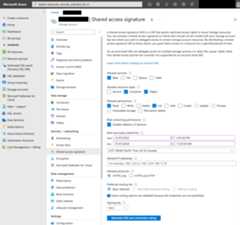
After the SAS token is created, note theSAS token value that isreturned. You need this value when you configure transfers.
IP restrictions
If you restrict access to your Azure resources using an Azure Storage firewall,you must add the IP ranges used by BigQuery Data Transfer Service workers to yourlist of allowed IPs.
To add IP ranges as allowed IPs to Azure Storage firewalls, seeIP restrictions.
Consistency considerations
It should take approximately 5 minutes for a file to become available to theBigQuery Data Transfer Service after it is added to the Blob Storagecontainer.
Important: To reduce the possibility of missing data, schedule yourBlob Storage transfers to occur at least 5 minutes after yourfiles are added to the container.Best practices for controlling egress costs
Transfers from Blob Storage could fail if the destination table isnot configured properly. Possible causes of an improper configuration includethe following:
- The destination table does not exist.
- The table schema is not defined.
- The table schema is not compatible with the data being transferred.
To avoid extra Blob Storage egress costs, first test a transferwith a small but representative subset of files. Ensure that this test is smallin both data size and file count.
It's also important to note that prefix matching for data paths happens beforefiles are transferred from Blob Storage, but wildcard matchinghappens within Google Cloud. This distinction could increaseBlob Storage egress costs for files that are transferred toGoogle Cloud but not loaded into BigQuery.
As an example, consider this data path:
folder/*/subfolder/*.csvBoth of the following files are transferred to Google Cloud, becausethey have the prefixfolder/:
folder/any/subfolder/file1.csvfolder/file2.csvHowever, only thefolder/any/subfolder/file1.csv file is loaded intoBigQuery, because it matches the full data path.
Pricing
For more information, seeBigQuery Data Transfer Service pricing.
You can also incur costs outside of Google by using this service. For moreinformation, seeBlob Storage pricing.
Quotas and limits
The BigQuery Data Transfer Service uses load jobs to load Blob Storagedata into BigQuery. All BigQueryquotas and limits on loadjobs apply to recurring Blob Storage transfers, with the followingadditional considerations:
| Limit | Default |
|---|---|
| Maximum size per load job transfer run | 15 TB |
| Maximum number of files per transfer run when the Blob Storage data path includes 0 or 1 wildcards | 10,000,000 files |
| Maximum number of files per transfer run when the Blob Storage data path includes 2 or more wildcards | 10,000 files |
What's next
- Learn more aboutsetting up a Blob Storage transfer.
- Learn more aboutruntime parameters in transfers.
- Learn more about theBigQuery Data Transfer Service.
Except as otherwise noted, the content of this page is licensed under theCreative Commons Attribution 4.0 License, and code samples are licensed under theApache 2.0 License. For details, see theGoogle Developers Site Policies. Java is a registered trademark of Oracle and/or its affiliates.
Last updated 2025-12-15 UTC.