

Explore BigQuery in the Google Cloud console
The Google Cloud console provides a graphical interface that you can use to createand manage BigQuery resources and tasks such as running SQL queries andcreating pipelines.
Before you begin
- Sign in to your Google Cloud account. If you're new to Google Cloud, create an account to evaluate how our products perform in real-world scenarios. New customers also get $300 in free credits to run, test, and deploy workloads.
In the Google Cloud console, on the project selector page, select or create a Google Cloud project.
Roles required to select or create a project
- Select a project: Selecting a project doesn't require a specific IAM role—you can select any project that you've been granted a role on.
- Create a project: To create a project, you need the Project Creator role (
roles/resourcemanager.projectCreator), which contains theresourcemanager.projects.createpermission.Learn how to grant roles.
In the Google Cloud console, on the project selector page, select or create a Google Cloud project.
Roles required to select or create a project
- Select a project: Selecting a project doesn't require a specific IAM role—you can select any project that you've been granted a role on.
- Create a project: To create a project, you need the Project Creator role (
roles/resourcemanager.projectCreator), which contains theresourcemanager.projects.createpermission.Learn how to grant roles.
Enable the BigQuery API.
Roles required to enable APIs
To enable APIs, you need the Service Usage Admin IAM role (
roles/serviceusage.serviceUsageAdmin), which contains theserviceusage.services.enablepermission.Learn how to grant roles.For new projects, the BigQuery API is automatically enabled.
- Optional:Enable billing for the project. If you don't want to enable billing or provide a credit card, the steps in this document still work. BigQuery provides you a sandbox to perform the steps. For more information, seeEnable the BigQuery sandbox.Note: If your project has a billing account and you want to use the BigQuery sandbox, thendisable billing for your project.
Open the Overview page in the Google Cloud console
Preview
This feature is subject to the "Pre-GA Offerings Terms" in the General Service Terms section of theService Specific Terms. Pre-GA features are available "as is" and might have limited support. For more information, see thelaunch stage descriptions.
Note: To provide feedback on the Overview page, clickHelp> Sendfeedback.The BigQuery Overview page is your hub for discovering tutorials,features, and resources to help you get the most out of BigQuery.It provides guided paths for users of all skill levels, whether you are runningyour first query or exploring advanced AI/ML capabilities.
You can use the Overview page to find resources organized by your role orinterest like data analysis or data science. This lets you find the mostrelevant content to get started quickly.
To open the Overview page, follow these steps.
Go to the Google Cloud console.
In the Google Cloud console toolbar, clickNavigation menu.
ClickSolutions> All products.
In theAnalytics section, clickBigQuery.
In the navigation, clickOverview.
You can also open the BigQuery Overview page by entering thefollowing URL in your browser:
https://console.cloud.google.com/bigquery/overview
BigQuery opens in your most recently accessed project.
Overview page sections
The Overview page is divided into these sections:
Introduction: TheIntroduction section that give you a quick overviewof BigQuery's capabilities.
Get started: TheGet started section is designed for learning bydoing. Here you can launch interactive guides that help you learn how to useBigQuery features.
Find out more: TheFind out more section shows theBigQuery release notes so you can view the latest featureannouncements and updates.
Explore possibilities: TheExplore possibilities section providesin-depth tutorials and learning opportunities for specific features.
Customize the Overview page
In the top-right corner of the page is a filter bar. Click the role that bestmatches your current task or role:
- Data analysis
- Data science
- Data engineering
- Data administration
Selecting a task dynamically changes the content in theIntroduction,Getstarted, andExplore Possibilities sections to show the most relevantcontent.
Hide irrelevant content
You can tailor the content on the Overview page to your specific needs by hidingindividual cards within sections. To hide a card:
- In the card, clickMore options.
- ChooseHide card.
- To unhide the card, at the end of the section, clickShow hidden content.
If an entire section is not relevant, you can collapse it. Your preferences forcollapsed sections and hidden cards are saved per user.
Open the BigQuery Studio page in the Google Cloud console
Go to the Google Cloud console.
In the Google Cloud console toolbar, clickNavigation menu.
ClickSolutions> All products.
In theAnalytics section, clickBigQuery.
You can also open the BigQuery Studio page by entering thefollowing URL in your browser:
https://console.cloud.google.com/bigquery
BigQuery opens in your most recently accessed project.
To simplify navigation, you can add (orpin) BigQuery as a topproduct in the navigation menu:
In the Google Cloud console navigation menu, hold the pointer overBigQuery.
ClickPin.
Overview of the BigQuery Studio page
The BigQueryStudio page has the following main sections:
- The BigQuery navigation menu
- The left pane
- The details pane
- TheAdd data dialog
- The home and query tabs
Navigation menu
In the BigQuery navigation menu, you can select any option fromthe following categories:
Overview(Preview): TheBigQuery Overview page is your new central hub for discoveringtutorials, features, and resources to help you get the most out ofBigQuery.
Studio: displays yourdatasets, tables, and other BigQuery resources. In thisworkspace, you can perform common BigQuery tasks such as thefollowing:
- Create, run, save, and share queries and Colab Enterprisenotebooks.
- Work with tables, views, routines, and other BigQueryresources.
- See your BigQuery job history.
Search (Preview):lets you search for Google Cloud resources from BigQueryby using natural language queries.
Pipelines and integration
Data transfers: lets you accessthe BigQuery Data Transfer Service to create and configure data transfers.
Pipelines (Dataform):displays a list of Dataform repositories that are created for yourGoogle Cloud project.
Scheduled queries: displays yourscheduled queries.
Scheduling:provides a list of pipelines and schedules for your Google Cloud project.
Governance
Sharing (Analytics Hub): displaysall of the data exchanges that you can access in your Google Cloud project.
Policy tags:displays a list of taxonomies that you can use to create hierarchicalgroups of policy tags.
Metadata curation: lets you scandata in Cloud Storage buckets to extract and then catalog metadata.
Administration
Monitoring: lets youmonitor operational health and resource utilization across an organization.
Jobs explorer: helps youmonitor jobs activity across your organization.
Capacity management: displaysslot commitments, reservations, and reservation assignments.
BI Engine: lets you manage reservationcapacity for query optimization using BigQuery BI Engine.
Disaster recovery: displaysfailover reservations and failover datasets.
Recommendations: displaysa list of recommendations in your organization or project.
Migration
Assessment: lets you plan andreview the migration of your existing data warehouse intoBigQuery.
SQL translation:lets you convert your Teradata SQL queries so that they work inBigQuery.
Additional resources
Partner Center:provides tools and services from partners to accelerate your workflow.
Settings (Preview): contain thefollowing tabs:
My settings: let you set default settings that are applied when youstart a session in BigQuery Studio. Some settings are inheritedfrom your project or organization, but can be overridden ontheMy settings page.
Configuration settings: let BigQuery administratorscustomize the BigQuery Studio experience for users within theselected project or organization. This is achieved by showing or hidinguser interface elements such asSave results> CSV (Google Drive),Open in> Looker Studio, andExport> Explore with Sheets. These settings don'trestrict access to the underlying data and tools, even if they are hiddenin BigQuery Studio. You need the
bigquery.config.getpermission to make changes at the organization level.
Release notes: contains the latestproduct updates and announcements for BigQuery.
You can control how the BigQuery navigation menu isdisplayed:
To collapse the navigation menu so that only the icons are visible, click
 Toggle BigQuery navigation menu.
To temporarily expand the menu when it's collapsed, hold the pointer overthe menu.
To expand the menu so that the labels stay visible, click
 Toggle BigQuery navigation menu.
Left pane
The left pane is visible when you selectStudio in thenavigation menu. This pane consists of three panes:Explorer,Classic Explorer, andGit repository.
To collapse the left pane, clickCollapse left pane.To expand the left pane, clickExpand left pane.
Explorer pane
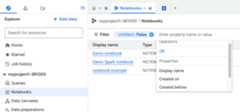
TheExplorer pane lists different code assets and data resources. To open anew tab in the details pane, click a code asset type. This tab lists all filesof that code asset type in your project. For example, clickNotebooks toopen theNotebooks tab, which lists all notebooks in your project. You canuse the search bar or filters to find a file.
You can also go to theHome tab or openjob historiesandstarred resources in a new tab.
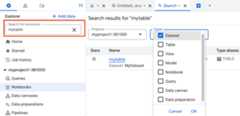
You can use the search feature in theExplorer pane to find resources inBigQuery. The results appear in a new tab in the details pane.You can narrow your search by projects and resources types, such asDataset.This search feature covers BigQuery resources in yourorganization, while the Google Cloud toolbar's search feature covers all ofGoogle Cloud.
Classic Explorer pane
This pane lists current Google Cloud projects and any starredprojects.
To view the resources in your projects and datasets, do the following:
To view the datasets that you have access to in a project, expand theproject.
To view tables, views, and functions in a dataset, expand the dataset.
You can also use the search box to search for resources by name (dataset, table, or view name) orby labelwithin your current and starred projects. The search feature finds the resourcesthat directly match, or contain matches, to your search query. It might not showall the resources in the matched resource's level. To see all the resources,clickShow more.
Git repository pane
Preview
This feature is subject to the "Pre-GA Offerings Terms" in the General Service Terms section of theService Specific Terms. Pre-GA features are available "as is" and might have limited support. For more information, see thelaunch stage descriptions.
Note: To provide feedback or ask questions that are related to this Previewfeature, contactbigquery-repositories-feedback@google.com.You can use repositories to perform version control on files that you use inBigQuery. BigQuery uses Git to record changes andmanage file versions. For more information, seeIntroduction to repositories.
You can use workspaces within repositories to edit the code stored in therepository. When you click aworkspace in theGit repository pane, it opens in a tab in the details pane. For moreinformation, seeIntroduction to workspaces.
Details pane
The details pane shows information about your BigQuery resources.When you select a dataset, table, view, or other resource in theClassic Explorer pane, a new tab is displayed in the details pane. On thesetabs, you can view information about the resource, or you can create tables andviews, modify table schemas, export data, and perform other actions.
You can drag the tab to the edge of the editor to open it in a newcolumn so that you can compare the tabs, or drag the tab to a different positionin the current or an adjacent column.
In the query editor, you canrun an interactive query and explorethe results in theQuery results pane that opens after you run the query.
When you navigate through tabs, the resource corresponding to the focused tabis selected in theClassic Explorer pane. If you openBigQuery using your workspace URL, then your workspace queryeditor tab opens, and the corresponding resource is selected in theClassic Explorer pane.
You can use the search bar in the Google Cloud toolbar to search forresources (projects, datasets, or tables), documentation, and products(such as Compute Engine and Cloud Storage) across Google Cloud. You mightneed permissions, similar toBigQuery permissions,to access resources in different products.
Add data dialog
In theAdd data dialog, you can use search and filtering capabilities tofind a data source that you want to work with. After you select a data source,you can do the following based on the capabilities available for your datasource.
Set up BigQuery table over external data (Federation):enables BigQuery to access external data without ingesting itinto BigQuery. You cancreate a table to access external dataorcreate a connection to an external source.
Load data to BigQuery: lets you load data toBigQuery by setting up adata transfer serviceor by using apartner capability.Loading data to BigQuery is recommended for optimal dataprocessing at scale.
Change data capture to BigQuery: replicates data from adata source to BigQuery by capturing and applying changes. Youcan use applications such asdatastream orpartner solutions to ingest data froma data source.
Stream data to BigQuery: ingests data intoBigQuery with low latency. You can use applications such asdataflow,Pub/Sub, orpartner solutions to ingest data froma data source.
For more information about loading data into BigQuery, seeIntroduction to loading data.
Additionally, you canAccess and query public datasets.
Home and query tabs
The first time you open the BigQuery page, you see the home taband a query editor tab, with the home tab in focus. The home tab containsthe following:
- TheCheck out what's new in Studio section that lists new features inBigQuery Studio. You can clickTry it to view the features. If thesection isn't visible, clickWhat's new in Studio toexpand the section.
TheCreate new section that has options to create a new SQL query,notebook, Apache Spark notebook, data canvas, data preparation file,pipeline, or table.
TheRecent section where you can view your 10 most recently accessed resources.
The following demo guides:
Run a sample query on a public dataset from Google Trends.
Run a Colab notebook that walks you through the basics ofBigQuery DataFrames.
Run a Spark notebook that walks you through the basicsof Spark in BigQuery.
Add data to BigQuery.
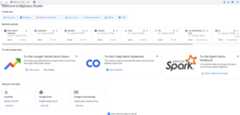
You can close the home tab. To go back to the home tab, click *Home in theExplorer pane.
To open a query editor from the home tab, clickSQL query. To accessways to import data and search data sources that work withBigQuery, clickAdd data.
If you open BigQuery using your workspace URL, thenyour workspace query editor tab opens first.
Display resources
TheExplorer pane lists datasets that you can browse in your currentproject or any projects that you starred. Consider the following when displayingresources:
- To display the datasets in a project, clickToggle node for thatproject, and then clickDatasets. A new tab opens in the details tabwith a list of all the datasets in the project. Click the dataset to see itsdetails.
- To display the tables, views, and functions in a dataset, clickOverview> Tables. You can also view a dataset's details,models, and routines in other tabs.
You can also use breadcrumbs to seamlessly navigate through different tabsand resources, as shown in the following screenshot:
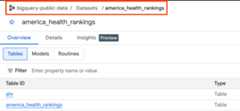
To reduce tab proliferation, clicking a resource opens it within the same tab.To open the resource in a separate tab, pressCtrl (orCommandon macOS) and click the resource. To prevent the current tab from gettingits content replaced, double-click the tab name (you will notice that its name changes from italicized to regular font).If you still lose your resource, clicktab_recentRecent tabs in the details pane to find the resource.
Star resources
If you have important or current projects, datasets, or tables, you can starthem in theClassic Explorer pane. To star a resource, hold the pointer overthe name of the resource that you want to star, and then clickStar.
View starred resources
To view the starred resources, clickStarred in theExplorer pane. A newtab containing a list of all starred resources appears.
If you want to view all the resources as a resource tree, click theClassic Explorer pane, and turn off theShow starred onlytoggle.
Unstar resources
To unstar a resource, go to theClassic Explorer pane, and then clickUnstar next to the resource.
View recently accessed resources
In the Google Cloud console, you can view your 10 most recently accessed resources.These resources include tables, saved queries, models, and routines.
When you create or update a resource in the console or queryeditor, the resource is marked as recent. For a recently openedresource to be marked as recent, you have to open it in the workspace tab. Ifyou run a query on a resource, then the resource is not marked as recent.
To view your recently accessed resources, follow these steps:
In the Google Cloud console, go to theBigQuery page.
Ensure that you are on the BigQuery home page. Ifnecessary, click
Home in theExplorer pane.In theRecent section, you see your 10 recently accessed resources.
Work with tabs
You can control how you work with tabs in the details pane.
Split two tabs
Whenever you select a resource or clickCompose new query in the detailspane, a new tab opens. If more than one tab is open, you can split the tabs intotwo panes and view them side by side.
To split tabs into two panes, follow these steps:
Next to the tab name, clickOpen menu.
Select one of the following options:
- To place the selected tab in the left pane, selectSplit tab toleft.
- To place the selected tab in the right pane, selectSplit tab toright.
To unsplit the tabs, selectOpen menu on one of the open tabs, and then selectMove tab to leftpane orMove tab to right pane.
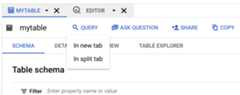
To split tabs when querying tables, follow these steps:
In theExplorer menu, click the table that you want to query.
ClickQuery, and then clickIn new tab orIn split tab:
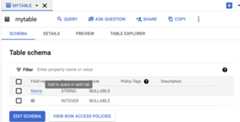
Click the field name that you want to query:
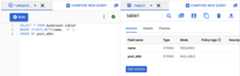
The following image shows the details pane with two open tabs. One tab has aSQL query, and the other tab shows details about a table.
Move a tab
To move a tab from one pane to the other pane, follow these steps:
Next to the tab name, clickOpen menu.
SelectMove tab to right pane orMove tab to left pane (whicheveroption is available).
Close a tab
To close all tabs except for one, follow these steps:
Next to the tab name, clickOpen menu.
SelectClose other tabs.
View personal and project history
Every time you load, export, query, or copy data, BigQueryautomatically creates, schedules, and runs a job that tracks the progress ofthe task. To view job histories of your current billing project, do the following:
Go to theBigQuery page.
In the left pane, clickExplorer:

In theExplorer pane, clickJob history.
This opens the list of job histories in a new tab:
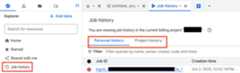
To view details of your own jobs, clickPersonal history.
To view details of recent jobs in your project, clickProject history.
To see the details of a job or to open the query in an editor, do the following:
In theActions column for a job or query, clickActions.
SelectShow job details orView job in editor.
For more information about managing jobs, seeManage jobs.
Keyboard shortcuts
To view shortcuts in the Google Cloud console, clickBigQuery Studio shortcuts.The following keyboard shortcuts are supported in the Google Cloud console:
| Action | Windows or Linux shortcut | macOS shortcut |
|---|---|---|
| Create a new tab |
|
|
| Close tab (keyboard focused tab) |
or
|
or
|
| Format query |
|
|
| Gemini code completion and generation |
|
|
| Jump to a specific tab |
|
|
| Jump to last tab |
|
|
| Jump to next open tab |
or
|
|
| Jump to previous open tab |
or
|
|
| Move tab left |
|
|
| Move tab right |
|
|
| Open tab menu (keyboard focused tab) |
|
|
| Run query or highlighted query |
or
|
or
|
| See list of editor shortcuts |
|
|
| Split or move active tab to left |
|
|
| Split or move active tab to right |
|
|
| SQL autosuggest |
or
|
or
|
| SQL generation tool |
|
|
| Toggle line comment |
|
|
What's next
- To learn about querying a public dataset and using the BigQuery sandbox,seeTry BigQuery using thesandbox.
- To learn how to load and query data in the Google Cloud console, seeLoad and query data.
Except as otherwise noted, the content of this page is licensed under theCreative Commons Attribution 4.0 License, and code samples are licensed under theApache 2.0 License. For details, see theGoogle Developers Site Policies. Java is a registered trademark of Oracle and/or its affiliates.
Last updated 2025-12-15 UTC.