

Forecast a single time series with a multivariate model
This tutorial teaches you how to use amultivariate time series model to forecast the future valuefor a given column, based on the historical value of multiple input features.
This tutorial forecasts a single time series. Forecasted values arecalculated once for each time point in the input data.
This tutorial uses data from thebigquery-public-data.epa_historical_air_quality public dataset. Thisdataset contains information about daily particulate matter (PM2.5),temperature, and wind speed information collected from multiple US cities.
Objectives
This tutorial guides you through completing the following tasks:
- Creating a time series model to forecast PM2.5 values by using the
CREATE MODELstatement. - Evaluating the autoregressive integrated moving average (ARIMA) informationin the model by using the
ML.ARIMA_EVALUATEfunction. - Inspecting the model coefficients by using the
ML.ARIMA_COEFFICIENTSfunction. - Retrieving the forecasted PM2.5 values from the model by using the
ML.FORECASTfunction. - Evaluating the model's accuracy by using the
ML.EVALUATEfunction. - Retrieving components of the time series, such as seasonality, trend, andfeature attributions, by using the
ML.EXPLAIN_FORECASTfunction.You can inspect these time series components in order to explain theforecasted values.
Costs
This tutorial uses billable components of Google Cloud, including the following:
- BigQuery
- BigQuery ML
For more information about BigQuery costs, see theBigQuery pricing page.
For more information about BigQuery ML costs, seeBigQuery ML pricing.
Before you begin
- Sign in to your Google Cloud account. If you're new to Google Cloud, create an account to evaluate how our products perform in real-world scenarios. New customers also get $300 in free credits to run, test, and deploy workloads.
In the Google Cloud console, on the project selector page, select or create a Google Cloud project.
Roles required to select or create a project
- Select a project: Selecting a project doesn't require a specific IAM role—you can select any project that you've been granted a role on.
- Create a project: To create a project, you need the Project Creator role (
roles/resourcemanager.projectCreator), which contains theresourcemanager.projects.createpermission.Learn how to grant roles.
Verify that billing is enabled for your Google Cloud project.
In the Google Cloud console, on the project selector page, select or create a Google Cloud project.
Roles required to select or create a project
- Select a project: Selecting a project doesn't require a specific IAM role—you can select any project that you've been granted a role on.
- Create a project: To create a project, you need the Project Creator role (
roles/resourcemanager.projectCreator), which contains theresourcemanager.projects.createpermission.Learn how to grant roles.
Verify that billing is enabled for your Google Cloud project.
- BigQuery is automatically enabled in new projects. To activate BigQuery in a pre-existing project, go to
Enable the BigQuery API.
Roles required to enable APIs
To enable APIs, you need the Service Usage Admin IAM role (
roles/serviceusage.serviceUsageAdmin), which contains theserviceusage.services.enablepermission.Learn how to grant roles.
Required Permissions
To create the dataset, you need the
bigquery.datasets.createIAM permission.To create the model, you need the following permissions:
bigquery.jobs.createbigquery.models.createbigquery.models.getDatabigquery.models.updateData
To run inference, you need the following permissions:
bigquery.models.getDatabigquery.jobs.create
For more information about IAM roles and permissions inBigQuery, seeIntroduction to IAM.
Create a dataset
Create a BigQuery dataset to store your ML model.
Console
In the Google Cloud console, go to theBigQuery page.
In theExplorer pane, click your project name.
ClickView actions > Create dataset
On theCreate dataset page, do the following:
ForDataset ID, enter
bqml_tutorial.ForLocation type, selectMulti-region, and then selectUS (multiple regions in United States).
Leave the remaining default settings as they are, and clickCreate dataset.
bq
To create a new dataset, use thebq mk commandwith the--location flag. For a full list of possible parameters, see thebq mk --dataset commandreference.
Create a dataset named
bqml_tutorialwith the data location set toUSand a description ofBigQuery ML tutorial dataset:bq --location=US mk -d \ --description "BigQuery ML tutorial dataset." \ bqml_tutorial
Instead of using the
--datasetflag, the command uses the-dshortcut.If you omit-dand--dataset, the command defaults to creating adataset.Confirm that the dataset was created:
bqls
API
Call thedatasets.insertmethod with a defineddataset resource.
{"datasetReference":{"datasetId":"bqml_tutorial"}}
BigQuery DataFrames
Before trying this sample, follow the BigQuery DataFrames setup instructions in theBigQuery quickstart using BigQuery DataFrames. For more information, see theBigQuery DataFrames reference documentation.
To authenticate to BigQuery, set up Application Default Credentials. For more information, seeSet up ADC for a local development environment.
importgoogle.cloud.bigquerybqclient=google.cloud.bigquery.Client()bqclient.create_dataset("bqml_tutorial",exists_ok=True)Create a table of input data
Create a table of data that you can use to train and evaluate the model. Thistable combines columns from several tables in thebigquery-public-data.epa_historical_air_quality dataset in order to providedaily data weather data. You also create the following columns to use asinput variables for the model:
date: the date of the observationpm25the average PM2.5 value for each daywind_speed: the average wind speed for each daytemperature: the highest temperature for each day
In the following GoogleSQL query, theFROM bigquery-public-data.epa_historical_air_quality.*_daily_summary clauseindicates that you are querying the*_daily_summary tables in theepa_historical_air_quality dataset. These tables arepartitioned tables.
Follow these steps to create the input data table:
In the Google Cloud console, go to theBigQuery page.
In the query editor, paste in the following query and clickRun:
CREATETABLE`bqml_tutorial.seattle_air_quality_daily`ASWITHpm25_dailyAS(SELECTavg(arithmetic_mean)ASpm25,date_localASdateFROM`bigquery-public-data.epa_historical_air_quality.pm25_nonfrm_daily_summary`WHEREcity_name='Seattle'ANDparameter_name='Acceptable PM2.5 AQI & Speciation Mass'GROUPBYdate_local),wind_speed_dailyAS(SELECTavg(arithmetic_mean)ASwind_speed,date_localASdateFROM`bigquery-public-data.epa_historical_air_quality.wind_daily_summary`WHEREcity_name='Seattle'ANDparameter_name='Wind Speed - Resultant'GROUPBYdate_local),temperature_dailyAS(SELECTavg(first_max_value)AStemperature,date_localASdateFROM`bigquery-public-data.epa_historical_air_quality.temperature_daily_summary`WHEREcity_name='Seattle'ANDparameter_name='Outdoor Temperature'GROUPBYdate_local)SELECTpm25_daily.dateASdate,pm25,wind_speed,temperatureFROMpm25_dailyJOINwind_speed_dailyUSING(date)JOINtemperature_dailyUSING(date);
Visualize the input data
Before creating the model, you can optionally visualize your inputtime series data to get a sense of the distribution. You can do this by usingLooker Studio.
Follow these steps to visualize the time series data:
In the Google Cloud console, go to theBigQuery page.
In the query editor, paste in the following query and clickRun:
SELECT*FROM`bqml_tutorial.seattle_air_quality_daily`;
When the query completes, clickOpen in>Looker Studio. Looker Studio opens ina new tab. Complete the following steps in the new tab.
In the Looker Studio, clickInsert>Time series chart.
In theChart pane, choose theSetup tab.
In theMetric section, add thepm25,temperature, andwind_speed fields, and remove the defaultRecord Count metric.The resulting chart looks similar to the following:
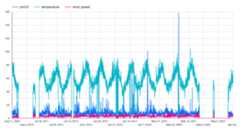
Looking at the chart, you can see that the input time series has a weeklyseasonal pattern.
Create the time series model
Create a time series model to forecast particulate matter values, as representedby thepm25 column, using thepm25,wind_speed, andtemperature columnvalues as input variables. Train the model on the air quality data from thebqml_tutorial.seattle_air_quality_daily table, selecting the data gatheredbetween January 1, 2012 and December 31, 2020.
In the following query, theOPTIONS(model_type='ARIMA_PLUS_XREG',time_series_timestamp_col='date', ...) clause indicates that you are creatingan ARIMA with external regressors model. Theauto_arima optionof theCREATE MODEL statement defaults toTRUE, so theauto.ARIMAalgorithm automatically tunes the hyperparameters in the model. The algorithmfits dozens of candidate models and chooses the best model, which is the modelwith the lowestAkaike information criterion (AIC).Thedata_frequency optionof theCREATE MODEL statements defaults toAUTO_FREQUENCY, so thetraining process automatically infers the data frequency of the input timeseries.
Follow these steps to create the model:
In the Google Cloud console, go to theBigQuery page.
In the query editor, paste in the following query and clickRun:
CREATEORREPLACEMODEL`bqml_tutorial.seattle_pm25_xreg_model`OPTIONS(MODEL_TYPE='ARIMA_PLUS_XREG',time_series_timestamp_col='date',# Identifies the column that contains time pointstime_series_data_col='pm25')# Identifies the column to forecastASSELECTdate,# The column that contains time pointspm25,# The column to forecasttemperature,# Temperature input to use in forecastingwind_speed# Wind speed input to use in forecastingFROM`bqml_tutorial.seattle_air_quality_daily`WHEREdateBETWEENDATE('2012-01-01')ANDDATE('2020-12-31');
The query takes about 20 seconds to complete, after which you can accessthe
seattle_pm25_xreg_modelmodel. Because the query uses aCREATE MODELstatement to create a model, you don't see query results.
holiday_region option of theCREATE MODEL statement toUS. Setting this option allows a more accuratemodeling on holiday time points if there are any holiday patterns in the timeseries.Evaluate the candidate models
Evaluate the time series models by using theML.ARIMA_EVALUATEfunction. TheML.ARIMA_EVALUATE function shows you the evaluation metrics ofall the candidate models that were evaluated during the process of automatichyperparameter tuning.
Follow these steps to evaluate the model:
In the Google Cloud console, go to theBigQuery page.
In the query editor, paste in the following query and clickRun:
SELECT*FROMML.ARIMA_EVALUATE(MODEL`bqml_tutorial.seattle_pm25_xreg_model`);
The results should look similar to the following:

The
non_seasonal_p,non_seasonal_d,non_seasonal_q, andhas_driftoutput columns define an ARIMA model in the training pipeline. Thelog_likelihood,AIC, andvarianceoutput columns are relevant to the ARIMAmodel fitting process.The
auto.ARIMAalgorithm uses theKPSS test to determine the best valuefornon_seasonal_d, which in this case is1. Whennon_seasonal_dis1,theauto.ARIMAalgorithm trains 42 different candidate ARIMA models in parallel.In this example, all 42 candidate models are valid, so the output contains 42rows, one for each candidate ARIMA model; in cases where some of the modelsaren't valid, they are excluded from the output. These candidate models arereturned in ascending order by AIC. The model in the first row has the lowestAIC, and is considered the best model. The best model is saved as the finalmodel and is used when you call functions such asML.FORECASTon the model.The
seasonal_periodscolumn contains information about the seasonal patternidentified in the time series data. It has nothing to do with the ARIMAmodeling, therefore it has the same value across all output rows. It reports aweekly pattern, which agrees with the results you saw if you chose tovisualize the input data.The
has_holiday_effect,has_spikes_and_dips, andhas_step_changescolumnsprovide information about the input time series data, and are not related tothe ARIMA modeling. These columns are returned because the value of thedecompose_time_seriesoption in theCREATE MODELstatement isTRUE.These columns also have the same values across all output rows.The
error_messagecolumn shows any errors that incurred during theauto.ARIMAfitting process. One possible reason for errors is when the selectednon_seasonal_p,non_seasonal_d,non_seasonal_q, andhas_driftcolumnsare not able to stabilize the time series. To retrieve the errormessage of all the candidate models, set theshow_all_candidate_modelsoption toTRUEwhen you create the model.For more information about the output columns, see
ML.ARIMA_EVALUATEfunction.
Inspect the model's coefficients
Inspect the time series model's coefficients by using theML.ARIMA_COEFFICIENTS function.
Follow these steps to retrieve the model's coefficients:
In the Google Cloud console, go to theBigQuery page.
In the query editor, paste in the following query and clickRun:
SELECT*FROMML.ARIMA_COEFFICIENTS(MODEL`bqml_tutorial.seattle_pm25_xreg_model`);
The results should look similar to the following:
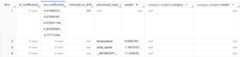
The
ar_coefficientsoutput column shows the model coefficients of theautoregressive (AR) part of the ARIMA model. Similarly, thema_coefficientsoutput column shows the model coefficients of the moving-average (MA) part ofthe ARIMA model. Both of these columns contain array values, whose lengths areequal tonon_seasonal_pandnon_seasonal_q, respectively. You saw in theoutput of theML.ARIMA_EVALUATEfunction that the best model has anon_seasonal_pvalue of0and anon_seasonal_qvalue of5. Therefore, intheML.ARIMA_COEFFICIENTSoutput, thear_coefficientsvalue is an emptyarray and thema_coefficientsvalue is a 5-element array. Theintercept_or_driftvalue is the constant term in the ARIMA model.The
processed_input,weight, andcategory_weightsoutput column show theweights for each feature and the intercept in the linear regression model. Ifthe feature is a numerical feature, the weight is in theweightcolumn. If thefeature is a categorical feature, thecategory_weightsvalue is an array ofstruct values, where each struct value contains the name and weight of a givencategory.For more information about the output columns, see
ML.ARIMA_COEFFICIENTSfunction.
Use the model to forecast data
Forecast future time series values by using theML.FORECASTfunction.
In the following GoogleSQL query, theSTRUCT(30 AS horizon, 0.8 AS confidence_level) clause indicates that thequery forecasts 30 future time points, and generates a prediction intervalwith a 80% confidence level.
Follow these steps to forecast data with the model:
In the Google Cloud console, go to theBigQuery page.
In the query editor, paste in the following query and clickRun:
SELECT*FROMML.FORECAST(MODEL`bqml_tutorial.seattle_pm25_xreg_model`,STRUCT(30AShorizon,0.8ASconfidence_level),(SELECTdate,temperature,wind_speedFROM`bqml_tutorial.seattle_air_quality_daily`WHEREdate>DATE('2020-12-31')));
The results should look similar to the following:
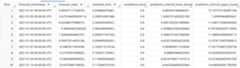
The output rows are in chronological order by the
forecast_timestampcolumn value. In time series forecasting, the predictioninterval, as represented by theprediction_interval_lower_boundandprediction_interval_upper_boundcolumn values, is as important as theforecast_valuecolumn value. Theforecast_valuevalue is the middle pointof the prediction interval. The prediction interval depends on thestandard_errorandconfidence_levelcolumn values.For more information about the output columns, see
ML.FORECASTfunction.
Evaluate forecasting accuracy
Evaluate the forecasting accuracy of the model by using theML.EVALUATEfunction.
In the following GoogleSQL query, the secondSELECT statementprovides the data with the future features, which are usedto forecast the future values to compare to the actual data.
Follow these steps to evaluate the model's accuracy:
In the Google Cloud console, go to theBigQuery page.
In the query editor, paste in the following query and clickRun:
SELECT*FROMML.EVALUATE(MODEL`bqml_tutorial.seattle_pm25_xreg_model`,(SELECTdate,pm25,temperature,wind_speedFROM`bqml_tutorial.seattle_air_quality_daily`WHEREdate>DATE('2020-12-31')),STRUCT(TRUEASperform_aggregation,30AShorizon));
The results should look similar to the following:

For more information about the output columns, see
ML.EVALUATEfunction.
Explain the forecasting results
You can get explainability metrics in addition to forecast data by using theML.EXPLAIN_FORECAST function. TheML.EXPLAIN_FORECAST function forecastsfuture time series values and also returns all the separate components of thetime series.
Similar to theML.FORECAST function, theSTRUCT(30 AS horizon, 0.8 AS confidence_level) clause used in theML.EXPLAIN_FORECAST function indicates that the query forecasts 30 futuretime points and generates a prediction interval with 80% confidence.
Follow these steps to explain the model's results:
In the Google Cloud console, go to theBigQuery page.
In the query editor, paste in the following query and clickRun:
SELECT*FROMML.EXPLAIN_FORECAST(MODEL`bqml_tutorial.seattle_pm25_xreg_model`,STRUCT(30AShorizon,0.8ASconfidence_level),(SELECTdate,temperature,wind_speedFROM`bqml_tutorial.seattle_air_quality_daily`WHEREdate>DATE('2020-12-31')));
The results should look similar to the following:
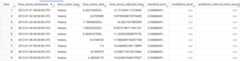


The output rows are ordered chronologically by the
time_series_timestampcolumn value.For more information about the output columns, see
ML.EXPLAIN_FORECASTfunction.
Clean up
To avoid incurring charges to your Google Cloud account for the resources used in this tutorial, either delete the project that contains the resources, or keep the project and delete the individual resources.
- You can delete the project you created.
- Or you can keep the project and delete the dataset.
Delete your dataset
Deleting your project removes all datasets and all tables in the project. If youprefer to reuse the project, you can delete the dataset you created in thistutorial:
If necessary, open the BigQuery page in theGoogle Cloud console.
In the navigation, click thebqml_tutorial dataset you created.
ClickDelete dataset on the right side of the window.This action deletes the dataset, the table, and all the data.
In theDelete dataset dialog, confirm the delete command by typingthe name of your dataset (
bqml_tutorial) and then clickDelete.
Delete your project
To delete the project:
What's next
- Learn how toforecast a single time series with a univariate model
- Learn how toforecast multiple time series with a univariate model
- Learn how toscale a univariate model when forecasting multiple time series over many rows.
- Learn how tohierarchically forecast multiple time series with a univariate model
- For an overview of BigQuery ML, seeIntroduction to AI and ML in BigQuery.
Except as otherwise noted, the content of this page is licensed under theCreative Commons Attribution 4.0 License, and code samples are licensed under theApache 2.0 License. For details, see theGoogle Developers Site Policies. Java is a registered trademark of Oracle and/or its affiliates.
Last updated 2026-02-18 UTC.