

Manage listings
As a BigQuery sharing publisher, you can do the following inBigQuery sharing (formerly Analytics Hub):
- Create listings in a data exchange for which you have publishing access.
- Update, delete, share, and view usage metrics for listings.
- Manage different BigQuery sharing roles for your listings, such aslisting administrators, subscribers, and viewers.
- View all subscribers who subscribed to your listing.
- Monitor usage of yourlistings.
- Remove subscribers from your listing.
A listing is a reference to a shared dataset that a publisher lists inadata exchange.A listing can be of the following two types based on the Identity and Access Management (IAM)policy that is set for the listing and the type of data exchange that containsthe listing:
Public listing. It can bediscoveredandsubscribed tobyGoogle Cloud users (
allAuthenticatedUsers).Listings in a public data exchange are public listings. These listings can bereferences to afree public dataset or acommercial dataset. If thelisting is of a commercial dataset, BigQuery sharing subscribers caneither request access to the listing directly from the data provider, or theycan browse and purchaseGoogle Cloud Marketplace-integrated commercial listings.Private listing. It is shared directly with individuals or groups. Forexample, a private listing can reference marketing metrics dataset thatyou share with other internal teams within your organization. Even though youcanallow
allAuthenticatedUserstosubscribe to your listings, the listing will remain private and won'tshow as a public listing on the BigQuery sharing page.To share such listings with users, share the listing's URL with them. To makea private listing discoverable, you mustmake your exchangepublic.
Before you begin
To get started with BigQuery sharing (formerly Analytics Hub), you need toenable the Analytics Hub API inside your Google Cloud project.
To enable the Analytics Hub API, you need the followingIdentity and Access Management (IAM) permissions:
serviceUsage.services.getserviceUsage.services.listserviceUsage.services.enable
The following predefined IAM role includes thepermissions that you need to enable the Analytics Hub API:
- Service Usage Admin (
roles/serviceusage.serviceUsageAdmin)
To enable the Analytics Hub API, select one of the following options:
Console
Go to theAnalytics Hub API page and enable the Analytics Hub API foryour Google Cloud project.
gcloud
Run thegcloud services enablecommand:
gcloud services enable analyticshub.googleapis.com
Required roles
To manage listings and subscriptions, you must have one of the followingBigQuery sharing Identity and Access Management (IAM) roles:
Analytics Hub Publisher role(
roles/analyticshub.publisher), which lets youcreate, update, delete, and set IAM policies on your listings.Analytics Hub Listing Admin role(
roles/analyticshub.listingAdmin), which lets youupdate, delete, and set IAM policies on your listings.Analytics Hub Admin role(
roles/analyticshub.admin), which lets youcreate, update, delete, and set IAM policies on all listings inyour data exchange.
For more information, seeBigQuery sharing IAM roles.To learn how to grant these roles to other users, seeCreate a listing administrator.
Additionally, to create listings, you must also have thebigquery.datasets.getandbigquery.datasets.update permissions for the datasets for which you want tocreate listings. The followingBigQuery predefined rolescontain thebigquery.datasets.update permission:
- BigQuery Data Owner(
roles/bigquery.dataOwner) - BigQuery Admin(
roles/bigquery.admin)
To view all data exchanges across projects in an organization that youhave access to, you must have theresourcemanager.organizations.getpermission. There are noBigQuery predefined rolesthat contain this permission, so you would need to use anIAM custom role.
View data exchanges
To view the list of data exchanges in your organization that you have access to,seeView data exchanges.If the data exchange is in another organization, then theBigQuery sharing administrator mustshare a link to that data exchangewith you.
Create a listing
A listing is a reference to ashared datasetthat a BigQuery sharing publisher lists in a data exchange.
Caution: We recommend that you don't add your shared datasets in a project witha VPC Service Controls perimeter. If you do so, then you must add the appropriateingress and egress rules.To create a listing, follow these steps:
Console
Go to theSharing (Analytics Hub) page.
A page appears that lists all data exchanges that you can access.
Click the data exchange name in which you want to create the listing.
ClickCreate listing.
In theConfigure data section, in theResource type menu, selectBigQuery dataset orPub/Sub Topic.
If you selectBigQuery dataset, then do the following:
In theShared dataset menu, select an existing dataset, or clickCreate a dataset to create a new dataset. Select the dataset thatyou want to list in the data exchange. The dataset must be in the sameregion as the data exchange. You cannot update this field after thelisting is created. The source dataset name and the ID of the projectthat contains the dataset are returned when BigQuery sharingsubscribersview the metadata of their linked dataset.
Optional: To let subscribersshare a SQL stored procedure within a listing,selectAllow stored procedure sharing(Preview).
Expand theRegion data availability menu(Preview) to make the shareddataset available in additional regions. The menu displays theregions where dataset replicas exist with theReady to uselabel. Before configuring the listing for multiple regions, verifyyou've enabledcross-region dataset replicationon the shared dataset, as you can select only regions wherecross-region dataset replication is enabled. All other regions arelabeled asUnavailable. If no additional region is selected, thelisting uses the shared dataset primary region by default, which islabeled asProvider primary.
InData Egress controls, select the appropriatedata egress option.
- To apply data egress restrictions on your shared dataset, but noton query results of your shared dataset, selectDisable copy and export of shared data.
- To apply data egress restrictions on your shared dataset and queryresults of your shared dataset, selectDisable copy and export of query results, which willautomatically setDisable copy and export of shared data as well.
- To apply data API copy and export egress restrictions on your shareddataset, selectDisable copy and export of tables through APIs,which will automatically setDisable copy and export of shared data as well.
For more information about data egress controls, includingrestrictions, seeData egress options (BigQuery shared datasets only).
If you selectPub/Sub Topic, then in theShared topic menu, youcan select an existing Pub/Sub topic, or clickCreate a topic to create a new topic.
In theListing details section, inDisplay name, enter the name of the listing.
Enter the following optional details:
Category: select up to two categories that best represent yourlisting. BigQuery sharing subscribers canfilter listingsbased on these categories.
Data affinity: regions used by the BigQuery sharing publisherfor publishing the data if you're using a Pub/Sub topic. Thisinformation is useful for BigQuery sharing subscribers to minimizeor avoid Pub/Sub network egress costs by reading the data from thesame region. For more information about egress costs, seeData transfer costs.
Icon: an icon for your listing. PNG and JPEG file formats aresupported. Icons must have a file size of less than 512 KiB anddimensions of no more than 512 x 512 pixels.
Description: a brief description about your listing. Subscribers cansearch for listingsbased on the description.
Public Discoverability: enable public discoverability of yourlisting in the BigQuery sharing catalog. If you enable this option,grant
allUsersorallAuthenticatedUserstheAnalytics Hub Viewer role(roles/analyticshub.viewer). For more information, seeGrant the role for a listing.If the exchange is alreadypublic,listing permissions are already inherited and no further action isrequired.Publicly discoverable exchanges can't have private listings due topermission inheritance, but private exchanges can have public listings.For public listings to be created, the project the data listing is inmust have an associated organization and billing account. If you'recreating aCloud Marketplace-integrated commercial listing,we recommend making your listing publicly discoverable.
Subscriber Email Logging: turn on logging of theprincipal identifiersof all users running jobs and queries on linked datasets. When you enablethis option, all future subscriptions for this listing have subscriberemail logging turned on. The logged data is available in the
Note: Once you enable and save email logging, this setting cannot beedited. To disable email logging, delete the listing and recreateit without clicking theSubscriber Email Logging toggle.job_principal_subjectfield of theINFORMATION_SCHEMA.SHARED_DATASET_USAGEview.Documentation> Markdown: additional information such aslinks to any relevant documentation and any additional information that canhelp BigQuery sharing subscribers to use your topic.
On theListing contact information section, enter the followingoptional details:
Primary contact: enter an email ID or a URL of the primary contactfor the listing.
Request access contact: enter an email ID or URL of the intake formfor BigQuery sharing subscribers to contact you.
Provider: expand theProvider section and specify details in thefollowing fields:
- Provider name: the name of the topic provider.
- Provider primary contact: an email ID or a URL of the topicprovider's primary contact.
Subscribers can filter listings based on thedata providers.
Publisher: expand thePublisher section and specify details inthe following fields:
- Publisher name: the name of the BigQuery sharing publisherwho's creating the listing.
- Publisher primary contact: an email ID or a URL of the topicpublisher's primary contact.
Review theListing preview section.
ClickPublish.
API
Use theprojects.locations.dataExchanges.listings.createmethod.
POST https://analyticshub.googleapis.com/v1/projects/PROJECT_ID/location/LOCATION/dataExchanges/DATAEXCHANGE_ID/listings?listingId=LISTING_ID
Replace the following:
PROJECT_ID: the project ID that contains the dataexchange in which you want to create the listing.LOCATION: the location for your data exchange. Formore information about locations thatsupport BigQuery sharing, seeSupported regions.DATAEXCHANGE_ID: the data exchange ID.LISTING_ID: the listing ID.
In the body of the request, provide thelisting details.
To create a listing for multiple regions(Preview),specify the additional regions in thebigqueryDataset.replicaLocationsfield in the request body. Before configuring the listing for multipleregions, verify you've enabledcross-region dataset replicationon the shared dataset. You can select only regions where cross-region datasetreplication is enabled. If this optional field is not included, the listingis created using the shared dataset's primary region.
If the request is successful, the response body contains details of thelisting. If you enable subscriber email logging withthelogLinkedDatasetQueryUserEmail field, the listing responsecontainslog_linked_dataset_query_user_email: true. The logged datais available in thejob_principal_subject field of theINFORMATION_SCHEMA.SHARED_DATASET_USAGE view.
For more information about the tasks that you can perform on listings usingAPIs, seeprojects.locations.dataExchanges.listings methods.
Create a listing from a dataset
You can also create a listing from a dataset by doing the following:
In the Google Cloud console, go to theBigQuery page.
Click a dataset to view its details.
ClickSharing>Publish as listing.
TheCreate listing dialog opens.
Select a data exchange to publish this listing in. The data exchange must bein the same region as the dataset. For more information about creating adata exchange, seecreate an exchange and set permissions.
In theShared dataset menu, select an existing dataset, or clickCreate a dataset to create a new dataset. Select the dataset thatyou want to list in the data exchange. The dataset must be in the sameregion as the data exchange. You cannot update this field after thelisting is created.
The source dataset name and the ID of the project that contains thedataset are returned when BigQuery sharing subscribersview the metadata of their linked dataset.
Optional: To let subscribersshare a SQL stored procedure within a listing,selectAllow stored procedure sharing(Preview).
Expand theRegion data availability menu(Preview) to make the shareddataset available in additional regions. The menu displays theregions where dataset replicas exist with theReady to uselabel. Before configuring the listing for multiple regions, verifyyou've enabledcross-region dataset replicationon the shared dataset, as you can select only regions wherecross-region dataset replication is enabled. All other regions arelabeled asUnavailable. If no additional region is selected, thelisting uses the shared dataset region by default, which is labeledasProvider primary.
InData Egress controls, select the appropriate dataegress option.
- To apply data egress restrictions on your shared dataset, but not onyour query results of your shared dataset, selectDisable copy andexport of shared data.
- To apply data egressrestrictions on your shared dataset and query results of your shareddataset, selectDisable copy and export of query results, which willautomatically setDisable copy and export of shared data as well.
- To apply data API copy and export egress restrictions on your shareddataset, selectDisable copy and export of tables through APIs, whichwill automatically setDisable copy and export of shared data as well.
For more information about data egress controls, includingrestrictions, seeData egress options (BigQuery shared datasets only).
In theListing details section, inDisplay name, enter the name of the listing.
Enter the following optional details:
Category: select up to two categories that best represent yourlisting. BigQuery sharing subscribers canfilter listingsbased on these categories.
Data affinity: region(s) used by the BigQuery sharing publisherfor publishing the data. This information is useful for BigQuery sharingsubscribers tominimize or avoid Pub/Sub network egress costs by reading the datafrom the same region. For more information about egress costs, seeData transfer costs.
Icon: an icon for your listing. PNG and JPEG file formats aresupported. Icons must have a file size of less than 512 KiB anddimensions of no more than 512 x 512 pixels.
Description: a brief description about your listing.BigQuery sharing subscribers cansearch for listingsbased on the description.
Public Discoverability: enable public discoverability of your listingin the BigQuery sharing catalog. If you enable this option, grant
allUsersorallAuthenticatedUserstheAnalytics Hub Viewer role(roles/analyticshub.viewer). For more information, seeGrant the role for a listing.If the exchange is alreadypublic,listing permissions are already inherited and no further action isrequired.Publicly discoverable exchanges can't have private listings due topermission inheritance, but private exchanges can have public listings. Forpublic listings to be created, the project the data listing is in must havean associated organization and billing account. If you're creating aCloud Marketplace-integrated commercial listing,we recommend making your listing publicly discoverable.
Subscriber Email Logging: turn on logging of theprincipal identifiers of subscribersrunning jobs and queries on this listing's linked dataset for all futuresubscriptions. When you enable this option, only newly createdsubscriptions log the principal identifiers. The logged data is availablein the
Note: Once you enable and save email logging, this setting cannot beedited. To disable email logging, delete the listing and recreateit without clicking theSubscriber Email Logging toggle.job_principal_subjectfield of theINFORMATION_SCHEMA.SHARED_DATASET_USAGEview.Documentation> Markdown: additional information such aslinks to any relevant documentation and any additional information that canhelp subscribers to use your topic.
On theListing contact information section, enter the following optionaldetails:
Primary contact: enter an email ID or a URL of the primary contact forthe listing.
Request access contact: enter an email ID or URL of the intake formfor subscribers to contact you.
Provider: expand theProvider section and specify details in thefollowing fields:
- Provider name: the name of the topic provider.
- Provider primary contact: an email ID or a URL of the topicprovider's primary contact.
Subscribers can filter listings based on the data providers.
Publisher: expand thePublisher section and specify details inthe following fields:
- Publisher name: the name of the BigQuery sharing publisherwho's creating the listing.
- Publisher primary contact: an email ID or a URL of the topicpublisher's primary contact.
Review theListing preview section.
ClickPublish.
Share a SQL stored procedure within a listing
Preview
This product or feature is subject to the "Pre-GA Offerings Terms" in the General Service Terms section of theService Specific Terms. Pre-GA products and features are available "as is" and might have limited support. For more information, see thelaunch stage descriptions.
Note: To request support or provide feedback for this feature, contactbq-data-sharing-feedback@google.com.You can shareSQL stored procedureswhen creating listings with BigQuery datasets. Since storedprocedures can create, drop, and manipulate tables, as well as invokeother stored procedures, additional authorization is needed.
Subscriber authorization
After subscribing to a listing, the linked stored procedures might not beexecuted directly. To ensure that the linked stored procedures can be accessed,the subscriber must communicate to the provider with the linked dataset name so thatthe provider authorizes the linked stored procedure on the provider resources.In addition, the subscriber mustauthorize the linked shared stored procedure and attach an IAM roleto the resources that they own in order to read from and write to thoseresources.
Provider authorization
When a provider creates a listing with a stored procedure, they need to let thesubscriber read from and write to their tables through the linked storedprocedure. To ensure this, do the following:
For non-read operations, the provider mustauthorize the linked shared stored procedure andattach an IAM roleto any of the provider's resources that are accessed by the linked storedprocedure.
For read operations, the provider canauthorize either the linked shared stored procedure (in the subscriber's linked dataset) or their original shared stored procedure (in the provider's dataset) andattach an IAM roleto any of the provider's resources that are accessed by the linked storedprocedure.
Give users access to a listing
If you want to give users access to a private listing, you must setIAM policy for an individual or a group for that listing. For acommercial listing, yourdata exchange must be public.Listings in a public data exchange appear in BigQuery sharing forallGoogle Cloud users (allAuthenticatedUsers).To enable users to browse and request access to commercial listings, you mustgrant users theAnalytics Hub Viewer role(roles/analyticshub.viewer). To enable users to subscribe to commerciallistings, you must explicitly grant users theAnalytics Hub Subscriber role(roles/analyticshub.subscriber). ForCloud Marketplace-integrated commercial listings,the Analytics Hub Subscriber role is automatically provisionedbased on the Cloud Marketplace orders.
If you want to make your listing accessible to everyone, including people whodon't use Google Cloud, you must grantallUsers the Analytics Hub Viewer role(roles/analyticshub.viewer).
To give users access to view or subscribe to your listing, follow these steps:
Console
Go to theSharing (Analytics Hub) page.
Click the data exchange name that contains the listing.
Click the listing for which you want to add subscribers.
ClickSet permissions.
To add principals, clickAddprincipal.
In theNew principals field, add the following details based on the typeof listing:
For a private listing, enter email IDs of the identity to whom you want togrant access.
For a public listing, add
allAuthenticatedUsers.For a public listing discoverable to everyone, including non-Google Cloudusers, add
allUsers.
ForSelect a role, hold the pointer overAnalytics Hub, and thenbased on the type of listing, select one of the following roles:
For a commercial listing (including Cloud Marketplace-integratedlistings), select theAnalytics Hub Viewer role. This role lets usersview the listing and request access.
For a private or non-commercial public listing, select theAnalytics Hub Subscriber role. This role lets userssubscribe to your listing.
For Cloud Marketplace-integrated listings, theAnalytics Hub Subscriber role (
roles/analyticshub.subscriber)doesn't need to be granted, as subscriptions areautomatically governed and managed based on theCloud Marketplace order.
roles/analyticshub.subscriber) role for your commercial listing.For more information, see theAnalytics Hub Subscriber and Viewer roles.
ClickSave.
API
Read the existing policy with the listing
getIamPolicymethod by usingtheprojects.locations.dataExchanges.listings.getIamPolicymethod.POST https://analyticshub.googleapis.com/v1/projects/PROJECT_ID/locations/LOCATION/dataExchanges/DATAEXCHANGE_ID/listings/LISTING_ID:getIamPolicy
Replace the following:
PROJECT_ID: the projectID—for example,my-project-1.LOCATION: the location of the data exchangethat contains the listing.DATAEXCHANGE_ID: the data exchange ID.LISTING_ID: the listing ID.
Sharing returns the current policy in the response.
To add or remove members and their associated roles, edit the policy witha text editor. Use the following format to add members:
user:test-user@gmail.comgroup:admins@example.comserviceAccount:test123@example.domain.comdomain:example.domain.com
For example, to grant the
roles/analyticshub.subscriberrole togroup:subscribers@example.com, add the following binding to the policy:{ "members": [ "group:subscribers@example.com" ], "role":"roles/analyticshub.subscriber"}Write the updated policy by using the
projects.locations.dataExchanges.listings.setIamPolicymethod.In the body of the request, provide the updated IAM policyfrom the previous step.POST https://analyticshub.googleapis.com/v1/projects/PROJECT_ID/location/LOCATION/dataExchanges/DATAEXCHANGE_ID/listings/LISTING_ID:setIamPolicy
In the body of the request, provide the listing details. If the requestis successful, then the response body contains details of the listing.
For more information about the tasks that you can perform on listings usingAPIs, seeprojects.locations.dataExchanges.listings methods.
roles/analyticshub.subscriber) for your commercial listing.Create a non-authenticated URL for public listing
To create a non-authenticated BigQuery sharing listing URL that isviewable to even non-Google Cloud users, do the following:
Go to theSharing (Analytics Hub) page.
A page appears that lists all data exchanges that you can access.
Click the data exchange name that contains the listing.
Click the display name to view the listing details. The listing must havepublic discoverabilityenabled.
ClickCopy public link to generate an unauthenticated listing URL. Ensurethat this listing grants
allUserstheAnalytics Hub Viewer role (roles/analyticshub.viewer).
Create a listing administrator
To let users manage listings, you must create listing administrators. Tocreate listing administrators, you need to grant users theAnalytics Hub Publisher or the Analytics Hub Listing Admin IAM roleat the listing level. For more information about how to grant these roles for alisting, seeGrant the role for a listing.
View all subscriptions
To view all the current subscriptions to your listing, select one of thefollowing options:
Console
Go to theSharing (Analytics Hub) page.
Click the data exchange name that contains the listing for which you wantto manage the subscriptions.
Click the listing for which you want to list all subscribers.
To view all subscribers of your listing, clickManage subscriptions.
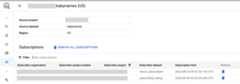
Optional: You can filter results by subscriber details.
Alternatively, if you have access to theshared dataset,you can follow these steps to list subscribers:
Go to theBigQuery page.
In the left pane, clickExplorer:

If you don't see the left pane, clickExpand left pane to open the pane.
In theExplorer pane, expand your project name, clickDatasets, andthen click the name of the shared dataset.
In theSharing list,selectManage subscriptions.
SQL
The following example uses theINFORMATION_SCHEMA.SCHEMATA_LINKS viewto list all the linked datasets linked to a shared dataset inmyprojectthat are in theus region:
SELECT * FROM `myproject`.`region-us`.INFORMATION_SCHEMA.SCHEMATA_LINKS;
The output is similar to the following. Some columns are omitted to simplifythe output.
+----------------+-------------+----------------------------+------------------------------+--------------------+--------------------------------+| catalog_name | schema_name | linked_schema_catalog_name | linked_schema_catalog_number | linked_schema_name | linked_schema_org_display_name |+----------------+-------------+----------------------------+------------------------------+--------------------+--------------------------------+| myproject | myschema1 | subscriptionproject1 | 974999999291 | subscriptionld1 | subscriptionorg || myproject | myschema2 | subscriptionproject2 | 974999999292 | subscriptionld2 | subscriptionorg || myproject | myschema3 | subscriptionproject3 | 974999999293 | subscriptionld3 | subscriptionorg |+----------------+-------------+----------------------------+------------------------------+--------------------+--------------------------------+
For a listing with multiple regions(Preview), you can view thesubscriptions across different regions by replacing theus region with theintended replica location. For example, to view the linked datasets linked toa shared dataset inmyproject that are in theeu region, use the followingquery:
SELECT * FROM `myproject`.`region-eu`.INFORMATION_SCHEMA.SCHEMATA_LINKS;
API
Use theprojects.locations.dataExchanges.listings.listSubscriptions method.
GET https://analyticshub.googleapis.com/v1/projects/PROJECT_ID/location/LOCATION/dataExchanges/DATAEXCHANGE_ID/listings/LISTING_ID:listSubscriptions
Replace the following:
PROJECT_ID: the project ID of the listing that youwant to subscribe to.LOCATION: the location for the listing that youwant to subscribe to.DATAEXCHANGE_ID: the data exchange ID that contains thelisting that you want to subscribe to.LISTING_ID: the ID of the listing that you want tosubscribe to.
Remove a subscription
When you remove a subscription created before July 25, 2023 from your listings,thelinked dataset getsunlinked from theshareddataset. Subscriberscan still see the datasets in their projects but they are no longer linked withthe shared dataset.
Note: RevokingCloud Marketplace-integrated commercial subscriptionsmight impact your customers and violate theCloud Marketplace Terms of Service.To remove a subscription created before July 25, 2023 from your listings, followthese steps:
To list all subscribers of a listing, follow the Google Cloud consoleinstructions inView all subscriptions.
To remove a subscriber from a listing, clickDelete. If you want to removeall subscriptions, clickRemove all subscriptions.
In theRemove subscription? dialog, enter
removeto confirm.ClickRemove.
To remove subscriptions created after July 25, 2023, follow these steps:
Console
To list all subscribers of a listing, follow the Google Cloud consoleinstructions inView all subscriptions.
Click theSubscriptions tab.
To remove a subscriber from a listing, select the Subscription(s) you would like to remove and clickRemove Subscriptions.
In theRemove subscription? dialog, enter
removeto confirm.ClickRemove.
API
Use theprojects.locations.subscriptions.revoke method.
POST https://analyticshub.googleapis.com/v1/projects/PROJECT_ID/location/LOCATION/subscriptions/SUBSCRIPTION_ID:revoke
Replace the following:
PROJECT_ID: the project ID of the subscription that youwant to remove.LOCATION: the location of the subscription that youwant to remove.SUBSCRIPTION: the ID of thesubscription that you want to remove.
Update a listing
To update a listing, follow these steps:
Console
Go to theSharing (Analytics Hub) page.
Click the data exchange name that contains the listing.
Click the listing that you want to update.
ClickEdit listing.
Modify values in the fields. You can modify all values except the shareddataset of the listing.
Optional:
- If you enable public discoverability, grant theAnalytics Hub Viewer role (
roles/analyticshub.viewer)toallUsersorallAuthenticatedUsers. For more information, seeGrant the role for a listing - If you disable public discoverability,remove the Analytics Hub Viewer role (
roles/analyticshub.viewer)fromallUsersandallAuthenticatedUsers.Public exchanges can't have private listings,but private exchanges can have public listings. - If you enable and save subscriber email logging, this setting cannotbe edited. To disable email logging, delete the listing and recreateit without clicking theSubscriber email logging toggle.
- Add or remove regions from the listing (Preview).Before adding multiple regions, verify you've enabledcross-region dataset replicationon the shared dataset. When removing regions, delete the shared datasetreplica in that region first.
- If you enable public discoverability, grant theAnalytics Hub Viewer role (
Preview the listing.
To save changes, clickSave. To avoid discrepancies withCloud Marketplace-integrated listings, a notification appears thatprompts an update to the Cloud Marketplace data product listing.
Note: Updating the Cloud Marketplace data product listing requiresreview and approval by the Marketplace Operations Team.
API
Use theprojects.locations.dataExchanges.listings.patch method.
PATCH https://analyticshub.googleapis.com/v1/projects/PROJECT_ID/location/LOCATION/dataExchanges/DATAEXCHANGE_ID/listings/LISTING_ID?updateMask=UPDATEMASK
ReplaceUPDATEMASK with the list of fields that youwant to update. To update multiple values, use a comma-separated list. Forexample, to update the display name and primary contact for a data exchange,enterdisplayName,primaryContact.
In the body of the request, specify updated values for the followingfields:
displayNamedescriptionprimaryContactdocumentationiconcategories[]discoveryTypelogLinkedDatasetQueryUserEmail
For details on these fields, seeResource: Listing.
When updating the replica regions for your listing, ensure that you specifyall applicable regions. Before updating the listing, verify you've enabledcross-region dataset replicationon the shared dataset. You can add only regions(Preview) where the shared dataset isreplicated. To remove a region, delete the shared dataset replica for theregion before removing it from the listing. You can update replica regionsonly for newly created listings for multiple regions. You can't convertpre-existing listings to listings for multiple regions.
For more information about the tasks that you can perform on listings usingAPIs, seeprojects.locations.dataExchanges.listings methods.
Delete a listing
When you delete a listing, subscribers can no longerview the listing.Deleting a listing alsodeletes all the linked datasetsand removes all the subscriptions from your subscribers' projects. If a datasetremains linked, remove the dataset manually by clickingSharing> Manage Subscription.TheSubscriptions page opens, where you can remove a specific subscriberdataset or all subscriber datasets at once.
You can't deleteCloud Marketplace-integrated listingswith active commercial subscriptions.Revoke all commercial subscriptionsbefore you delete the listing.
Caution: Be aware that revokingCloud Marketplace-integrated commercial subscriptions might impact yourcustomers and violate theCloud Marketplace Terms of Service.Deleting a listing for multiple regions(Preview)doesn't delete the shared dataset replicas. After deleting the listing formultiple regions, subscribers can no longer view the listing or query the linkeddatasets. If the shared dataset replicas aren't referenced in other listings,you canchoose to delete them.
Before deleting a listing for multiple regions(Preview), ensure there are no activesubscriptions associated with it. If active subscriptions exist, you must firstrevoke them using theprojects.locations.subscriptions.revoke method.After all the active subscriptions are removed, you can proceed with deleting thelisting for multiple regions.
To delete a listing, follow thesesteps:
Console
Go to theSharing (Analytics Hub) page.
Click the data exchange name that contains the listing.
Click the listing that you want to delete.
ClickDelete.
In theDelete listing? dialog, confirm deletion by typingdelete.
ClickDelete.
API
Use theprojects.locations.dataExchanges.listings.delete method.
DELETE https://analyticshub.googleapis.com/v1/projects/PROJECT_ID/location/LOCATION/dataExchanges/DATAEXCHANGE_ID/listings/LISTING_ID
For more information about the tasks that you can perform on listings usingAPIs, seeprojects.locations.dataExchanges.listings methods.
Display a listing in the featured section
To increase visibility and awareness of your listing in theBigQuery sharing catalog, listings can be displayed in theFeatured section. Featured listings are governed by the Google Cloud PartnerAdvantage Agreement.
Partners that are interested in their listings being in theFeatured sectionof the BigQuery sharing catalog must meet the following criteria:
Shared data must reside in BigQuery.
They must be enrolled in thePartner Advantage Program with the Build designation.
The listing must be created and havepublic discoverability enabled.
To request your listing to be in theFeatured section, complete and submit theintake form.To request that your listing be removed from the section, submit the sameintake form.
What's next
- Read aboutBigQuery sharing architecture
- Learn how toview and subscribe to listings.
- Learn aboutBigQuery sharing IAM roles.
- Learn aboutcreating datasets.
- Learn aboutBigQuery sharing audit logging.
- Learn how tomonitor listings.
Except as otherwise noted, the content of this page is licensed under theCreative Commons Attribution 4.0 License, and code samples are licensed under theApache 2.0 License. For details, see theGoogle Developers Site Policies. Java is a registered trademark of Oracle and/or its affiliates.
Last updated 2025-12-15 UTC.