
Managing Datastore from the Console
This page describes how to view and manage the entities, indexes, and statisticsfor the data your application stores in your database.
Viewing Datastore statistics
In the Google Cloud console, go to theDatabases page.
Select the required database from the list of databases.
In the navigation menu, clickDatastore Studio to view data for the entities inyour application, as well as statistics for the built-in and composite indexes.
The dashboard should look like:
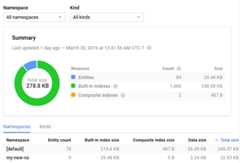
For more information about the statistics on this page, seeViewing Statistics in the Console.
Viewing indexes
In the Google Cloud console, go to theDatabases page.
Select the required database from the list of databases.
In the navigation menu, clickIndexes to view a table of your application's indexes.
For each index, you should see its status, such as whether it is ready to serve yourapplication. You should also see the amount of storage space used by the index andthe number of entries in each index.
Viewing entities
In the Google Cloud console, go to theDatabases page.
Select the required database from the list of databases.
In the navigation menu, clickDatastore Studio to view the entities that your application stored inyour database.
You should see:
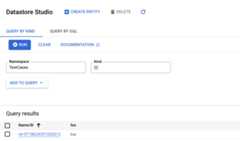
You can also create, update, delete, and query entities on this page. Learn howin theQuickstart.
Note: While individual entities are removed almost immediately, a namespacecontainer may remain visible for several days to a week after the final entitywithin it is removed.What's next?
- Get details aboutStatistics in the Console.
Except as otherwise noted, the content of this page is licensed under theCreative Commons Attribution 4.0 License, and code samples are licensed under theApache 2.0 License. For details, see theGoogle Developers Site Policies. Java is a registered trademark of Oracle and/or its affiliates.
Last updated 2025-12-15 UTC.