

Step 2: Create a Google Cloud project
Apigee hybrid requires that you have aGoogle Cloud project, which you can create after youcreate a Google Cloud account.
This section describes how to create a new Google Cloud project. If you want to use an existing Google Cloudproject (of which you are an owner) with hybrid, skip toStep 3: Enable APIs.
To create a new Google Cloud project:
- Open theGoogle Cloud console and log in with the account you created inStep 1: Create a Google Cloud account.
Click theProject Selector at the top of the view.
TheProject Selector dialog box displays:
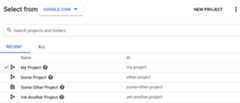
ClickNew Project in the upper right.
TheNew Project view displays.
Enter a friendly name for your project in theProject name field.
Google Cloud generates a corresponding project ID below theProject name field, as the following example shows:
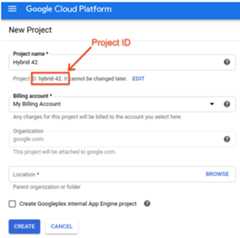
You can change the generated project ID by clickingEdit, but the project ID must be unique.
Take note of theproject ID. You will use it later in this setup process.
NOTE: After you create the project, youcannot change the project ID.- In theBilling account field, select the account that you will use to pay for your project. If you do not yet have a paid or trial account, contactApigee Sales.
- In theLocation field, select a folder for your project. Folders are an optional part of the Google Cloud project resource tree.
ClickCreate.
Google Cloud creates your new project.
After you create your project, you must enable the Apigee API to it, as described in the nextstep.
12(NEXT) Step 3: Enable APIs45Except as otherwise noted, the content of this page is licensed under theCreative Commons Attribution 4.0 License, and code samples are licensed under theApache 2.0 License. For details, see theGoogle Developers Site Policies. Java is a registered trademark of Oracle and/or its affiliates.
Last updated 2025-12-17 UTC.