

Obtain TLS credentials: An example
This topic is intended as an example only. It explains how to obtain a TLS certificate from the certificate authority (CA)Let's Encrypt. These steps are provided primarily as an example to follow if you do not have another ready way to obtain a certificate/key pair that is authorized by a CA. The example shows how to generate certificates using theLet's Encrypt CA, theCertbot client, and Google Cloud PlatformCloud DNS.
Where you can use these credentials
You must provide TLS credentials for two Istio ingress gateways that are exposed outside the cluster:
| Gateway | TLS requirement |
|---|---|
| MART ingress gateway | Requires an authorized TLS certificate/key pair. |
| Runtime ingress gateway | You can use a self-signed certificate/key pair or authorized TLS credentials. |
Requirements
- You will need a domain name obtained through a domain name registrar. You can register a domain name through Google Domains or another domain registrar of your choice.
Configure Cloud DNS
To obtain authorized TLS credentials, you must have a qualified domain name. The followingsteps explain how toGoogle Cloud DNS toobtain a domain name and manage your domain servers.- Open theGoogle Cloud console and log in with the account you created inStep 1: Create a Google Cloud account.
- Select the project that you created inStep 2: Create a GCP project.
- Enable the DNS API. SeeEnabling APIs.
- Create two static IP addresses:
- If you are on GKE, follow the instructions in Reserving a static external IP address to create two static IP addresses. You can give the addresses any name you wish, for example:
apigee-hybrid-martandapigee-hybrid-runtime. When you finish, you will have two IP numbers to use in the cluster configuration in the next step. For example:35.225.131.189and34.66.75.196 - If you are on Anthos GKE, follow instructions in the Anthos GKE documentation to create two static IP addresses.
- If you are on GKE, follow the instructions in Reserving a static external IP address to create two static IP addresses. You can give the addresses any name you wish, for example:
- Create a managed public zone. For instructions, see Create a managed public zone.
- Get the External IP you reserved for the
apigee-hybrid-mart. - Create record set for the MART endpoint. Enter the External IP you obtained in the previous step and add a prefix to the domain name, such as
mart. For instructions, seeCreate a new record.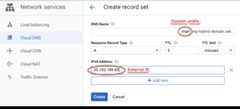
- Get the External IP that you reserved for
apigee-hybrid-runtime. - Create record set for the Istio ingress endpoint. This is the address for making API calls to the hybrid gateway. Enter the External IP you obtained in the previous step and add a prefix to the domain name, such as
apitest. For instructions, seeCreate a new record.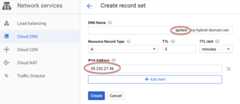
- Copy the DNS record data, as shown in the following example:
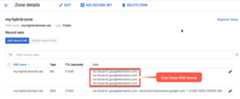
- Return to your domain page atGoogle Domains.
- Select your domain.
- SelectDNS.
- In the Name Servers section, clickEdit.
Enter the domain name servers that you copied from the Network Services Cloud DNS page:
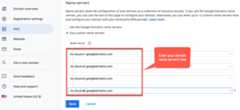
Now, your Google Cloud DNS will manage the DNS records for your domain.
Install Certbot on a VM
Now that you have Cloud DNS set up to manage your domain servers, you will install the Certbot client with thedns_google plugin on a Cloud VM. The client enables you to get authorized certificates for your domain from a Let's Encrypt endpoint.
- Open theGoogle Cloud console and log in with the account you created inStep 1: Create a Google Cloud account.
- Select the project that you created inStep 2: Create a GCP project.
- SelectIAM & admin > Service accounts.
TheService accounts view displays a list of the project’s service accounts.
- To create a new service account, click+Create Service Account at the top of the view.
TheService account details view displays.
- In theService account name field, enter the name of the service account.
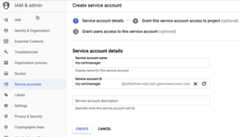
You can optionally add a description in theService account description field. Descriptions are helpful at reminding you what a particular service account is used for.
- ClickCreate.
GCP creates a new service account and displays theService account permissions view. Use this view to assign a role to your new service account.
- Click theSelect a role drop-down list.
- Select theProject Owner role.
- ClickContinue.
- ClickDone.
- In the GCP console, selectCompute Engine > VM Instances.
- Create a VM instance namedcertmanager.
- Under the Boot Disk section, choose CentOS7 and 20 GB for the SSD persistent drive.
- Set the Service Account to the one you created above.
- Install Certbot and thedns_google plugin on the machine and run the Certbot client:
sudo su -yum -y install yum-utilsyum install certbot -yyum install certbot-dns-google -ycertbot certonly --dns-google -d*.your_domain_name,*.your_domain_name --server https://acme-v02.api.letsencrypt.org/directoryFor example:
sudo su -yum -y install yum-utilsyum install certbot -yyum install certbot-dns-google -ycertbot certonly --dns-google -d*.apigee-hybrid-docs.net,*.apigee-hybrid-docs.net --server https://acme-v02.api.letsencrypt.org/directory - You can now find your authorized certificate and private key files in this directory:
cd /etc/letsencrypt/live/your_domain_name/For example:
cd /etc/letsencrypt/live/apigee-hybrid-docs.netlscert.pem chain.pem fullchain.pem privkey.pem README - Copy the files
fullchain.pemandprivkey.pemto your local machine. - Update your overrides file to point to the certificate and private key. For the
hostAlias, use the DNS name that you created previously.For example:
envs: - name: test sslCertPath: "$HOME/hybrid/apigee-hybrid-setup/tls/fullchain.pem" sslKeyPath: "$HOME/hybrid/apigee-hybrid-setup/tls/privkey.pem" hostAlias: "apitest.apigee-hybrid-docs.net"mart: nodeSelector: key: cloud.google.com/gke-nodepool value: apigee-runtime sslCertPath: "$HOME/hybrid/apigee-hybrid-setup/tls/fullchain.pem" sslKeyPath: "$HOME/hybrid/apigee-hybrid-setup/tls/privkey.pem" replicaCountMin: 1 replicaCountMax: 1 hostAlias: "mart.apigee-hybrid-docs.net"
- Apply the changes:
If you changed the
martconfiguration, apply the changes:apigeectl apply -fyour_overrides_file -c mart
If you changed the
envsconfiguration, apply the changes:apigeectl apply -fyour_overrides_file -c runtime
Test the configuration
Deploy and test a proxy, as explained inCreate and deploy a new API proxy.
Except as otherwise noted, the content of this page is licensed under theCreative Commons Attribution 4.0 License, and code samples are licensed under theApache 2.0 License. For details, see theGoogle Developers Site Policies. Java is a registered trademark of Oracle and/or its affiliates.
Last updated 2025-12-17 UTC.