Add the SpikeArrest policy to your API Stay organized with collections Save and categorize content based on your preferences.
This pageapplies toApigee andApigee hybrid.
View Apigee Edge documentation.![]()

What you'll learn
Through this tutorial, you'll learn to:
- Add a policy that affects the request and response.
- See the effects of the policy.
What you'll need
- An Apigee installation. SeeOverview and prerequisites.
- A working API proxy with at least one policy attached. SeeBuild your first API proxy overview.
- An HTTP API client installed on your machine to make API calls. The tutorial examples use
curl.
Add the SpikeArrest policy
In this tutorial, you'll add and configure theSpikeArrest policy to guard the target service against sudden traffic spikes that can be caused by an increase in usage, buggy clients, or malicious attacks. When the number of requests exceeds the rate limit, the API returns an HTTP429 error.
Apigee in Cloud console
To add the SpikeArrest policy to an API proxy:
In the Google Cloud console, go to theProxy development> API Proxies page.
If you followed the Get Started tutorial, you can add it to the API proxy you created inCreate an API proxy.
- Click theDevelop tab.
- In the left-hand pane, click the+ button in thePolicies row.
In theCreate policy dialog, click in theSelect policy type field and scroll down toTraffic Management and selectSpikeArrest.
Optionally, you can change theName andDisplay name of the policy. By default, Apigee provides a short prefix for the policy name, in this case,SA-. You can add a sequence of descriptive words, separated by dashes, after the prefix. See Naming conventions.
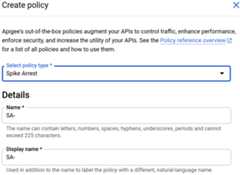
When you are done, clickCreate to create the policy.
Now that you have created the Spike Arrest policy, you can add it to a step in the PreFlow.
- SelectProxy Endpoints > default > PreFlow in the left-hand pane:
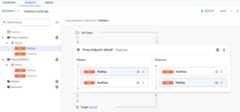
Note: You may need to expand the visual editor in the right-hand pane to see all the elements. To do so, click and drag the divider between the visual editor and the text editor down a little.
- Click the+ button next toPreFlow in theResponse pane at the bottom-right of the visual editor:
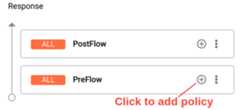
- In theAdd policy step dialog, select theSpike Arrest policy.
ClickAdd to attach the policy.
TheSpike Arrest policy is now displayed in theResponse pane:
Note: This example uses the default name,SA-, for the Spike Arrest policy. You can change the name in thePolicyName element in the XML for the policy, by adding a descriptive phrase afterSA-. See Change the policy name.
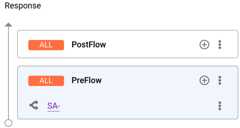
Now that you have attached the Spike Arrest policy to the PreFlow, you can try changing the code for the policy:
In theResponse pane, selectSA-.

- The text editor displays the XML code for the proxy, including the Spike Arrest policy step in theResponse element of the PreFlow.
<?xml version="1.0" encoding="UTF-8" standalone="yes"?><SpikeArrest continueOnError="false" enabled="true" name="SA-"> <DisplayName>SA-</DisplayName> <Properties/> <Identifier ref="request.header.some-header-name"/> <MessageWeight ref="request.header.weight"/> <Rate>30ps</Rate></SpikeArrest>
In the XML for the policy, change the value of the
Note: The behavior of SpikeArrest involves a smoothing algorithm across multiple message processors, which affects the actual behavior you will see. If you want more details, seeSpikeArrest policy.<Rate>element to1pm(which translates into roughly two requests allowed every 60 seconds in the cloud).You can specify the rate as an integer value per minute (
pm) or per second (ps). This is a very low limit and is used only for this tutorial to demonstrate the policy. Typically, you set it to a much higher limit.Notice that the
Ratevalue in the Property Inspector also changes to1pm. Alternatively, you can change theRate value in theProperty Inspector and it will be reflected in the XML view.- ClickSave to save the current revision with your changes.
Classic UI
To add the SpikeArrest policy to an API proxy:
- Sign in toApigee UI.
- SelectDevelop > API Proxies in the left navigation bar.
- Select the API proxy to which you want to add the SpikeArrest policy.
If you followed the Get Started tutorial, you can add it to the API proxy you created inCreate an API proxy.
- In the editor for the new API proxy, click theDevelop tab:

The API Proxy Editor lets you see the structure of your API proxy and configure its flow. The editor presents a visual representation of your proxy's request and response message flow as well as an editable display of the underlying XML that defines the proxy.
- In the left Navigator pane, clickPreFlow underProxy Endpoints > default. (Other tutorials will cover the concept offlows.)
- Click the top+Step button, corresponding to the Request PreFlow. This displays a categorized list of all the policies you can create.

- SelectSpikeArrest in the Traffic Management category. TheNew Policy dialog appears:

- Leave the default names, and clickAdd. The new policy is attached to the PreFlow flow of a request.
- In the Navigator, ensure thatPreFlow underProxy Endpoints > default is still selected and note the following in the API Proxy Editor:
- The new SpikeArrest-1 policy is added underPolicies in the Navigator in the left side of the API Proxy Editor.
- The SpikeArrest-1 icon is added to theDesigner view in the top center of the API Proxy Editor, which is a visual representation of your proxy's message flows.
- The XML for the policy is displayed in theCode view in the bottom center of the API Proxy Editor.

- In the Navigator, selectSpikeArrest-1 under Policies and note the following in the API Proxy Editor:
- The policy details are displayed in theDesigner view in the top center of the API Proxy Editor.
- The XML for the policy is displayed in theCode view in the bottom center of the API Proxy Editor.
- The XML element and attribute values for the policy are displayed in theProperty Inspector in the right side of the API Proxy Editor.

In the XML for the policy, change the value of the
Note: The behavior of SpikeArrest involves a smoothing algorithm across multiple message processors, which affects the actual behavior you will see. If you want more details, seeSpikeArrest policy.<Rate>element to1pm(which translates into roughly two requests allowed every 60 seconds in the cloud).You can specify the rate as an integer value per minute (
pm) or per second (ps). This is a very low limit and is used only for this tutorial to demonstrate the policy. Typically, you set it to a much higher limit.Notice that the
Ratevalue in the Property Inspector also changes to1pm. Alternatively, you can change theRate value in theProperty Inspector and it will be reflected in the XML view.- ClickSave to save the current revision with your changes.
- Deploy your changes using theDeploy to: button.
Call the API using
curl, using the URL for your domain:curl "http://YOUR_DOMAIN/myproxy"
where:
ENV_GROUP_HOSTNAMEis theenvironment group hostname that you set during provisioning.DOMAIN_HOSTNAMEis your domain hostname.
See Test the API proxy for more information.
Make sure the request succeeds and you see the same XML response as you did previously. (You can also enter just the URL in a web browser.)
Next, try testing the
Ratesetting in different ways:- Execute the
curlcommand (or refresh the browser window) two or three more times within one minute, and notice that you get the following message because you exceeded the rate limit of the policy:{"fault": { "faultstring":"Spike arrest violation. Allowed rate : 1pm", "detail": { "errorcode":"policies.ratelimit.SpikeArrestViolation"} }}If you try making more calls within a minute, you will continue to get the fault message.
- Edit your policy to set the <
Rate>limit to15pm(which translates into roughly two calls allowed every four seconds in the cloud), and then save and deploy the API proxy. - Execute the
curlcommand or refresh the browser repeatedly (curlis faster). Notice that if you make one or two calls within four-second intervals, your calls succeed. If you make the calls quickly, more than two within four seconds, you should get the fault error. But after each 4-second interval you can continue making calls, as opposed to being blocked for an entire minute (with the1pmsetting).
Except as otherwise noted, the content of this page is licensed under theCreative Commons Attribution 4.0 License, and code samples are licensed under theApache 2.0 License. For details, see theGoogle Developers Site Policies. Java is a registered trademark of Oracle and/or its affiliates.
Last updated 2025-12-17 UTC.
[8]ページ先頭
