

Managing developer teams (Preview)
This pageapplies toApigee andApigee hybrid.
View Apigee Edge documentation.
Preview — Apigee integrated portal
This feature is subject to the "Pre-GA Offerings Terms" in the General Service Terms section of theService Specific Terms. Pre-GA features are available "as is" and might have limited support. For more information, see thelaunch stage descriptions.
Enrolling in the Preview release of the developer teams feature
To manage developer teams, you must enroll in the Preview release of the developerteam feature.
To enroll in the team feature:
In the Apigee in Cloud console, go to theDistribution > Portals page.
Click a portal name.
ClickAudiences.
ClickEnroll.
Understanding teams
Teams allow developers (portal users) to share responsibility for an app withother developers. Apps that are owned by a team are accessible to all members ofthe team based on theirdeveloper team role.
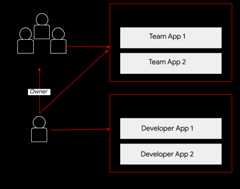
As shown in the figure, Developer A is able to access the developer apps thatthey have created. In addition, as a member of Team A, Developer A sharesresponsibility for the apps owned by the team. As an Owner, Developer A has fullread and write privileges for developer team members, developer team details,and apps.
Note: The maximum number of developer teams that a user can be a member of is64.How do I create a team?
As an API provider, you do not create a team. Portal users create and manageteams on your portal, as described inSharing responsibility for an app using developer teams (Preview).
You can view team details and membership, assign a team to an audience, andapprove or revoke team access to an app, as described in the following sections.
Exploring the Teams page
The Teams page lists the developer teams created by portal users for a developerprogram.
To access the developer Teams page:
Display the list of portals:
In the Apigee in Cloud console, go to theDistribution > Portals page.
Click the row of the portal for which you want to view teams.
ClickAccounts.
Click theTeams tab.
Viewing developer team details
To view developer team details:
- Access the Teams page.
- Click the team for which you want to view details.
The Team page is displayed.
The Team details page lists the following details for the team:
- Team details such as name, description, main point of contact, and date created
- Team members
- Apps assigned to the team
- Audiences to which the team is assigned
From the Teams page, you can perform the following tasks:
Assigning a team to an audience
After a portal user creates a team on your portal, you may want to assign theteam to an audience to enable access to a set of specific resources. Forexample, you may want to allow access by the team to a set of Preview features.
To assign a team to an audience:
- Access the Teams page.
- Click the team for which you want to view details.
To assign the team to an audience:
- ClickEdit.
- Select an audience.Note: SeeAdding an audience if none are listed.
- ClickSave.
To remove a team from an audience:
- ClickEdit.
- Clear one or more checkboxes.
- ClickSave.
Approving or revoking team access to an app
To approve or revoke team access to an app:
- Access the Teams page.
- Click the team for which you want modify.
- Click theApp Name.
- ClickEdit.
- In theApp Status section, selectApproved orRevoked.
- ClickSave.
Viewing team membership by user
View the team membership for each portal user by viewing the user details, asdescribed inViewing user account details.
Except as otherwise noted, the content of this page is licensed under theCreative Commons Attribution 4.0 License, and code samples are licensed under theApache 2.0 License. For details, see theGoogle Developers Site Policies. Java is a registered trademark of Oracle and/or its affiliates.
Last updated 2025-12-17 UTC.